Connect Guests to WiFi Instantly - No Passwords Needed
A WiFi QR code turns your network login into a single scan. Guests point their camera, tap once, and they're online - no spelling out “is that a zero or an O?”, no password taped to the fridge. Design yours in seconds and print it anywhere.
Opens in Google Maps. Coordinates work too - "37.4224, -122.0841".
The code opens your business's "Write a review" form. Paste the Place ID, or a Google Maps link that carries one.
A UPI link carries no checksum, so a mistyped ID produces a code that scans perfectly and pays somebody else. Paste the ID from your payment app rather than typing it, and send yourself one rupee before printing.
Paste it exactly as copied. KoloQR does not assemble the payload - it encodes the one your bank issued, and checks it before you print it.
SVG, PNG, JPG • Max 2 MB
First month free
then $9/month
Dynamic QR Codes Are Coming
Change your link anytime, even after printing. See who scans, when and where.
- Edit without reprinting
- Scan analytics
- Bulk & custom domains
You're on the List
We'll email you once, when dynamic codes with scan analytics launch.
What Is a WiFi QR Code?
A WiFi QR code is a scannable image that stores your network name, password, and security type. When someone scans it with their phone camera, the device reads those credentials and offers to join the network with a single tap - no manual typing, and no extra app on iOS or Android.
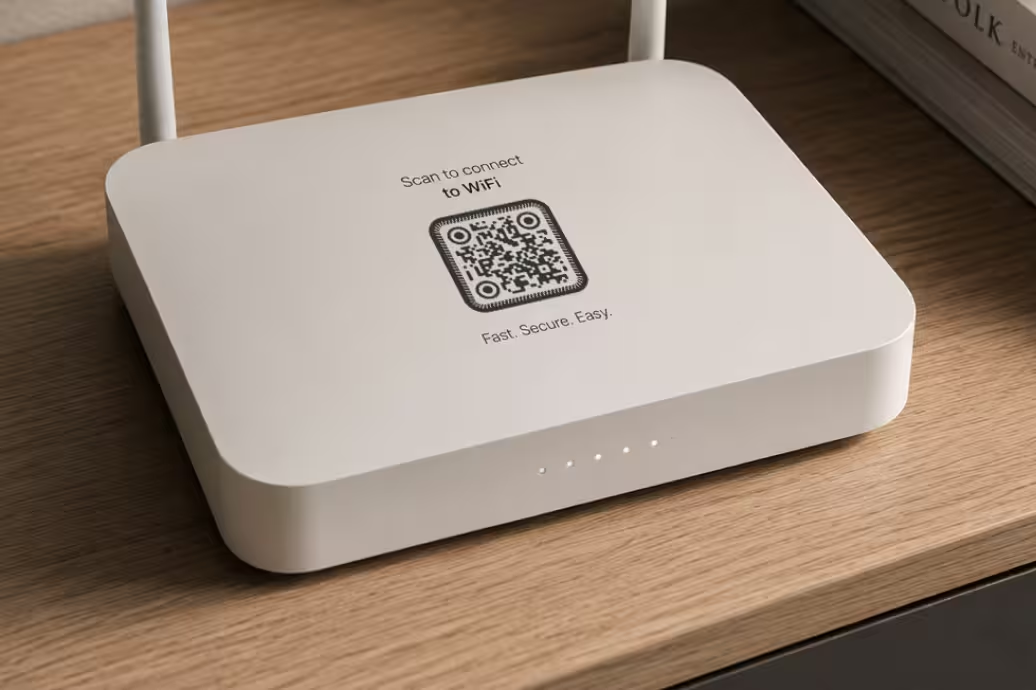
What Information Gets Encoded
A WiFi QR code contains three pieces of information:
- Network Name (SSID) - the name of your WiFi network.
- Password - the password required to join the network.
- Security Type - WPA2, WPA3, WEP, or Open.
The information is encoded directly into the QR code, so compatible devices can connect instantly after scanning. No app, internet connection, or online service is required.
How the Connection Works
When a phone camera reads the code, it decodes the embedded credentials and shows a one-tap prompt - “Join [Network Name]?” The guest taps Join, and they're connected. The whole process takes about three seconds. iPhones have handled WiFi codes in the native camera since iOS 11; most Android phones do it through the camera or Google Lens. An iPhone can also share its Wi-Fi password as a QR code straight from the Passwords app. No app to download, no keyboard, no typos. Like the other types of QR codes that carry their whole payload, nothing is fetched from a server - the credentials sit in the pattern itself.
Generate QR Code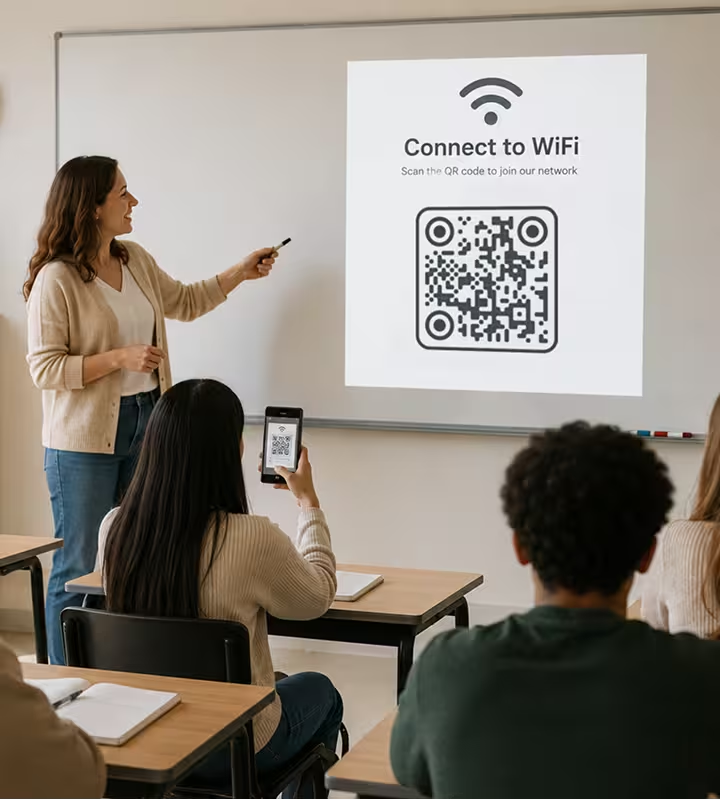
Real-World Examples
A WiFi QR code earns its place anywhere people ask for the password more than once. These are the spots where it saves the most time.
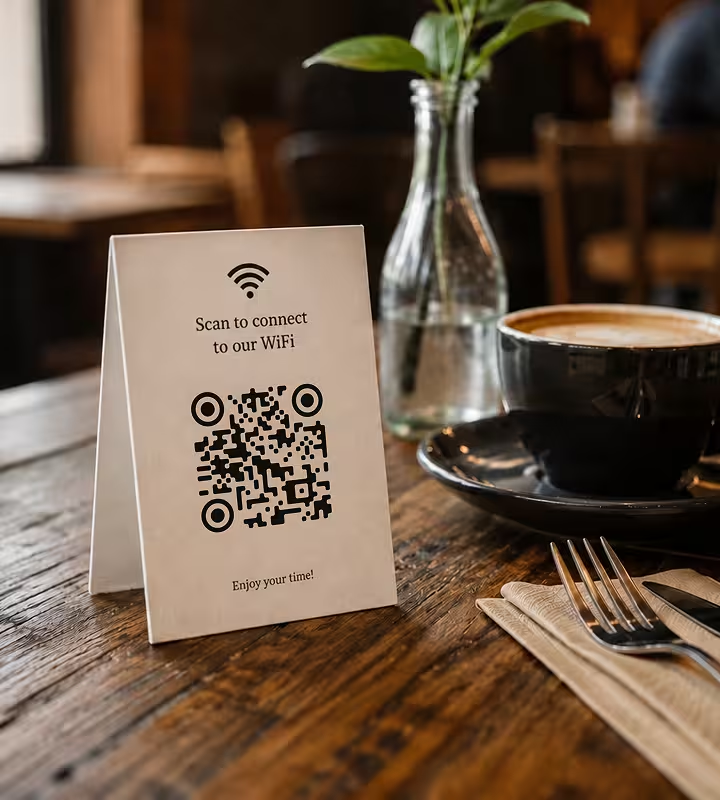
Cafés, Restaurants, and Bars
A table card with the WiFi QR code is one of the most common uses - and for good reason. Staff stop repeating the password, customers don't have to ask, and the connection feels polished instead of clunky. Print the code on a small card and add it to the back of your menu. If you rotate the password, regenerate the code and reprint in a couple of minutes.
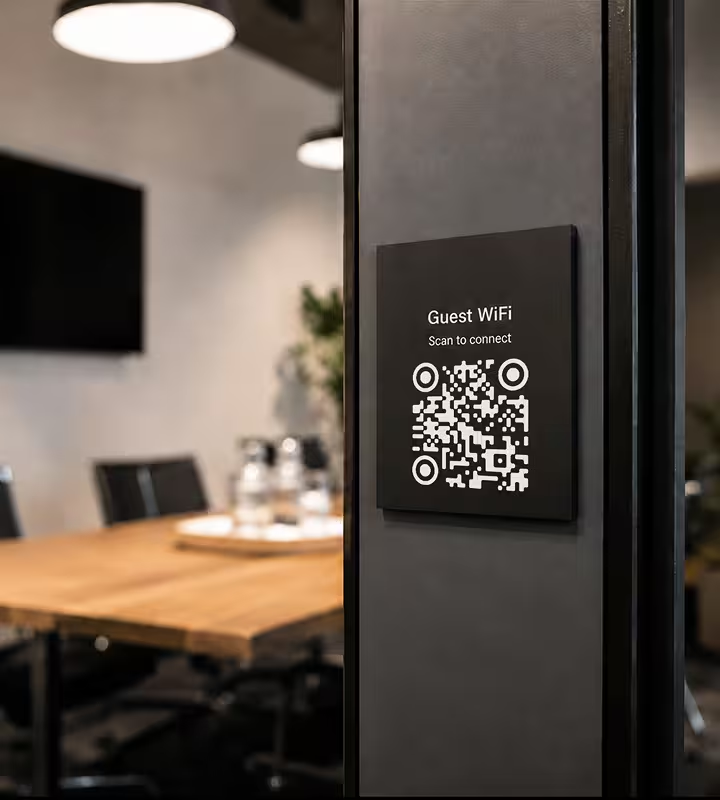
Hotels and Short-Term Rentals
Guests arrive tired and just want to get online. A framed WiFi QR code in the room or on the welcome card removes one more step from check-in and quietly signals “this place is put together.” For Airbnb hosts and boutique hotels, it's a small detail that lifts the first impression.
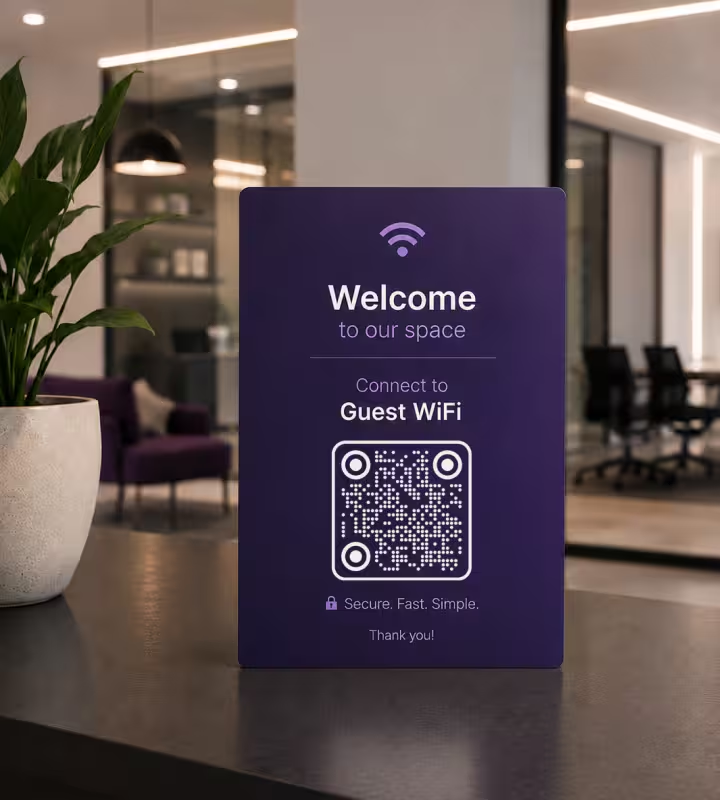
Offices and Coworking Spaces
Guest WiFi passwords in offices change often for security. Instead of emailing new credentials or updating a whiteboard, regenerate the code and swap it out. Visitors scan it at the front desk or in the meeting room and connect - no IT ticket required.
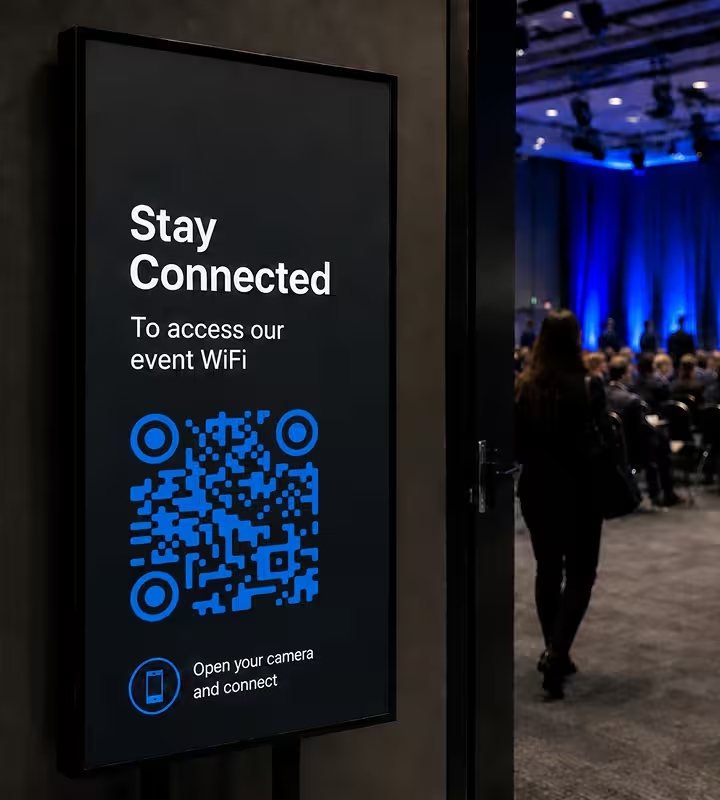
Events and Conferences
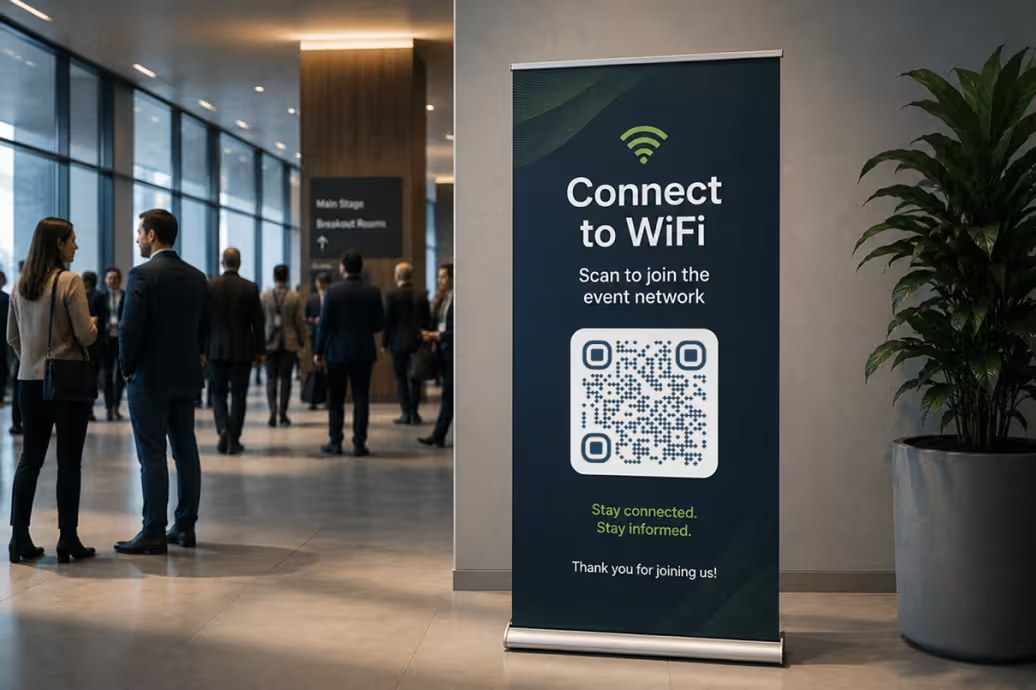
Attendees want to be online the second they sit down. A WiFi QR code on the badge, the program, or a projected slide gets a full room connected in seconds - right when reliable WiFi matters most.
How to Create a WiFi QR Code With KoloQR
Create a custom WiFi QR code in seconds. Let guests connect without typing a password.
Generate QR Code- 1
Open the QR Code Generator
Go to KoloQR's free QR code generator and pick the WiFi type from the menu. No signup and no download - everything runs in your browser.
- 2
Enter Your Network Details
Add your network name (SSID), password, and security type (WPA/WPA2/WPA3, WEP, or open). KoloQR encodes them directly into the code, so guests connect with a single scan instead of typing anything.
- 3
Customize the Design
Match the code to your space or brand. Choose your own colors, add a logo to the center, or switch to a circular style. Built-in error correction keeps the code scannable even with a logo on top.
- 4
Export
Download in the format you need: PNG for screens and digital use, or SVG for print. SVG scales to any size without losing quality - ideal for framed signs and table cards.
Choosing the Right Export Format
Choose the format that matches your use case:
- PNG for digital content, websites, presentations, and social media.
- SVG for printing at any size with maximum quality.
- High-Resolution PNG for printed materials when a raster image is required.
If you're unsure, SVG is usually the best option for print, while PNG is the easiest choice for digital use.
Generate QR CodeWiFi QR Code Best Practices
A few habits make a WiFi QR code that looks sharp, scans on the first try, and keeps your network secure.
Keep Strong Contrast
Use a dark code on a light background wherever possible. Avoid inverted (light-on-dark) codes - some scanners struggle with them.
Size It for the Scan Distance
A good rule of thumb: the code should be about 1/10th of the scanning distance. A card scanned at arm's length works small; a wall sign read from across a room needs to be larger.
Protect Your Main Network
For anywhere the public can see the code - a café, a rental, a lobby - connect it to a guest network, not your primary one.
Regenerate When the Password Changes
Whenever you rotate the WiFi password or SSID, generate a fresh code and replace the old one so visitors can still connect.
Leave a Quiet Zone
Keep empty space around the code. Crowding text, logos, or graphics up to the edges hurts scanning reliability.
Test Before You Print
Scan the final file with both an iPhone and an Android device before sending it to print. Confirm it connects to the correct network without errors.
Place It Where People Look
Table cards, reception desks, menus, and room doors all work. Guests scan what they can see.
Mind the Surroundings
Matte surfaces beat glossy ones - glare and reflections make codes hard to read. Good lighting and a flat, uncreased surface help every scan.
Why Your WiFi QR Code Isn't Working
Four faults account for almost every WiFi code that fails. Find the symptom and the fix is usually a minute's work.
The Code Scans but the Phone Won't Join
- Cause
- The security type in the code doesn't match what the router runs - a code built for WPA2 against a network that has since moved to WPA3. The phone reads the credentials, offers to connect, then fails at the handshake.
- Fix
- Check the encryption your router reports in its admin panel, regenerate with that exact type, and test on one iPhone and one Android before you print.
A Password With Symbols Won't Connect
- Cause
- The WiFi format uses backslash, semicolon, comma, colon, and quote as its own delimiters, so a password containing one of them ends the field early unless it is escaped.
- Fix
- Paste the password exactly as it is - KoloQR escapes those five characters for you. It is hand-assembled codes that break here, not generated ones.
Only Some Guests Can Find the Network
- Cause
- The network is hidden. Joining a hidden network from a scan needs the code to carry a flag saying so, and KoloQR builds standard codes without it.
- Fix
- Broadcast the SSID on your guest network - hiding it adds little real security and costs you every scan. If it has to stay hidden, print the name and password so guests can add it by hand.
It Worked Last Month and Stopped
- Cause
- A static code carries the credentials inside the image. Rotating the password or renaming the network leaves every printed copy pointing at credentials that no longer exist.
- Fix
- Regenerate and swap the printed copies whenever the password changes. Keep the exported SVG so a reprint is a two-minute job rather than a redesign.
Still not sure whether the fault is the file or the print? Drop the exported image into the QR code scanner - if it decodes on a desktop and not on paper, the fault entered after the file.
Questions? Answered
Open your phone's camera and point it at the WiFi QR code. A prompt appears asking to join the network - tap it, and you're connected. On iPhone this works in the native camera; on most Android phones it works through the camera or Google Lens.
No. Any modern iPhone or Android phone reads WiFi QR codes with the built-in camera. There's nothing to download for you or your guests.
The code contains your network password, so treat it like the password itself. For public spaces, point it at a guest network rather than your primary one. Anyone who scans it can join, so display it only where you're comfortable letting people connect.
Yes. A WiFi QR code stores a fixed password, so it stops working the moment you change it. Just regenerate the code with the new password and replace the printed version.
Yes. KoloQR lets you drop a logo in the center and set your own colors. Built-in error correction keeps the code readable even with a logo covering part of it.
Size it to the scanning distance - roughly 1/10th of how far away people will scan from. A table card is fine at about 2-3 cm; a wall sign read from across the room should be several times larger. Always test the printed size before a full run.
Pick the one your router uses - for most modern networks that's WPA/WPA2/WPA3. Choose WEP only for older equipment, and “open” only for networks with no password.
No. These are static codes - the credentials live in the image, not on a server. They don't expire, don't phone home, and aren't tracked. Once you've exported the file, it works forever, offline.
Keep Exploring
Pages that pick up where this one leaves off - the same setting, the same kind of code, or the next thing worth deciding.
Bars & Pubs
Drinks menus, rotating tap lists, Wi-Fi and gig calendars on codes that still scan in a dim room.
Coffee Shops
Menu, Wi-Fi, loyalty signup and review links on table tents, takeaway cups and window signs.
Google Review QR Code
Open your business's Google review form in one scan, with the stars ready to tap.
Tripadvisor QR Code
Send guests straight to your review form instead of asking them to search for you.
Feedback QR Code
Collect private comments from customers while the experience is still in front of them.
URL QR Code
Send anyone straight to a web page, landing page, or link with a single scan.
Why KoloQR?
- Create QR codes for websites, menus, Wi-Fi, PDFs, and business cards
- Customize colors, logos, and unique shapes
- Download high-quality PNG and SVG files
- Built for both print and digital
