QR Code Scanner
Drop in a picture of a QR code - a screenshot, a photo, an export - and read what it carries. The decoding happens in this tab, so the image never leaves your device.
Drop a QR code image here, or paste one
PNG, JPG, WebP or GIF
Decoded in your browser. The file is never uploaded, and nothing about it is stored or sent anywhere.
Reading a Code Is Not the Same as Trusting It
A QR code is a machine-readable string and nothing more. It carries no identity, no signature and no evidence of who printed it - which is exactly why reading one before your camera acts on it is worth the extra step.
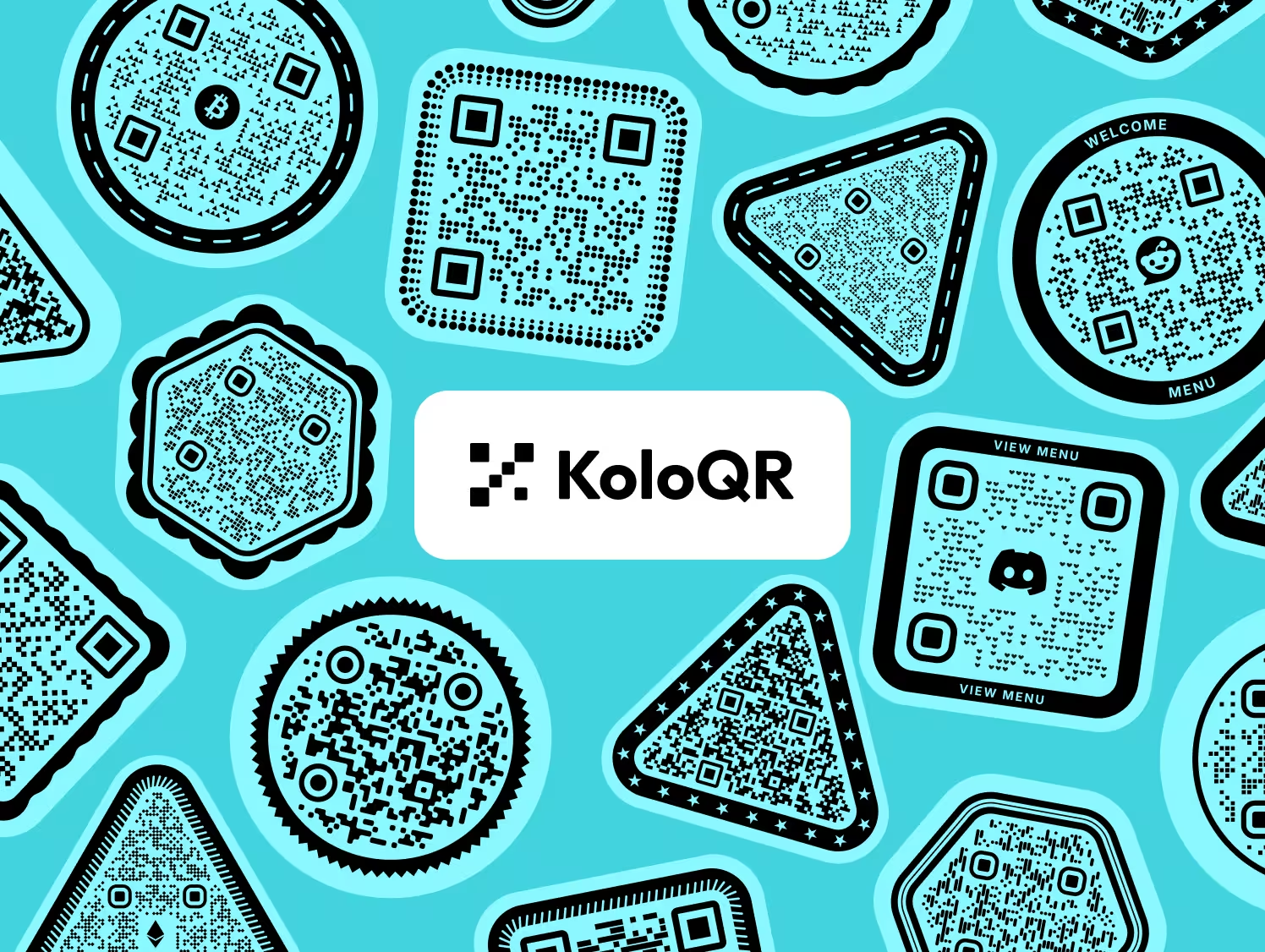
What the Decoder Returns
The decoder gives back the payload, the symbol version and the module count. It cannot tell you who created the code, when, or whether the sticker was placed over another one - none of that is stored in a QR code, and no scanner anywhere can recover it.
- A link is the most common payload, and the one worth reading in full before opening. A shortened link decodes to the short URL rather than to its destination, because the redirect only resolves when it is opened.
- Wi-Fi and contact cards arrive as structured text your phone would otherwise have acted on with a single tap.
- Plain text is exactly what it says and nothing more - no destination, no action, nothing to open.
Decoded on Your Device
The image is read in this browser tab. There is no upload, no server round trip and no copy kept: the file is drawn to a canvas, decoded, measured and forgotten when the tab closes.
That is the point rather than a detail. A code photographed off a stranger's sticker, a parking meter or an unexpected letter is not something to hand to somebody else's server, and with in-browser decoding you do not have to.
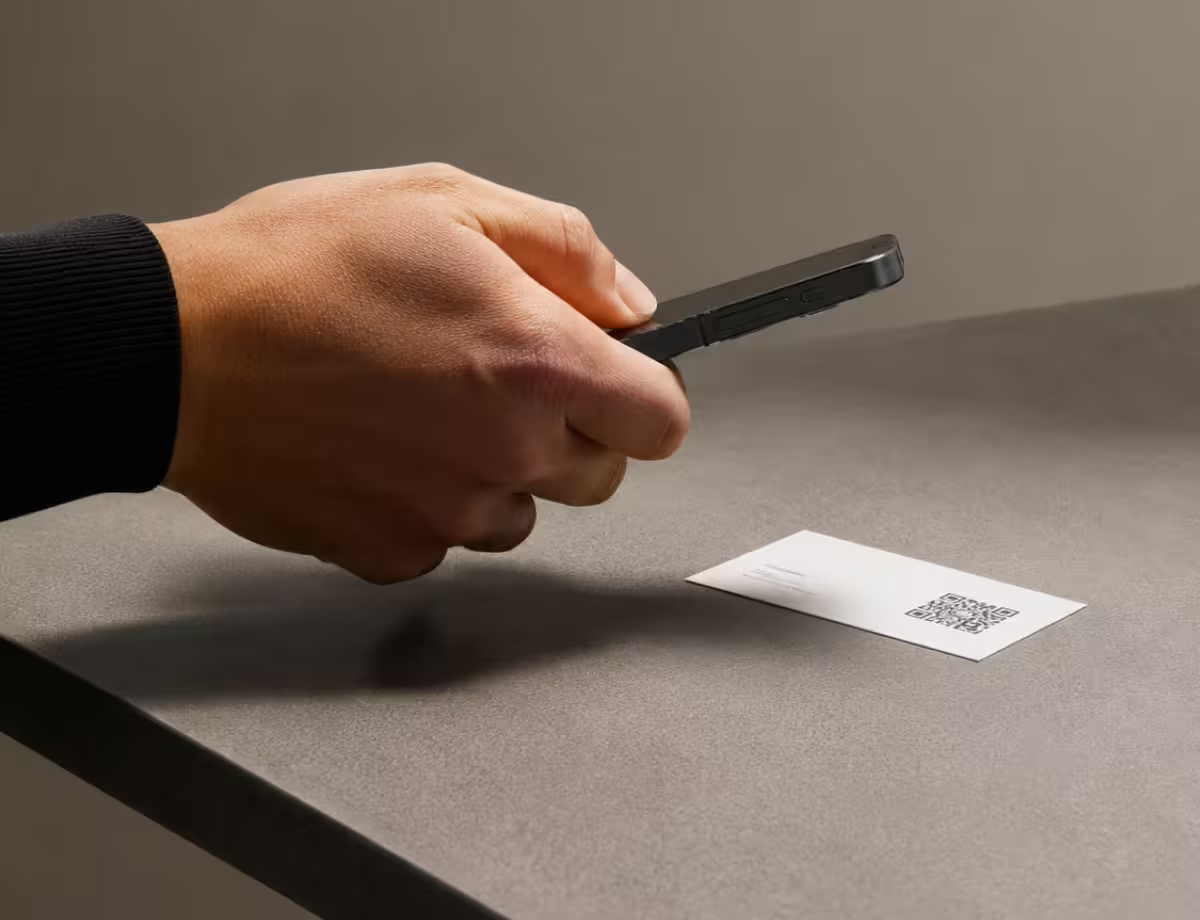
How to Read a QR Code From an Image
Four steps from a screenshot on your desk to the text inside it.
Generate a QR Code- 1
Drop the Image In
Drag the file onto the panel above, choose it from disk, or paste a screenshot straight from the clipboard. PNG, JPG, WebP and GIF all work; an SVG has to be exported to one of those first.
- 2
Read the Whole Payload
The full decoded string appears as text, including the parts a phone would hide. Read the domain first, then the path - a familiar brand name in the path means nothing if the domain is unfamiliar.
- 3
Check What Type It Is
A link, a Wi-Fi network, a contact card and a calendar event each ask your phone for something different. The type is labelled above so an action is never a surprise.
- 4
Look at the Scanability Score
The same four measurements the validator reports, weighted into one number: contrast, quiet zone, module size and error correction. It says how much margin the artwork has left.
When This Is the Tool You Want
The four situations that bring people to a QR code reader.
What Makes an Image Readable
Ten things that decide whether a decoder finds the symbol in your file at all.
Include the Margin in the Crop
Crop around the code, not into it. A decoder needs the light margin outside the symbol to know where the code ends - four modules is what the standard asks for, and two is where most readers start to struggle.
Keep the Camera Square On
A steep angle costs a decoder more than a little blur does. Photograph the code face on; perspective distortion stretches the module grid unevenly, and the correction has limits.
Avoid Glare and Reflections
A bright reflection across the symbol lifts dark modules towards white and closes the gap the decoder measures. Move slightly off the light source rather than turning the flash on.
Bigger Is Better
A code occupying 300 pixels decodes far more reliably than the same code at 60. Zoom in before screenshotting, and crop from a full-resolution photo rather than from a messaging app's compressed copy.
Screenshot Rather Than Photograph a Screen
Photographing a monitor adds moire, refresh banding and reflections that a screenshot has none of. Where the code is already on a screen, capture it directly.
Use PNG Rather Than a Compressed JPG
JPEG compression puts ringing artefacts along high-contrast edges, and a QR code is nothing but high-contrast edges. Screenshot to PNG where you get the choice.
Export SVG to a Raster First
A browser cannot rasterise an SVG without being told a size, so vector files have to be exported to PNG before they can be decoded. Any design tool or browser print-to-image will do it.
Include Only One Code in the Frame
The decoder reads a single symbol per image. Where a page carries several, crop to one at a time so the answer is unambiguous.
Read the Domain, Not the Brand Name
In a decoded link, the domain is everything before the first single slash after the scheme. Anything after it - a brand name, a familiar word, a plausible path - is chosen by whoever made the code.
Treat an Unexpected Code as Unverified
A code on a letter, a parking meter or a delivery note carries no signature. Reading the destination here is a check on the address, not a guarantee about the page it leads to.
Make Your Own Instead
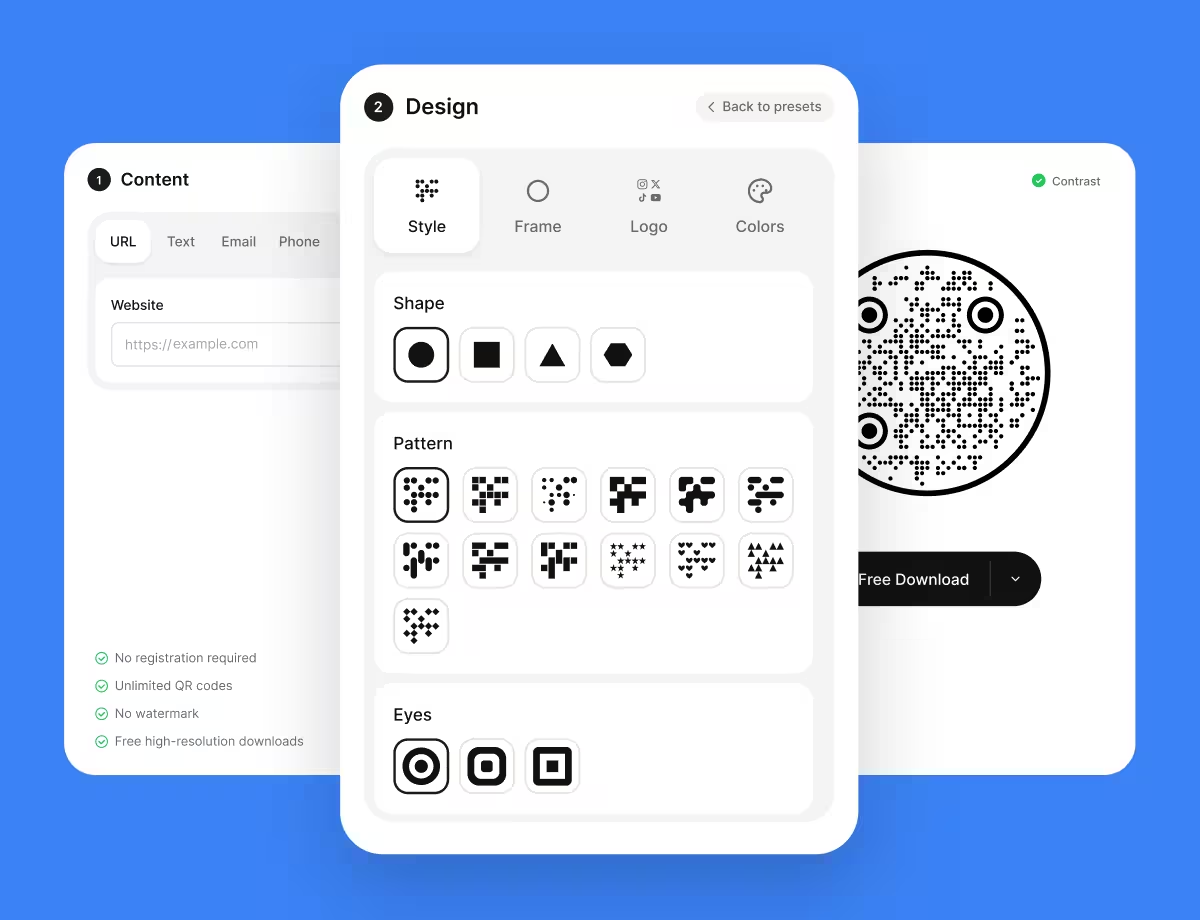
KoloQR, a free QR code generator with circular and custom-shaped QR codes, builds codes for links, Wi-Fi networks, contact details and social profiles - with colours and shapes that still scan.
No account, no watermark and no per-code charge. Codes are generated in your browser, so the destination is never sent to a server.
Generate a QR CodeQuestions? Answered
Yes. Drop a PNG, JPG, WebP or GIF onto the panel above, choose a file, or paste a screenshot from the clipboard, and the content appears as text. The decoding runs in this browser tab, so no second device and no phone camera is involved at any point.
No. The file is read into a canvas element in this tab, decoded there, and discarded when the tab closes. There is no upload, no server round trip and no stored copy - which matters most for exactly the codes people want checked, the ones from an unknown source.
The usual causes, in order: the crop cut into the light margin around the code, the photo was taken at a steep angle, the modules are too few pixels across, or a reflection washed out part of the symbol. Try a straighter, sharper crop that includes the margin.
Yes. When the plain decode fails, a second pass fills the decorative shapes out to their full cells and reads the matrix underneath. A code that needs that pass is still valid - it has simply spent some of its margin on styling, which is worth knowing before it is printed.
Yes, by screenshotting the page first - the tool reads images rather than documents. Zoom the PDF in before capturing: a code screenshotted from a page-fit view is often only 40 or 50 pixels across, which is below what a decoder can resolve. The guide to scanning a QR code from an image has the pixel counts a screenshot needs.
No. It reads image files - screenshots, photos and exports - rather than a live camera feed, which means no camera permission is requested and nothing is captured in the background. To read a code on a physical object, photograph it with any camera and drop the picture in, or use one of the webcam routes in how to scan a QR code on a computer.
Decode the image here and read the full string it returns. The domain is everything up to the first single slash after https:// - read that part first, because everything after it was chosen by whoever generated the code and can be made to look like anything. How to spot a fake QR code covers the other warning signs.
Yes. A Wi-Fi QR code stores the network name, the security type and the password as plain text in the payload - there is no encryption in the format. The decoded content is shown in full, which is also a useful reminder of what a printed Wi-Fi code makes visible.
Only to load the page and its decoder. Once both are in the browser, decoding an image needs no network at all, and no request is made when a file is dropped in. Opening a decoded link, of course, is a separate action that does.
One number, out of 100, for how much margin the artwork has left, weighted from four measurements taken off the file: contrast, quiet zone, pixels per module and error-correction level. It is a margin rather than a probability - what settles a print job is a proof on the real stock.
The scanner answers what a code says and stops there. The QR code validator takes the same file and reports the five measurements behind the score - contrast, quiet zone, module size, symbol version and error correction - with a verdict on each. How to scan a QR code covers the other routes - the phone camera, a screenshot, and a code on the screen you are holding. For the structure of the symbol itself - version, error correction level, mask pattern and raw bytes - use the QR code decoder.
Keep Exploring
Pages that pick up where this one leaves off - the same setting, the same kind of code, or the next thing worth deciding.
How to Scan a QR Code With a Phone, a Screenshot, or a Second Device
The camera does it on both platforms, but the awkward cases - a screenshot, a code on the phone you are holding, a login code - each need a different move.
How to Scan a QR Code on an iPhone, From the Camera or From a Photo
Every built-in way an iPhone reads a QR code - the Camera app, the Code Scanner control, a saved photo, a code inside Safari - and the one setting that switches it off.
WhatsApp QR Code
Open a WhatsApp chat with your number in one scan, without anyone saving your contact first.
Facebook QR Code
Open your Facebook Page, group, or Messenger chat with one scan.
QR Code Decoder
Take a QR code apart: the payload and its fields, the version, error correction level, mask pattern, encoding modes and raw bytes - decoded in your browser.
QR Code Validator
Measure a code against what breaks in print: contrast, quiet zone, module size, symbol version and error correction.
Why KoloQR?
- Create QR codes for websites, menus, Wi-Fi, PDFs, and business cards
- Customize colors, logos, and unique shapes
- Download high-quality PNG and SVG files
- Built for both print and digital
