Hexagon QR Codes With a Clean Geometric Edge
A honeycomb-inspired take on the classic QR code - distinctive enough for modern, technical, and nature-led brands, and built to stay reliably scannable. Here is how the look works and how to make one that actually reads.
Opens in Google Maps. Coordinates work too - "37.4224, -122.0841".
The code opens your business's "Write a review" form. Paste the Place ID, or a Google Maps link that carries one.
A UPI link carries no checksum, so a mistyped ID produces a code that scans perfectly and pays somebody else. Paste the ID from your payment app rather than typing it, and send yourself one rupee before printing.
Paste it exactly as copied. KoloQR does not assemble the payload - it encodes the one your bank issued, and checks it before you print it.
SVG, PNG, JPG • Max 2 MB
First month free
then $9/month
Dynamic QR Codes Are Coming
Change your link anytime, even after printing. See who scans, when and where.
- Edit without reprinting
- Scan analytics
- Bulk & custom domains
You're on the List
We'll email you once, when dynamic codes with scan analytics launch.
What Is a Hexagon QR Code?
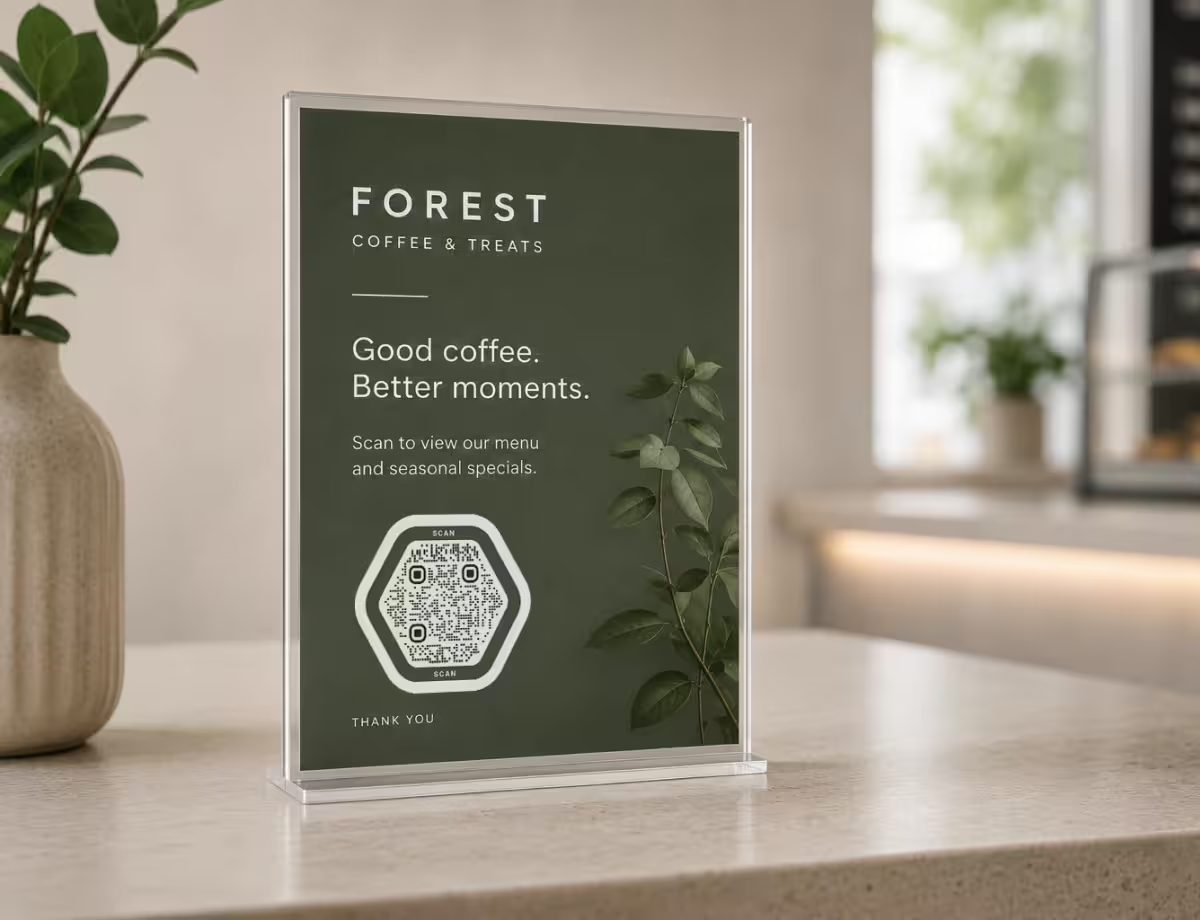
A hexagon QR code is a standard QR code styled with a honeycomb look - usually hexagonal modules or a six-sided frame around the scannable grid. The data itself still sits in a square matrix, so the code reads normally while looking far more geometric than a plain black-and-white square. Where six sides sit among the other shape families is laid out in QR code shapes. The other angular family is the triangle QR code, which pushes the same geometry further and asks for more printed width in return.
Where the Hexagon Shape Lives
The honeycomb effect comes from styling, not from rearranging the code. There are three places the six-sided theme usually shows up:
- Hexagonal Modules - the individual dots are drawn as hexagons instead of squares, giving the whole code a tight honeycomb texture.
- A Six-Sided Frame - a hexagon border wraps a normal square code, so the outline reads as a hexagon even from across a room.
- Themed Finder Patterns - the three corner squares can be softened or restyled to match, as long as their shape stays clear to a scanner.
Underneath the styling, the working part of every QR code is still a square grid with three corner markers and a clear margin. That structure is what phones actually read, so the goal with a hexagon design is to decorate the grid without blurring it.
Design It So It Still Scans
A hexagon QR code only earns its look if people can actually use it. Keep dark modules on a light background, leave the margin clear, and test the final version before it goes to print. Done well, the honeycomb styling reads as intentional branding rather than a gimmick.
Generate QR Code
Where Hexagon QR Codes Fit
The honeycomb look leans geometric and technical, so it suits brands that want to feel modern, structured, or nature-inspired. A few places it works well:

Tech and SaaS
Product packaging, pitch decks, and event booths where a clean geometric code matches a modern brand system.
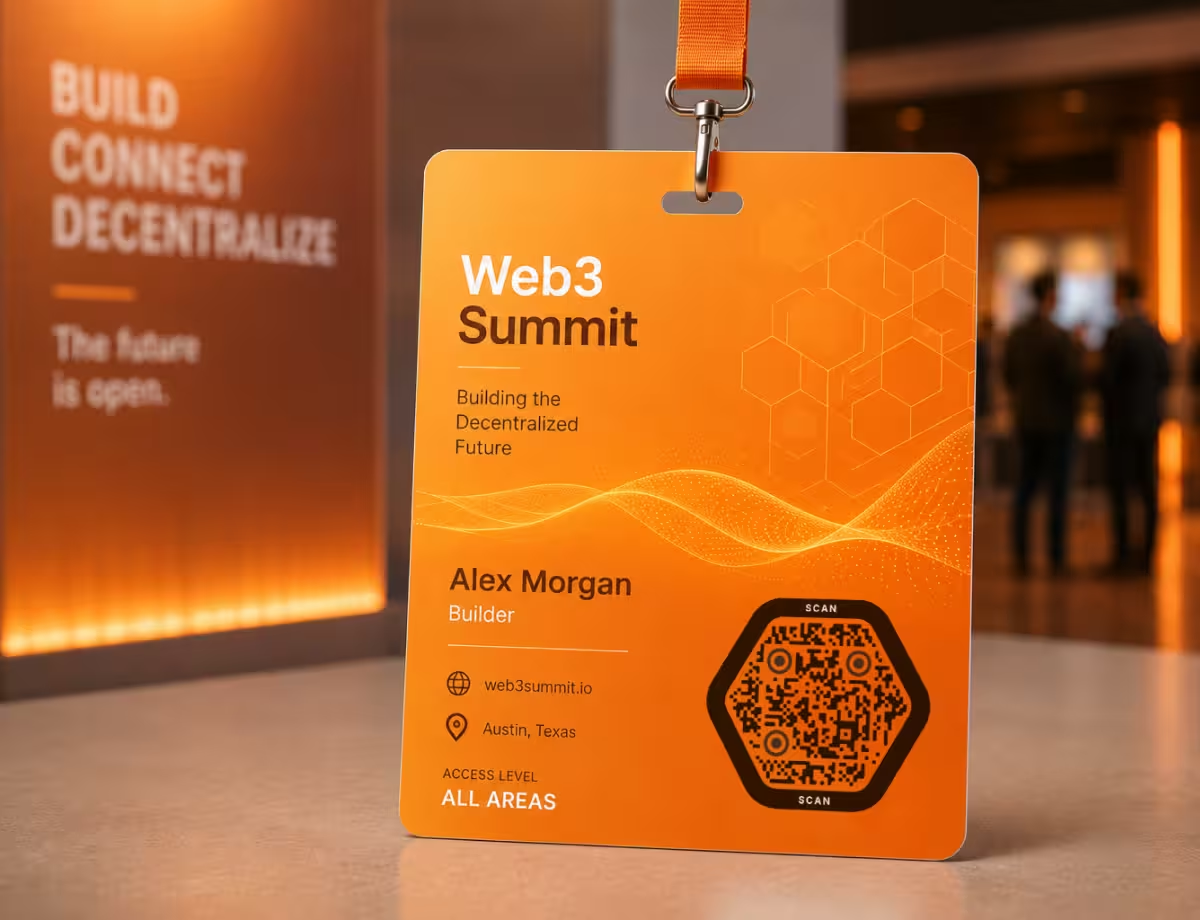
Crypto and Web3
Wallet links, mint pages, and conference badges that want a distinctly digital, blockchain-adjacent feel.
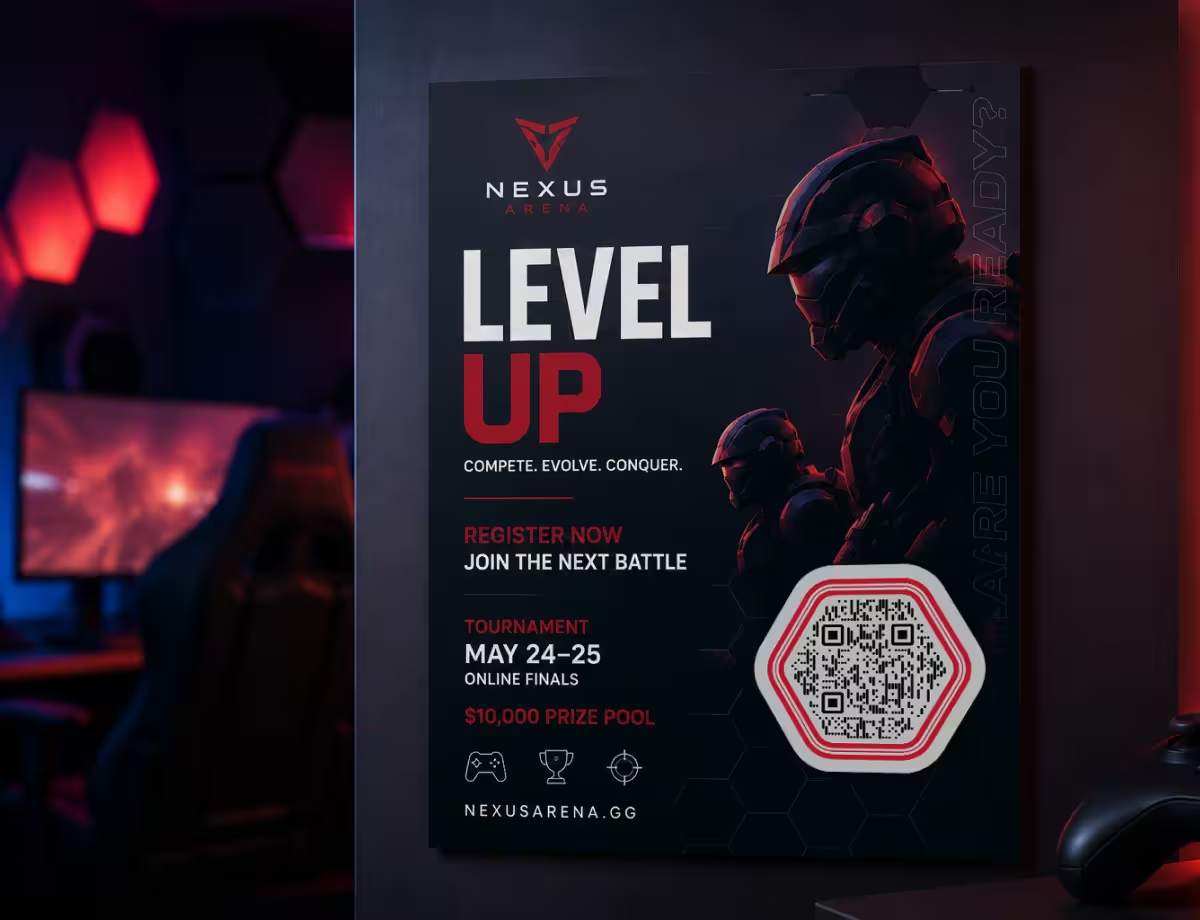
Gaming and Esports
Posters, merch, and stream overlays where a sharp hexagonal grid fits the visual language of games.
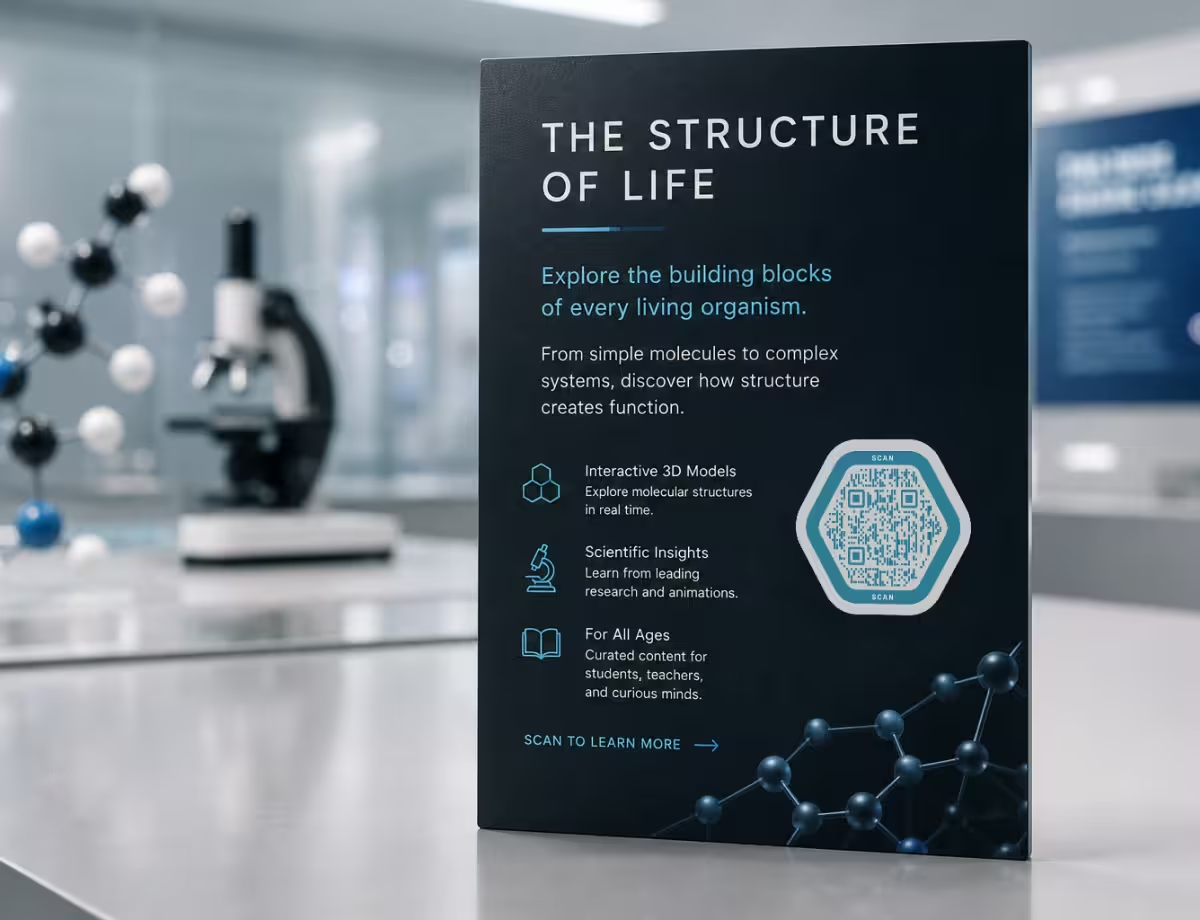
Science and Education
Museum labels, lab open days, and STEM materials where a molecular, honeycomb motif feels on-theme.

Sustainability and Eco Brands
Packaging and signage that lean on the beehive association to signal nature and efficiency.
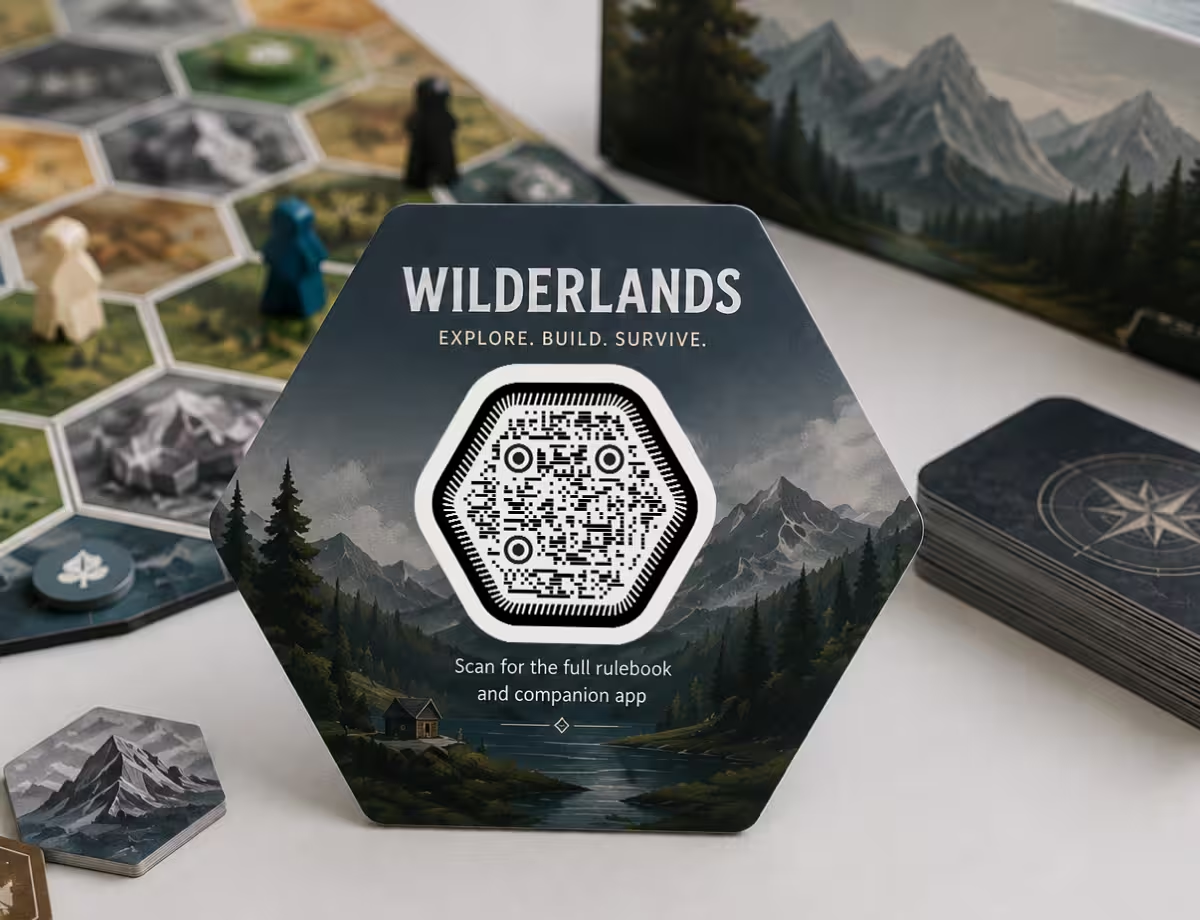
Board Games and Tabletop
Rulebook links and companion apps printed on components where hex tiles are already part of the design.
Best Practices for Scannable Hexagon Codes
Hexagon styling adds visual interest but also adds risk, because every change moves you a little further from the plain code a scanner expects. These habits keep the design safe, and they apply to the other creative QR code designs as well - worth trying a few shapes before settling on six sides.
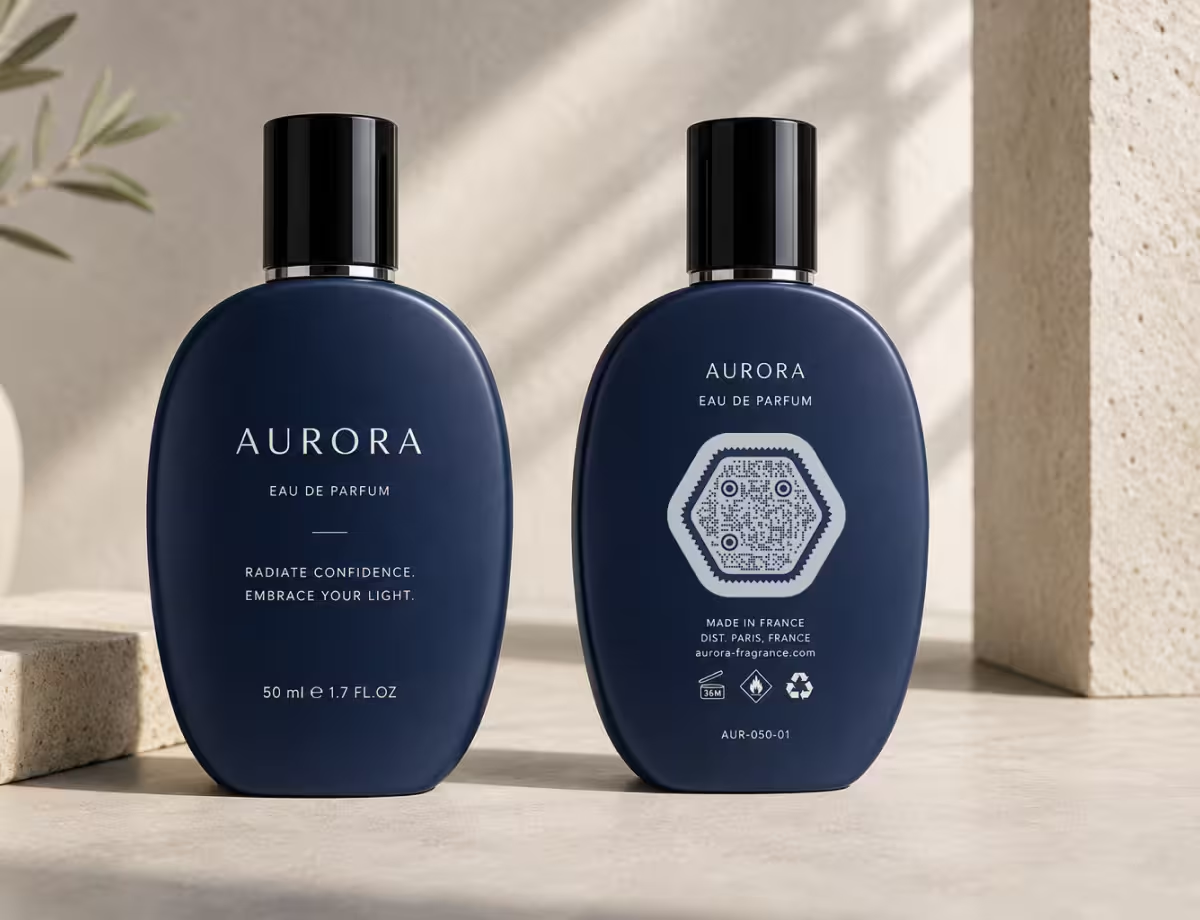
Keep the Honeycomb Scannable
The styling is only free while the underlying grid stays clean. These are the parts to protect.
- Keep Strong Contrast - use dark modules on a light background. Low contrast is the most common reason a stylized code fails, so avoid light-on-dark or similar-tone color pairs.
- Protect the Quiet Zone - leave a clear margin of empty space around the whole code. A hexagon frame is fine as long as it does not crowd that margin.
- Do Not Over-Shrink the Hexagons - if hexagonal modules are drawn too small or with wide gaps, the pattern loses definition. Keep them close to full size so the grid stays solid.
- Raise the Error Correction - higher error correction (level H recovers about 30 percent of the code) gives styling and logos more room before scans start to fail.
- Keep Finder Patterns Readable - the three corner squares are how a phone locks onto the code. Restyle them gently, but keep their square-in-square shape recognizable.
Tune, Test, and Print
Once the grid is safe, a few production habits carry the hexagon look from screen to a finished piece.
- Shorten the Data - a shorter link means fewer modules and a simpler grid, which leaves more slack for the hexagon look. Use a clean URL where you can.
- Size the Logo Carefully - a center logo should cover only a small part of the code. Combined with high error correction, that keeps the data intact.
- Export Vector for Print - use SVG or PDF for anything printed so the hexagon edges stay sharp at any scale.
- Test on Several Phones - scan the final code with different devices, camera apps, and lighting before you publish or print it.
- Check It at Real Size and Distance - a code that scans on screen may fail as a tiny sticker or a large wall poster. Test it at the size and range people will actually use.

Real-World Examples
Seeing the idea applied to real projects makes it easier to plan your own.
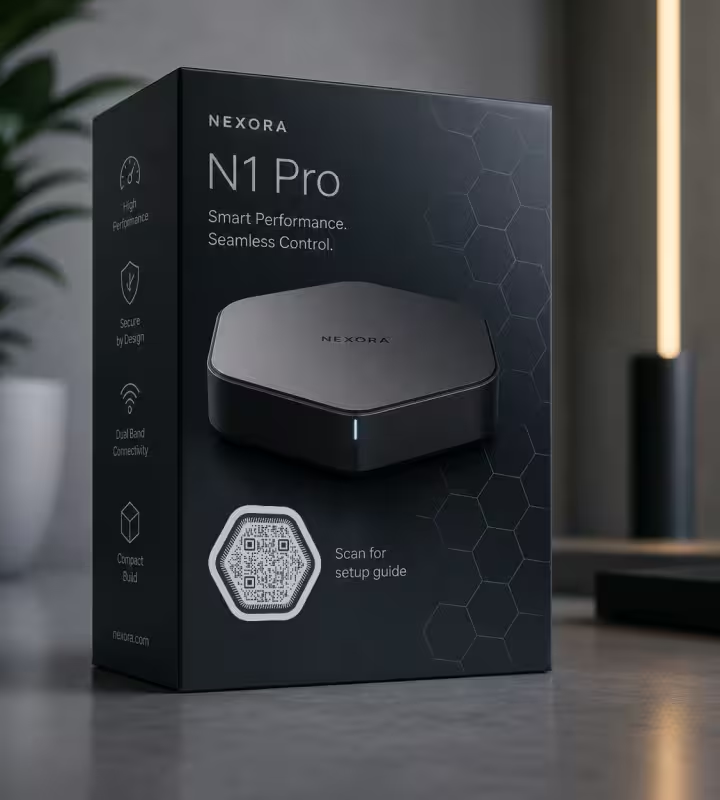
Tech Product Launch
Hexagonal modules on the box and launch page match a geometric brand system and open a setup guide or demo. The honeycomb texture reads as engineered rather than added on.
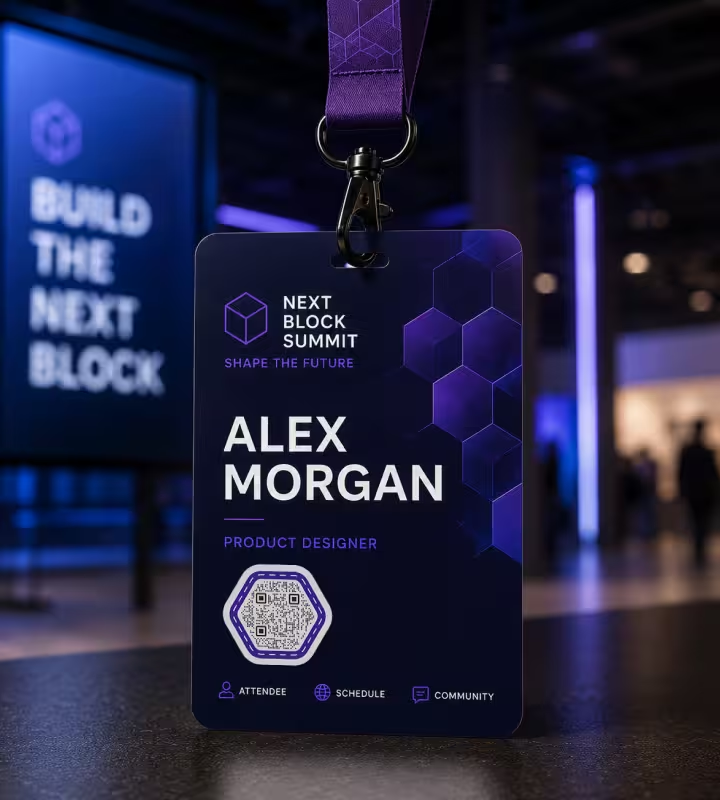
Web3 Conference Badge
A six-sided frame around a high-contrast code links to a wallet, mint page, or schedule. The shape signals something distinctly digital without hurting the scan.
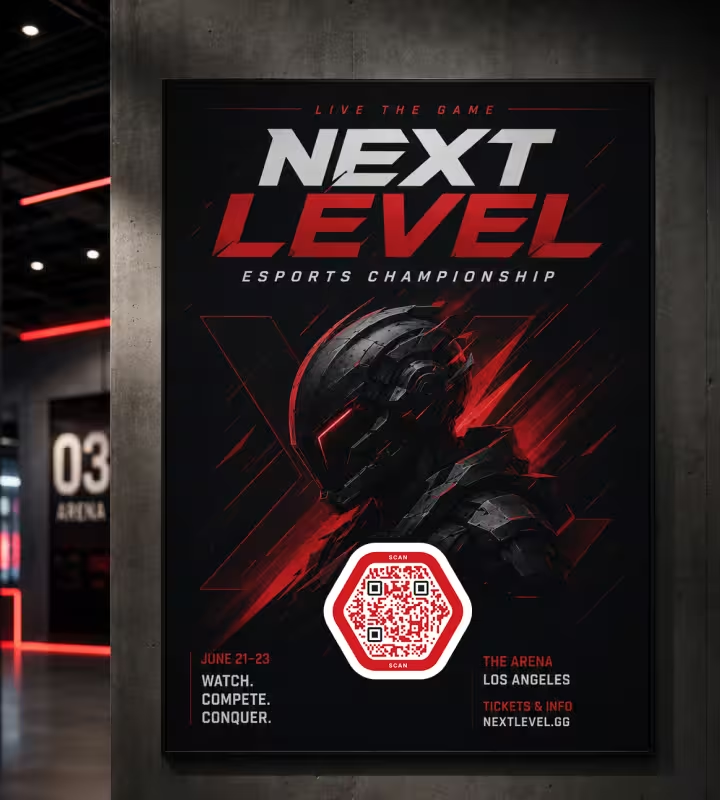
Esports Event Poster
A large hexagon code sized for the room pulls attendees to a bracket, stream, or merch drop, sitting naturally in the sharp, angular poster art.

Eco Packaging
On recycled packaging, a honeycomb code leans on the beehive association to signal nature and efficiency while linking to sourcing details or a recycling guide.
How to Make a Hexagon QR Code
You can go from a plain link to a print-ready hexagon code in a few minutes.
Generate QR Code- 1
Add Your Content
Paste the link, text, or details you want the code to open, then generate the base QR code.
- 2
Switch to a Hexagon Style
Set the module shape to hexagonal, or wrap the code in a six-sided frame, to build the honeycomb look.
- 3
Tune Colors and Add a Logo
Pick a dark foreground on a light background, match your brand palette, and drop a logo in the center if you want one.
- 4
Test and Export
Scan the preview with a couple of phones, then download an SVG for print or a PNG for screens.

Build the Honeycomb Look, Keep the Scan
You don't need a design tool to get the hexagon effect. Drop in your link, switch the modules to hexagonal or add a six-sided frame, and set a dark-on-light palette - the square grid underneath keeps the code readable while the styling carries the look.
KoloQR lets you style the modules, frame, colors, and logo in seconds, then export a print-ready SVG or PDF so those hexagon edges stay crisp at any size.
Generate QR CodeExport Formats for Hexagon Codes
Which file you export depends on where the code will live.
PNG
For screens, social posts, and quick sharing where a fixed pixel size is enough.
SVG
For print and large formats, because the hexagon edges stay crisp at any size. Hexagonal modules have more edges than plain squares, so a low-resolution PNG can smear them at small print sizes.
For handing artwork straight to a printer with the code sized and positioned exactly as intended.
Questions? Answered
Yes, as long as the styling stays within limits. The scannable data still sits in a normal square grid, so hexagonal modules or a hexagon frame read fine when you keep strong contrast, a clear margin, and readable corner patterns. Always test the final version before printing.
Yes. Only the shape of each module changes; the overall data grid stays square, with the three finder patterns in the corners. A hexagon silhouette usually comes from a decorative frame around that square grid, not from rearranging the data.
Not reliably. The QR standard needs a square matrix with corner markers to be scannable, so a genuinely six-sided data area will not read on normal phones. The practical way to get a hexagon look is hexagonal modules or a hexagon frame around a square code.
Yes. You can create and download a hexagon-styled QR code with KoloQR for free, including PNG and SVG exports, with no account required.
A dark foreground on a light background scans most reliably. You can use brand colors, but keep clear contrast between the modules and the background, and avoid pale codes or busy gradients that blur the pattern.
Yes. Place a small logo in the center and raise the error correction to level H so the code can recover the covered modules. Keep the logo well under the middle of the code and test the result.
The usual causes are weak contrast, too little margin, an oversized logo, or modules styled so heavily they blur together. Restore strong dark-on-light contrast, widen the quiet zone, shrink the logo, and re-test.
They can be if drawn too small or with large gaps, since that reduces how clearly each module reads. Kept close to full size with good contrast, hexagonal modules scan about as well as squares on modern phones.
Use a vector format like SVG or PDF for print. Hexagon edges carry more detail than plain squares, so vector files keep them sharp at any size, while a low-resolution PNG can smear them at small print sizes.
Match size to scanning distance. A rough rule is a code at least one-tenth of the distance people scan from, so a poster read from two meters wants a code around 20 cm. Test at the real size before the final print run.
The honeycomb look fits tech, crypto and web3, gaming, science, and sustainability brands, plus tabletop games that already use hex tiles. It signals something modern, structured, or nature-inspired without changing how the code works.
Keep Exploring
Pages that pick up where this one leaves off - the same setting, the same kind of code, or the next thing worth deciding.
QR Code Shapes
The whole shape taxonomy - modules, eyes and frames - with the trade-offs behind round, triangle, hexagon and square codes.
Triangle QR Codes
Angular, geometric QR designs - how triangular styling works and when to use it.
Dot QR Codes
Round modules instead of square ones - how large the dots have to stay, what we measured when they shrink, and where the softer look fits.
A Round QR Code Is a Square QR Code in a Costume
Shaped codes scan, because the shape never touches the data. What a shape actually costs is width: a triangular code needs a base about 2.6 times the width of the matrix inside it.
Etsy QR Code
Send a scan to your Etsy shop or to a single listing, from a tag or a stall sign.
Creative QR Codes
Design directions and real examples for QR codes that look intentional without giving up scan reliability.
Why KoloQR?
- Create QR codes for websites, menus, Wi-Fi, PDFs, and business cards
- Customize colors, logos, and unique shapes
- Download high-quality PNG and SVG files
- Built for both print and digital
