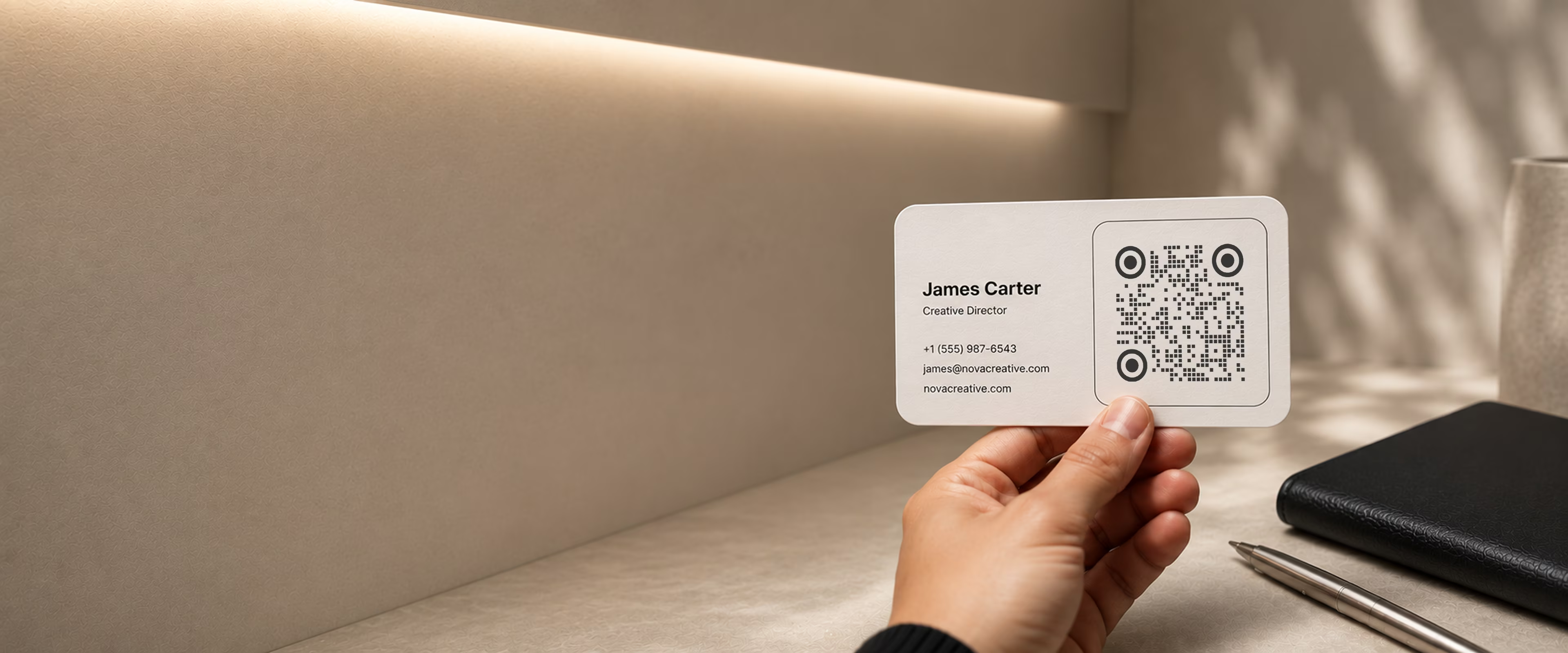
A QR Code Designed to Sit on the Card
A business card is handed over and held at arm's length, which makes the code a graphic element before it is a link. Choose the outline and the frame around it, set the module pattern and your palette, drop your logo in the center, and export a print-ready vector.
Generate QR Code- 56 frames, 12 module patterns
- Contrast checked as you design
- Print-ready SVG, PDF, and EPS
Why the Code's Design Belongs to the Card's
A card is the smallest thing you will hand anyone, and the code sits inside a layout that was decided on purpose. What it looks like is as much a decision as where it points.
It Is Seen Before It Is Scanned
At arm's length the code reads as a graphic. A default black square beside a considered layout looks like something that arrived afterwards, whatever it opens.
Fourteen Frames per Outline, 56 in All
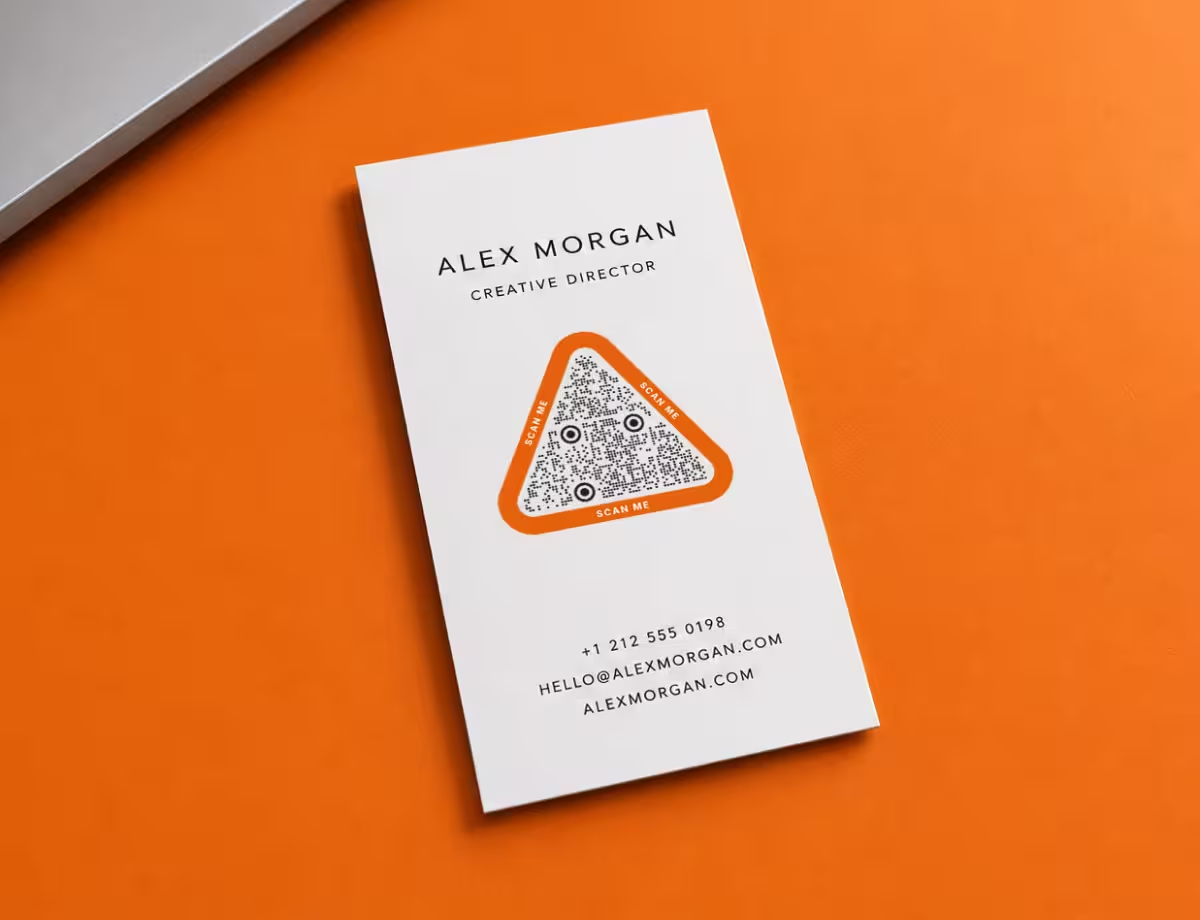
Square, circular, hexagonal, or triangular, each with fourteen frames around it - so the code can carry the card's own geometry instead of a generator's default.
Twelve Module Patterns and Two Corner Styles
Dots, bars, pills, diamonds, or plain squares, with rounded or circular finder eyes. The pattern is what makes two codes in the same color look like different designs.
Your Palette, Checked as You Set It
Apply brand colors to the code and its background with the contrast measured while you work, so a pale gold that will not survive 2 cm of print is caught before the run, not after it.
What You Need Before You Start
Creating the code takes a few minutes. Before you do, decide two things.
Something for the Code to Open
Your code needs a destination you control - your website, portfolio, LinkedIn profile, or a link-in-bio page - or a single detail such as your phone number or email address. Pick one clear action so the scan does exactly what people expect.
- Change the Colors - use your brand colors for the dots and the background.
- Add Your Logo - drop it into the center so people recognize it at a glance.
- Choose a Dot Style - rounded, circular, or classic square dots each give a different feel.
A Phone to Test the Scan
Before you print a batch, test the code on a real device. It takes 30 seconds and can save you from printing hundreds of cards with a broken or hard-to-scan code.
Generate QR Code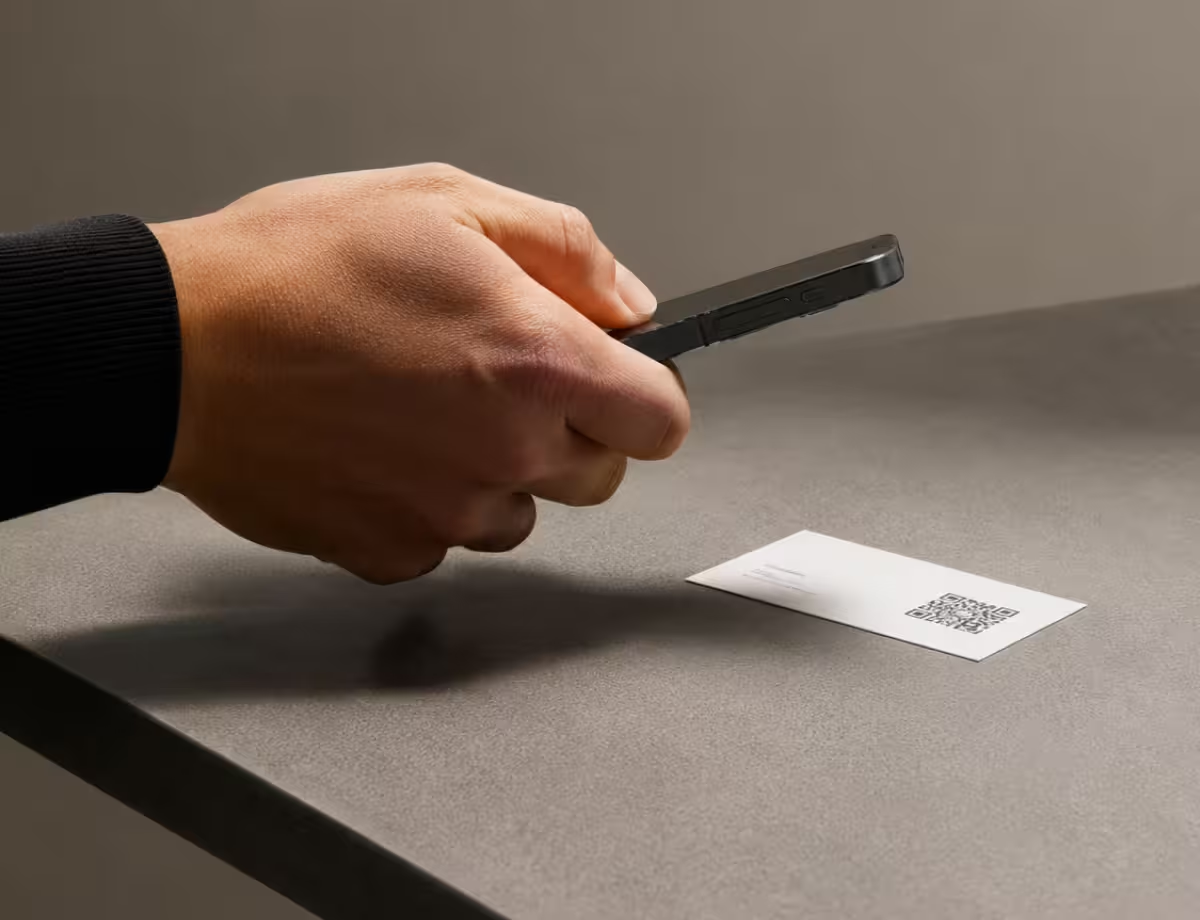
Design a QR Code for Your Card
Three decisions between a link and a print-ready file: what the code opens, what it looks like, and what the printer receives.
Generate QR Code- 1
Enter What the Code Opens
Paste the profile, portfolio, or booking link the code should open - or a phone number or email address when you want one specific action instead.
- 2
Choose the Outline, Frame, and Pattern
Pick the shape and one of its fourteen frames, set the module pattern and the corner eyes, apply your colors, and place your logo in the center.
- 3
Export a Print-Ready Vector
Download SVG, PDF, or EPS, place it in the card artwork at 2 cm or larger, and send it to print.
Where to Put a QR Code on Your Business Card
Where you place the code affects how many people actually scan it. A few placements work best.
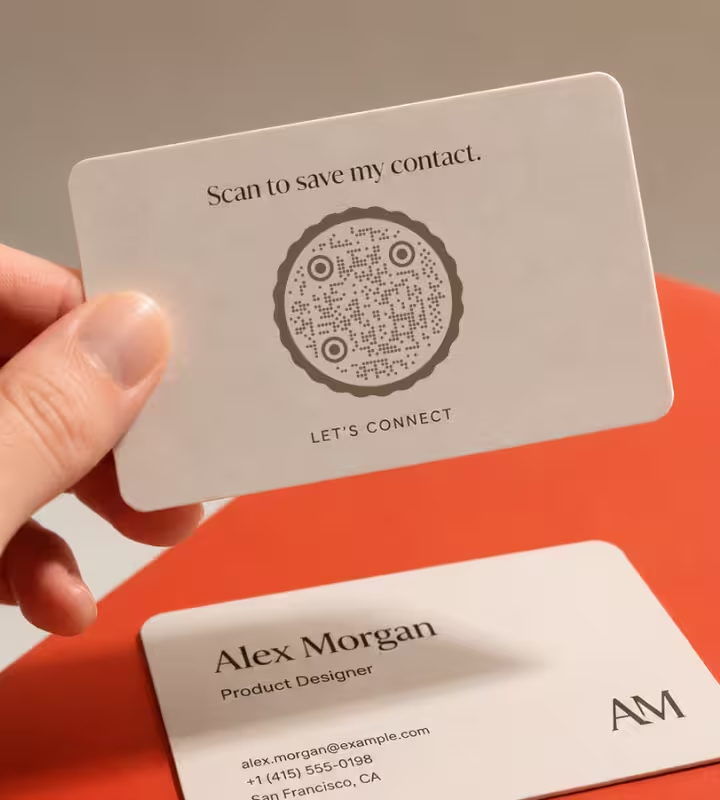
The Back of the Card
Keep the front clean for your name and role, and put the code on the reverse with a short prompt like “Scan to save my contact.”
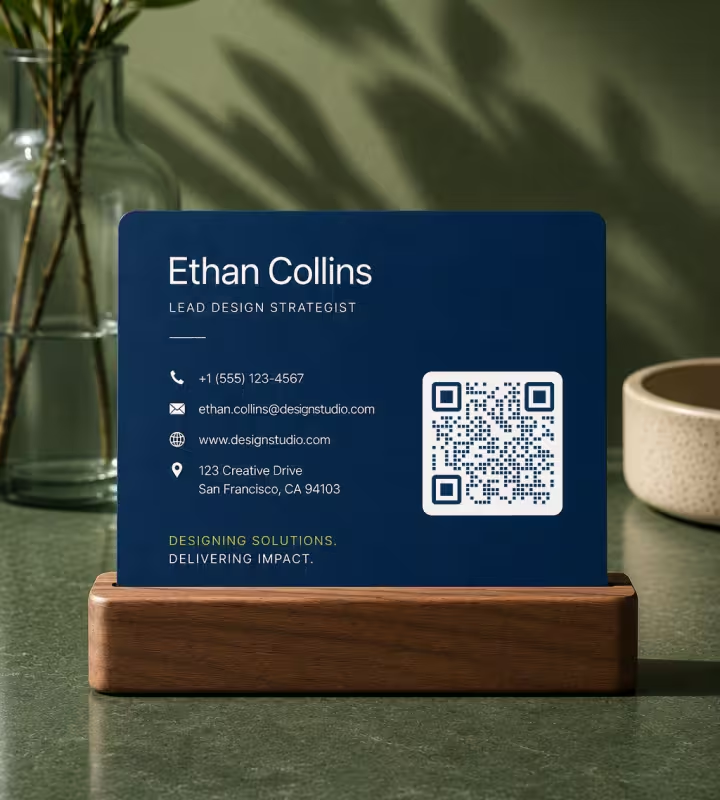
Beside Your Contact Details
Place it on the front next to your name and title so people connect the code with you at a glance.
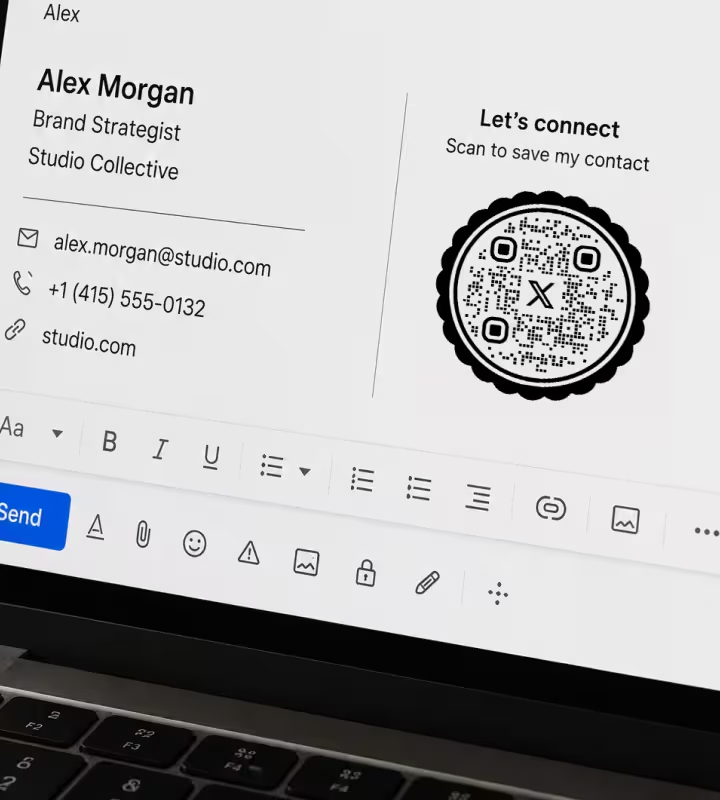
Your Email Signature and Slides
The same code works on screen, so add it to email signatures, presentations, and virtual backgrounds - not just printed cards.
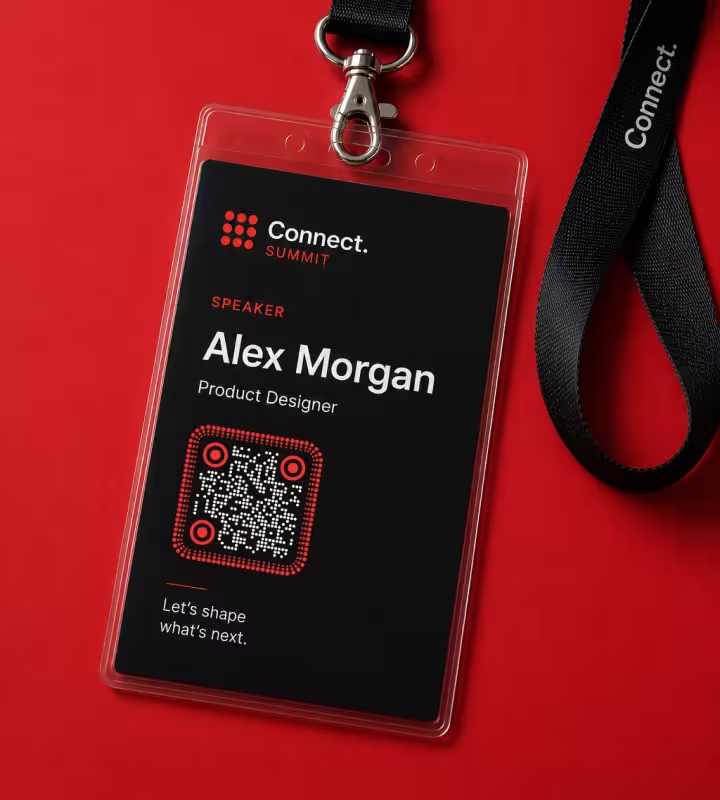
Name Badges and Lanyards
At conferences and events, a code on your badge lets people save your details without swapping paper cards.
Best Practices for Business Card QR Codes
Everything you need to know before printing and handing out a business card QR code.
Match Your Brand Colors
Use colors from your brand while keeping a strong contrast between the code and its background.
Add Your Logo to the Center
A centered logo makes the code recognizable without hurting scanning, when error correction is set correctly.
Use High-Contrast Colors
A dark code on a light card scans fastest and most reliably in any lighting.
Choose the Right Size
Print the code at least 2 × 2 cm (about 0.8 in) so it stays easy to scan on a small card.
Test Before Printing
Scan a proof on both iPhone and Android, at real distance, before running the full batch.
Add a Clear Call to Action
Tell people what happens: “Scan to save my contact” or “Scan for my portfolio.”
Keep the Destination Live
Make sure the linked page or profile stays online and up to date.
Use a Vector File
Export as SVG or PDF so the code prints crisp at any size.
Give the Code Quiet Space
Leave a clear margin around the code so nothing crowds or overlaps it.
Don't Overcomplicate the Design
Rounded shapes, brand colors, and a logo look great; avoid heavy effects that reduce reliability.
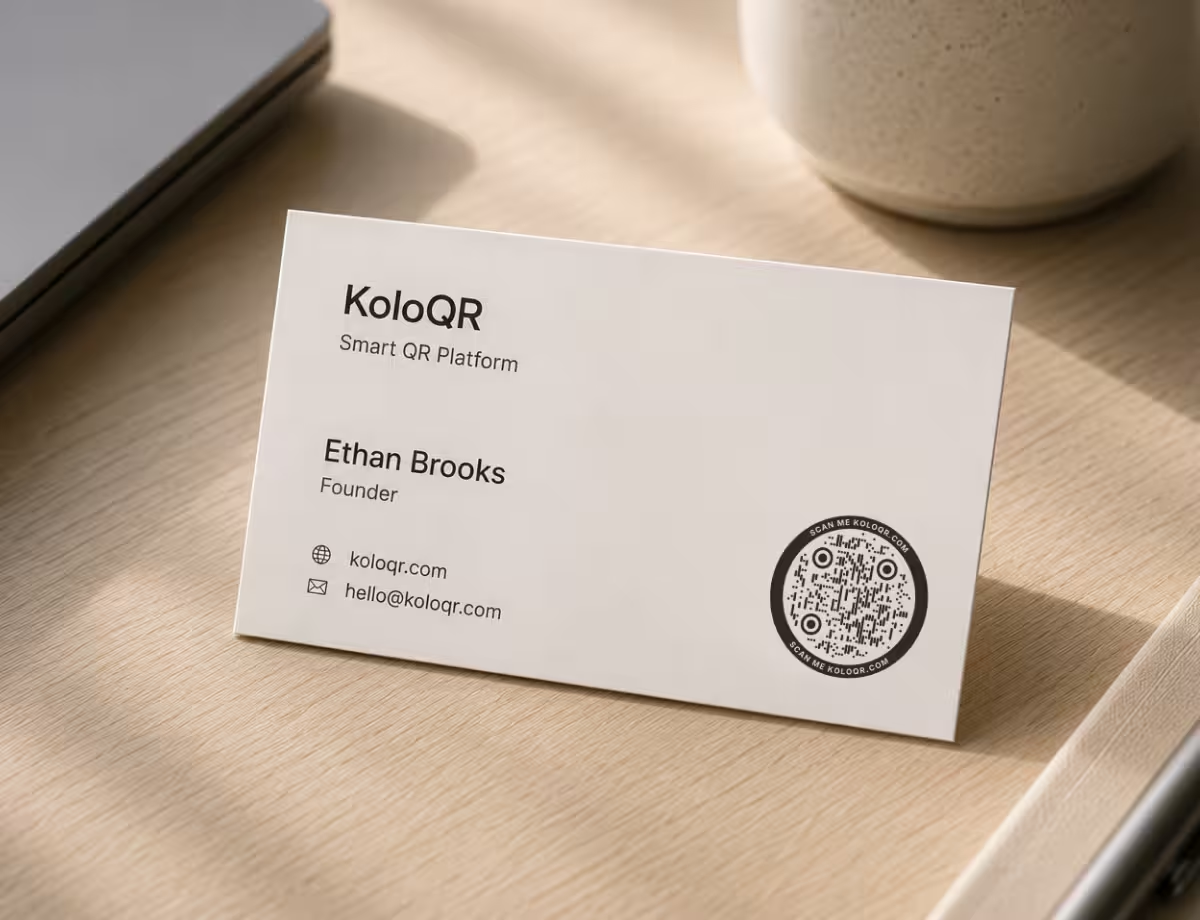
Ready to Design the Code on Your Card?
Enter the link, pick an outline and a frame, set the pattern and your colors, and export a vector the printer can use. No account, no watermark, and nothing to renew - the code is finished when the artwork is.
Generate QR CodeQuestions? Answered
Start from the card rather than from the code: take the geometry the layout already uses - the corner radius, the weight of the rules, the palette - and pick the outline, frame, module pattern, and corner eyes that echo it. KoloQR carries fourteen frames for each of its four outlines and twelve module patterns, and measures contrast while you work, so a brand color that stops scanning at card size is caught before the print run. Export SVG or PDF and place it in the artwork. Branded QR codes covers the same decisions on the surfaces a card leads to.
A business card QR code is a scannable code printed on your card that opens something when a phone camera scans it - usually your contact details as a saved contact, or a link to your website, portfolio, or booking page. It lets people reach you or save your information in one tap, without typing anything.
A single URL is the most useful destination - your website, LinkedIn, portfolio, or a link-in-bio page - because one page holds everything a card can't and stays editable after printing. A phone number or email code works when you want one specific action instead. Pick one clear destination so the scan does exactly what people expect.
A vCard QR code stores contact details inside the code itself, so scanning it adds you to someone's phone contacts instantly, even offline. A URL QR code points to a web page you control, which you can update later and where you can share much more - a portfolio, calendar, or social links. KoloQR builds URL, phone, email, text, Wi-Fi and social codes rather than vCards, so the usual setup here is a link to a profile page that holds the full details.
Yes. You can place your logo in the center of the code. QR codes use error correction to stay readable, so a logo covering a small central area won't stop it from scanning - just keep it modest and test the result before printing.
Use a vector format - SVG, PDF, or EPS - so the code stays perfectly sharp at small print sizes. Avoid low-resolution PNGs for print, since blurry edges make codes harder to scan. KoloQR exports vector files ready for your card designer or print shop. For the printed size and placement, see QR code on a business card.
Aim for at least 2 × 2 cm (about 0.8 in), with a small margin of blank space around it. That's large enough to scan quickly at arm's length while still fitting neatly on a standard card.
Only if you use a dynamic code, which points to a short link you can re-target later. A static code stores its destination permanently and can't be changed once printed. If your details or links change often, a dynamic code or a stable landing page you control is the safer choice.
Static codes never expire - the data lives inside the code, so it keeps working as long as the destination still exists. A code that encodes a phone number or email address has nothing to expire at all, since the details are stored in the pattern itself.
Yes, when it's built with enough contrast. Keep the code dark on a light background (or the reverse), leave the finder squares and quiet zone intact, and avoid busy gradients. KoloQR keeps these elements reliable, but always scan a printed proof on both iPhone and Android first.
Yes, it's free - no account or subscription - and no app is needed. Modern iPhone and Android cameras read QR codes directly, so anyone can scan your card straight away.
Keep Exploring
Pages that pick up where this one leaves off - the same setting, the same kind of code, or the next thing worth deciding.
Dental Practices
Booking links at the desk, review cards at the card machine, and recall mailers that still work months later.
Email QR Code
Let people email you in one scan, with the address, subject, and message ready to send.
Phone Number QR Code
Turn a phone number into a code that opens the dialer, ready to call in one tap.
Business Cards
85 x 55 mm leaves room for one code and nothing else - where it goes, how small it can get, and which finishes kill it.
Weddings
One code on the invitation, linking guests to your RSVP form, the schedule and directions, and a shared photo album afterwards.
Real Estate
Send passers-by straight to the photo gallery, floor plan and video tour from a for-sale board, window card or brochure.
Why KoloQR?
- Create QR codes for websites, menus, Wi-Fi, PDFs, and business cards
- Customize colors, logos, and unique shapes
- Download high-quality PNG and SVG files
- Built for both print and digital
