Make a LinkedIn QR Code Any Camera Can Read
Enter your public profile URL, style the code for your badge or business card, and download one that opens LinkedIn from any phone - not only from inside the LinkedIn app.
Opens in Google Maps. Coordinates work too - "37.4224, -122.0841".
The code opens your business's "Write a review" form. Paste the Place ID, or a Google Maps link that carries one.
A UPI link carries no checksum, so a mistyped ID produces a code that scans perfectly and pays somebody else. Paste the ID from your payment app rather than typing it, and send yourself one rupee before printing.
Paste it exactly as copied. KoloQR does not assemble the payload - it encodes the one your bank issued, and checks it before you print it.
SVG, PNG, JPG • Max 2 MB
First month free
then $9/month
Dynamic QR Codes Are Coming
Change your link anytime, even after printing. See who scans, when and where.
- Edit without reprinting
- Scan analytics
- Bulk & custom domains
You're on the List
We'll email you once, when dynamic codes with scan analytics launch.
What Is a LinkedIn QR Code?
A LinkedIn QR code is a QR code that stores the public web address of a LinkedIn profile or company page. Scanning it opens that page in the LinkedIn app if it is installed, or in a mobile browser if it isn't. The address is encoded in the pattern, so it works from any camera on any phone.
LinkedIn's Own Code Only Works Inside LinkedIn
LinkedIn has a built-in code, reached through the search bar in the mobile app, and it is the one social code with a hard limitation:
- What It Encodes - an internal LinkedIn identifier, not a web address. It means something to LinkedIn's own scanner and nothing to anything else.
- What a Phone Camera Does With It - either nothing at all, or it surfaces a string of characters that goes nowhere. The person scanning has no idea they did anything wrong.
- What That Rules Out - print. A conference badge, a business card, or a stand graphic is scanned by whoever walks past, using whatever is on their phone - which is the camera.
So LinkedIn's code is right for the exact situation it was built for: two people who both have the app open, standing together. A generated code holds the public linkedin.com URL instead, which any camera reads and any browser opens - and which you can print, brand, and scale. That is the whole difference, and it is why a badge should never carry the in-app one.
Fix Your Public URL Before You Encode It
A new LinkedIn profile is given a public address with a random suffix on the end - linkedin.com/in/jane-smith-8a4b21739 - and that suffix is doing real damage on two fronts. It is roughly fifteen extra characters, which pushes the QR symbol to a higher version and puts more, smaller modules in the same printed square; and it reads as unfinished to anyone who sees the URL written out beside the code. LinkedIn lets you change it: open your profile, choose Edit public profile & URL, and set a custom URL. linkedin.com/in/janesmith is about 26 characters against the default's 40, which is typically a whole symbol version saved. Do it before the print run, because the change breaks every code already printed against the old address. The same applies one level up: a company page can have a vanity URL too, and linkedin.com/company/yourfirm is what belongs on a stand graphic rather than a numeric page id.
Generate QR Code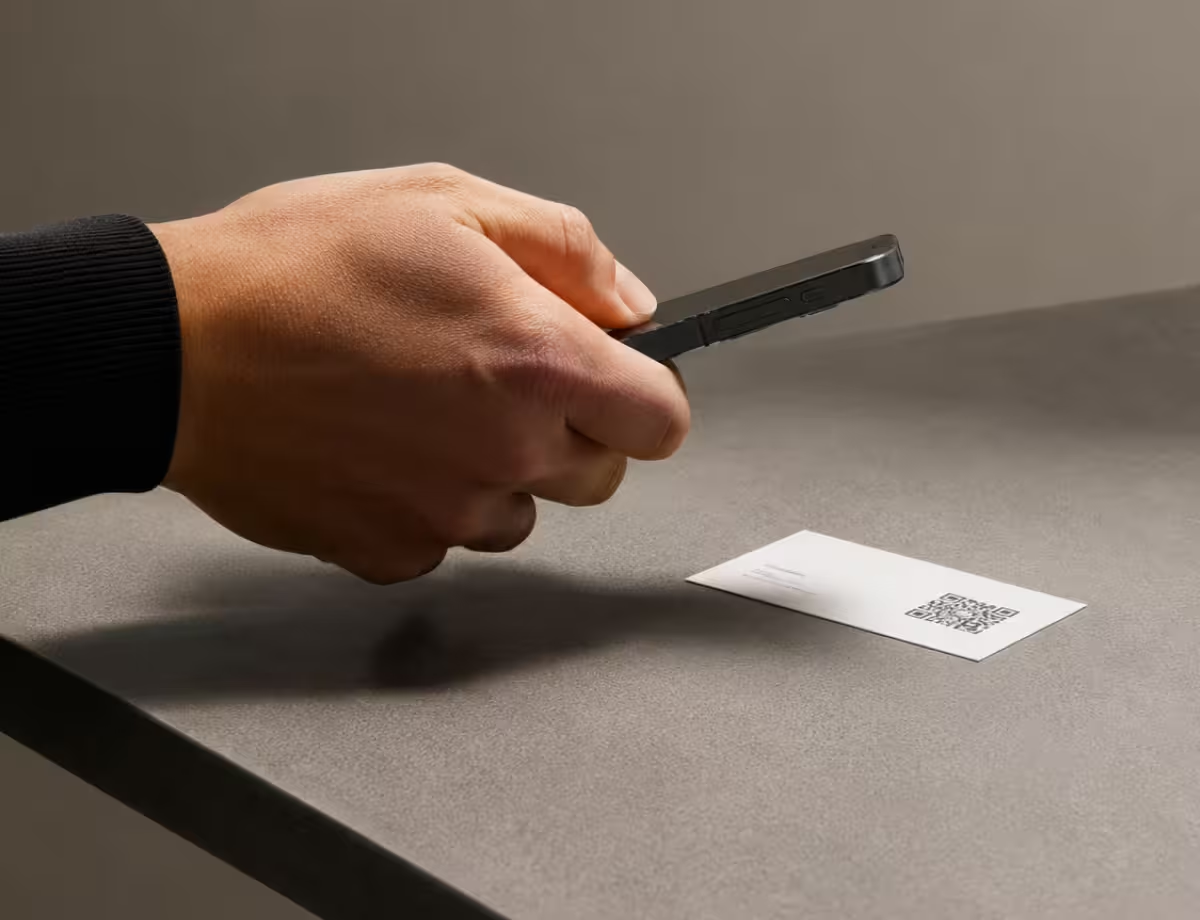
Where LinkedIn QR Codes Are Used
LinkedIn is where a professional introduction gets recorded, so the useful placements are the ones that catch the introduction as it happens:
Conference Badges and Lanyards
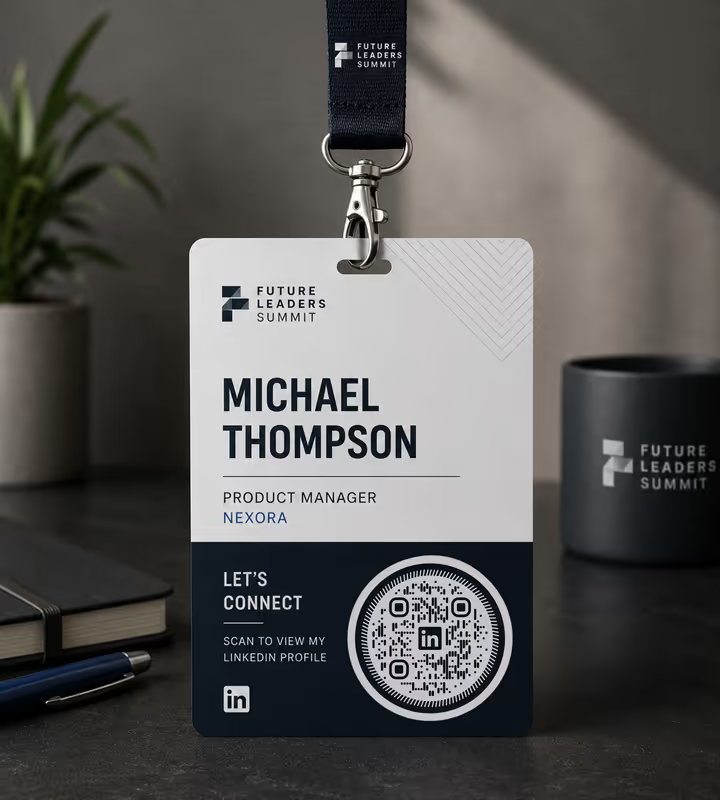
A code on the badge is faster than exchanging cards and survives the walk back to the hotel, which a stack of cards rarely does.
Business Cards
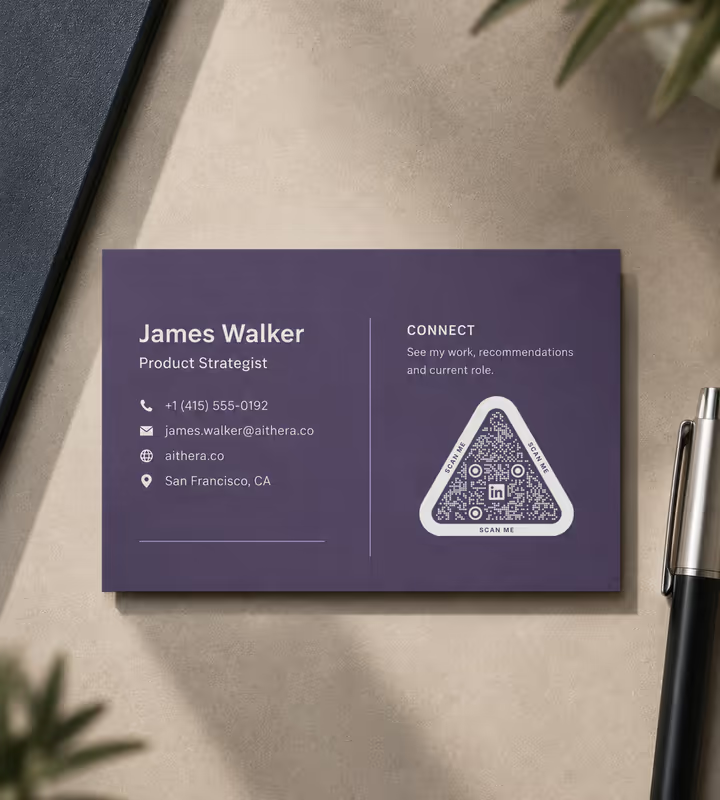
The card carries the phone number; the code carries the history, the recommendations and the current job title - which the card is wrong about within a year.

Trade Stand Graphics
A company page code on a pull-up banner gives a visitor something to do with the stand after they have walked past it.
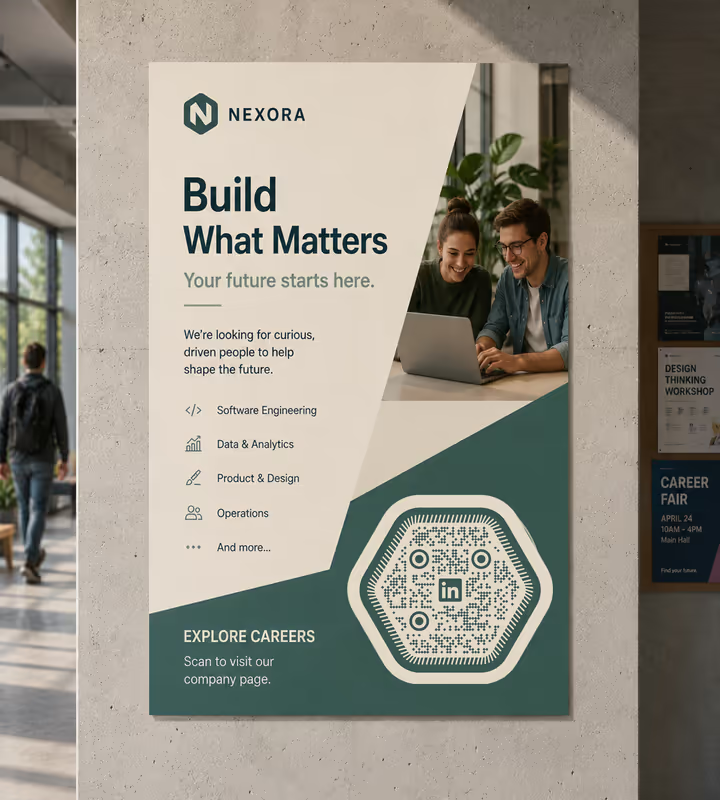
Recruitment and Careers Posters
Campus and office posters that point at the company page reach people who will not type a URL from a wall.
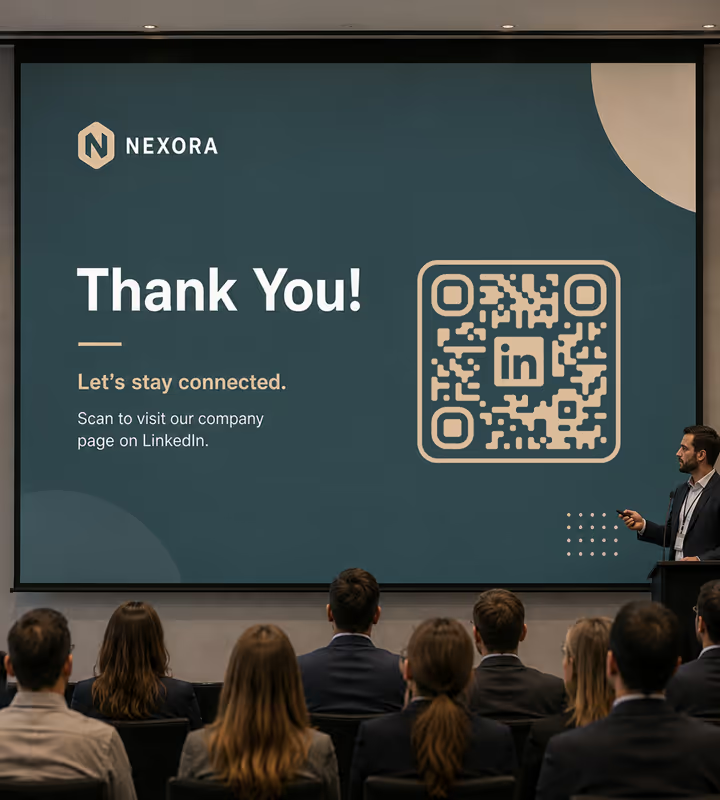
Speaker Slides and Session Boards
The last slide is the one moment a room full of people are willing to connect, and a code is the only thing that scales to a room.
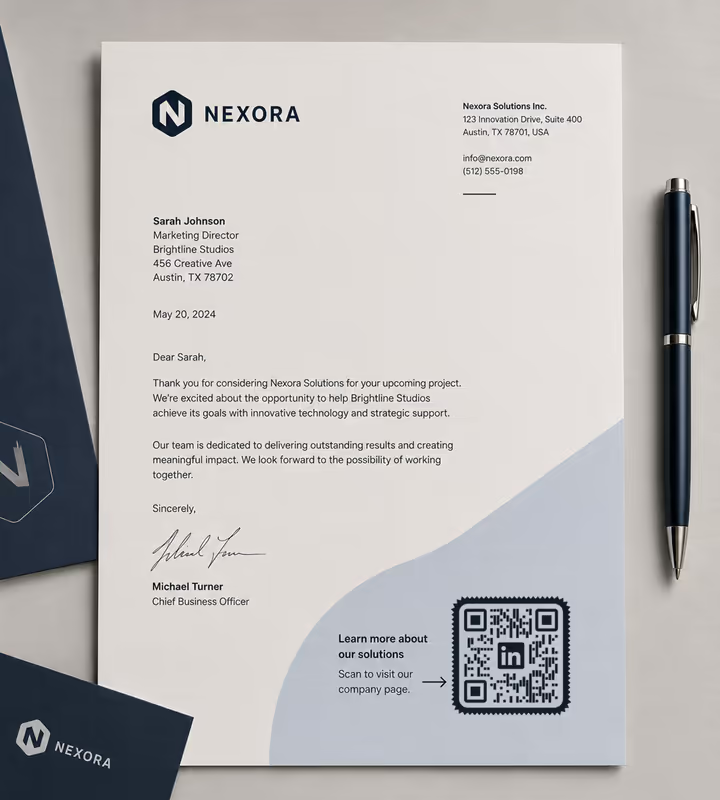
Email Signatures and Letterheads
On a printed letter or proposal, the code is the only clickable element the page has.
- 1
Set a Custom Public URL First
On your profile, open Edit public profile & URL and replace the random suffix with your name. This is what keeps the pattern sparse and the printed address readable.
- 2
Pick LinkedIn and Enter Your Handle
Type the part after /in/ and KoloQR adds linkedin.com/in/ in front. For a company page, paste the full linkedin.com/company/ URL instead.
- 3
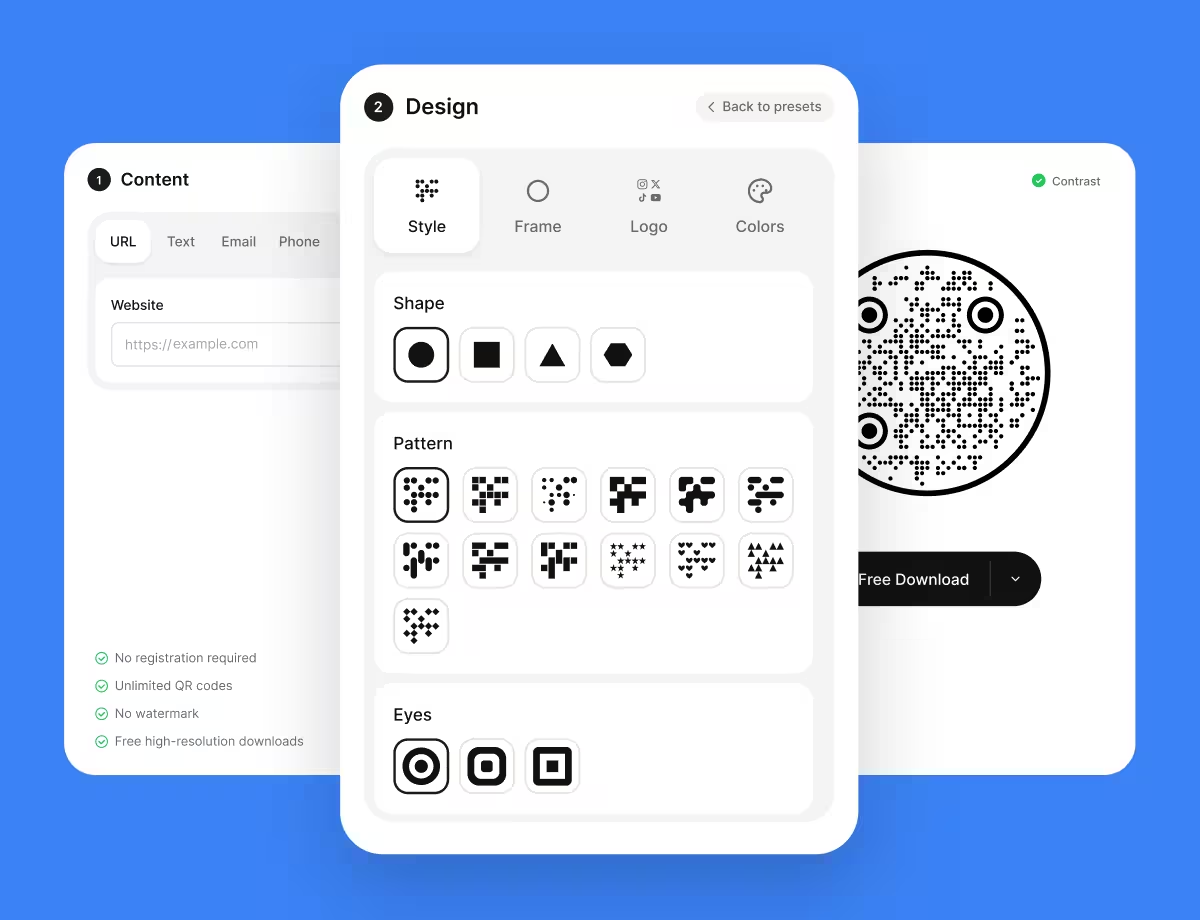
Customize the Design
Choose a shape, set the colors, add a logo. LinkedIn's blue is dark enough to carry the modules on white if you want the code itself on brand.
- 4
Test With a Camera, Not the LinkedIn App
Scan the exported file using the plain phone camera on both iOS and Android - that is what the person opposite you will use. Then export SVG or PDF for print.
Which File Format Should You Download?
KoloQR exports your LinkedIn QR code in three formats. Pick by where it will be seen:
- PNG for email signatures, slides, and web pages, where the code appears at one fixed size.
- SVG for business cards, badges, and stand graphics - anything a printer scales without softening the edges.
- PDF for handing to a print shop, or dropping into a card or letterhead artwork file at print-ready quality.
Business cards are the demanding case. The code usually gets about 15 mm of a 85 x 55 mm card, which is small enough that every saved character counts - the custom URL, a sparse pattern, and a vector export are what make a code that size actually read.
Generate QR CodeBest Practices for LinkedIn QR Codes
LinkedIn codes are printed small and scanned by strangers, which is the hardest combination there is:
Never Print LinkedIn's In-App Code
It encodes an internal identifier that only LinkedIn's own scanner understands. On a badge or a card, most people will use their camera and get nothing.
Claim a Custom Public URL
The default suffix adds roughly fifteen characters and usually a whole symbol version. linkedin.com/in/janesmith is both sparser and better-looking than the auto-generated one.
Decide Between Profile and Company Page Deliberately
A profile builds a relationship with a person and follows them when they leave. A company page survives staff changes. On shared collateral, print the company page.
Give the Code at Least 15 mm on a Business Card
Below about 12 mm a linkedin.com/in URL is marginal on cheap card stock. If the layout cannot spare 15 mm, shorten the URL further or move the code to the back.
Add a Label Beside the Square
“Scan to connect on LinkedIn” is worth the six words. A bare code on a badge is scanned far less than one that says what it is.
Check Your Profile Is Public
A profile with public visibility switched off shows a signed-out visitor almost nothing. Open your public URL in a private browser window and look at what a stranger gets.
LinkedIn Blue Can Carry the Pattern
It is dark enough against white to hold the modules, which is unusual among social brand colours. Scan the exported file to confirm rather than assuming.
Protect the Quiet Zone
Four modules of clear margin on every side. On a business card, where every millimetre is contested, this is the first thing a designer removes and the first reason the code fails.
Size It for the Distance
Roughly a tenth of the reading distance: 15-20 mm on a card held in the hand, 20-30 cm on a stand banner read from 2-3 metres.
Reprint When You Change the URL
A changed custom URL breaks every printed code pointing at the old one, and LinkedIn does not redirect. Settle it before ordering cards, not after.
Why Your LinkedIn QR Code Isn't Working
A LinkedIn code fails in ways that are easy to miss because they only show up for other people. These four are the cases.
The Camera Scans It and Nothing Opens
- Cause
- The code is LinkedIn's in-app one, taken from the app's search bar. It encodes an internal identifier rather than a URL, so a phone camera has nothing to open.
- Fix
- Generate a code from your public linkedin.com/in/ address instead. Test it with the plain camera app, not from inside LinkedIn, because that is what everyone else will use.
It Won't Scan From a Business Card
- Cause
- The code is too small for the URL it carries - usually the default profile address with its random suffix, printed at 10-12 mm on absorbent card stock where ink spreads slightly into the paper.
- Fix
- Claim a custom public URL to drop a symbol version, print at 15 mm or more, and export SVG or PDF rather than a PNG the printer will upscale.
People See a Sign-Up Wall Instead of the Profile
- Cause
- Public profile visibility is limited in the profile's settings, or LinkedIn is interrupting a logged-out visitor. Either way the code is fine and the destination is gated.
- Fix
- Turn public visibility on and check the result in a private browser window. If your audience is mostly logged-out, point the code at your own site and link LinkedIn from there.
The Code Stopped Working After a Profile Update
- Cause
- The custom URL was changed. LinkedIn releases the old address rather than redirecting it, so every printed code pointing at it now resolves to nothing.
- Fix
- Change it back if the old address is still free, or reprint. For anything with a long life, encode a redirect on your own domain that you can repoint yourself.
Still not sure whether the fault is the file or the print? Drop the exported image into the QR code scanner - if it decodes on a desktop and not on paper, the fault entered after the file.
Questions? Answered
A LinkedIn QR code stores the public web address of a LinkedIn profile or company page. Scanning it with a phone camera opens that page in the LinkedIn app if installed, or in the browser if not.
Because it only works inside LinkedIn. It encodes an internal identifier, not a URL, so a phone camera gets nothing from it. For a badge or a business card, where people scan with the camera, it fails silently.
Set a custom public URL on your profile first, then choose the Social type in KoloQR, pick LinkedIn, and enter the part after /in/. Style it, then download PNG or SVG. No account needed.
The default address ends in a random suffix worth about fifteen extra characters, which usually pushes the code up a symbol version - more, smaller modules in the same printed square. A custom URL is free and fixes it.
At least 15 mm square. Below about 12 mm a linkedin.com/in URL becomes marginal, especially on uncoated stock where ink spreads slightly into the paper.
Your profile for personal collateral - badges, cards, speaker slides - because people connect with people. Your company page for shared collateral like stand graphics and recruitment posters, because it survives staff changes.
To view a public profile, no - though LinkedIn shows logged-out visitors a reduced version and often prompts them to sign up. To connect with you, yes. Check the logged-out view in a private browser window.
You can, but a plain text link is better there - the reader is already on a device that can click. Save the code for surfaces where clicking isn't possible: badges, cards, printed proposals, slides.
Not on its own - a static code has no server in the middle. Point it at a link you control with tracking on it, then redirect to LinkedIn, and you can compare one event's badges against another's.
Yes. It points at your profile, not your employer, so it keeps working and shows whatever your profile says at the time of the scan. That's the argument for the profile over a company page on personal collateral.
Keep Exploring
Pages that pick up where this one leaves off - the same setting, the same kind of code, or the next thing worth deciding.
Business Cards
The one surface where a code is read at arm's length - so it is designed into the card's layout rather than dropped in the corner of it.
Photographers
Client galleries, print reorders, portfolio links and guest photo uploads, on cards, albums, prints and event signs.
WhatsApp QR Code
Open a WhatsApp chat with your number in one scan, without anyone saving your contact first.
YouTube QR Code
Send people straight to a channel, a single video, a playlist, or the subscribe prompt.
Facebook QR Code
Open your Facebook Page, group, or Messenger chat with one scan.
Pinterest QR Code
Open a Pinterest board, profile, or Pin from a printed page in one scan.
Why KoloQR?
- Create QR codes for websites, menus, Wi-Fi, PDFs, and business cards
- Customize colors, logos, and unique shapes
- Download high-quality PNG and SVG files
- Built for both print and digital
