Turn a Scan Into a Ready-to-Send Email
An email QR code opens the scanner’s default mail app with your address already filled in - and, if you want, the subject and message too. Ideal for feedback, support, and contact details in print.
Opens in Google Maps. Coordinates work too - "37.4224, -122.0841".
The code opens your business's "Write a review" form. Paste the Place ID, or a Google Maps link that carries one.
A UPI link carries no checksum, so a mistyped ID produces a code that scans perfectly and pays somebody else. Paste the ID from your payment app rather than typing it, and send yourself one rupee before printing.
Paste it exactly as copied. KoloQR does not assemble the payload - it encodes the one your bank issued, and checks it before you print it.
SVG, PNG, JPG • Max 2 MB
First month free
then $9/month
Dynamic QR Codes Are Coming
Change your link anytime, even after printing. See who scans, when and where.
- Edit without reprinting
- Scan analytics
- Bulk & custom domains
You're on the List
We'll email you once, when dynamic codes with scan analytics launch.
What Is an Email QR Code?
An email QR code stores a mailto link. When someone scans it, their phone opens a new message with your address - and optionally a subject and body - already filled in, so they only add their note and press send.
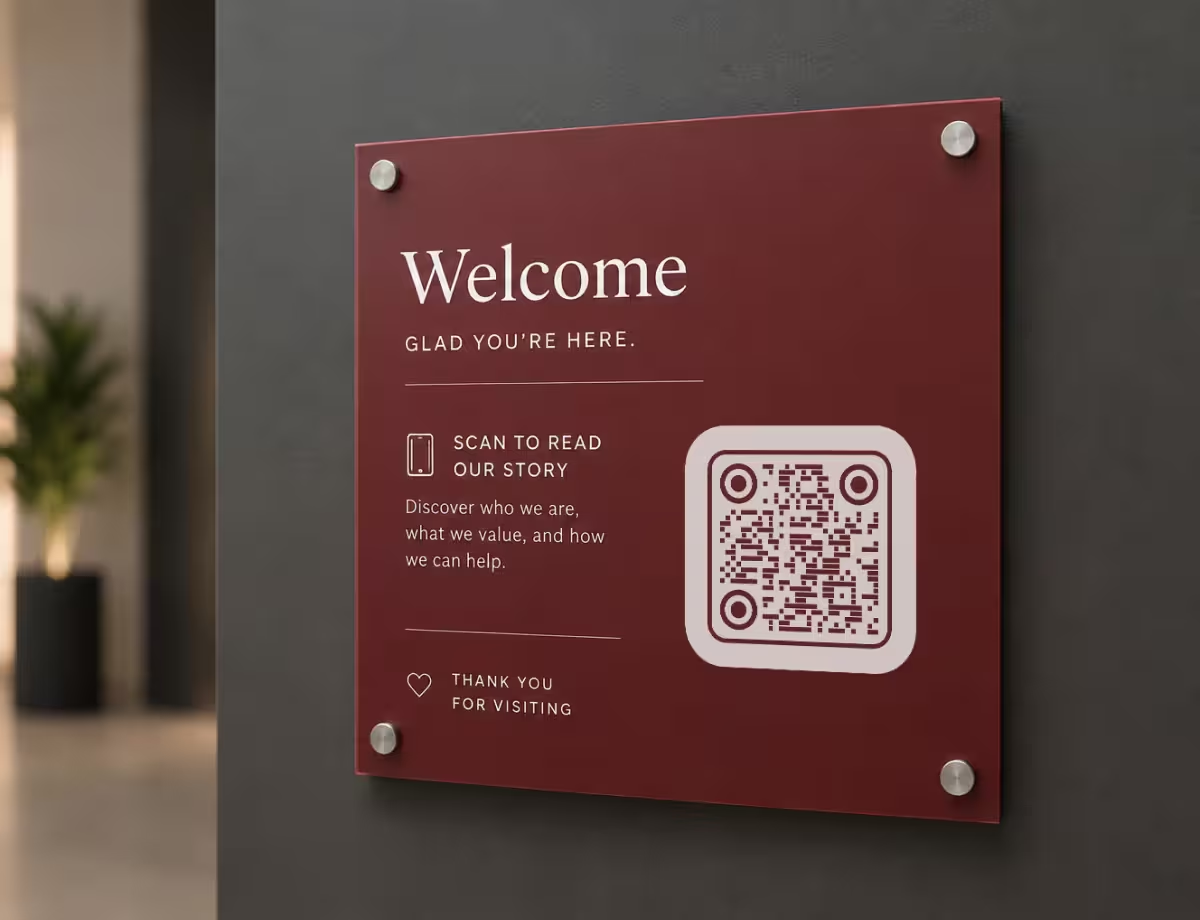
What’s Inside an Email QR Code
Every email QR code is built from a standard mailto link. You can encode just an address, or add fields that pre-fill the message before the sender ever starts typing:
- The Recipient - the email address every scan sends the message to.
- A Subject Line (Optional) - pre-fills the subject so replies land already labelled and sorted.
- A Message Body (Optional) - seeds the email with starter text the sender can keep or edit.
You can add cc and bcc recipients the same way. One thing worth knowing: the sender always reviews and sends the message themselves - a QR code never sends email on its own. That is exactly what makes it safe to put on public signage.
Static by Design - so Check It Twice
Because the address is encoded directly into the pattern, an email QR code is static: the data lives in the code itself, with nothing to load from a server and no link that can expire. That makes it fast and reliable, but it also means a typo can’t be fixed after printing - you would need a fresh code. Proof the address on screen, scan your own code once, then send it to print.
Generate QR Code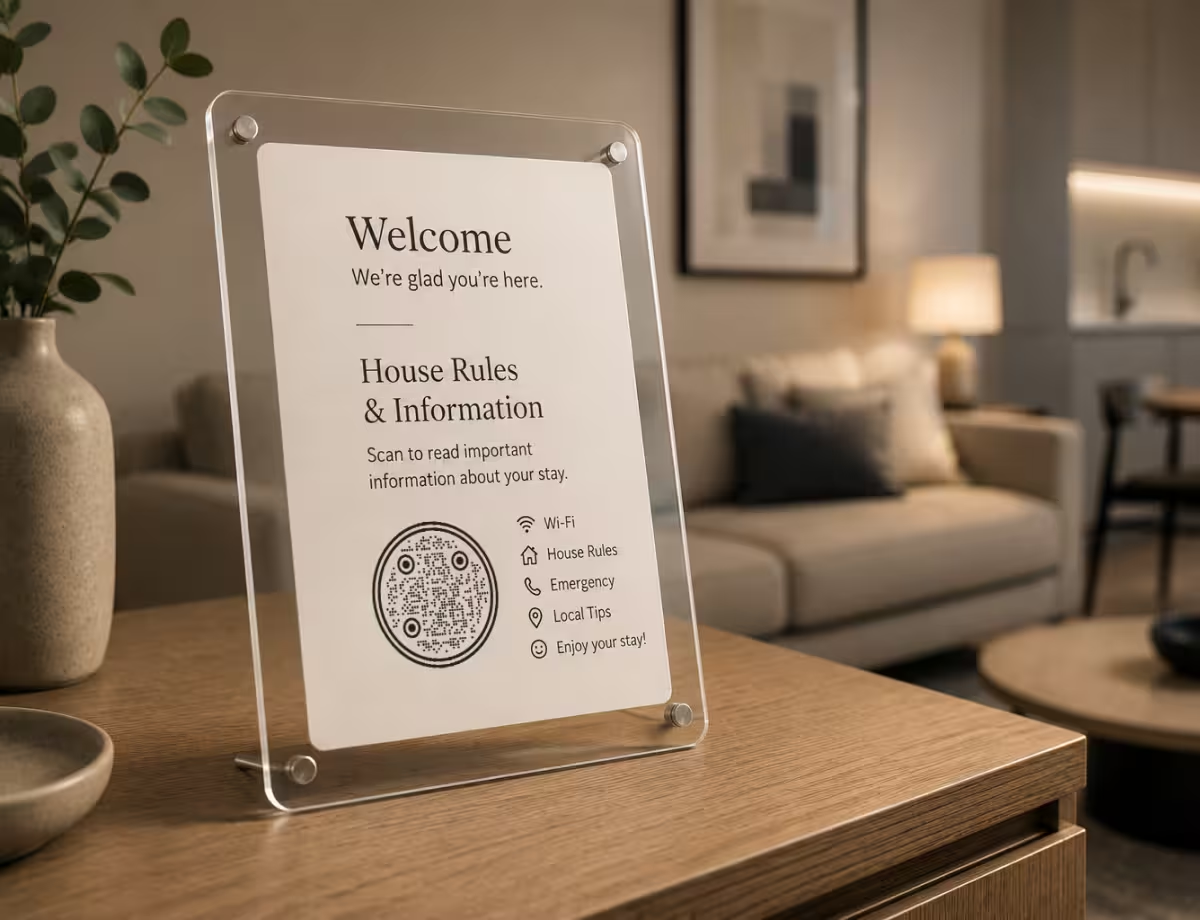
Where Email QR Codes Work Well
Anywhere you would normally print an email address, a scannable version saves people from typing it by hand. A few placements worth considering:
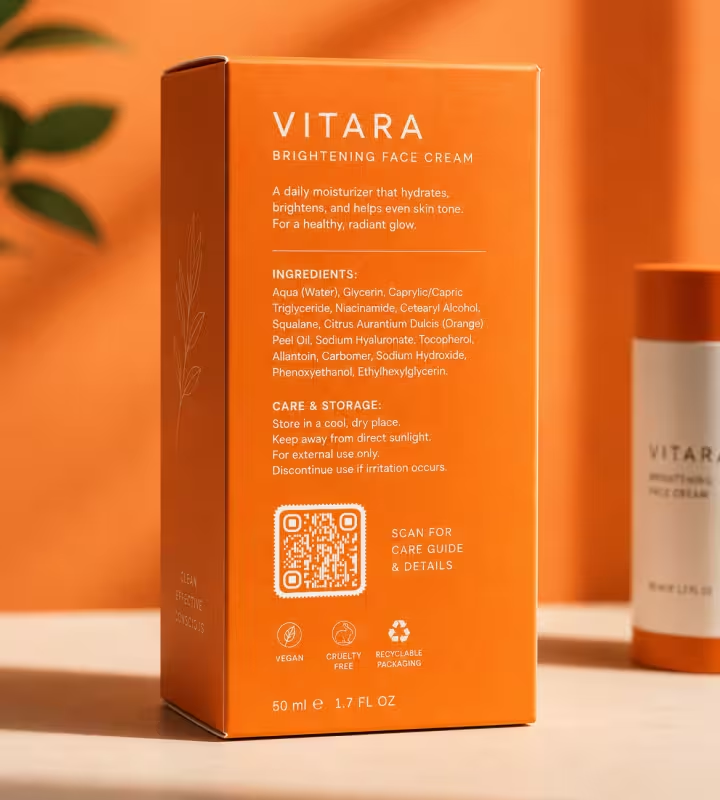
Business Cards
Let a new contact email you without copying your address by hand - a circular code with your logo keeps it on-brand.
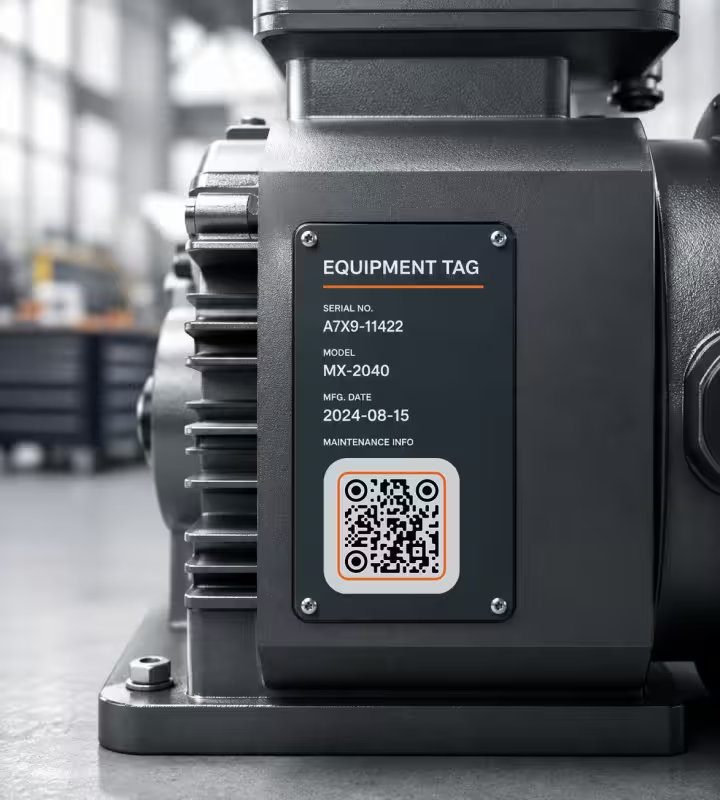
Customer Feedback
Add a code to receipts, tables, or packaging with a subject like “Feedback” so responses arrive pre-sorted in your inbox.
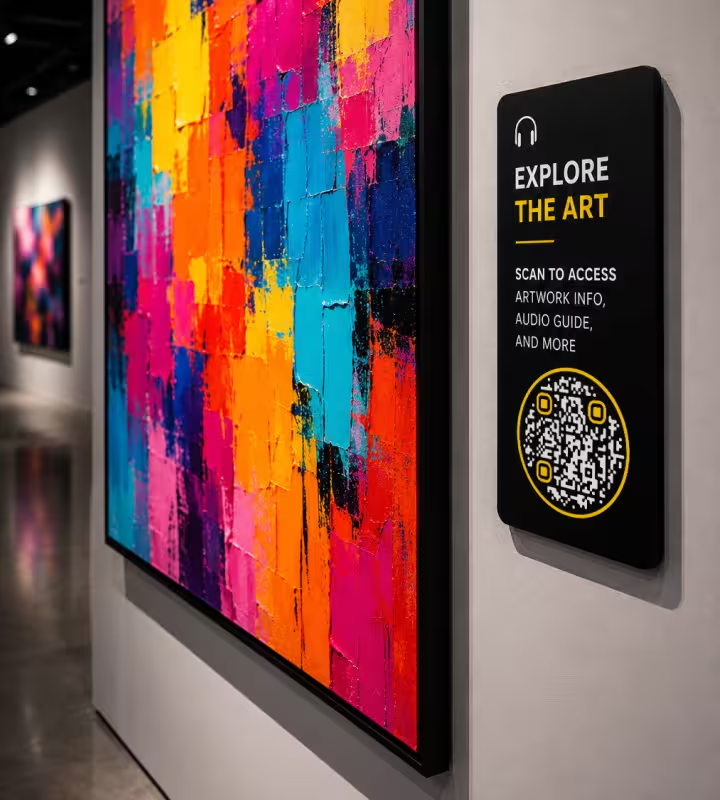
Support and Returns
Print a code on inserts or manuals so customers reach the right support address, with an order-number prompt in the body.
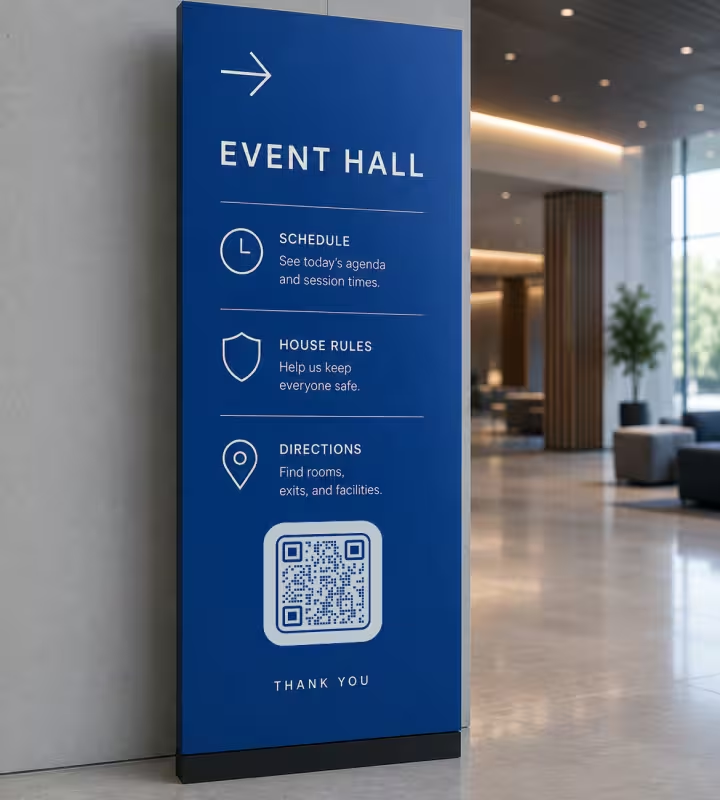
Event RSVPs
Put a code on invitations that opens an email with the event name in the subject, keeping replies easy to track.
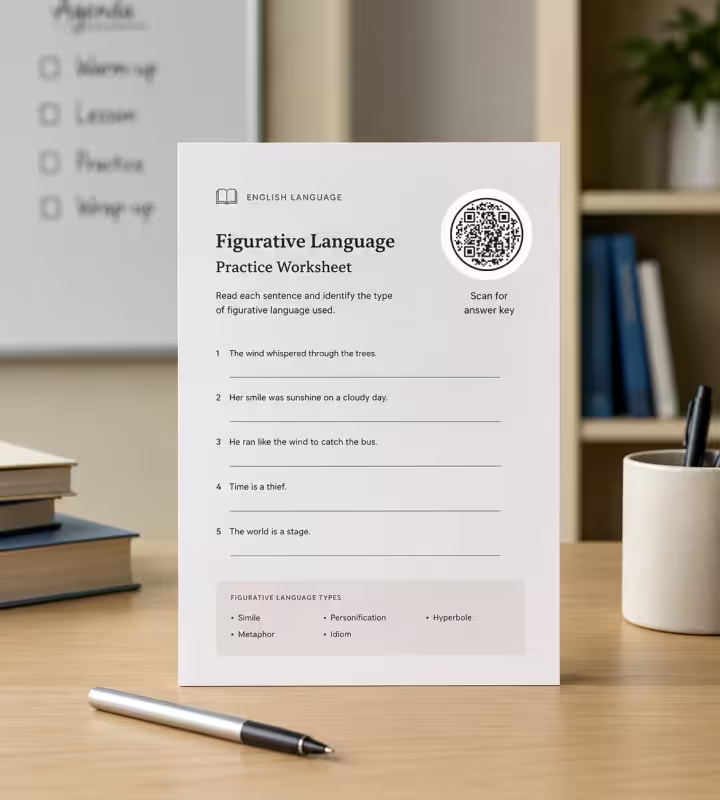
Job and Property Enquiries
Place a code on “for sale” signs, flyers, or job ads so interested people can email an enquiry on the spot.
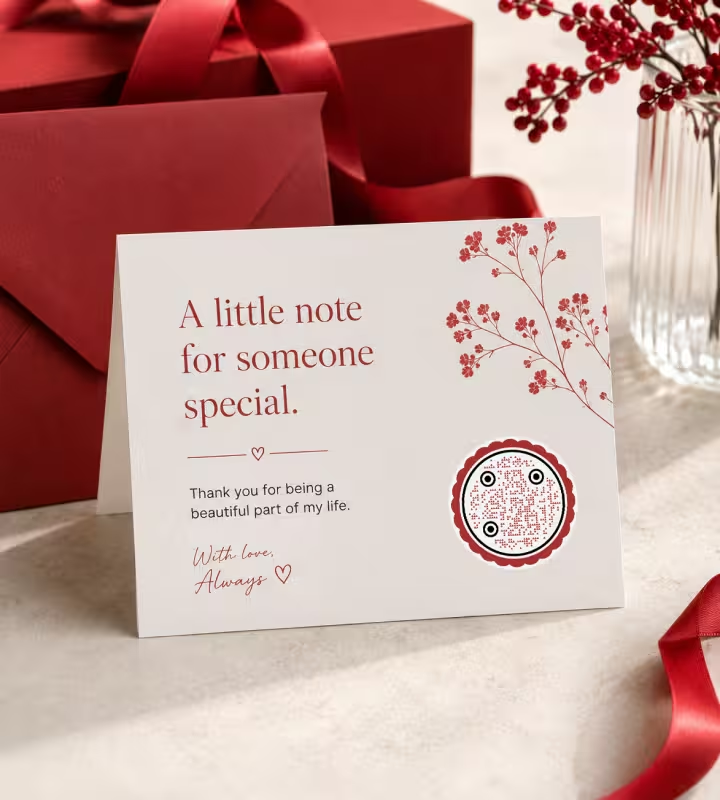
Reception and Booth Desks
A shared code at a front desk or trade-show booth routes questions to a monitored inbox instead of a personal one.
How to Make a QR Code for an Email Address
You can generate a working email QR code in under a minute:
Generate QR Code- 1
Choose the Email Type
Open the generator and select the email (mailto) option so the code is built as a proper email link, not plain text.
- 2
Enter Your Details
Add the recipient address, then an optional subject and message. Keep the body short to keep the code easy to scan.
- 3
Customize the Design
Pick a shape, adjust colors, and add a logo so the code matches your brand - styling never affects whether it scans.
- 4
Test and Export
Scan the preview with your own phone, confirm the email opens correctly, then export a print-ready PNG or SVG.
PNG or SVG: Which to Export
KoloQR exports your email QR code in more than one format, and the right choice depends on where the code will appear:
- PNG for screens, email signatures, slides, and social posts, where a fixed-resolution image is all you need.
- SVG for print and large formats, because it stays razor-sharp at any size, from a business card to a banner.
- PDF for handing files straight to a printer or dropping into a print-ready layout without extra conversion.
For anything that will be printed, export SVG or PDF and keep the code at least 2 cm (about 0.8 in) wide so cameras lock on quickly. For a screen, a clean PNG is usually enough.
Generate QR CodeEmail QR Code Best Practices
A few habits make the difference between a code people scan happily and one they give up on:
Double-Check the Address
Since the email is encoded permanently, one wrong character sends messages nowhere. Copy and paste the address rather than typing it, then verify.
Keep the Body Short
Long pre-filled text packs more data into the code, making the pattern dense and slower to scan. A one-line prompt is plenty.
Use the Subject to Sort Replies
A fixed subject like “Menu feedback” or “Order support” lets you filter incoming email automatically and route it to the right person.
Test on More Than One Phone
Scan with both an iPhone and an Android device before printing - mail-app behavior can differ slightly between them.
Point to a Monitored Inbox
Send to a shared or role address (support@, hello@) rather than a personal one, so replies aren’t missed when someone is away.
Keep Strong Contrast
Dark code on a light background scans best. Avoid light-on-dark or low-contrast color pairs, and never place the code over a busy photo.
Leave a Quiet Zone
Keep clear empty space around the code - roughly four modules wide - so scanners can find its edges reliably.
Size It for the Distance
As a rough guide, a code should be about one-tenth as wide as the distance it is scanned from. Wall posters need bigger codes than table cards.
Add a Short Call to Action
A label like “Scan to email us” tells people what will happen, which lifts scan rates far more than the code on its own.
Add a Logo for Trust
A logo in the center signals the code is legitimate and yours - reassuring on public signage. KoloQR keeps error correction high enough that the code still scans.
Why Your Email QR Code Isn't Working
Email codes fail in quieter ways than most - they scan fine and simply don't open what you expected. These are the four reasons why.
The Scan Shows Text Instead of Opening Mail
- Cause
- The code holds a bare address rather than a mailto: link, so nothing tells the scanner to hand it to the mail app and it falls back to displaying the string.
- Fix
- Generate it as an email code rather than pasting an address into a text code - KoloQR writes the mailto: prefix that makes the phone act on it.
The Subject and Message Arrive Empty
- Cause
- A prefilled subject and body are a request, not a rule. Some mail clients ignore them, and webmail opened inside a scanner's in-app browser often keeps only the recipient.
- Fix
- Treat the prefilled text as a convenience rather than a guarantee: put the one instruction that matters on the sign beside the code, so the request still reads if the client strips it.
The Message Stops at the First Line Break
- Cause
- Line breaks and symbols have to be percent-encoded to survive a mailto: link. Pasted in raw, the body is cut short at the first one.
- Fix
- Type the message into the generator's own body field, which encodes it for you. Hand-assembled mailto: strings are what lose everything after the first break.
Nothing Happens at All When It's Scanned
- Cause
- The phone has no default mail app set. It's common on Android where no account was ever added, and on shared or demo devices.
- Fix
- No code can fix that end, so give people a second route: print the address in readable type next to it.
Still not sure whether the fault is the file or the print? Drop the exported image into the QR code scanner - if it decodes on a desktop and not on paper, the fault entered after the file.
Questions? Answered
An email QR code stores a mailto link. When someone scans it with their phone camera, the default mail app opens a new message with your address already filled in - plus a subject and body if you added them. The sender writes their note and taps send; the code never sends anything on its own. It prepares an action rather than a destination - one of several types of QR codes that do something on the phone instead of opening a page.
Yes. Along with the recipient address, you can pre-fill the subject line and the message body, and even add cc and bcc recipients. Keep the pre-filled text short so the QR code stays quick and easy to scan.
No. It only opens a pre-filled draft in the sender’s mail app. They still review it and press send themselves, which is why email QR codes are safe to use on public signs and packaging. For a chat instead of a mail draft, a WhatsApp QR code opens a chat with your number.
An email QR code is static - the address and text are encoded directly into the pattern, so nothing loads from a server and the code never expires. The trade-off is that you can’t edit it later; changing the address means generating a new code.
Not on the same code. Because the address is baked into a static email QR code, you would need to create and print a replacement. Always confirm the address on screen and scan a test before sending anything to print.
No. Modern iPhone and Android cameras read QR codes natively - just point the camera at the code and tap the prompt that appears. No separate scanner app is required.
The person’s default mail app opens, whether that’s Apple Mail, Gmail, Outlook, or another client. A mailto link is a standard the sender’s device handles, so you don’t choose the app for them.
Aim for at least 2 cm (about 0.8 in) wide for cards and flyers, and scale up for anything viewed from a distance. A good rule is to make the code about one-tenth as wide as the typical scanning distance.
Yes. With KoloQR you can change the shape - including circular codes - adjust colors, and add a logo so the code matches your brand. Styling doesn’t affect scanning as long as you keep strong contrast and a clear quiet zone.
The usual causes are low contrast, a code printed too small, no quiet zone around it, or a very long pre-filled message making the pattern too dense. Increase the size, boost contrast, shorten the body text, and re-test on a couple of phones.
Keep Exploring
Pages that pick up where this one leaves off - the same setting, the same kind of code, or the next thing worth deciding.
Business Cards
The one surface where a code is read at arm's length - so it is designed into the card's layout rather than dropped in the corner of it.
Dental Practices
Booking links at the desk, review cards at the card machine, and recall mailers that still work months later.
Phone Number QR Code
Turn a phone number into a code that opens the dialer, ready to call in one tap.
SMS QR Code
Open a new text message with your number - and the wording - already filled in.
LinkedIn QR Code
Share your LinkedIn profile or company page with a code any phone camera can read.
Text QR Code
Store a written message inside a QR code that appears the moment it’s scanned - ideal for offline notes, labels, and instructions.
Why KoloQR?
- Create QR codes for websites, menus, Wi-Fi, PDFs, and business cards
- Customize colors, logos, and unique shapes
- Download high-quality PNG and SVG files
- Built for both print and digital
