Make QR Codes That Look Like Your Brand
A branded QR code turns a plain black-and-white square into a small piece of your identity - your colors, your logo, your shape. Here's how to design one that feels on-brand and still scans on the first try.
Generate QR CodeWhat Is a Branded QR Code?
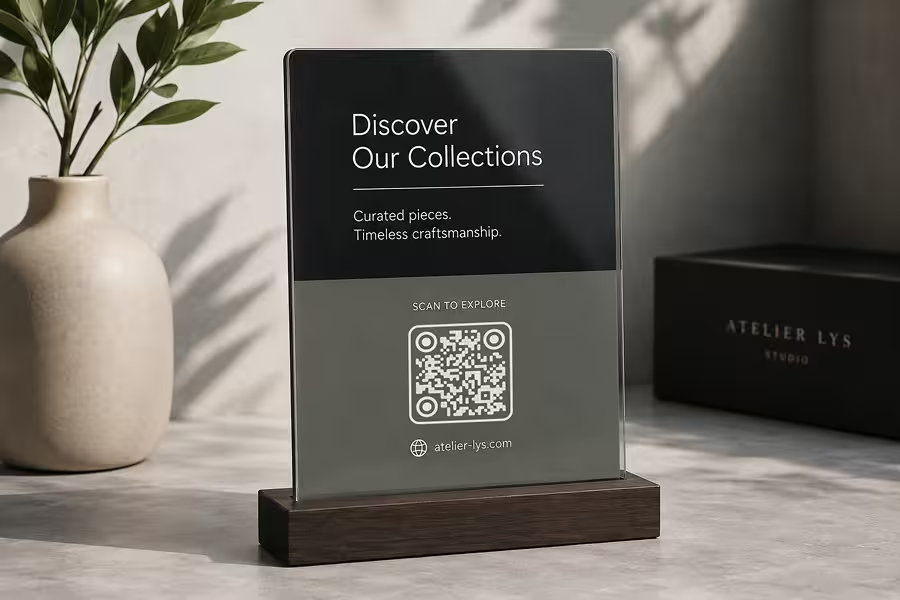
A branded QR code is a standard QR code styled to match a brand's identity - its logo, colors, and sometimes a custom shape - while remaining fully scannable. The aim is recognition: the code should clearly belong to the brand instead of looking generic. Colour is where that recognition usually starts, and which palettes hold up on paper is set out in colored QR codes.
What Makes a QR Code Feel Branded
Three elements do most of the work. On their own each is a small touch; together they turn a generic code into one that reads as yours.
- A Logo in the Center - placed in the space QR codes reserve for it, sized so scanning still works.
- Brand Colors - applied to the modules and background with enough contrast to stay readable.
- A Distinctive Shape - rounded modules, custom corner eyes, or a circular frame that echoes your style.
None of these alone makes a code 'branded.' It's the combination - consistent color, a clean logo, and a shape that matches the rest of your design - that makes someone recognize the code as yours before they even scan it.
Branding Without Breaking the Scan
Every branded element competes with one job: getting scanned. Logos cover data modules, low-contrast colors confuse cameras, and heavy styling can push a code past what its error correction can recover. The skill is knowing how far you can push each choice - which is what the rest of this page covers.
Generate QR Code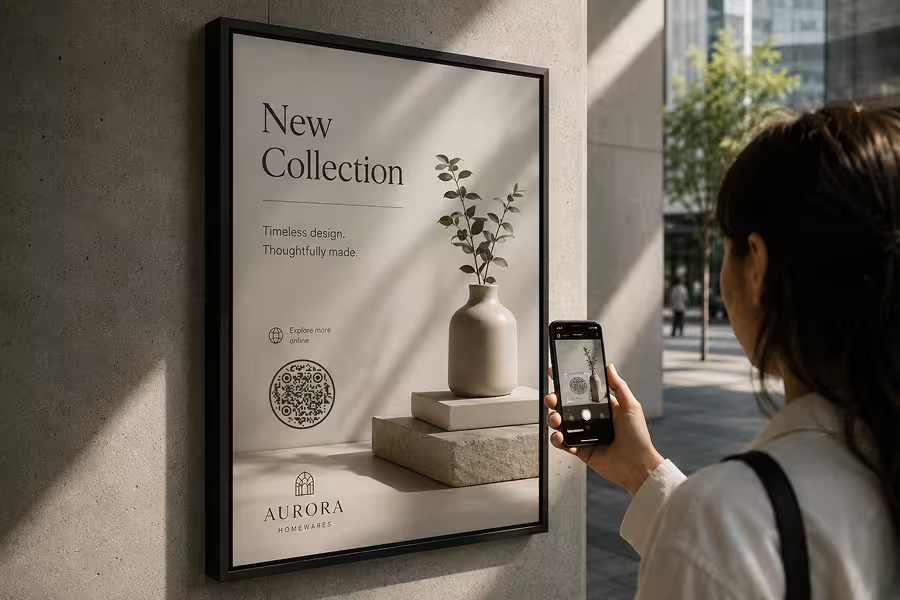
Where Branded QR Codes Work Best
The same principles apply everywhere, but the surface changes what matters most - size, resolution, and how far away people scan from.
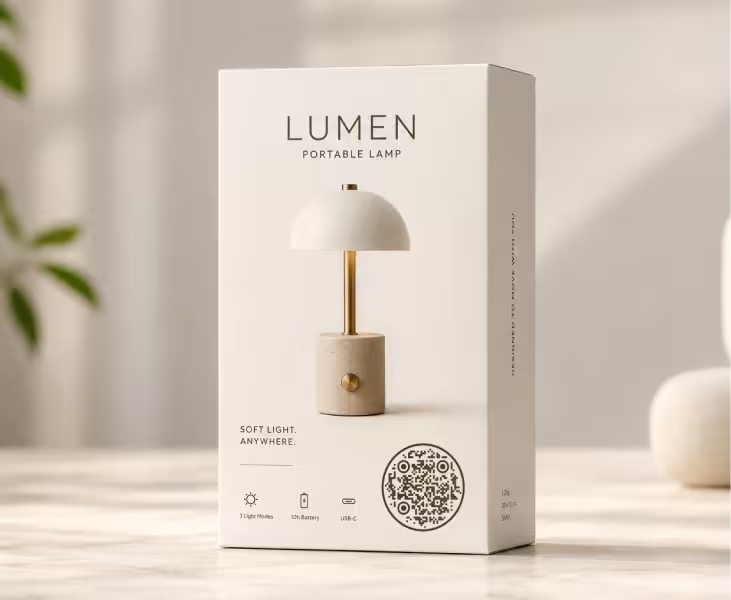
Product Packaging
Print a code in your brand color on the box or label so it reads as part of the design, not a sticker added later. Link it to setup guides, authenticity checks, or a reorder page.
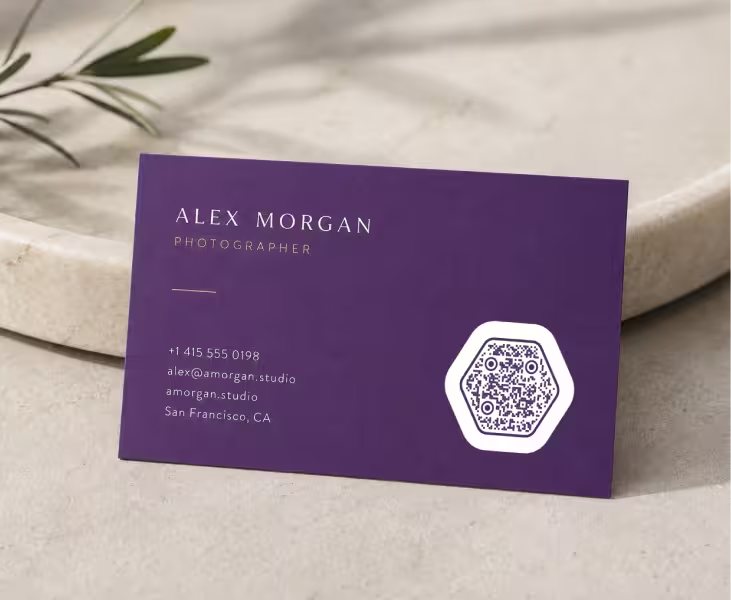
Business Cards
A small branded code turns a card into a tap-free way to share contact details, a portfolio, or a booking link. Match it to the card's colors and give it room to breathe.
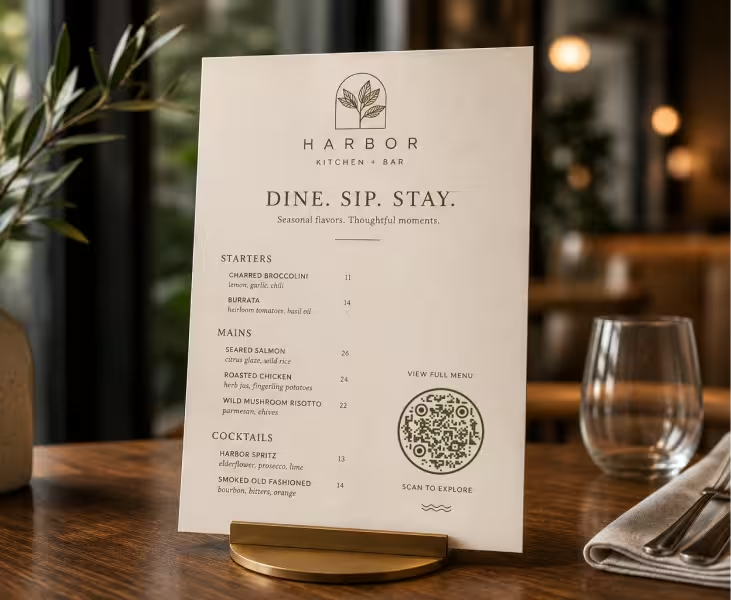
Restaurant Menus
Menus are one of the most scanned surfaces there is. A code styled with the restaurant's logo and palette feels intentional and reassures diners the link is really yours.

Event Signage
On posters and stands, a branded code invites people to register, view a schedule, or follow along. Size it for the distance people will scan from across a room.
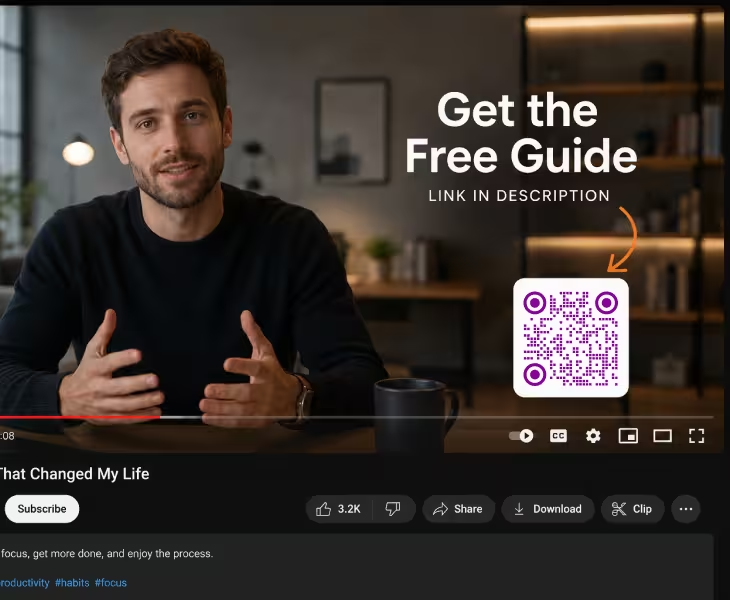
Social Media & Video
A code on a thumbnail, story, or end screen sends viewers straight to a link. Brand colors help it stand out against busy footage without looking like spam.
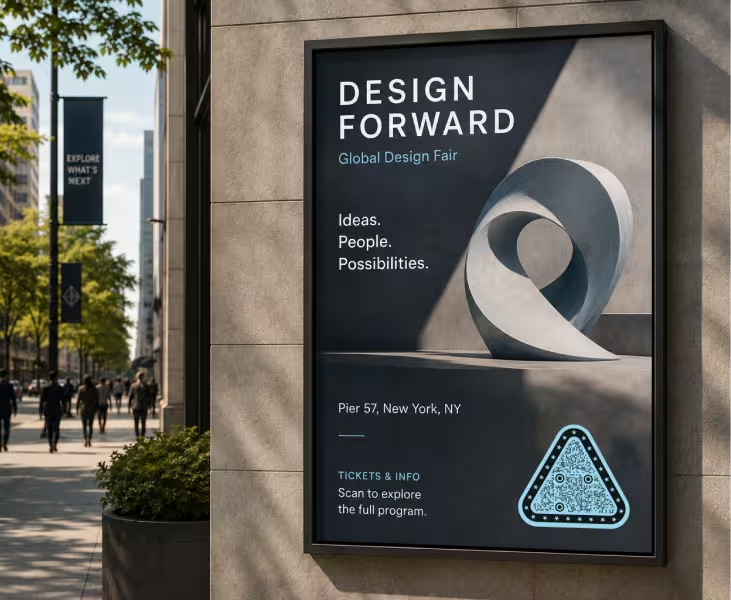
Print Ads & Posters
In magazines, flyers, and out-of-home ads, a branded code bridges print and digital. Keep it high-resolution so it stays sharp at the printed size.
Best Practices for Branded QR Codes
Branding and scannability pull in opposite directions. These habits keep both intact, and the same balance decides the other creative QR code designs, where module shapes and frames pull against the same limits.
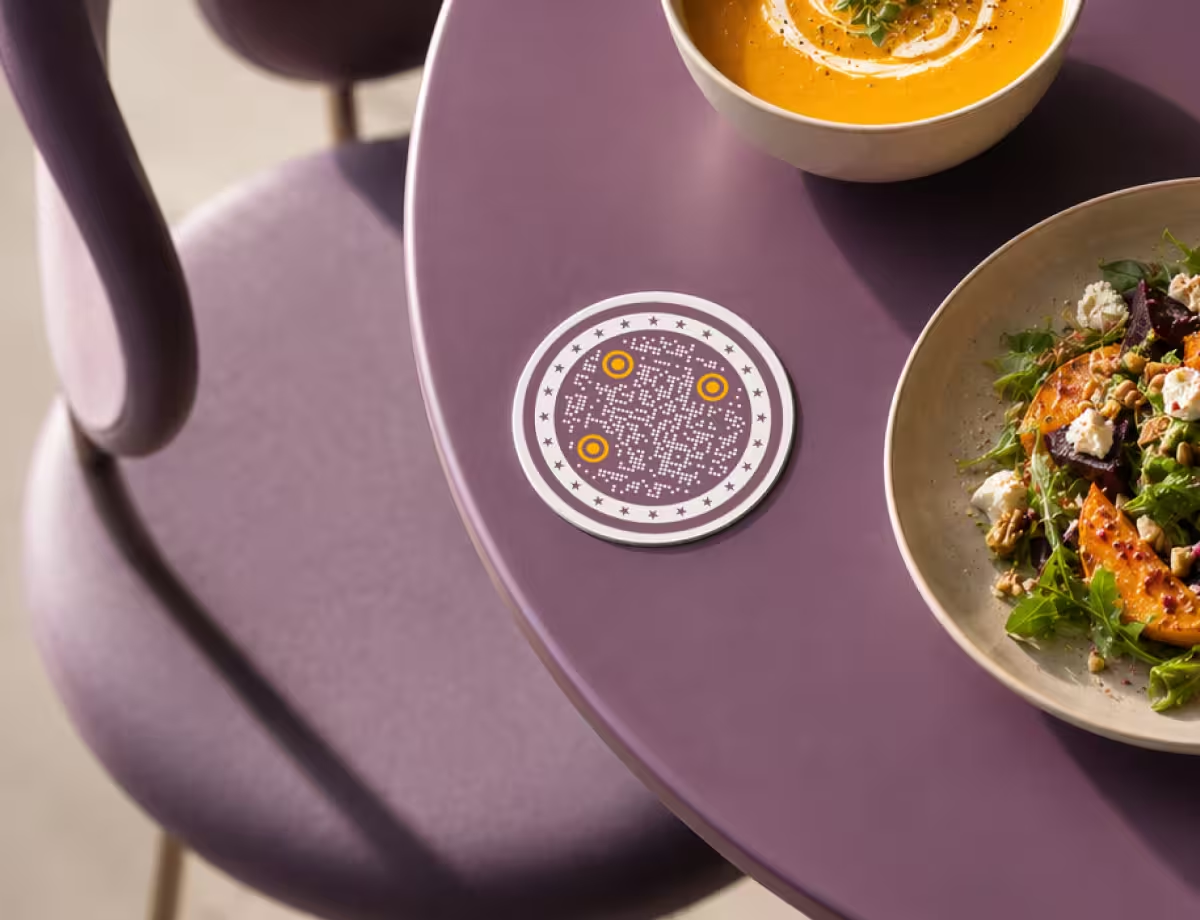
Design a Branded Code That Still Scans
Most failed branded codes fail for the same handful of reasons. Get these right and styling becomes free.
- Keep Strong Contrast - cameras read a code by telling dark modules from a light background. Deep color on a light background scans reliably; two similar tones is where codes fail.
- Size the Logo Carefully - a centered logo works because error correction can rebuild the data it hides, but only up to a point. Keep it to roughly a quarter of the code or less.
- Be Cautious With Inverted Colors - light modules on a dark background look striking but aren't universally supported. If you invert, test widely; when in doubt, keep modules darker than the background.
- Protect the Quiet Zone - the empty margin around a code isn't wasted space; scanners need it to find the code's edges. Don't crop it or let artwork bleed into it.
- Match Brand Colors, Then Check Readability - pull colors straight from your guidelines, but verify the contrast. A brand's lightest accent often isn't dark enough to use for the modules themselves.
Test It, Then Keep It Consistent
A branded code earns its keep across a whole set of touchpoints, so the last steps are about reliability and repetition.
- Test Before You Print - screens are forgiving; print is not. Scan the final file at its actual printed size, on more than one phone, before committing to a run.
- Use Vector for Anything Large - for posters, packaging, or signage, export SVG so the code stays sharp at any size. A scaled-up PNG can blur just enough to break the scan.
- Give People a Reason to Scan - a branded code still needs a short prompt: 'Scan for the menu,' 'View the schedule.' The design earns attention; the label earns the scan.
- Keep It Consistent - use the same colors, shape, and logo treatment across every code you publish so they read as a set and reinforce your brand each time.
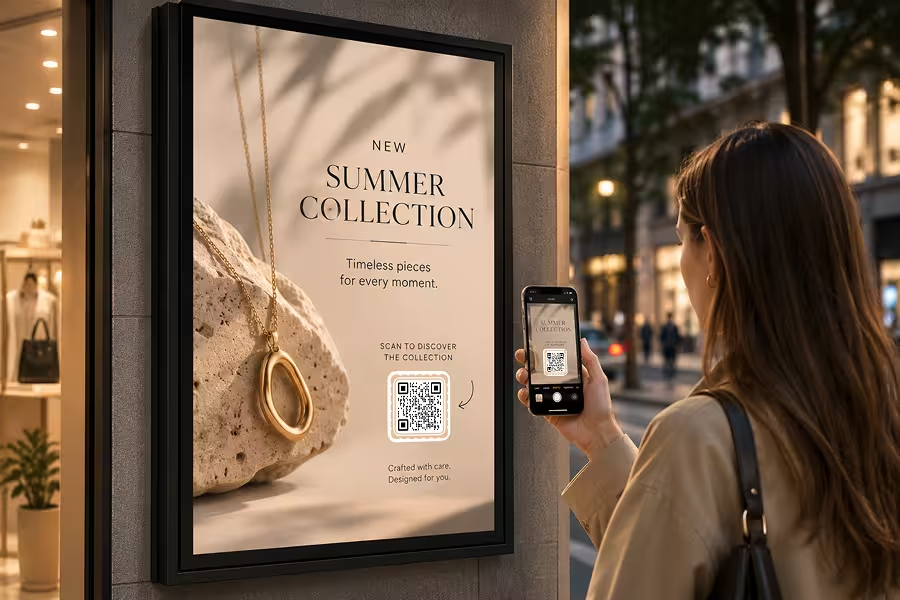
Real-World Examples
Seeing the idea applied to real campaigns makes it easier to plan your own.
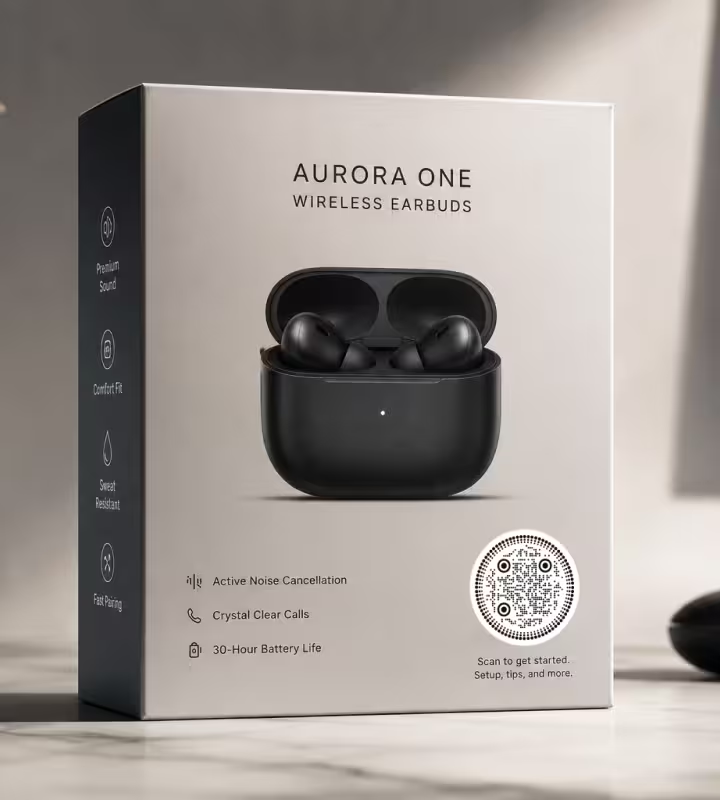
Product Launch Packaging
A code in the brand's accent color, printed straight onto the box, links buyers to setup, warranty registration, or a how-to video. It reads as part of the pack rather than a compliance sticker.
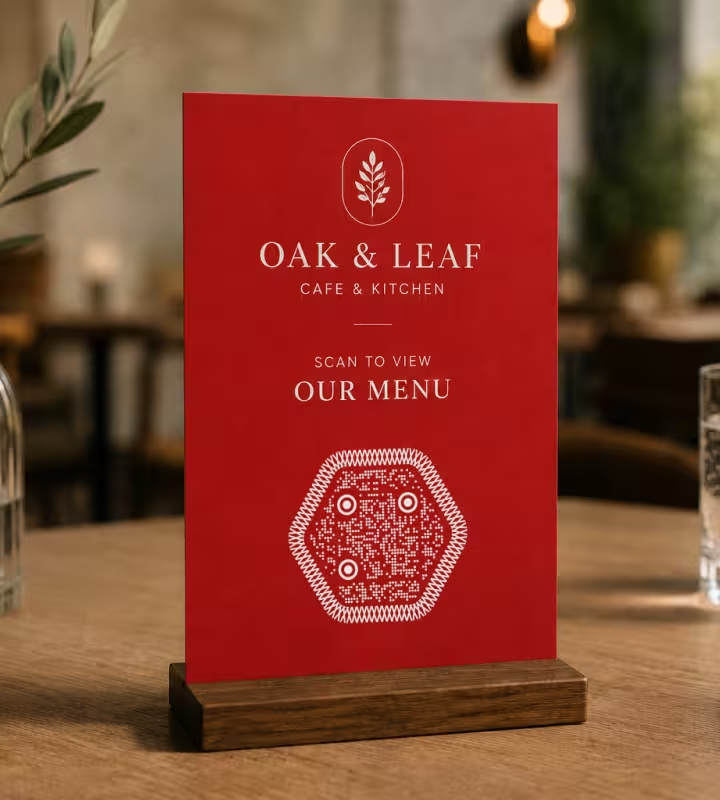
Cafe and Restaurant Branding
The house logo sits in the center of a code matched to the menu's palette. On table tents and coasters it feels considered, and diners trust that the link is really the restaurant's.

Conference and Event Booths
A large branded code on the backdrop invites people to grab a deck, book a demo, or join a list. Sized for the room, it pulls scans from several steps away.
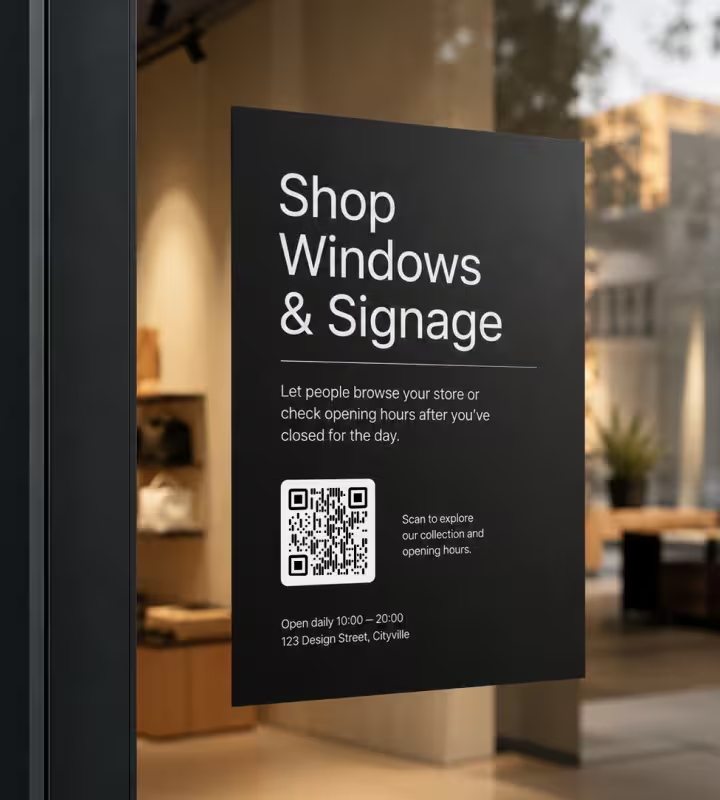
Retail and In-Store Signage
Shelf talkers and window displays carry a code in brand colors that opens a lookbook or loyalty signup. Consistent styling ties every placement back to the same identity.
How to Make a Branded QR Code
Four steps take you from a plain code to one that matches your brand and still scans reliably.
Generate QR Code- 1
Choose the Destination
Decide where the code should lead - a website, menu, form, or contact card. A clear destination shapes everything else, including the call to action beside the code.
- 2
Add Your Logo
Drop your logo into the center of the code. QR codes reserve space for this, so a well-sized logo won't stop it from scanning.
- 3
Apply Your Colors and Shape
Set the module and background colors to match your palette, and pick a shape - rounded modules or a circular frame - that fits your visual style.
- 4
Export and Test
Download as PNG for screens or SVG for print, then scan it with a couple of phones before you publish or send it to print.
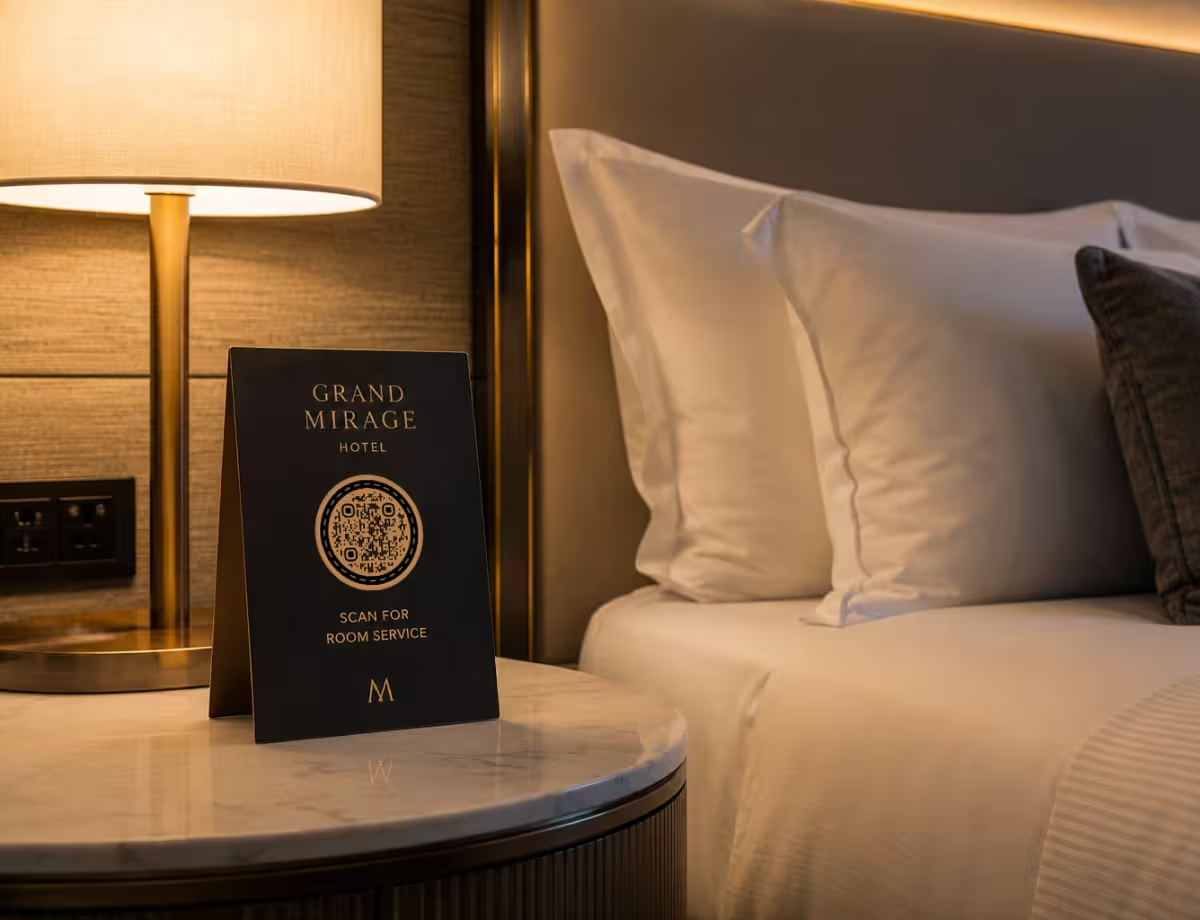
Start From Your Brand, Not a Blank Square
You don't have to design a branded code from scratch. Drop in your link, set the module and background colors to your palette, and place your logo in the center - the structure that keeps it scannable is already handled.
KoloQR lets you match a code to your brand in seconds and export it as PNG or SVG, so the same design holds up from a business card to a billboard.
Generate QR CodeExport Formats for Branded QR Codes
The right format depends on where the code lands. The three below cover almost everything.
PNG
For digital content, websites, and social media. A high-resolution PNG covers most on-screen placements without any extra tooling.
SVG
For print and signage, since it stays crisp at any size without blurring. Blurred edges are one of the most common reasons a branded code fails to scan.
Both From One Design
Export the same branded code as PNG and SVG so it looks consistent on a business card and a billboard alike.
Questions? Answered
Yes. QR codes include built-in error correction that rebuilds data hidden behind a centered logo, so you can place your mark in the middle without breaking the scan - as long as the logo stays reasonably small.
They do, when they're designed with scanning in mind. Strong contrast, a modest logo size, and an untouched quiet zone matter far more than whether the code is styled. Low-contrast, heavily styled codes are what cause failures - not branding itself.
As a rule of thumb, keep it to about a quarter of the code or less. Error correction can recover only a limited amount of hidden data; past that threshold the code becomes unreliable. Always test after adding a logo.
Yes. You can set both the module and background colors to match your palette. The only requirement is contrast - the modules need to stay clearly darker than the background so cameras can read them.
No. Black on white is the safest default, but colored codes scan well as long as there's strong contrast between the modules and the background. Low-contrast color combinations are the main thing to avoid.
Yes. Rounded modules, custom corner eyes, and circular frames are all possible and make a code feel more designed. With KoloQR you can generate circular and custom-shaped codes while keeping them scannable.
Use PNG for screens and SVG for print. SVG stays sharp at any size, which matters for packaging, posters, and signage. For digital use like a website or email, a high-resolution PNG is fine.
The usual causes are low contrast between the code and its background, a logo that covers too much of the code, a cropped quiet zone, or a low-resolution image that blurred in print. Fixing any of these usually restores the scan.
Yes. KoloQR is free to use and lets you add a logo, apply brand colors, choose a shape, and export as PNG or SVG without a subscription.
Yes. Set the colors to your brand values, add your logo, and pick a shape that fits your visual style. Keeping the treatment consistent across every code you publish is what makes them feel like part of the brand.
Keep Exploring
Pages that pick up where this one leaves off - the same setting, the same kind of code, or the next thing worth deciding.
Why a QR Code Is Not Scanning, and How to Tell Which Fault You Have
The three ways a QR code fails - never detected, read badly, or read perfectly into a broken destination - and how the symptom tells you which one you have before you measure anything.
Nine Things to Check Before a QR Code Goes to Print
The nine checks between a QR code file and a print run that works, each with the number it has to clear and the page that explains why.
Beauty Salons
Rebooking at the chair, per-service aftercare and a portfolio per stylist, with codes that survive acetone, colour and hairspray.
Marketing Agencies
Produce campaign codes for client print runs: sized per placement, exported as vector, and pointed at a redirect the client keeps.
QR Code Shapes
The whole shape taxonomy - modules, eyes and frames - with the trade-offs behind round, triangle, hexagon and square codes.
Dot QR Codes
Round modules instead of square ones - how large the dots have to stay, what we measured when they shrink, and where the softer look fits.
Why KoloQR?
- Create QR codes for websites, menus, Wi-Fi, PDFs, and business cards
- Customize colors, logos, and unique shapes
- Download high-quality PNG and SVG files
- Built for both print and digital
