Why a QR Code Is Not Scanning, and How to Tell Which Fault You Have
by KoloQR TeamTroubleshooting
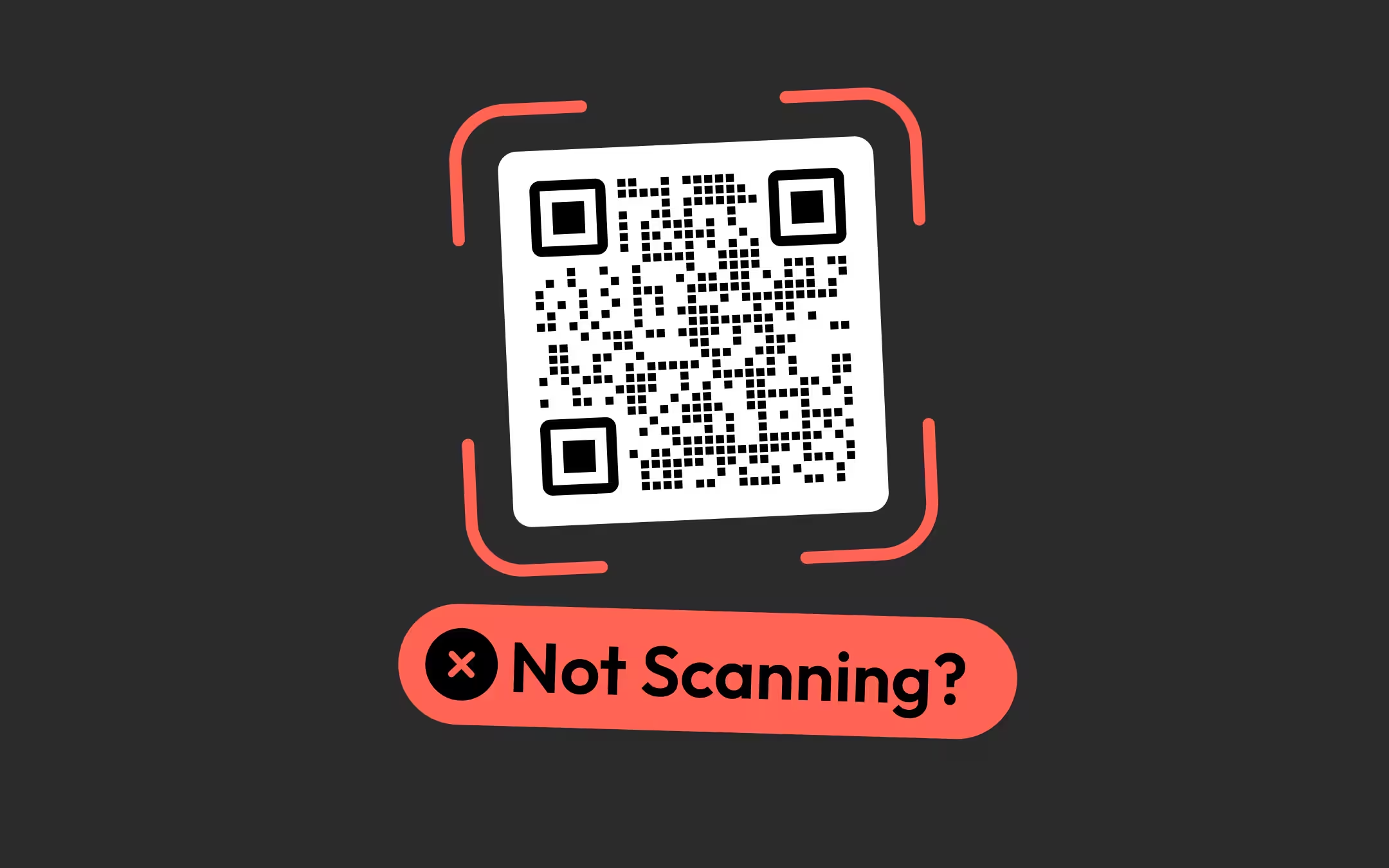
A QR code fails at one of three stages, and what the phone does tells you which. If nothing happens at all, from any distance, on more than one phone, the scanner is not finding the symbol and the fault is in the margin, the corners or the colour scheme. If it reads sometimes - closer, in better light, on one phone - the symbol is being found and read badly, and the fault is size, contrast or finish. If it reads instantly and nothing useful follows, the code is fine and the destination is not. The three have no fixes in common, which is why guessing costs a reprint.
Key points
- A QR code that is never detected has a different fault from one that scans intermittently, and the two share no fixes. Total, repeatable silence points at detection: the quiet zone, a covered finder pattern, or an inverted colour scheme.
- Detection runs before decoding, so error correction cannot rescue a code the scanner never locates. Raising the level from M to H after a scan failure usually makes the code slightly worse, because the extra redundancy pushes the symbol up a version and shrinks every module.
- A code that reads up close and fails at the distance people stand at is a sizing fault. A printed code needs about 1 cm of width for every 10 cm of reading distance, on top of a 2 cm floor.
- A code that decodes correctly and still does nothing useful is a destination fault, and no change to the artwork will fix it. Read the decoded string, open it in a browser, and check that before touching the code.
- Name the fault before reprinting anything. Four checks on the artwork - clear margin, module width in millimetres, contrast, and the decoded string - identify almost every failure in about ten minutes.
Why is my QR code not scanning?
A QR code fails at one of three stages: the scanner never finds the symbol, the scanner finds it but cannot read the modules cleanly, or the scanner reads it perfectly and whatever the code points at is broken. Detection faults, decoding faults and destination faults look different from the outside and have no fixes in common.
Detection is the stage where a scanner locates a QR code in the camera image and works out its boundary, rotation and module grid, before any data is read. Decoding is the stage where a scanner reads the modules inside a located QR code and reconstructs the data they encode. The order matters more than the definitions: everything the decoder can do, it can only do to a symbol that detection already found.
That order is what makes the symptom diagnostic. A detection failure is absolute - the phone shows nothing at all, every time, from every distance, because as far as it is concerned there is no code in the frame. A decoding failure is conditional - the code reads closer, or in better light, or on one phone and not another - because the decoder is working with a marginal image and sometimes wins. A destination failure looks like a success followed by a disappointment: the notification appears, the link opens, and the page behind it is dead.
The practical consequence is that most QR troubleshooting advice is aimed at the wrong stage. Raising the error correction level, adding a border, regenerating at higher resolution: each of those is the right fix for exactly one fault and a waste of a print run for the other two.
Start with what the phone does, not with the code
Point a phone at the code and watch what happens, at two distances, on two phones. The answer to that observation narrows the fault to one class before any measurement, and it costs about thirty seconds.
| What the phone does | Stage that failed | Most likely cause | First thing to check |
|---|---|---|---|
| Nothing at all, at any distance, every time, on both phones | Detection | Quiet zone cropped, a finder pattern covered, or a light-on-dark code | Clear space on all four sides in the placed layout, and the three corner squares |
| Reads when held close, fails from where people actually stand | Decoding | The code is too small for the reading distance | Printed width against the 1 cm per 10 cm rule |
| Reads on the monitor, fails on the printed piece | Decoding | Modules below the print floor, or a lossy file format | Module width in millimetres, and whether the file is a JPEG |
| Reads on one phone, fails on another | Decoding | The code sits on the edge of a margin - size, contrast or inversion | Module width, and whether the code is dark-on-light |
| Read fine in the studio, fails where it is installed | Decoding | Light, glare or the laminate, not the artwork | The finish, and whether a downlight sits opposite the code |
| Detects instantly, then nothing useful happens | Destination | The encoded URL is dead, gated, or not the one you meant | The decoded string itself, opened in a browser |
| Worked for months, then stopped on the same printed piece | Destination, or the print | A redirect that lapsed, a domain that expired, or ink that faded | The decoded string first, the physical contrast second |
The row worth internalising is the first. Total, repeatable silence is not a weak scan - it is the absence of a scan, and it points at the three or four square centimetres around the symbol rather than at anything inside it.
Nothing happens at all: the code is never detected
A code that produces no reaction at all, from any distance, on more than one phone, has failed detection rather than decoding, and there are five common causes. The data inside the symbol is almost always perfect; nothing has decided yet that there is a symbol there to read.
- The quiet zone is gone. A QR code needs four clear modules on every side, and the margin is what makes the symbol's edge findable. A keyline, a caption, a photograph bleeding under the code or a trim edge inside that ring breaks detection while every module stays intact. This is the single most common cause of total silence.
- A finder pattern is covered, clipped or damaged. The three concentric squares in the corners carry no error correction of any kind. A sticker over one corner, a die-cut that clips it, or a logo dragged off-centre onto it means the code is not found at all.
- The code is light modules on a dark background. Inverted QR codes are legal in the standard and unreliable in practice: several native camera apps do not attempt them, so the same file scans in a dedicated app and does nothing in the app people actually use.
- The symbol is not a model 2 QR code. Data Matrix, Aztec, PDF417 and Micro QR all look like QR codes to a non-specialist and are not read by the QR path in a phone camera. A supplier's artwork library is where these usually come from - QR code vs barcode covers what each symbol is for.
- The surface is not flat, or not still. A code wrapped around a bottle, creased across a fold, or behind curved glass distorts the module grid past what the alignment patterns can correct. So does a phone that never gets to focus, which is what happens when a small code is held closer than the camera's minimum focus distance.
The fastest way to split artwork from placement: run the exported file through a decoder on a desktop - how to scan a QR code on a computer lists the routes. If the QR code scanner reads the file and no phone reads the printed piece, the fault entered somewhere between the file and the finished object - a layout, an export setting, or the press. If the file itself will not decode, stop looking at the print. How to scan a QR code covers the reading side of that in full, including the cases where the phone rather than the code is the problem.
The quiet zone takes the margin end to end: what four modules is in millimetres at your printed size, the layout habits that remove it, and how to measure what a file you were sent actually carries.
It scans up close but not from where people stand
A code that reads at 20 cm and fails at 2 m is sized for the wrong distance, and nothing else. Allow about 1 cm of code width for every 10 cm of reading distance, with a floor of 2 cm across the whole footprint - so a code read from 3 m needs roughly 30 cm, and a code read from 40 cm still needs its 2 cm.
The distance rule is a proxy for the thing that actually matters, which is the width of one module in the camera's frame. A phone has to resolve a single module before it can read anything, so the arithmetic that decides the outcome is printed width divided by the module count, and the module count rises with the length of the URL. Two codes printed at the same 3 cm can behave completely differently if one holds a 30-character link and the other holds 200.
Symptoms that confirm a sizing fault rather than something else:
- It reads reliably at close range. Nothing about the artwork is wrong; the code simply is not big enough to be resolved further away.
- Reading distance improves in bright light. More light means a shorter exposure and less motion blur, which buys back some of the missing module width.
- A longer link made a working code stop working. Same printed size, denser symbol, smaller modules. Shorten the destination and reprint.
- It fails on the small run and works on the poster. The same file at two sizes is the cleanest evidence there is.
Check the module width before resizing by guesswork. Printed modules should be 0.4 mm or larger on coated stock and 0.5 mm or larger on uncoated, and the QR code print size calculator does that arithmetic from the width and the reading distance. Minimum size for print has the charts by medium, and the reason the floor sits where it does. The print checklist collects that figure and the eight others a file has to clear before it goes to press.
It scans on screen but not on the printed piece
A code that works on a monitor and fails on paper has usually lost module width, contrast or edge sharpness in the step between them, and a screen hides all three. A display gives the decoder even illumination, a high contrast ratio and hard pixel edges; paper gives it ink spread, ambient light and a soft edge on every module.
The four things to check, in the order they are most often wrong:
- Module width in millimetres. Divide the printed width by the module count including the quiet zone. Under 0.4 mm on coated stock or 0.5 mm on uncoated, the code is too small no matter how clean the file is.
- The file format. JPEG and WebP are lossy: they put grey fringes on every module edge, which is exactly where the decoder needs a hard boundary. A screenshot of a code is the same problem with resampling on top. Send vector where the destination accepts it - SVG vs PNG vs PDF vs EPS covers which file goes where.
- The effective resolution. A raster code needs a whole number of pixels per module at final size, or every module edge lands mid-pixel and gets anti-aliased into a soft grey. Resolution and DPI has the formula in both directions, and the DPI calculator runs it.
- The quiet zone in the placed layout. The margin is almost never lost on export; it is lost afterwards, when the code meets a page that needed the space.
- Ink spread on absorbent stock. Uncoated paper, kraft and newsprint let the dark modules grow into the light ones. The symbol gets darker overall and the light modules get narrower, which is why the 0.5 mm floor on uncoated is higher than the coated one.
The QR code validator measures the three that can be read off a file - the margin outward from each edge, the contrast between the two colours, and the module size at a stated printed width - and reports the worst side rather than an average. Run the export through it before the file goes to the printer, then proof one sheet on the real stock.
It scans on one phone and not another
A code that reads on one phone and not another is sitting on the edge of a margin rather than being broken, and the margin is almost always module width, contrast, or the colour scheme. Neither Apple nor Google publishes a scanning threshold for their camera apps, so the honest reading of a split result is that the code is marginal - not that one phone is faulty.
| What differs between the two phones | What it points at |
|---|---|
| Newer phone reads it, older phone does not | Module width, or camera resolution and focus range - the code is close to too small |
| Dedicated scanner app reads it, native camera does not | An inverted code, or a symbol that is not a model 2 QR code |
| Reads at arm's length on one, needs contact range on the other | Contrast, usually a coloured code with less luminance difference than it looks |
| Reads flat-on, fails at an angle on both | A buried alignment pattern, often a centre logo on a version 7 or larger symbol |
| Reads indoors on both, fails outdoors on both | Glare or a gloss laminate, not the phone at all |
The fix for a split result is not to test more phones. It is to move the code off the margin it is sitting on: add 25% to the printed width, take the colour pair further apart, or turn an inverted code the right way round. A code that reads on every phone in the office is a code with headroom, and headroom is the only thing that survives a print run, a badly lit corridor and a cracked screen protector.
It worked in the studio and fails where it is installed
A code that reads on the desk and fails on the wall has met light, and light is not something the artwork can be blamed for. The two mechanisms are glare, where a specular reflection washes out part of the symbol, and low ambient light, where the camera lengthens the exposure and motion blur eats the module edges.
What to check on site rather than in the file:
- A downlight or a window opposite the code. Gloss lamination reflects it straight back into the lens. Stand where the reader stands and look for the bright patch on the symbol - if you can see it, the camera sees more of it.
- Whether the reader can tilt the code. A menu card can be angled out of the glare by hand; a wall sign cannot. That single question decides the finish more than the stock does - matte vs gloss takes it end to end.
- Colour contrast under the actual lighting. Warm low-level lighting flattens a code whose colours were chosen on a calibrated monitor. Working numbers are 4:1 on screen and 7:1 in print, and the contrast checker gives the ratio for a colour pair before anything is printed.
- Height and reach. A code mounted above eye level is read at an angle by everyone shorter than the installer, and an angled read needs more size and more contrast than a flat one.
- Behind glass. A frame, a window or a display case adds two reflective surfaces, and the code has to work through both.
Contrast is the axis that gets misjudged most often, because the decoder's own floor is far below any design guideline - the readable open-source decoder gives up somewhere near 1.24:1, a barely visible grey on white. That is not a licence to design near it. Where iPhone and Android give up sets out where the number comes from and why paper, light and the lens spend the rest of the margin.
It scans instantly and then nothing useful happens
If the phone detects the code and shows a notification, the QR code has done its entire job and the fault is behind it. No change to the symbol, the size, the colours or the error correction level will fix a destination problem, and this is the class that most troubleshooting advice ignores completely.
What actually goes wrong behind a working code:
- The URL is dead or was mistyped at generation. A code encodes a string, not a promise. Read the decoded string character by character against the address you intended, especially any part typed by hand.
- The link is missing its scheme. A string like koloqr.com/menu with no https:// in front of it is text to some scanners and a link to others, so it opens on one phone and shows a copyable string on the next.
- The destination redirects into something that fails on mobile. A short link into a desktop-only page, a PDF that opens in a viewer nobody has, or a chain of redirects that times out on a slow connection.
- The page needs a login, or is geo-restricted. The scan works perfectly and the reader hits a wall - which they will report to you as "the QR code doesn't work".
- A Wi-Fi code with the wrong security type or an unescaped password. A WPA2 network whose payload declares no password at all, a hidden SSID with the hidden flag unset, or a password containing a semicolon or a backslash that was never escaped. See Wi-Fi QR codes for the payload format, or let an iPhone generate a network QR code from its Passwords app and compare.
- A phone number with formatting in it. Spaces, brackets and dashes inside a tel: payload are handled inconsistently. Digits and a leading plus sign are what travels - phone number QR codes has the format.
- A dynamic code whose redirect lapsed. A code sold on a subscription stops resolving when the subscription does, and the printed piece has no way to say so.
The check that separates this class from every other one takes a minute: decode the file, copy the string out, and paste it into a browser on the phone. If the string is right and the page is broken, the print is fine and the reprint would have changed nothing.
It worked for months and then stopped
A code that stopped working without anyone touching the printed piece has either lost its destination or lost its contrast, and those are the only two candidates worth considering first. The symbol itself does not change; what changes is the thing it points at, or the ink it is printed in.
| What changed | How it shows up | What to do |
|---|---|---|
| The destination URL moved or was deleted | Scans perfectly, lands on a 404 | Put a redirect on the old address rather than reprinting |
| A dynamic redirect or short link lapsed | Scans perfectly, lands on a parking page or an error | Restore the redirect, and plan the reprint around a domain you own |
| The domain expired | Scans perfectly, lands on a registrar page or an ad farm | Renew immediately - this one gets worse the longer it sits |
| Thermal print faded | Receipt or label codes only, and it gets worse over weeks | Reprint on a stable process; thermal paper is not archival |
| Sunlight bleached the ink | Outdoor signage, coloured codes first | Use a genuinely black code and UV-stable material outdoors |
| The surface got scuffed, greasy or yellowed | High-traffic tables, gym equipment, packaging | Replace the sticker; laminate the next one matte |
| The sign was moved, or new lighting went in | Same code, same place, new glare | Check the reflection angle before assuming the code degraded |
A static code encodes its destination permanently, which is why the durable answer is a URL you control and can redirect. What a dynamic QR code subscription actually buys sets out that trade in full, including what happens to the printed run when the billing stops.
It stopped scanning after someone edited the artwork
Most codes that break during design break in one of six ways, and all six are recoverable by regenerating the code rather than repairing the file. The tell is that a working export went into a design tool and a broken one came out.
- The logo grew. A centre logo covering up to about 20% of the symbol area is reliably recoverable at level H, and the theoretical 30% ceiling is not spare capacity - ink spread, glare and a fingerprint are drawn from the same budget. Error correction levels has the geometry.
- The logo moved off centre. Centred damage spreads evenly across interleaved recovery blocks; the same logo off centre concentrates it, and near a corner it lands on a finder pattern, which no level protects.
- The code was stretched. Any non-uniform scale makes the modules rectangular and the grid inconsistent. Lock the proportions before resizing anything. For how much stretch, skew and curvature a decoder actually tolerates, and the fix for each, see distorted QR codes.
- The colours were swapped for brand colours. Two mid-tone brand colours can look high-contrast and carry almost no luminance difference. Check the pair rather than trusting the swatches.
- A frame or caption was drawn to the symbol. A frame is fine if its inner edge sits at least four modules clear. Drawn to the symbol, it sits inside the quiet zone.
- It was exported as a screenshot or a JPEG. Resampling and lossy compression both soften the module edges - see copy a QR code to Figma for the placement and export route that does not.
Regenerating costs nothing, and a regenerated code is exact where a repaired one is approximately right. KoloQR, a free QR code generator with circular and custom-shaped QR codes, exports SVG, PNG, PDF and EPS with the quiet zone included and the error correction level set before export. Styling never improves scan performance - decorative module shapes put less ink in each cell than square ones, so a styled code spends tolerance rather than creating it, and do custom QR shapes scan has the measurements behind that.
How to diagnose a QR code that will not scan
Work from the artwork outward rather than from the phone inward, because the file is the only part of the chain you can measure exactly. The procedure below names the fault in about ten minutes and works on a printed piece you did not design, with no source file and no notes.
- Watch what two phones do, at two distances. Nothing at all on both means detection. Reads sometimes means decoding. Reads instantly means the code is fine and the destination is not.
- Decode the file on a desktop. Drop the export into a decoder that reads from an image. If the file decodes and the print does not, the fault entered after export.
- Read the decoded string character by character. Compare it with the address you meant to encode, then open it in a mobile browser. A wrong or dead string ends the investigation here.
- Measure the clear margin on its worst side. Compare the clear space with the width of one module at the same zoom. Check all four sides and take the smallest, in the placed layout rather than the file.
- Calculate the module width in millimetres. Divide the printed width by the module count including the margin. Under 0.4 mm on coated stock or 0.5 mm on uncoated, the code is too small.
- Check the contrast of the actual colour pair. Not the swatches, the printed result. Below roughly 7:1 in print, the code is spending margin it will need for light and glare.
- Look at the code where it lives. Stand where the reader stands, at their height, with the room's lights on. Glare and reading angle are invisible in every file-based check above.
- Change one thing and reprint one proof. One sheet at final size on the production stock. Changing three things at once means the next failure is as unexplained as this one.
If every check passes and the code still will not read, regenerate it from the destination and compare the two symbols side by side. A file that has been through several tools can carry damage that no single measurement catches, and a fresh export takes less time than one more round of measuring.
The thresholds we grade a code against
KoloQR grades a QR code on four numbers, and only one of them comes from the standard. Four modules of quiet zone is ISO/IEC 18004's figure; the contrast bands, the warning line under the margin and the module floor are ours, drawn where a code stops having headroom rather than where it stops working. All four are checkable by running a file through the tools rather than by taking our word for them.
| What KoloQR measures | Pass | Warning | Fail |
|---|---|---|---|
| Quiet zone, in modules, on the worst of the four sides | 4 modules or more | 2 to 3 modules | 1 module or none |
| Contrast, on the worse of the dark modules and the finder patterns | 7:1 and above, print-ready | 4:1 to 7:1 is screen-only; 3:1 to 4:1 should not ship | Below 3:1 |
| Module size in the file, in pixels per module | 4 px and above | 2 px to 4 px | Below 2 px |
| Module size in print, in millimetres | 0.5 mm and above, any stock | 0.4 mm to 0.5 mm, coated stock only | Below 0.4 mm |
Two of those carry a judgement worth stating outright. We warn rather than fail at two or three modules of quiet zone, because that is what most decorative frames leave and what most decoders still read - it is a code without headroom rather than a code that is broken. And we judge contrast on whichever is worse of the dark modules and the finder patterns rather than on an average, because a scanner has to find the three corner squares before it reads anything, and a code with dark modules and pale finder patterns fails detection while its average ratio still looks respectable.
The generator applies the same contrast rule live: the badge beside the preview takes the worse of the two colour pairs and turns green at 4:1. That is the screen line rather than the print one, which is deliberate - a code being designed for a printed piece should be at 7:1 before it leaves the page, and the contrast checker is where to settle that against a brand palette.
What not to do when a QR code will not scan
The most expensive troubleshooting mistake is reprinting before the fault has a name. A reprint changes several variables at once, so a code that works afterwards teaches you nothing, and a code that still fails has cost the run twice.
| Do | Why |
|---|---|
| Watch the phone before touching the artwork | The symptom identifies the failing stage in seconds and rules out two thirds of the possible fixes |
| Test the decoded string separately from the code | A working code with a broken destination is the one failure a reprint cannot fix |
| Measure in modules and millimetres, not by eye | The eye compares the margin with the code; the decoder compares it with a single module |
| Test on two phones and in the real light | A split result and a lighting-dependent result are two different faults with two different fixes |
| Change one variable per proof | It is the only way the next result means anything |
| Don't | Why |
|---|---|
| Raise the error correction level after a detection failure | Recovery runs after the symbol is found, and the higher level shrinks every module |
| Pad an exported raster with white space to fake a margin | It leaves the symbol's soft outer edge where it was; regenerating the code is faster and exact |
| Blame the phone for a code that reads on the other one | A split result means the code is marginal, and the margin is what needs moving |
| Reprint before the fault has a name | Several variables change at once, so the outcome explains nothing either way |
| Accept a code that only just works | Every condition in the field - light, angle, wear, a cracked screen protector - spends the margin the proof had |
Make Your QR Code
Free, with no account and no watermark. Choose a shape, add a logo, check the contrast, and export SVG, PDF, EPS or PNG - a static code with no subscription behind it.
Generate QR CodeQuestions? Answered
The code is marginal rather than broken - close to the limit on size, contrast or focus, so one camera wins and the next does not. Add about 25% to the printed width, take the two colours further apart, and check the code is dark-on-light rather than inverted. Testing more phones diagnoses nothing.
No. If the phone detected the code, the symbol did its job and the fault is behind it. Decode the file, copy the string out and paste it into a mobile browser. A missing https:// prefix, a dead page, a login wall or a lapsed redirect all produce a perfect scan and a useless result.
Either the destination changed or the print degraded. Check the decoded string first: an expired domain, a deleted page or a lapsed dynamic redirect are the common cases and none of them need a reprint. If the string is fine, look at fading - thermal paper loses contrast in weeks, and sunlight bleaches coloured codes before black ones.
Almost never, and it often makes things worse. Error correction repairs damaged modules after the symbol has been located, so it does nothing for a detection failure. It also adds data, which pushes the code up a symbol version, shrinks every module and narrows the quiet zone - the opposite of what a failing printed code needs.
A screen gives the decoder even light, high contrast and hard pixel edges; paper gives it none of those. Check module width first - 0.4 mm minimum on coated stock, 0.5 mm on uncoated - then the file format, since a JPEG or a screenshot softens every module edge, and finally the margin in the placed layout.
Yes, and it is the most common sizing fault. A printed code needs at least 2 cm across the whole footprint, plus about 1 cm of width for every 10 cm of reading distance. A longer URL raises the module count, so the same 2 cm holds smaller modules and stops reading before a shorter link would.
A static QR code does not - the destination is encoded in the symbol permanently and the printed code will decode in twenty years. What expires is what it points at: a domain, a page, or a paid redirect service. A code that has stopped working has almost always lost its destination rather than its data.
Total silence means detection failed, and there are three usual causes: the clear margin around the code was cropped by the layout, something is covering one of the three corner squares, or the code is light-on-dark and the camera app does not attempt inverted symbols. Check the margin and the corners before anything else.
It needs a light background that extends at least four modules past the symbol on every side, and that background can be tinted as long as nothing inside the margin creates an edge. A photograph, a gradient or a transparent PNG dropped on a dark surface all break detection while every module in the code stays perfect.
Validate the file for margin, contrast and module size, then print one proof at final size on the production stock and scan it at the real distance, in the real light, on two phones. A proof on office paper under office lighting is the one condition the finished job will not have.
Keep Exploring
Pages that pick up where this one leaves off - the same setting, the same kind of code, or the next thing worth deciding.
Nine Things to Check Before a QR Code Goes to Print
The nine checks between a QR code file and a print run that works, each with the number it has to clear and the page that explains why.
Marketing Agencies
Produce campaign codes for client print runs: sized per placement, exported as vector, and pointed at a redirect the client keeps.
Colored QR Codes
Put your palette on a QR code without breaking it: which color goes on the pattern, and which belongs on the frame.
Branded QR Codes
Match QR codes to your brand with a logo, colors, and custom shapes - without sacrificing scannability.
Inverted QR Codes: When a White Code on a Dark Background Scans, and When It Does Not
Whether a white QR code on a black or dark background scans, what the standard says, where our decoder test saw it fail, and how to print, display and test one safely.
QR Code Finder Patterns: Why There Are Squares in the Corners of Every QR Code
What the three corner squares in a QR code actually do, why the fourth corner is empty, and how much of a symbol is structure rather than the data you put in it.
Why KoloQR?
- Create QR codes for websites, menus, Wi-Fi, PDFs, and business cards
- Customize colors, logos, and unique shapes
- Download high-quality PNG and SVG files
- Built for both print and digital
