QR Code DPI Calculator
Convert between a printed size and a pixel count at any resolution. Enter the size a code is placed at to get the pixels it needs, or a file's pixel width to find the largest size it still prints cleanly at.
The width the code is placed at in the layout, quiet zone included.
Print standard
300 DPI is the print standard. DPI written into a file's metadata changes nothing - only the pixel count at the placed size does.
Optional. Given the module count, the tool also returns the nearest export width that puts a whole number of pixels in every module.
Export at
591 px x 591 px
The pixel width that delivers the chosen resolution at that printed size.
Resolution
300 DPI
Clean for offset and digital print.
A vector export - SVG, PDF or EPS - has no resolution at all, so none of this applies to it. If the code is going to print, exporting vector removes the question.
Pixels Are the Second Decision, Not the First
Physical size decides whether a QR code can be scanned at all; resolution only decides whether its module edges print hard or soft. Fix the width first - the print size calculator does that - then convert it here. Resolution and DPI works through the arithmetic behind both.
What 300 DPI Actually Means
DPI is a ratio between a pixel count and the size that file is placed at, not a property the file carries. A 600 px export is 300 DPI at 5.1 cm, 150 DPI at 10.2 cm and 75 DPI at 20.3 cm - the same pixels each time.
- The metadata tag changes no pixels and no print. It is a hint to software that already has the placed size.
- The placed size is what the printer sees, and what the effective figure above is computed from.
- Vector has no resolution at all, which is why print shops ask for it.
Whole Pixels per Module
A QR code is a grid, so an export width that does not divide evenly by the module count puts some modules a pixel wider than their neighbours and fringes every edge with anti-aliased grey. That grey is exactly what a binarizing decoder has least tolerance for.
A 5 cm version 3 code is 591 px at 300 DPI, spread over 37 modules including the quiet zone - 15.97 pixels each. Exporting at 592 px instead gives every module a clean 16, at a cost of 0.08 mm on the printed width.
How to Export a QR Code at the Right Resolution
Four steps from a placed size to a file that prints with hard module edges.
Generate a QR Code- 1
Fix the Printed Size First
Resolution follows the size, never the other way round. Decide how wide the code is in the layout, including its quiet zone, before any pixel count is chosen.
- 2
Pick the Output's Resolution
300 DPI for press and digital print, 150 for large format read from metres away, 203 for a thermal receipt printer, 600 for a code under about 1.5 cm.
- 3
Convert to Pixels
Millimetres divided by 25.4, multiplied by the resolution, rounded up. 40 mm at 300 DPI is 473 px; the calculator above does it in either direction.
- 4
Snap to the Module Grid
Round the export width up until every module gets the same whole number of pixels. It costs a fraction of a millimetre and removes the grey fringe from every module edge.
Resolutions Worth Knowing
The five settings almost every QR code job lands on.
Checks Before Export
Ten things to confirm in the layout and the export dialog, not in the file's metadata.
Check the Effective Figure
Divide the file's pixel width by the size it is placed at in inches. A 500 px code placed at 4 cm delivers 318 DPI; the same file at 8 cm delivers 159, and nothing about the file changed.
Never Upscale a Raster Code
Interpolation invents pixels along module edges, which is the one place a decoder needs certainty. Regenerate the code at the size you need instead - it takes seconds and costs nothing.
Prefer Vector for Anything Printed
One SVG, PDF or EPS covers every size in the job with no resolution ceiling. Keep PNG for screens, email and anywhere a raster file is genuinely required.
Snap the Width to the Module Count
Round the export up so pixel width divides evenly by modules plus eight quiet-zone modules. Whole pixels per module means hard edges instead of an anti-aliased grey border on every square.
Export at Final Size, Not a Convenient One
1000 px is a round number, not a size. Export the pixel count the placed width actually needs, so nobody downstream has to scale the file to fit.
Watch Free-Plan Export Caps
A generator that caps exports at 1024 px stops at about 8.7 cm at 300 DPI - fine for a menu, short for a poster. KoloQR exports at any size, with no cap and no watermark.
Keep the Code Lossless
PNG for raster, never JPG. JPEG compression puts ringing artefacts along every high-contrast edge, and a QR code is nothing but high-contrast edges.
Turn Off Downsampling in the PDF Export
Layout applications resample placed images at export by default, often to 300 or 150 DPI. Set image compression to none or to a threshold above your code's resolution before writing the print PDF.
Place at 100%, Never Scaled
A raster code scaled to 140% in the layout is a raster code at 71% of its resolution. Check the scale field in the layout application, not just the visible size.
Zoom the Proof to 400%
Module edges that look soft, grey or uneven at 400% on screen will look worse on paper. Hard black-to-white transitions with no grey fringe are what a decoder thresholds cleanly.
Export at Any Size Here
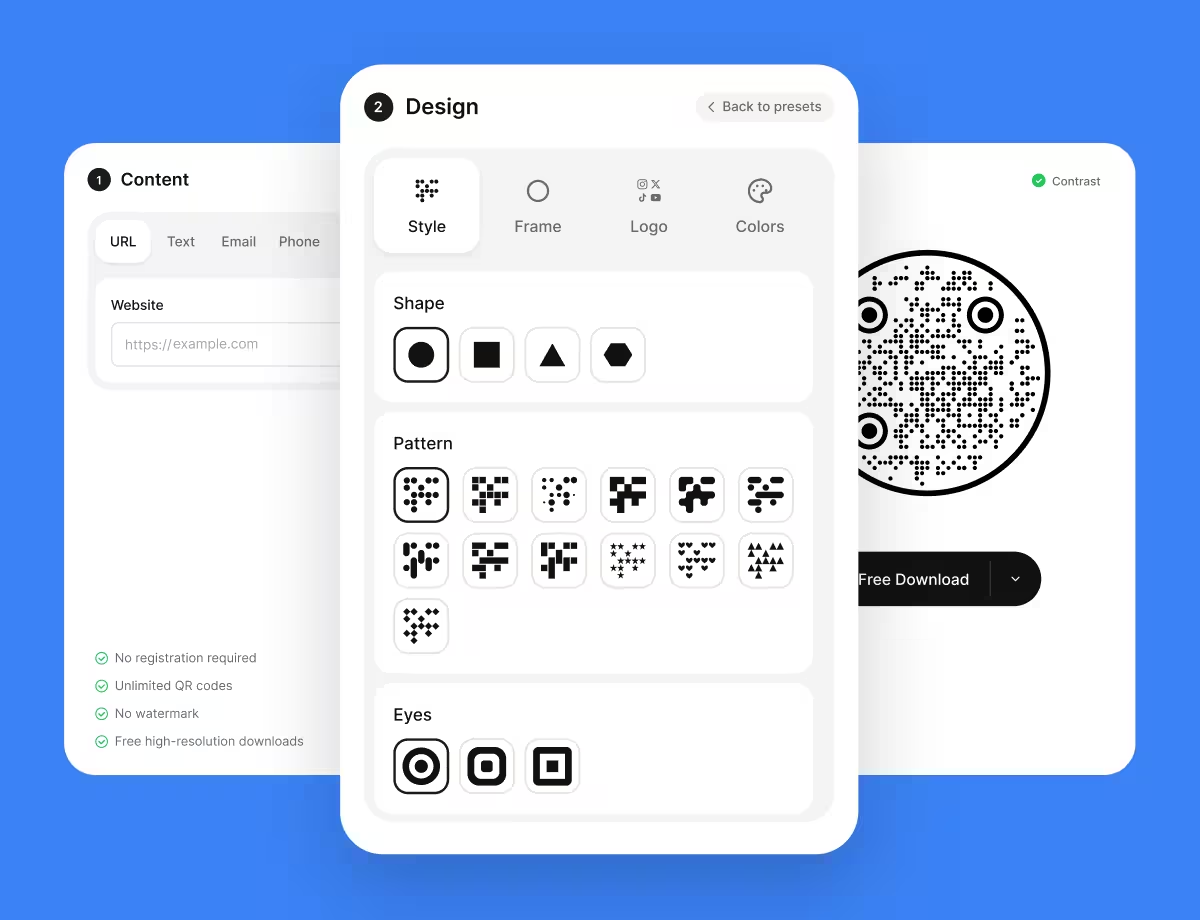
KoloQR, a free QR code generator with circular and custom-shaped QR codes, exports PNG for screens and SVG, PDF and EPS for print - at any width, with no resolution cap and no watermark.
No account and no per-code charge. Codes are generated in your browser, so the destination is never sent to a server.
Generate a QR CodeQuestions? Answered
300 DPI at the final printed size for press and digital print. 150 DPI is enough for large-format work read from metres away, and 203 DPI matches a thermal receipt printer. For print of any kind, a vector export removes the question entirely, because SVG, PDF and EPS have no resolution.
591 pixels square. The arithmetic is 50 mm divided by 25.4 to get inches, multiplied by 300, rounded up. If the symbol is version 3 - 37 modules including the quiet zone - export at 592 px instead, so each module gets exactly 16 pixels rather than 15.97.
For any screen use, yes. For print it covers about 8.5 cm at 300 DPI, or 17 cm at 150 DPI for large format. Beyond that the effective resolution falls below the print standard and module edges start to soften on paper.
No, not past the point where module edges are already hard. Scanning depends on the printed size of a module and the contrast across its edge, and once a module is reproduced by several clean pixels, adding more changes nothing a camera can use. Print the code wider instead.
No. The DPI value stored in a PNG or JPG is metadata - a hint about intended print size that leaves every pixel untouched. What decides output quality is the pixel count divided by the size the file is actually placed at in the layout.
SVG, or PDF or EPS. A vector file describes the modules as shapes, so it prints at any size with perfectly hard edges and no resolution ceiling. PNG is the right choice for screens, email and web pages. The SVG vs PNG guide covers the trade-offs in full.
No. Upscaling interpolates new pixels along every module edge, which softens exactly what a decoder thresholds on. Regenerate the code at the size you need - it is free and instant - or place a vector SVG export, which enlarges with no loss at all.
150 DPI at the printed size is the usual specification for large format, since banners are read from metres away. A 30 cm code at 150 DPI is 1772 px square. Some large-format printers accept 100 DPI, so check the spec before exporting a file four times larger than the job needs.
203 DPI, which is the dot pitch of most thermal receipt printers. One dot is about 0.125 mm, so a 0.5 mm module is exactly four dots. Sizing the module in whole multiples of 0.125 mm keeps every module identical - uneven modules are the usual cause of receipt codes failing.
It means the export width divides evenly by the module count, so every module is drawn by the same whole number of pixels. A fractional width makes some modules a pixel wider than others and adds an anti-aliased grey fringe at each edge, which is the softness a decoder tolerates least.
Almost always because the file was placed larger than its pixel count supports, or because it was upscaled or exported as JPG. Check the effective resolution at the placed size, re-export at the width the layout needs, and use PNG or a vector format rather than JPG.
Keep Exploring
Pages that pick up where this one leaves off - the same setting, the same kind of code, or the next thing worth deciding.
Beauty Salons
Rebooking at the chair, per-service aftercare and a portfolio per stylist, with codes that survive acetone, colour and hairspray.
Photographers
Client galleries, print reorders, portfolio links and guest photo uploads, on cards, albums, prints and event signs.
QR Code Shapes
The whole shape taxonomy - modules, eyes and frames - with the trade-offs behind round, triangle, hexagon and square codes.
Colored QR Codes
Put your palette on a QR code without breaking it: which color goes on the pattern, and which belongs on the frame.
Amazon QR Code
Take a scan straight to a product page, a storefront, or a wish list.
QR Code Contrast Checker
Judge a colour pair the way a scanner does: the contrast ratio, the luminance difference a camera sees, and whether it survives print.
Why KoloQR?
- Create QR codes for websites, menus, Wi-Fi, PDFs, and business cards
- Customize colors, logos, and unique shapes
- Download high-quality PNG and SVG files
- Built for both print and digital
