QR Code SVG and Vector Files: Download a Sample, See What Is Inside, Use It Anywhere
by KoloQR TeamDesign
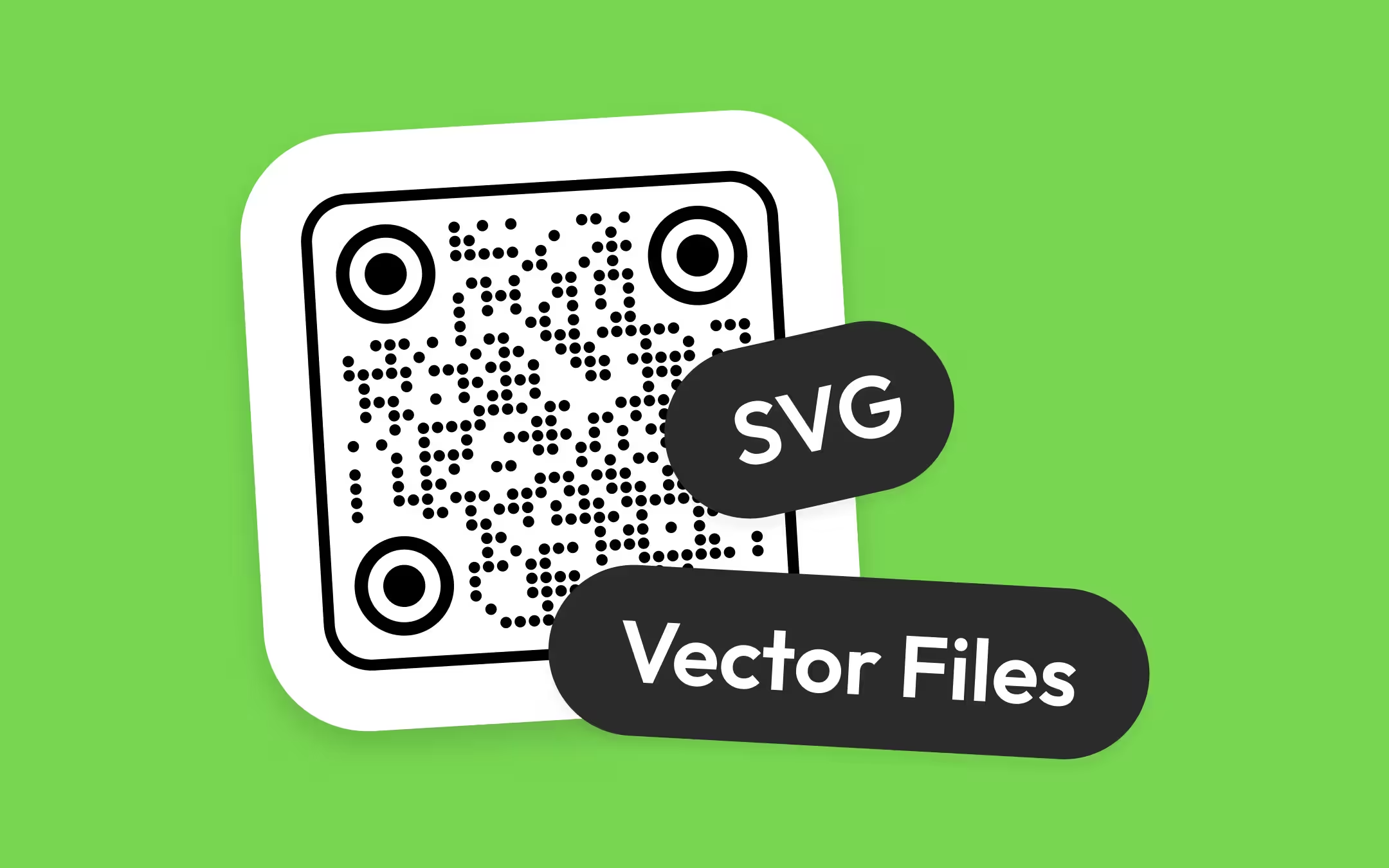
A QR code SVG is a plain text file that draws the code as shapes, so it scales to any size and opens in every design tool. This page ships a real one to download: a 6,355-byte sample that scans, made with the same encoder as KoloQR, with every element in the file explained. It then covers what a KoloQR SVG export holds, how to place a vector QR code in Illustrator, Figma, Inkscape, Affinity, Canva, InDesign, Word and PowerPoint, and the handful of edits that turn a working vector code into a decorative one.
Key points
- The sample SVG QR code on this page is real: version 6, 41 x 41 modules, error correction H, 6,355 bytes, and it decodes to the address of this page. Use it as a placeholder in a mockup; do not print it on anything that needs your own link.
- A vector QR code is not editable in the way a headline is. The arrangement of dark and light modules is the data, so the only safe edits are recolouring the whole path, resizing with proportions locked, moving and rotating.
- A KoloQR SVG export is one file with named parts: a background, the modules as individual shapes, each finder eye as one path, a frame as one path, a logo group, and any label text already converted to outlines.
- Illustrator, Figma, Inkscape and Affinity Designer open an SVG as editable shapes. Word and PowerPoint for Microsoft 365 insert one through Insert, then Pictures. Canva accepts SVG uploads. InDesign places one as a graphic.
- A free vector QR code from a stock site encodes someone else's address, and no design tool can change that. If the code has to point at your page, generate it - the generator exports SVG without an account or a watermark.
Download a Sample SVG QR Code
Start with the file itself: download the sample SVG QR code. It is 6,355 bytes, a version 6 symbol of 41 x 41 modules at error correction level H, encoding the address of this page. It was generated with the same encoder KoloQR uses in the browser and checked with the jsQR decoder before it was published, on 22 September 2026, so it scans. For which format to download for a given job - SVG, PNG, PDF or EPS - see SVG vs PNG vs PDF vs EPS for QR codes; this page is about getting, reading and using the SVG itself.
The sample is deliberately the plainest SVG a QR code can be. Black square modules on a white background, a four-module quiet zone, no logo, no frame, no rounded corners, and no width or height attributes, so a design tool opens it at whatever default size it uses and the file scales cleanly from there. A styled code from the generator is a longer file with more parts; the sample is the one to open in a text editor when the question is what an SVG QR code actually is.
The one rule for the sample is what it encodes. Scanning it opens this guide, and nothing in Illustrator, Figma or any other tool can make it open anything else, because the pattern of modules is the address. Use it as a stand-in on a mockup, a template or a print layout while the real code is still being decided, then replace it with a code generated from the real destination before anything is printed.
What Is Inside the Sample SVG File, Element by Element
The sample SVG contains six lines: an XML declaration, a comment, an opening svg element with a viewBox, a white background rectangle, one black path holding every dark module, and the closing tag. That is the entire file, and each part has a job a scanner or a design tool depends on.
| Element | What it holds | Why it matters |
|---|---|---|
| <?xml version="1.0" encoding="UTF-8"?> | The XML declaration | Marks the file as XML text; a KoloQR export adds one when it is missing, and a browser renders the file with or without it |
| <!-- ... --> | A comment naming the payload, the version and "made with KoloQR" | Human-readable provenance; a scanner and a design tool both ignore it |
| <svg xmlns="..." viewBox="0 0 49 49" shape-rendering="crispEdges"> | The drawing surface: 49 x 49 units, one unit per module, 41 modules of code plus 4 of quiet zone on every side | The viewBox is what makes the file scale; crispEdges tells a renderer not to anti-alias module edges |
| <rect width="49" height="49" fill="#fff"/> | A white background covering the whole surface, quiet zone included | Without it the quiet zone is transparent, and on a dark layout the scanner loses the symbol's boundary |
| <path fill="#000" d="M4 4h7v1H4z ..."/> | 823 dark modules drawn as 442 horizontal runs, each run one subpath | The data. One path means one fill to recolour and no way to nudge a single module by accident |
| </svg> | The closing tag | Ends the document |
The path data reads in module units. M4 4h7v1H4z means: move to column 4, row 4, draw 7 units to the right, 1 unit down, back to column 4 and close - which is the top edge of the top-left finder pattern, sitting just inside the four-module quiet zone. Every subpath is that shape with different numbers. Adjacent dark modules on a row are merged into one run rather than drawn as one square each, which makes the file a little smaller and changes nothing about the geometry a scanner sees.
A QR code SVG from another generator will differ in the details - one rectangle per module, a group per row, a transform instead of a viewBox offset - and none of those differences matter to a scanner. What matters is in the table: a viewBox, a light background under the quiet zone, and dark modules as filled shapes with no stroke.
What a Vector QR Code Is, and Why the Pattern Is the Data
A vector file is an image stored as shapes and coordinates rather than pixels, so it can be redrawn at any size without losing edge definition. A vector QR code is therefore a set of filled shapes on a grid, and the grid is the message: a scanner reads which cells are dark and which are light and turns that arrangement back into the address.
A module is one of the small light and dark squares that carry a QR code's data, and the smallest unit a scanner has to resolve. In the sample there are 1,681 module positions and 823 of them are dark. Which 823 is decided by the encoder from the text, the error correction level and a mask pattern, which is why no design tool has a field where the address can be typed - the address is not stored beside the picture, the address is the picture.
The quiet zone is the empty margin around a QR code that lets a scanner detect where the symbol begins and ends, and the standard specifies four modules on every side. In a vector file the quiet zone is easy to lose, because a tool that crops to the visible artwork crops to the dark modules and throws the margin away. The sample keeps the margin inside the viewBox and paints it white for that reason. QR code quiet zone covers what happens when it goes missing.
What a KoloQR SVG Export Contains
A KoloQR SVG download is a single file named qr-by-koloqr-com.svg holding the code as separately named vector parts: a background, the modules, the three finder eyes, a frame if one was chosen, a logo if one was added, and any label text already turned into outlines. KoloQR, a free QR code generator with circular and custom-shaped QR codes, writes that file in the browser and adds nothing to it - no watermark, no tracking element, no account.
What the export code does at the moment of download, in the order it does it:
- Outlines the labels. If a QR code frame carries text such as SCAN ME, the export waits for the label font to load and redraws each label as a path before serialising, so the file never contains a text element that needs a font installed downstream.
- Serialises the artwork. The svg element that was on screen is written out with its viewBox, and the file gets an XML declaration if it did not already have one.
- Adds an explicit width and height. The two attributes are copied from the viewBox so that a design tool which reads them, Figma in particular, places the code at its true size rather than a default box.
- Makes referenced ids unique. Any id that something in the file points at - a clip path, the invisible arc a curved label follows - gets a prefix unique to that export, so two codes dropped into one document cannot clip each other. Ids that only name layers, such as Background and Logo, are left readable.
The parts a design tool shows in its layers panel come from the file itself. The root element is named by KoloQR.com; the background is a rectangle named Background, omitted when the background is set to transparent; the data modules sit in a group filled with the foreground colour, each module its own shape - a square, a circle, or a capsule when a pill pattern merges a run; each finder eye is one path with its hole cut by an even-odd fill so it recolours with one click; a designed frame is one path with a real hole in it; a logo lives in a group named Logo. Scale is fixed at ten units per module, which the format guide already uses to derive the PNG and PDF figures, so it is not repeated here.
The same markup is what Copy to Figma places on the clipboard. Nothing differs between the copied text and the downloaded file except where it lands, which is why copying a QR code into Figma describes the layers a paste produces in exactly the terms above.
How to Get a QR Code as an SVG With KoloQR
Getting an SVG takes one visit to the generator and one download: enter the content, style the code if the design calls for it, choose SVG in the download menu, open the file in the design tool, and scan the proof. There is no account, no email step and no size limit on the file.
- Open the Generator and Enter the Content. Open the generator and type the URL, Wi-Fi details, text or other content. The download buttons stay inactive until the content field holds something, so the styled placeholder shown before typing cannot be exported by mistake.
- Style the Code Before Exporting. Set the shape, module pattern, eye style, colours, frame and logo here rather than in the design tool. The SVG is a snapshot of the preview, and the generator's contrast badge checks the colour pair before it is committed to a file.
- Choose SVG in the Download Menu. Click the arrow beside Download and choose SVG. The file qr-by-koloqr-com.svg lands in the downloads folder; Copy to Figma sits in the same menu and puts the identical markup on the clipboard instead.
- Open or Place the File in the Design Tool. Place the SVG in Illustrator, InDesign or Affinity, drag it onto the Figma or Inkscape canvas, or upload it in Canva. Resize with proportions locked, and leave the quiet zone inside the artwork.
- Scan the Proof. Scan the placed code from the screen at 100% and, for print, from a printed proof at final size, with an iPhone and an Android phone. Confirm the address that opens is the one entered in step 1.
How to Use a QR Code SVG in Illustrator, Figma, Inkscape and Affinity
All four vector editors open a QR code SVG as editable shapes, and the working method is the same in each: bring the file in, leave the module geometry alone, change colour through the fill, and resize with the proportion lock on. Menu names below are the usual ones; they shift between versions, so treat them as what to look for.
- Adobe Illustrator. Use File, then Place, or open the SVG directly. A placed SVG typically arrives as a linked or embedded group; ungroup once if the fill needs to be changed per part, then select the module shapes and set the fill. No Expand step is needed - the modules are already paths, not live effects. Scale with Shift held, or through the Transform panel with the proportion lock on.
- Figma. Drag the .svg file onto the canvas, or paste the raw SVG markup from the clipboard. Figma's help centre says that when an SVG file is imported it is no longer treated as an image and is converted into an editable vector layer. The full route, the layer names that arrive and the edits that are safe are in how to copy a QR code into Figma.
- Inkscape. File, then Open, opens the SVG as a document; File, then Import, typically asks whether to include the SVG as editable objects or as a linked image - choose editable. Inkscape's own SVG is a superset of the file, so saving as Plain SVG afterwards keeps it portable.
- Affinity Designer. File, then Place, or File, then Open. A placed SVG typically arrives as an embedded document that can be edited in place or ungrouped; the fill is changed from the colour panel, and the Transform panel has a lock for proportional scaling.
In every one of the four, the tempting edit is to select all and apply a stroke, an effect or a gradient. Stroke is the one that fails silently, and the next section but one explains the geometry. Recolour the fill, and only the fill.
How to Put a QR Code SVG Into Canva, InDesign, Word and PowerPoint
The layout and office tools take an SVG as a picture rather than as editable shapes, which is fine for a QR code: the code needs to be placed and sized, not redrawn. Canva uploads it, InDesign places it, and Word and PowerPoint for Microsoft 365 insert it from the Pictures menu.
- Canva. Upload the SVG through the Uploads panel and drag it onto the design. Canva accepts SVG uploads, with a file-size limit its help centre states per plan - a QR code SVG is a few kilobytes, so the limit is not the concern; whether the upload is allowed on a given plan is, and Canva's own upload-requirements page is where to confirm it. If an SVG upload is refused, upload a PNG exported at the final printed size instead. Creating a QR code in Canva covers the whole route, and the KoloQR vs Canva comparison explains why Canva's own SVG export is the harder path.
- Adobe InDesign. File, then Place, and click or drag to set the frame. InDesign treats a placed SVG as a graphic: it typically will not recolour the fills, so set the colours before export. Keep the scale at 100% on both axes or, when it must change, change width and height by the same percentage.
- Word and PowerPoint. Microsoft's support page on editing SVG images says that Word, PowerPoint, Outlook and Excel for Microsoft 365 on Windows, Mac, Android and Windows Mobile insert SVG files through Insert, then Pictures, then This Device. Older perpetual versions vary, which is why a PNG is the safer attachment when the recipient's version is unknown. The Convert to Shape option on the Graphic Format tab breaks the code into editable pieces; there is no reason to use it on a QR code.
- Google Docs and Slides. Neither imports SVG at the time of writing, so insert a PNG. Export it at twice the displayed size so it stays sharp on a high-density screen.
Whatever the tool, the size check is the same. A printed QR code wants roughly one centimetre of width for every ten centimetres of reading distance, and the print size calculator turns a reading distance into a width. Resize the placed SVG to that width with proportions locked, and check that the quiet zone still sits inside the placed frame rather than being cropped by it.
How to Use a QR Code SVG on a Web Page and at a Print Shop
On a web page, reference the SVG from an img element with a width and height, and it renders sharp on every display. At a print shop, send a PDF unless the shop says it takes SVG - a PDF is the format most upload forms name, and the sibling guide explains how to make one that stays vector.
- As an image. An img tag pointing at the .svg file is the simplest route: the browser scales it, and a viewBox with no width or height attributes fills whatever size the tag gives it. The sample renders at 4 CSS pixels per module when the tag is 196 pixels wide, which is a sensible floor for a code that people will scan from a screen.
- Inline. Pasting the SVG markup into the HTML lets CSS recolour the path, which is useful for a dark-mode design where the code has to flip to light modules on dark - a combination that native phone cameras usually read and older scanners often do not, so test it. Inline also means the file is downloaded with the page rather than cached separately.
- Not as a background image with cover or contain. Both can crop or distort the box the code sits in, and a cropped quiet zone is the failure that shows up only on some phones.
For print, the question is what the shop's workflow places. Most name PDF, some accept SVG, and a few older production systems ask for EPS. The steps for turning the SVG into a fully vector PDF, and when EPS is the right answer, are in SVG vs PNG vs PDF vs EPS. The print checklist runs through size, contrast and stock before the file goes to the run. A laser engraver takes the SVG itself, exported with no background; the settings are in laser engraving a QR code.
Rules That Keep a Vector QR Code Scannable After Editing
A vector QR code survives any edit that leaves the module grid and its contrast alone, and fails under any edit that does not. Four operations are safe: recolour the whole path, resize with proportions locked, move, rotate. The rest of the list is what to avoid, with the reason each one breaks the code.
- Never move or delete a path node. Every dark module is data, and every node belongs to one. A module dragged half a cell to the right reads as two wrong cells; a deleted run is deleted data, and error correction spends its budget on the loss instead of on real-world damage.
- Recolour the whole path, not selected modules. A code with two module colours is read as one dark colour and one light colour by a scanner, and which is which depends on the threshold the phone picks. Pick one dark and one light, and check the pair with the QR code contrast checker.
- Keep the quiet zone. ISO/IEC 18004 specifies four modules of clear margin on every side. Cropping the artboard to the dark modules, or letting a frame or a photo run into the margin, removes the boundary the scanner looks for.
- Do not stroke the modules. A stroke is drawn centred on the path edge, so a stroke of one tenth of a module grows every dark module by a tenth on each side and shrinks every light gap by a fifth. That is geometry, not a matter of taste: at a stroke of half a module every light cell between two dark ones closes completely, and the code stops being a grid.
- No gradients or transparency on the modules. A gradient makes some modules lighter than others, and a scanner needs each one to fall clearly on the dark side of its threshold; transparency lets the background show through, which is the same problem by another route.
- Do not scale one axis. A 4% stretch is invisible on screen and makes the finder patterns non-square, which is the first thing a decoder checks for. Lock the proportions before touching a handle.
Two checks close the loop. Drop the finished artwork into the QR code validator, which reports whether the styled code still decodes and to what, and then scan a proof of the real output - the screen at 100%, or the printed sheet at final size - with a phone. Styling never improves scanning; the point of these rules is to keep an edited code as scannable as the plain one it started from, and only a scan confirms that it did.
Where Free Vector QR Code Downloads Go Wrong
A free QR code SVG from a stock or icon site is a working code that points at the wrong place, and no amount of editing can repoint it. The three failure modes are worth knowing before the download, because each looks fine in the preview and fails at the scanner or at the customer.
- The stock SVG encodes someone else's address. Most stock QR codes hold https://example.com, the artist's portfolio, or the stock site itself. The pattern of modules is that address, so recolouring, reshaping and relabelling it leaves it pointing there. A stock code printed on a menu sends diners to a stranger's site.
- The vectorised PNG is not a clean grid. A raster QR code run through an auto-trace comes back as shapes with rounded corners, slightly uneven cell sizes and edges that no longer sit on the module grid. Each of those eats into the margin a decoder has for lighting and angle. SVG vs PNG explains why regenerating beats tracing.
- The code carries a stroke or a photographed line weight. Some vector QR codes are drawn from a photo or a scan of a printed code, so the modules carry the ink spread of the original print. A scanner sees fatter dark modules and thinner light ones from the start, before the next print adds its own spread.
The decision rule is short. If you need a placeholder for a mockup, use the sample on this page - it is clean, it scans, and it says where it points. If you need a code that points at your page, generate it: a static QR code takes seconds to make, exports as SVG with no account, and encodes exactly the address you typed. Which kind of code to generate, static or dynamic, is a separate choice covered in static vs dynamic QR codes; KoloQR makes static codes only.

Make Your QR Code
Free, with no account and no watermark. Choose a shape, add a logo, check the contrast, and export SVG, PDF, EPS or PNG - a static code with no subscription behind it.
Generate QR CodeQuestions? Answered
Generate one. The generator on this site exports SVG with no account, watermark or size limit, and the code encodes the address you typed. A free sample SVG is also linked from this page for mockups and templates; it encodes this page's address and cannot be edited to point elsewhere, so it is a placeholder rather than a substitute for generating your own.
No. The URL is not stored as text beside the drawing; the arrangement of dark and light modules is the URL, computed by the encoder from the text, the error correction level and a mask. Changing the destination means generating a new code. That is true of every static QR code in every format, and it is the honest limit of an SVG that is otherwise fully editable.
SVG is one vector format among several. A QR code vector file can be SVG, EPS, a vector PDF or an AI file, and all of them store the modules as shapes that scale without a resolution ceiling. SVG is the one that is plain text, opens in a browser and imports into every current design tool, which is why it is the sensible master copy.
Use File, then Open, to open it as a document, or File, then Place, to drop it into an existing artboard. The modules arrive as paths, typically grouped; ungroup once if a part needs its own fill. Change colour through the fill only, scale with the proportion lock on, and leave the four-module margin inside the artboard. No Expand or Image Trace step is needed.
Yes. Figma's help centre says an imported SVG is not treated as an image and is converted into an editable vector layer. Dragging the .svg file onto the canvas or pasting the raw SVG markup both work; a KoloQR export arrives as named layers because the file carries the names. The layer-by-layer detail is in the guide to copying a QR code into Figma.
Canva accepts SVG uploads through the Uploads panel, and a QR code SVG is only a few kilobytes, so no upload size limit comes into play. If an upload is refused on your plan, upload a PNG exported at the final printed size instead. Canva's own SVG export is the part that sits behind Canva Pro.
Only as a placeholder. The sample encodes the address of this guide, so a customer scanning it from a product lands here rather than on your page. Use it in a mockup, a template or a layout proof while the real destination is being settled, then generate a code from your own address and swap the file before anything goes to print.
Because a stroke is drawn centred on the edge of each shape, so it grows every dark module and shrinks every light gap by the same amount. A stroke half a module wide closes the light cells between neighbouring dark ones entirely. Remove the stroke and set the colour through the fill instead; if a heavier look is wanted, that is a job for the generator's module patterns, not for a stroke.
Small. The plain sample on this page is 6,355 bytes for a 41 x 41 module code, and a styled export with a frame, outlined labels and a logo is typically tens of kilobytes. A vector QR code that runs to megabytes almost always contains an embedded bitmap rather than shapes, which is the sign of a raster image wrapped in an SVG tag.
Yes, and the direction matters: vector to vector is a clean conversion. Open the SVG in Illustrator, Inkscape or Affinity and save or export as EPS or PDF with rasterisation switched off, then zoom the result to 1,600% to confirm the edges stay hard. The generator also exports both directly. The full conversion table, including which direction is unsafe, is in the SVG vs PNG guide.
Keep Exploring
Pages that pick up where this one leaves off - the same setting, the same kind of code, or the next thing worth deciding.
QR Code Shapes
The whole shape taxonomy - modules, eyes and frames - with the trade-offs behind round, triangle, hexagon and square codes.
Colored QR Codes
Put your palette on a QR code without breaking it: which color goes on the pattern, and which belongs on the frame.
QR Code Error Correction: How L, M, Q and H Actually Work
What each error correction level recovers, how much data it costs, how large a logo it allows, and why raising the level can make a printed code harder to scan.
How to Copy a QR Code Into Figma as Editable Vectors
The clipboard SVG route into Figma, what the pasted layers actually contain, which edits keep the code scannable, and how the workflow compares with a Figma plugin.
SVG vs PNG vs PDF vs EPS: Which QR Code File Goes Where
The one-line rule for each format, what a KoloQR PNG, SVG, PDF and EPS file actually contains, where each one gets refused, and how to convert between them without damaging the code.
Inverted QR Codes: When a White Code on a Dark Background Scans, and When It Does Not
Whether a white QR code on a black or dark background scans, what the standard says, where our decoder test saw it fail, and how to print, display and test one safely.
Why KoloQR?
- Create QR codes for websites, menus, Wi-Fi, PDFs, and business cards
- Customize colors, logos, and unique shapes
- Download high-quality PNG and SVG files
- Built for both print and digital
