Turn Any Text Into a Scannable QR Code
A text QR code carries a written message inside the code itself. Scan it, and the words appear on screen - no website to load and no connection to wait for.
Opens in Google Maps. Coordinates work too - "37.4224, -122.0841".
The code opens your business's "Write a review" form. Paste the Place ID, or a Google Maps link that carries one.
A UPI link carries no checksum, so a mistyped ID produces a code that scans perfectly and pays somebody else. Paste the ID from your payment app rather than typing it, and send yourself one rupee before printing.
Paste it exactly as copied. KoloQR does not assemble the payload - it encodes the one your bank issued, and checks it before you print it.
SVG, PNG, JPG • Max 2 MB
First month free
then $9/month
Dynamic QR Codes Are Coming
Change your link anytime, even after printing. See who scans, when and where.
- Edit without reprinting
- Scan analytics
- Bulk & custom domains
You're on the List
We'll email you once, when dynamic codes with scan analytics launch.
What Is a Text QR Code?
A text QR code stores plain written text directly inside the code. When someone scans it with a phone camera, the message appears on their screen - no website, app, or internet connection needed. The text is fixed once the code is generated.
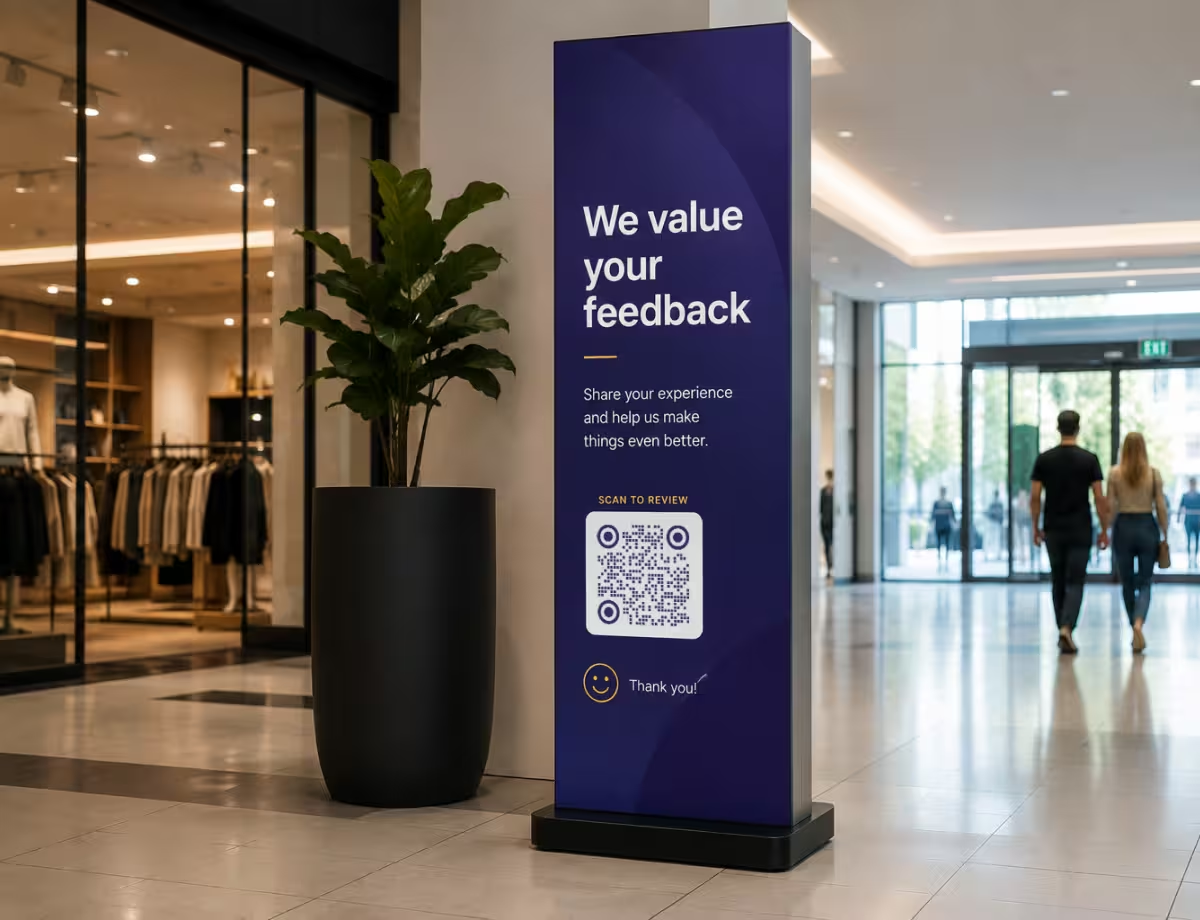
What You Can Store in a Text QR Code
Almost anything you can type can become a scannable code, but a few uses fit the format best:
- Short Messages - a note, greeting, or instruction people read the moment they scan.
- Reference Codes - serial numbers, batch IDs, asset tags, or part numbers that must stay legible.
- Offline Details - information that has to work with no Wi-Fi, mobile data, or live page behind it.
Keep the message concise. The more characters you add, the denser the code becomes, and dense codes are harder for cameras to read - especially when printed small. A sentence or two scans far more reliably than a full paragraph.
Text or Link - Which One Do You Need?
Choose a text QR code when the words themselves are the point: a message, a code, or a detail meant to be read. Choose a URL QR code when you want to send people somewhere - a website, menu, or form. Text codes work offline and never break; links can change or go dead, but hold far more behind them. One text payload the phone treats specially is an eSIM activation code - see eSIM QR codes for the LPA:1$ format and how to re-encode one.
Generate QR Code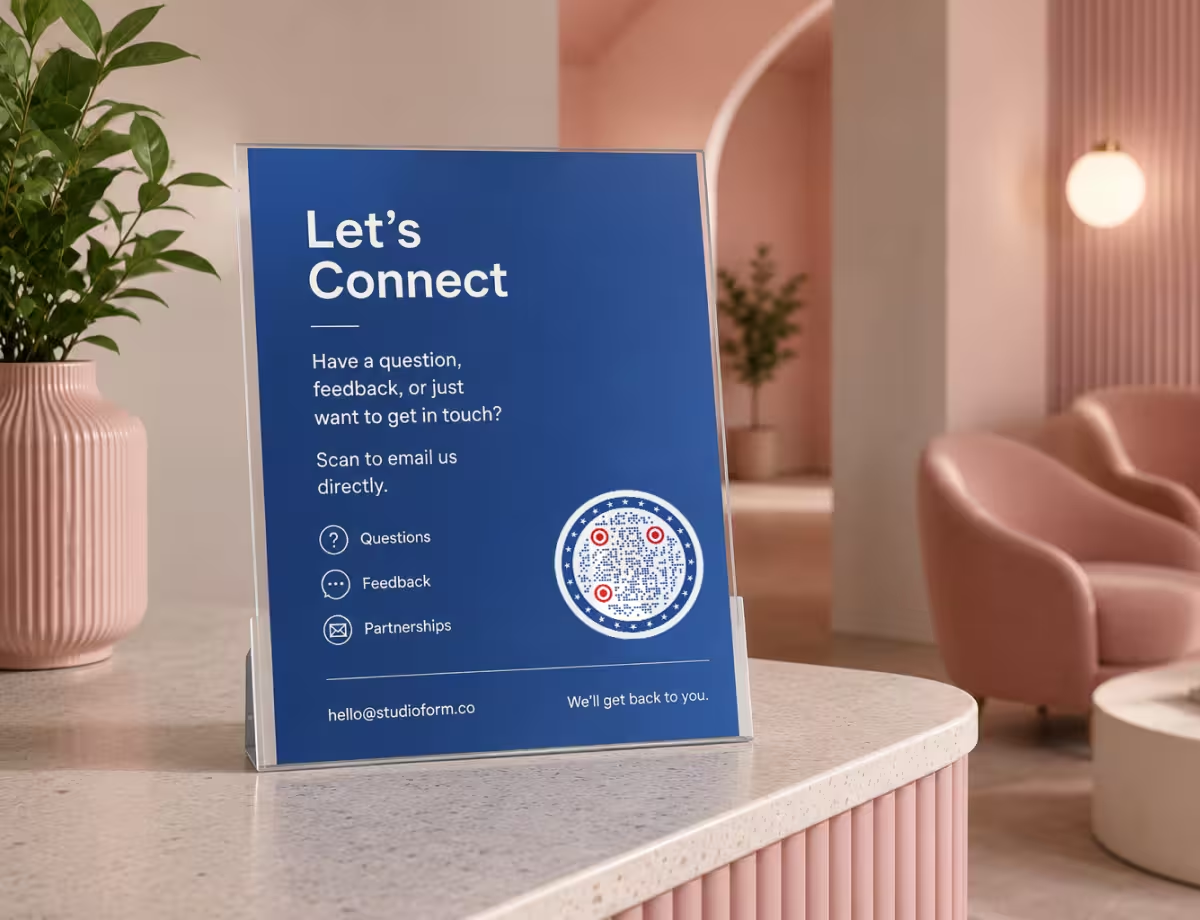
Where Text QR Codes Work Well
Because they need no internet and reveal their content instantly, text QR codes suit anywhere a short, dependable message matters.
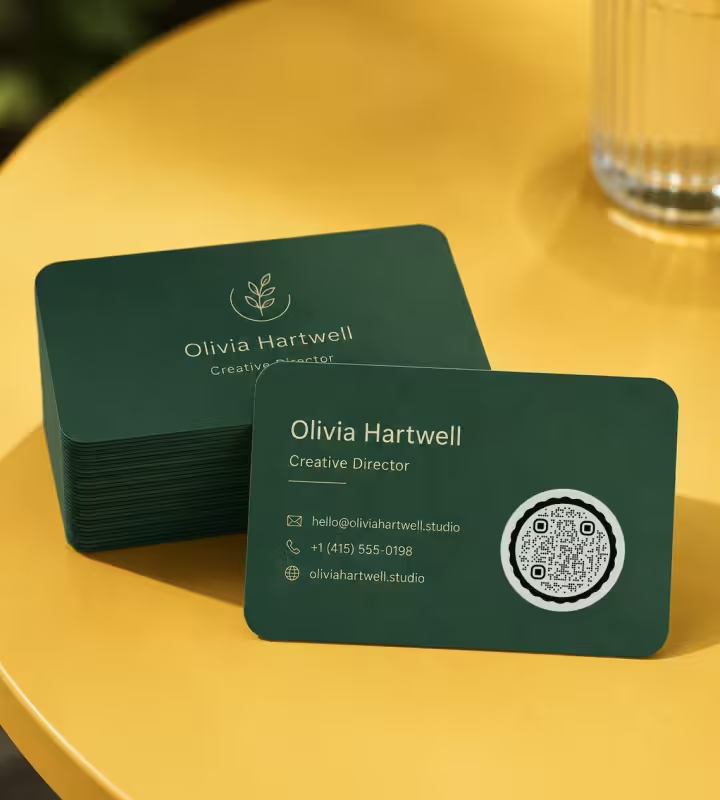
Product & Packaging Labels
Care instructions, ingredients, or handling notes printed straight onto the box.

Equipment & Asset Tags
Serial numbers and maintenance details that stay attached to the machine itself.
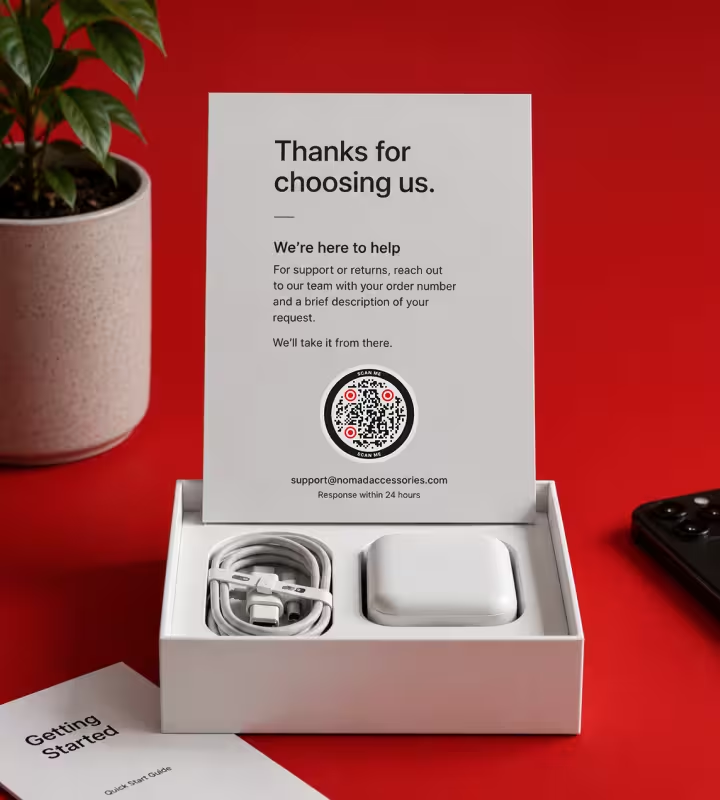
Museums & Exhibits
Short descriptions beside an artwork or display that load with no gallery Wi-Fi.
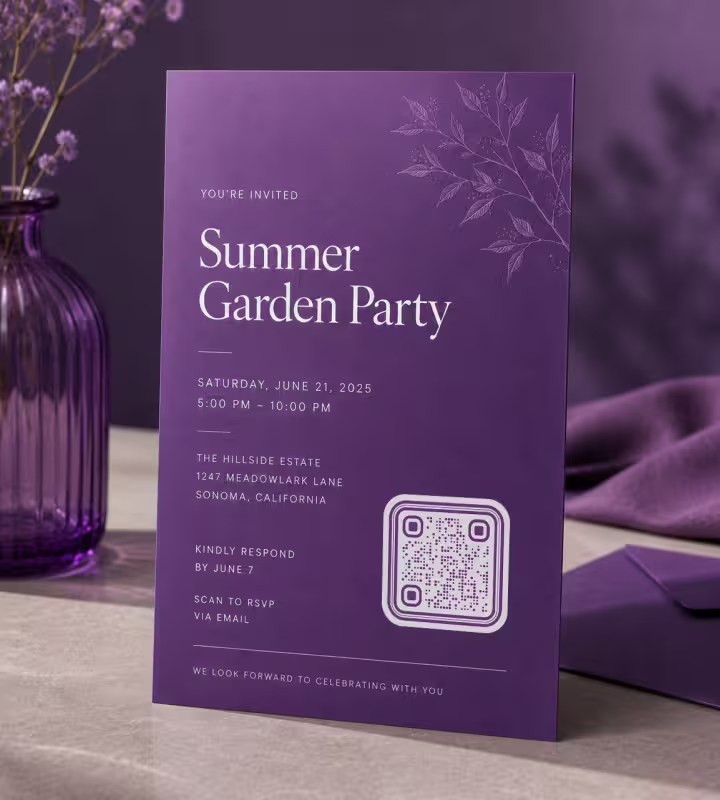
Event & Venue Signage
House rules, schedules, or directions people can read without opening a link.
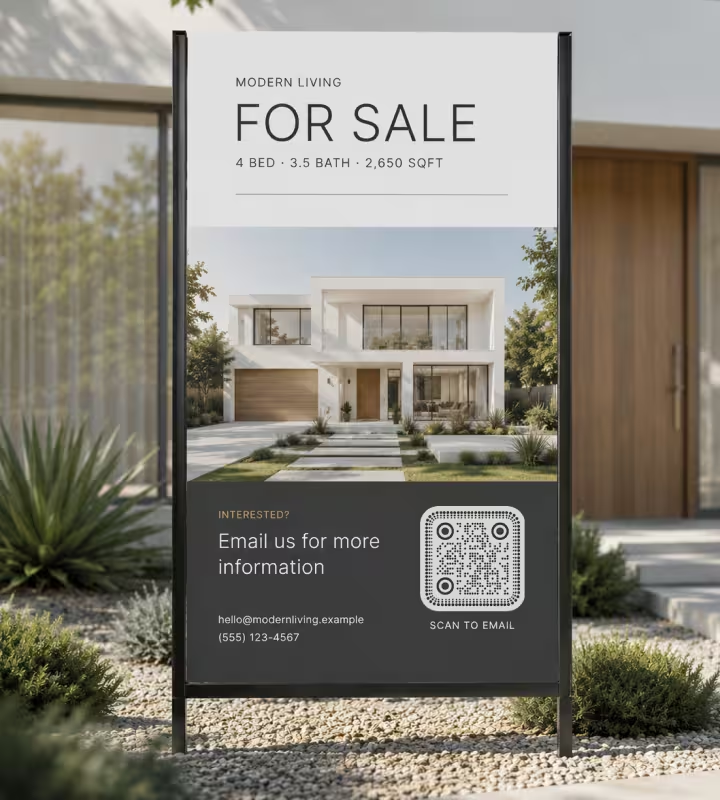
Classrooms & Training
Answer keys, prompts, or quick facts printed on handouts and worksheets.

Cards & Keepsakes
A hidden note or message on a greeting card, gift tag, or invitation.
How to Create a Text QR Code
You can generate one in under a minute - no account required.
Generate QR Code- 1
Enter Your Text
Type or paste your message into the text field. Keep it short for the cleanest, most reliable code.
- 2
Customize the Design
Adjust the shape, colors, and corners, or add a logo. Try a circular code for a softer, branded look.
- 3
Scan to Test
Check the code with your own phone to confirm the full message appears exactly as intended.
- 4
Download and Use
Export as PNG for screens or SVG for print, then add it to your label, sign, or document.

Choosing the Right File Format
The file you export decides how sharp your code looks - on a screen and, more importantly, in print.
- PNG for screens, slides, and quick digital sharing at a fixed size.
- SVG for print and large signage, since it scales to any size without losing sharpness.
- PDF for sending straight to a printer with print-ready dimensions and margins intact.
For anything that will be printed - labels, packaging, signs - export a vector file like SVG or PDF. Vectors stay crisp at any size, so the code scans reliably whether it’s on a business card or a banner. PNG is fine for on-screen use where the size won’t change.
Generate QR CodeText QR Code Best Practices
A few habits keep your code readable, dependable, and easy to scan on the first try.
Keep the Text Short
Every character adds density. Trim your message to the essentials so the pattern stays open and easy to read.
Treat It as Permanent
A text QR code is static - the words are baked in and can’t be edited later. Proofread before you print, because fixing a typo means generating a new code.
Hold Strong Contrast
Use a dark code on a light background. Low contrast, inverted colors, or busy backdrops are the most common reasons a code won’t scan.
Leave the Quiet Zone
Keep a clear margin around all four sides. Scanners need that empty border to find where the code begins and ends.
Size It for the Distance
The farther away people scan from, the bigger the code must be. A rule of thumb: a width of at least one-tenth the scanning distance.
Test Before You Commit
Scan the final code on more than one phone. Camera apps handle plain text slightly differently, so confirm the message shows up everywhere.
Use Vectors for Print
Export SVG or PDF for anything printed. A blurry, upscaled PNG is a frequent cause of failed scans on signage and packaging.
Label What It Does
Add a short line like “Scan for care instructions” nearby. People are far more likely to scan when they know what to expect.
Don’t Store Secrets
Anyone who scans the code can read the text, and it can’t be recalled once printed. Keep passwords, private data, and sensitive details out of it.
Why Your Text QR Code Isn't Working
A text code carries no instruction beyond the words themselves, so what happens on scan is up to the app. These are the four places that shows.
The Scanner Searches the Web Instead of Showing the Text
- Cause
- Some scanner apps assume anything that isn't a recognized link must be a search term, and hand the words to a search engine rather than displaying them.
- Fix
- The native camera on both platforms shows plain text as text, so test there first. If the audience is likely to use a third-party scanner app, a URL code pointing at a page you control behaves the same way everywhere.
Accented or Non-Latin Characters Come Out as Nonsense
- Cause
- A plain-text code carries no declaration of its character set, so a scanner that assumes the older Latin-1 encoding renders anything outside it as junk.
- Fix
- Scan the exact string on an iPhone and an Android before printing. Where a message has to carry accents, a non-Latin script, or emoji, a URL to a page you control renders reliably everywhere.
The Code Is Dense and Hard to Scan
- Cause
- Every character adds modules. A paragraph produces a far denser grid than a single line, and past a certain density it stops reading at normal distance.
- Fix
- Cut the message to what has to be there. If it runs past a sentence or two, put it on a page and encode the link instead - a short URL always scans easier than long text.
The Line Breaks Disappear
- Cause
- How decoded text is displayed belongs entirely to the scanner app, and several collapse the whole thing into one running line however it was entered.
- Fix
- Write the message so it reads as one or two sentences. Anything that depends on layout - a list, an address block, a schedule - belongs on a page rather than inside the code.
Still not sure whether the fault is the file or the print? Drop the exported image into the QR code scanner - if it decodes on a desktop and not on paper, the fault entered after the file.
Questions? Answered
A text QR code is a QR code that stores plain written text inside the code itself. When you scan it with a phone camera, the message appears on screen directly - there’s no website to open and no internet connection required.
No. Text QR codes are static, meaning the message is encoded permanently into the pattern. To change the text, you generate a new code, so proofread carefully before printing.
A single QR code can technically store up to about 4,296 alphanumeric characters. In practice, keep it far shorter - a sentence or two. More text creates a denser code that’s harder for cameras to scan, especially in print.
Usually not. Most modern phones read plain-text QR codes with the built-in camera app and show the message automatically. Exactly how it appears varies by device, but a separate QR code scanner is normally not needed.
Yes. The text lives inside the code, not on a web page, so it displays even with no Wi-Fi or mobile data. That makes text QR codes reliable for packaging, signage, and remote locations.
A text QR code displays a written message when scanned. A URL QR code opens a website instead. Choose text when the words are the content; choose a URL when you want to send people to a page online.
Yes. KoloQR lets you generate text QR codes for free, with no account or watermark, and download them as PNG or SVG.
Yes. You can change the colors, corner style, and shape - including circular QR codes - and add your own logo, so the code matches your branding while staying scannable.
Use SVG or PDF for print. These are vector formats that stay sharp at any size, from a small label to a large banner. Save PNG for on-screen use where the size won’t change.
The usual causes are too much text (an overly dense code), weak contrast between the code and its background, a code printed too small, or a missing quiet-zone margin. Shorten the text, boost contrast, and print larger to fix most issues.
Keep Exploring
Pages that pick up where this one leaves off - the same setting, the same kind of code, or the next thing worth deciding.
Event QR Codes
One scan connects guests to tickets, schedules, directions and RSVPs - on invites, posters and signage.
Healthcare
Booking pages, intake forms and aftercare instructions on posters, leaflets, prescription bags and bedside cards.
Colored QR Codes
Put your palette on a QR code without breaking it: which color goes on the pattern, and which belongs on the frame.
Transparent QR Codes
Codes with no background of their own - which surfaces they scan on, which ones break them, and how to place one on photos, video, glass and clear labels.
URL QR Code
Send anyone straight to a web page, landing page, or link with a single scan.
Phone Number QR Code
Turn a phone number into a code that opens the dialer, ready to call in one tap.
Why KoloQR?
- Create QR codes for websites, menus, Wi-Fi, PDFs, and business cards
- Customize colors, logos, and unique shapes
- Download high-quality PNG and SVG files
- Built for both print and digital
