Turn an eSIM Activation Code Into a Scannable QR Code
An eSIM QR code is a carrier-issued activation code in QR form - it is not something a generator can invent. If your carrier sent the code as text (an SM-DP+ address and an activation code for manual entry), KoloQR, a free QR code generator with circular and custom-shaped QR codes, re-encodes that LPA:1$ string into a QR you can scan from another screen. It does not create eSIM profiles.
Opens in Google Maps. Coordinates work too - "37.4224, -122.0841".
The code opens your business's "Write a review" form. Paste the Place ID, or a Google Maps link that carries one.
A UPI link carries no checksum, so a mistyped ID produces a code that scans perfectly and pays somebody else. Paste the ID from your payment app rather than typing it, and send yourself one rupee before printing.
Paste it exactly as copied. KoloQR does not assemble the payload - it encodes the one your bank issued, and checks it before you print it.
SVG, PNG, JPG • Max 2 MB
$9 $4 / month
55% off for early supporters
Dynamic QR Codes Are Coming
Change your link anytime, even after printing. See who scans, when and where.
- Edit without reprinting
- Scan analytics
- Bulk & custom domains
You're on the List
We'll email you once, when dynamic codes with scan analytics launch.
What Is an eSIM QR Code?
An eSIM QR code is a QR code that carries a carrier-issued activation code telling your phone which server holds your eSIM profile and which single-use token unlocks it. Scanning it starts the profile download; the QR itself contains no plan, no phone number and no credentials beyond that one token.
What the Code Actually Contains
GSMA specification SGP.22 (section 4.1) defines the activation code as a handful of $-separated fields, prefixed with LPA: when carried in a QR:
- LPA:1 - the prefix plus the format version. The version is always 1 today; a phone treats any other number as invalid.
- SM-DP+ Address - the domain name of the carrier's provisioning server, for example smdp.example.com. No https://, no path.
- Matching ID - the activation token: uppercase letters, digits and hyphens that identify one download order for one profile.
- Optional Extras - an SM-DP+ OID and a final 1 meaning a confirmation code is required, each after another $. Most consumer codes carry neither.
The specification's own example reads LPA:1$SMDP.GSMA.COM$04386-AGYFT-A74Y8-3F815 and caps the whole string at 255 characters. Everything that matters - the profile, the number, the plan - sits on the SM-DP+ server, not in the code. That is why an eSIM QR looks like a short text QR code and behaves nothing like a WiFi QR code, which carries the actual password inside the pattern.
Why Would You Re-Encode One?
A phone cannot scan a code shown on its own screen - the camera has to point at a second surface. Carriers know this, so most send the activation code twice: as a QR image and as manual-entry text (SM-DP+ address plus activation code). If all you have is the text, or the image is too small or too blurry, pasting the full LPA:1$ string into KoloQR's Text type gives you a clean QR to display on a laptop or print out, then scan with the phone that needs the profile. The generator runs in the browser, so the token never leaves your device. Read how to scan a QR code if the phone's camera is new to you.
- What KoloQR Does - encodes the string you paste, character for character, as a static QR at error correction level H.
- What KoloQR Does Not Do - create eSIM profiles, contact the carrier, check that the code is valid or unused, or repair a code that is wrong.
A QR whose payload is wrong installs nothing. The phone reads the string exactly the way it would read the carrier's own image, no better and no worse, so the only thing to get right is copying the code intact.
Generate QR Code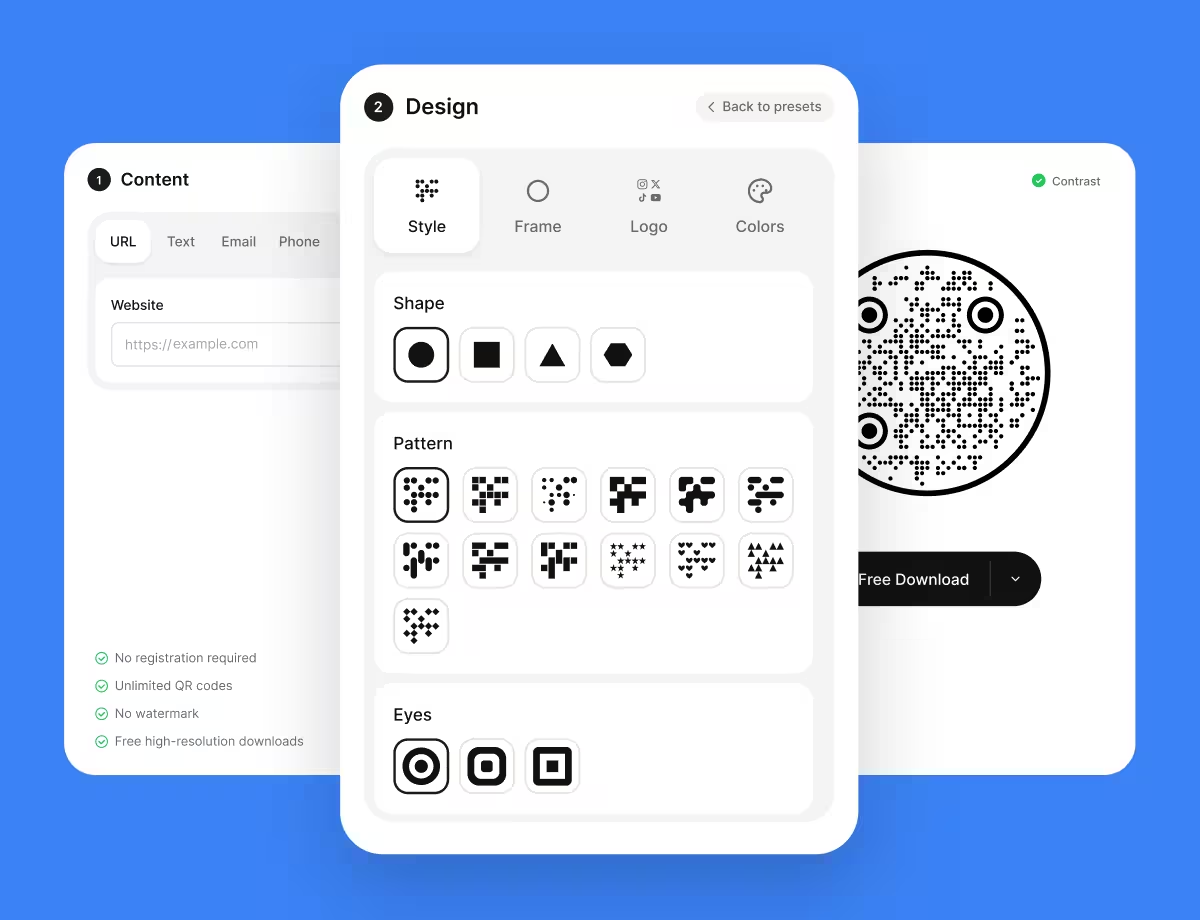
When an eSIM QR Code Comes Up
Every one of these situations starts with a code the carrier already issued. The QR is just the fastest way to move it from one screen into the phone.
How to Make an eSIM QR Code From an Activation Code
This re-encodes a code your carrier already gave you. It takes about a minute and uses KoloQR's Text type.
Generate QR Code- 1
Find the Manual-Entry Details
In the carrier's email, PDF or account page, look for an SM-DP+ address (a domain such as smdp.example.com) and an activation code (a string of uppercase letters, digits and hyphens). If a confirmation code is listed, note it separately - it is typed on the phone, not encoded.
- 2
Assemble the LPA:1$ String
Write LPA:1$ then the SM-DP+ address, then $, then the activation code, with no spaces: LPA:1$smdp.example.com$ABC-123-XYZ. If the carrier already sent a full LPA:1$ line, copy that exactly and skip the assembly.
- 3
Paste It Into the Text Type
Open the generator, pick Text, and paste the string as one line. Do not change the case, add spaces or drop a $ - a phone matches the token character for character.
- 4
Keep the Design Plain
Black modules on white, square shape, no logo. Styling adds nothing here and the code will be scanned once and discarded, so every option that could cost a read is an option to skip.
- 5
Display, Scan, Delete
Show the PNG on a laptop screen with the brightness up, scan it with the phone's Settings flow or Camera, and confirm the phone offers to add a cellular plan. Then delete the file - the code is a credential.
How to Scan an eSIM QR Code
Both platforms treat an LPA:1$ string as a cellular plan rather than as text, so the scan lands in Settings, not in a notes app. Have Wi-Fi on first: Apple's article tells you to connect the new iPhone to Wi-Fi or a hotspot before the download, and the profile download on Android needs a connection too.
On an iPhone
Apple's support article "Set up eSIM on iPhone" gives two routes for a code that arrives after setup. Both end on the same Add Cellular Plan screen; the manual-entry option covers a code you only have as text. The steps are as the article reads on 22 September 2026:
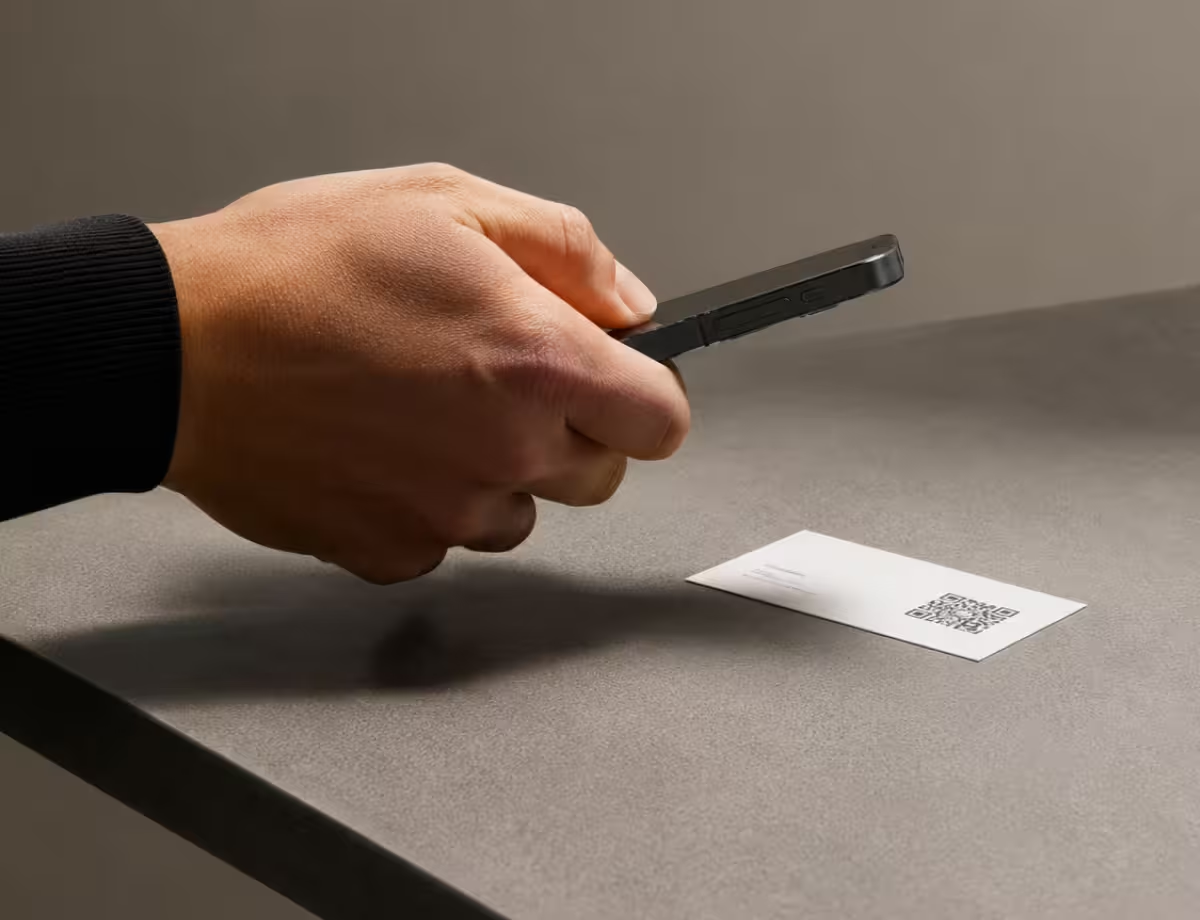
- Camera App - open Camera, point it at the QR code and tap the Cellular Plan Detected notification, then Continue and Add Cellular Plan. Enter the confirmation code if the phone asks for one.
- From a Photo - on iOS 17.4 or later, touch and hold a QR code in a saved image and tap Add eSIM. This is the route for a code that arrived as an image on the same phone.
- Manual Entry - Settings > Cellular (Mobile Data in some regions) > Add Cellular Plan (labelled Add eSIM on newer iOS) > Enter Details Manually, then type the SM-DP+ address and activation code.
For the Code Scanner tile, Control Center and the other iPhone routes, see how to scan a QR code on an iPhone.
On Android
Google's Pixel help page "Set up a new eSIM", read on 22 September 2026, gives one path: Settings > Network & internet > SIMs > Add SIM > Set up an eSIM, then follow the on-screen instructions. The screens after that typically offer a QR scan and a manual-entry link. Samsung and other makers label the same steps differently.
- Pixel - from Add SIM, the flow typically shows a Download a SIM instead or Set up an eSIM option that opens the camera for the QR, with a Need help? or Enter it manually link for the text details.
- Samsung and Others - typically Settings > Connections > SIM manager > Add eSIM, then Scan QR code from service provider. Exact wording varies by One UI version; search Settings for "eSIM" if the path differs.
- The Camera App Alone - pointing the regular camera at an eSIM QR may show the raw LPA:1$ text or nothing. Start from Settings so the phone treats the code as a plan, not a note.
For the Scan QR code tile, brand-by-brand settings and what to do when the camera ignores a code, see how to scan a QR code with an Android phone.
Choosing the Right Export Format
Screen display is the main use for a re-encoded eSIM code: a PNG shown on a laptop, scanned once by the phone. Print is the fallback for a phone with no second screen nearby.
- PNG for showing on a laptop or tablet screen - export at the default size, view it at 100% and turn the screen brightness up.
- SVG for the rare print case, since it stays sharp at any size; a business-card-sized print at arm's length is plenty.
- PDF for a sheet that goes straight to a printer with margins intact, if the code has to be scanned somewhere with no screen.
Two screen habits matter more than the format. Keep the code dark-on-light: a dark-mode viewer that inverts images turns it into a light-on-dark code that many scanners refuse. And do not screenshot the code on the phone that needs it - that phone cannot scan its own display, so the file is only useful on a second device. The SVG vs PNG guide explains the difference if you do print.
Generate QR CodeeSIM QR Code Best Practices
An activation code is a credential with a one-time token inside it. These habits keep the token intact and keep it yours.
Treat the Code Like a Password
Whoever scans the code first gets the profile. Do not post a photo of it, share it in a group chat or print it on anything public. Delete the image once the profile is installed.
Copy the String Exactly
The phone matches the token character for character. Keep the case, keep every $, and drop the spaces an email client may have wrapped in. One wrong character is a code that installs nothing.
Use One Code Per Phone
The matching ID is consumed when the profile downloads, so the same QR will not install on a second phone or on the same phone after a reset. Ask the carrier for a new code or a transfer instead.
Keep the Confirmation Code Out of the QR
If the carrier sent a confirmation code, it is typed on the phone when asked. The QR only carries a flag saying one is needed - never the code itself.
Connect to Wi-Fi Before Scanning
The scan only tells the phone where to download from; the profile still comes over the internet. Apple's setup article tells you to join Wi-Fi or a hotspot first, and a phone with no working SIM has no other route.
Do Not Style It
Plain black-on-white, square, no logo. The code is scanned once, up close, from a screen; styling adds nothing and any option that could cost a read is one to skip.
Check the Payload Before You Scan
Drop the exported image into the QR code decoder and confirm the decoded text starts with LPA:1$ and matches the carrier's details exactly. It cannot tell you the code is unused, but it catches a bad paste.
Know the Alternatives
iPhone-to-iPhone moves use eSIM Quick Transfer with no code at all; many carriers install directly from their own app. A QR is one route, not the only one.
Why Your eSIM QR Code Isn't Working
Most failures are one of these five, and only the first two are about the QR. The rest are between the phone and the carrier, and no re-encoding fixes them.
The Phone Reads It as Plain Text
- Cause
- The string does not start with LPA:1$ - a space crept in, the prefix was left off, or the carrier's text was pasted without assembling it. The phone sees a note, not a plan.
- Fix
- Decode the image with the QR code decoder and compare it to the carrier's details. Rebuild the string as LPA:1$<address>$<code> with no spaces and regenerate.
The Camera Will Not Pick It Up
- Cause
- The code is being shown on a phone screen at a tiny size, on a dimmed display, or inverted by a dark-mode viewer. It can also be the phone trying to scan its own screen.
- Fix
- Display it on a laptop at 100% with the brightness up, dark modules on white, and scan from the phone that needs the profile. Start from Settings rather than the camera app on Android.
"Already Used" or "Cannot Be Added"
- Cause
- The matching ID is a single-use token tied to one download order. It was consumed on a first attempt, on another phone, or before a reset - the exact wording differs by carrier.
- Fix
- No QR re-encoding revives a used token. Ask the carrier to reissue the profile or move it; iPhone-to-iPhone moves can use Quick Transfer instead.
"Invalid" or "Could Not Connect to Server"
- Cause
- The SM-DP+ address is mistyped, the token has a wrong character, the phone has no internet, or the carrier has not released the profile yet.
- Fix
- Check every character against the carrier's text, join Wi-Fi, then retry. If the code is verbatim and still fails, the fault is on the carrier's side.
It Asks for a Code You Do Not Have
- Cause
- The activation code carries a flag saying a confirmation code is required, and the specification says the carrier sends that code separately - it is never inside the QR.
- Fix
- Look for it in the carrier's email, app or account page, or ask for it. Do not try to append it to the QR string.
Still not sure whether the fault is the file or the print? Drop the exported image into the QR code scanner - if it decodes on a desktop and not on paper, the fault entered after the file.
Questions? Answered
Not from nothing. The QR carries an activation code that only your carrier's SM-DP+ server can issue, tied to one profile it holds. What you can do is re-encode a code the carrier already sent as text into a QR image, which is what this page and KoloQR's Text type are for. No generator can create a working profile.
GSMA SGP.22 defines it: LPA:1$ followed by the SM-DP+ address, a $, and the matching ID, with optional extra $-separated fields for an SM-DP+ OID and a 1 meaning a confirmation code is required. Example: LPA:1$smdp.example.com$ABC-123-XYZ. The whole string is capped at 255 characters.
Yes, if you have the SM-DP+ address and the activation code as text. Join them as LPA:1$<address>$<code> with no spaces, paste that into a text QR generator and scan the result from another screen. The phone reads it exactly as it would read the carrier's own image.
A phone cannot scan its own screen. On iOS 17.4 or later, Apple's support article says you can touch and hold the QR in a saved photo and tap Add eSIM. Otherwise, use the manual-entry option in Settings and type the details, or open the image on another screen and scan it from there.
No. The matching ID inside the code identifies one download order for one profile, and the specification says the server only serves a matching ID it knows. Once the profile has downloaded, the same code will not install again on that phone or another. Ask the carrier for a new code or a transfer.
The profile behind that code has already been downloaded - on a first attempt that seemed to fail, on another device, or before the phone was reset. Re-encoding the string does not help; the token is spent on the carrier's side. Only the carrier can reissue or move the profile.
The QR code holds the activation code that points at your profile. The EID is the 32-digit identity of the eSIM chip in your phone, found under Settings > General > About on iPhone or in the SIM settings on Android. Some carriers ask for the EID before issuing a code; it never goes inside the QR.
You need an internet connection to download the profile, and a phone with no working SIM has only Wi-Fi. Apple's setup article tells you to join Wi-Fi or a hotspot before adding the eSIM. The scan itself works offline; the download does not.
No. KoloQR encodes the text you paste and nothing more - it does not contact the carrier, cannot tell whether a code is unused, and does not know your phone's EID. A wrong or spent code becomes a perfectly good QR that installs nothing. Check the string against the carrier's details with the QR code decoder before scanning.
Treat the code as a password: whoever scans it first gets the profile. KoloQR encodes it in your browser and sends nothing to a server, so the code stays on your device. With any generator that uploads the text, or offers to host the code behind a link, assume the token has been shared and ask the carrier for a new one.
Keep Exploring
Pages that pick up where this one leaves off - the same setting, the same kind of code, or the next thing worth deciding.
Business Cards
The one surface where a code is read at arm's length - so it is designed into the card's layout rather than dropped in the corner of it.
SMS QR Code
Open a new text message with your number - and the wording - already filled in.
Weddings
One code on the invitation, linking guests to your RSVP form, the schedule and directions, and a shared photo album afterwards.
Aesthetic QR Codes
Soft palettes, rounded modules and minimal layouts for invitations, bios, planners and packaging - with the contrast and size numbers that keep each one scanning.
Halloween QR Codes
Pumpkin, purple, slime and bone palettes for invitations, porch signs, scavenger hunts and costumes - with the contrast and size numbers that keep each one scanning in the dark.
Google Maps QR Code
Put your address, pin, or coordinates one scan away from turn-by-turn directions.
Why KoloQR?
- Create QR codes for websites, menus, Wi-Fi, PDFs, and business cards
- Customize colors, logos, and unique shapes
- Download high-quality PNG and SVG files
- Built for both print and digital
