How to Scan a QR Code With a Phone, a Screenshot, or a Second Device
by KoloQR TeamBasics
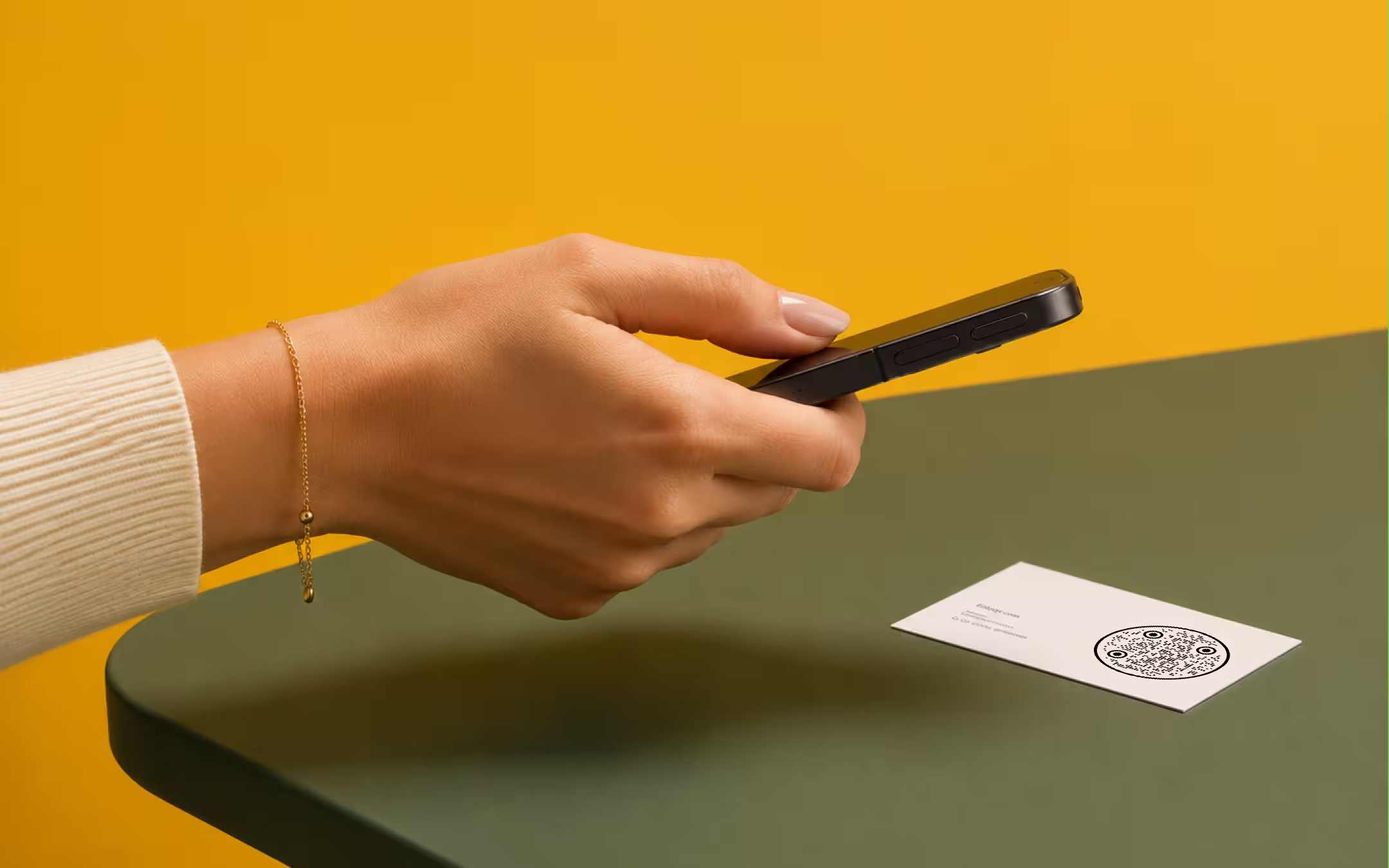
Open the camera app, fill about a third of the frame with the code, and tap the notification that appears. That works on any iPhone running iOS 11 or later and on most Android phones without installing anything. The cases that need more than the camera are a code saved as an image, a code displayed on the phone you are holding, and a code that turns out to be a login prompt rather than a link.
Key points
- The camera app is the scanner on both platforms. iPhones have read QR codes in the stock Camera app since iOS 11, and most Android camera apps do the same, with Google Lens as the fallback where they do not.
- Fill about a third of the frame with the code and hold still for a second. Most failures are the code being too small in frame, not the code being broken.
- A code saved as a screenshot cannot be read by pointing the camera at nothing. Open it in Photos and long-press it, run it through Google Lens, or upload the file to a decoder.
- A QR code shown on the phone in your hand needs a second device, or a decoder that reads a screenshot of it. No camera can photograph its own screen.
- Read the address before you open it. A QR code hides its destination by design, which is exactly what makes quishing work, and every decoder shows the decoded text before acting on it.
- A login code is not a link. Scanning one authorises a session on the device that displayed it, so only ever scan a login code you asked for yourself.
How to Scan a QR Code on an iPhone
Open the Camera app, point it at the QR code, and tap the yellow notification banner that appears at the top of the screen. Apple has built QR detection into the stock Camera app since iOS 11, released in 2017, so no iPhone sold in the last several years needs a scanning app installed.
- Open the Camera App. Either camera works, but the rear one focuses closer and is the one to use for a printed code. There is no scanning mode to switch to.
- Fill About a Third of the Frame With the Code. Move closer until the code takes up roughly a third of the width of the viewfinder. Too far away is the most common reason nothing happens.
- Hold Still for About a Second. Detection needs a sharp frame. If the preview is still hunting for focus, tap the code on screen to lock focus on it.
- Read the Banner Before You Tap It. The notification shows the domain the code points at. That line is the only chance to see where you are going before you go there.
If no banner appears, check Settings, then Camera, and confirm that Scan QR Codes is switched on. It is on by default and it is the first thing to rule out.
There is also a dedicated Code Scanner control, added in iOS 12, which can be added to Control Centre from Settings. It behaves the same as the Camera app but opens straight into a scanning view, which is faster when scanning several codes in a row.
For every iPhone route in one place - Code Scanner, a saved photo, a code inside Safari - see how to scan a QR code on an iPhone.
How to Scan a QR Code on an Android Phone
Open the camera app and point it at the code. Most Android camera apps read QR codes without any extra software, and where one does not, Google Lens does - it is built into the Photos app, the Google app, and the Assistant on the large majority of Android phones.
Android has no single answer here, and that is worth stating plainly rather than quoting a version number. The camera app on an Android phone is written by the manufacturer, so Samsung, Google, Xiaomi and Motorola each decide separately whether their camera detects codes, what the prompt looks like, and whether there is a setting for it. Google Lens is the part that behaves the same everywhere.
- Stock camera. Point and wait for a prompt or a chip to appear over the code. If there is a settings menu, look for an option named something like Scan QR codes or Google Lens suggestions.
- Google Lens. Open Lens from the Google app or the search bar, point it at the code, and tap the result. This works whether or not the camera app cooperates.
- Google Photos. Open a saved image of a code and tap the Lens button. This is the route for a code you were sent rather than one in front of you.
Older phones and stripped-down builds sometimes have neither. On those, any decoder that runs in the browser will do the job without an install - including the QR code scanner on this site, which reads the code on your own device rather than uploading it.
For the Scan QR code tile, brand-by-brand settings and the Wi-Fi scanner, see how to scan a QR code with an Android phone.
How to Scan a QR Code From a Screenshot or a Saved Image
A QR code that arrived as an image needs a decoder that accepts a file, because there is nothing in front of the camera to photograph. Three routes work, and none of them requires installing an app.
- Open it in the phone's photo app and long-press the code. Recent versions of both iOS and Android surface a link found inside a saved image this way.
- Send it through Google Lens. In Google Photos, open the image and tap the Lens button; the decoded result appears as a card.
- Upload the file to a decoder. Drop the PNG, JPG or WebP into the QR code scanner, which decodes it in the browser and prints the text it contains before you act on it.
The upload route has one advantage over the other two: it shows the decoded text as text. A long-press hands you a tappable link, which is convenient and also removes the moment where you could have read the address first.
For the full route table by device - iPhone, Android, Windows, Mac - and the pixel count a screenshot needs, see how to scan a QR code from an image.
How to Scan a QR Code Shown on the Phone You Are Holding
Use a second device, or take a screenshot and decode the screenshot. A phone camera cannot photograph the screen of the phone it is attached to, so a code displayed in an app on the same device has to be captured rather than scanned.
This comes up more often than it sounds. A code sent in a chat, a boarding pass in an email, a ticket in a wallet app and a login prompt on a laptop are all codes on a screen, and only the laptop can be pointed at.
- Screenshot, then decode. Capture the screen, then open the screenshot in Photos or Lens, or upload it to a decoder.
- Second phone. Point another device at the screen. Turn the display brightness up first - a dim screen photographed by a phone camera loses contrast fast.
- Desktop screen, phone camera. This is the normal direction for a login code and needs nothing special.
Read the Address Before You Open It
A QR code hides its destination until it is decoded, and that is the entire reason quishing works. A printed sticker over a parking meter's real code, a code in an email that leads to a fake sign-in page, and a code on a flyer that redirects through three domains all look identical to a code that goes where it says. In April 2023, fake QRIS payment stickers were pasted over the real ones on mosque donation boxes in Jakarta - how to make QRIS covers how a merchant checks that a payment sticker has not been swapped.
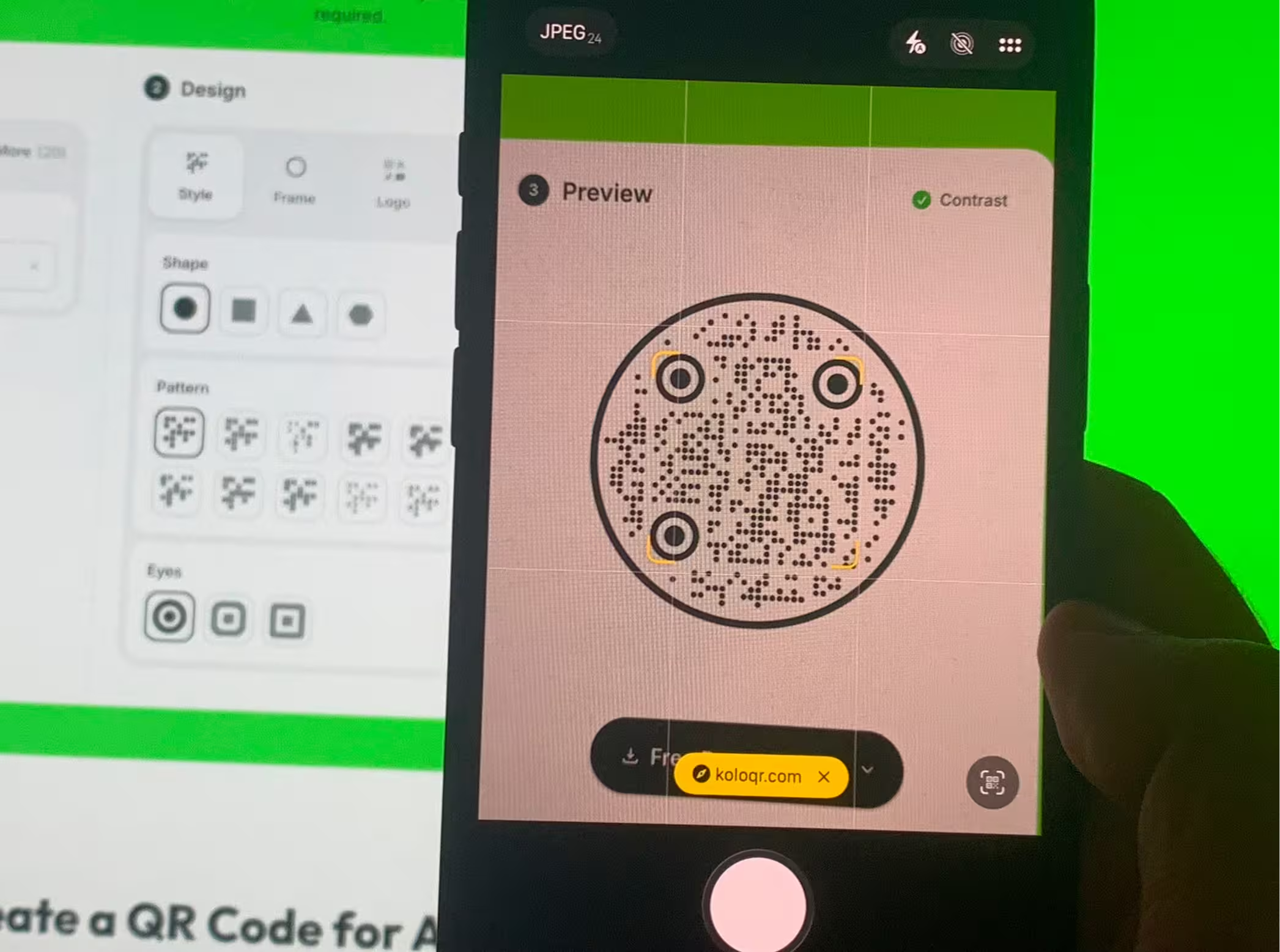
Every scanner gives you one moment to check. On iOS it is the banner, which shows the domain. In Lens it is the card. In a file decoder it is the decoded text itself, which is why uploading a suspicious image is safer than long-pressing it.
- Check the domain, not the words around it. A code beside the text "pay your parking here" says nothing about where the code goes.
- Treat a shortened link as unread. A shortener hides the destination a second time. A decoder that prints the text lets you paste that link somewhere safe before opening it.
- Be more careful with codes in public places than codes in print you were handed. A sticker can be applied over an existing code; a menu printed six months ago cannot.
None of this makes scanning dangerous in itself. Decoding a QR code reads a piece of text and does nothing else - the risk begins at the moment you open what it contains.
A Login Code Is Not a Link, and It Needs a Different Rule
Scanning a login QR code authorises a session on the device that displayed it. WhatsApp Web, X, Telegram and Discord all use this pattern: the screen shows a code, your phone scans it, and the browser on that screen is signed in as you.
The rule that follows is short. Only ever scan a login code you asked for yourself, on a screen you are looking at. A login code sent to you in a message, or shown by someone who asks you to scan it, is a request to sign a stranger into your account.
The X (Twitter) QR code page covers the difference between a profile code and a login code on that platform specifically, since they look the same and do very different things.
Wi-Fi, Contact and Calendar Codes Do Not Open Anything
Not every QR code holds a web address. A QR code stores text, and a handful of conventions tell the phone what to do with particular shapes of that text - join a network, save a contact, add an event. The scan looks identical; what happens afterwards does not.
| What the code holds | What the phone offers | What to check first |
|---|---|---|
| A web address | Open the link | The domain shown in the banner |
| Wi-Fi credentials | Join this network | The network name - the password is inside the code in plain text |
| A contact card | Add to Contacts | The name and number, before saving |
| A calendar event | Add to Calendar | The date and title |
| Plain text | Copy, search, or nothing | Nothing - text alone does not act |
The Wi-Fi QR code page covers what a phone does with those credentials and where the format differs between iOS and Android. To hand your own network to a guest, an iPhone can share the Wi-Fi password as a QR code.
Scanning on a Laptop or Desktop
A desktop has no camera pointed at the world, so the file is the input. Save the image and run it through a decoder in the browser - the QR code scanner reads a PNG, JPG or SVG on your own machine and shows the text. For the webcam and built-in routes on Windows, Mac, Chromebook and Linux, see how to scan a QR code on a computer.
This is also the right tool for checking your own codes rather than other people's. If a file decodes on a desktop but the printed version of it does not scan from a phone, the fault entered somewhere after the file - the layout, the export, or the press - and not in the code itself. The QR code validator takes the same file and measures why: contrast, quiet zone, module size and symbol version.
When Nothing Happens: What Is Actually Wrong
Almost every failed scan is one of six things, and the order below is the order to try them in. Only the last two are problems with the code rather than with the attempt.
| Symptom | Likely cause | What to do |
|---|---|---|
| No banner, code looks fine | The code is too small in frame | Move closer until it fills about a third of the width |
| Preview keeps hunting | Focus, not detection | Tap the code on screen to lock focus, then hold still |
| Works in daylight, not indoors | Not enough light for a sharp frame | Add light rather than moving closer |
| Glare across the middle | A gloss finish or a laminate reflecting the light source | Tilt the code about 15 degrees off the light |
| Nothing at any distance | Printed too small, or the quiet zone was trimmed | Measure it - see below |
| Some phones read it, others do not | Marginal contrast or a damaged symbol | Run the file through a validator rather than guessing |
If it is the code and not the light, why a QR code is not scanning works through the causes in the order they occur, and the minimum size for print gives the width the code needed in the first place.
Make Your QR Code
Free, with no account and no watermark. Choose a shape, add a logo, check the contrast, and export SVG, PDF, EPS or PNG - a static code with no subscription behind it.
Generate QR CodeQuestions? Answered
Open the phone's camera and point it at the code. iPhones have read QR codes in the stock Camera app since iOS 11, and most Android camera apps do the same. Where an Android camera does not, Google Lens is already installed on the phone and does. No third-party scanning app is needed on either platform.
Check Settings, then Camera, and confirm Scan QR Codes is on - it is the only setting involved. If it is on, the usual cause is distance: the code needs to fill about a third of the frame. Tap the code on screen to lock focus, and hold still for a second before giving up on it.
Open the screenshot in the phone's photo app and long-press the code, or send the image through Google Lens. On a desktop, upload the file to a decoder that runs in the browser. Pointing the camera at nothing will not work, because there is no code in front of it to photograph.
Take a screenshot and decode the screenshot, or point a second device at the screen. A phone camera cannot photograph the display it is attached to. If you use a second device, turn the first screen's brightness up - a dim display loses contrast badly through a camera.
Decoding a code is safe in itself: it reads text and does nothing else. The risk starts when you open what it contains, because a QR code hides its destination until it is read. Check the domain in the banner before tapping, and be more suspicious of codes on stickers in public than of codes in print you were handed.
The device that displayed the code is signed in as you. WhatsApp Web, X, Telegram and Discord all work this way. Only ever scan a login code you requested yourself, on a screen you are looking at. A login code someone sends you is a request to sign them into your account.
Yes, but from a file rather than a camera. Save the image and run it through a decoder in the browser, which reads the code on your own machine and shows the text it holds. This is also the fastest way to tell whether a code that will not scan in print is broken in the file or broken on the paper.
Usually marginal contrast or a symbol printed near its size limit, not a difference between the phones. Decoders vary in how much of a poor image they will accept, so a code sitting at the edge of readable passes on one and fails on the next. Measure the file rather than testing more phones.
No. Decoding happens on the phone, so a code containing Wi-Fi credentials, a contact card or plain text works with no connection at all. You need a connection only to open a web address once it has been decoded.
Keep Exploring
Pages that pick up where this one leaves off - the same setting, the same kind of code, or the next thing worth deciding.
How to Scan a QR Code on an iPhone, From the Camera or From a Photo
Every built-in way an iPhone reads a QR code - the Camera app, the Code Scanner control, a saved photo, a code inside Safari - and the one setting that switches it off.
How to Scan a QR Code With an Android Phone, on Any Brand
Android has no single camera app, so there are three routes worth knowing: the camera, the Scan QR code tile in Quick Settings, and Google Lens - plus where each brand hides the setting.
How to Scan a QR Code From an Image on Any Phone or Computer
Every route from a saved image to the text inside it, by device - Photos and Live Text, Google Lens, Circle to Search, a browser decoder - with the pixel count a screenshot needs and the reasons an image fails.
WhatsApp QR Code
Open a WhatsApp chat with your number in one scan, without anyone saving your contact first.
Facebook QR Code
Open your Facebook Page, group, or Messenger chat with one scan.
Nine Things to Check Before a QR Code Goes to Print
The nine checks between a QR code file and a print run that works, each with the number it has to clear and the page that explains why.
Why KoloQR?
- Create QR codes for websites, menus, Wi-Fi, PDFs, and business cards
- Customize colors, logos, and unique shapes
- Download high-quality PNG and SVG files
- Built for both print and digital
