How Do You Put a QR Code on a Business Card?
A business card is the smallest surface a QR code is regularly asked to work on: 85 x 55 mm, most of it already spoken for. Make the code below, then read on for the size it needs, where on the card it belongs, and the finishes that stop it scanning.
Opens in Google Maps. Coordinates work too - "37.4224, -122.0841".
The code opens your business's "Write a review" form. Paste the Place ID, or a Google Maps link that carries one.
A UPI link carries no checksum, so a mistyped ID produces a code that scans perfectly and pays somebody else. Paste the ID from your payment app rather than typing it, and send yourself one rupee before printing.
Paste it exactly as copied. KoloQR does not assemble the payload - it encodes the one your bank issued, and checks it before you print it.
SVG, PNG, JPG • Max 2 MB
First month free
then $9/month
Dynamic QR Codes Are Coming
Change your link anytime, even after printing. See who scans, when and where.
- Edit without reprinting
- Scan analytics
- Bulk & custom domains
You're on the List
We'll email you once, when dynamic codes with scan analytics launch.
What Size Should a QR Code Be on a Business Card?
Print it at 1.5 to 2 cm square. A card is read at 15-20 cm, and the ten-to-one rule - about 1 cm of code width for every 10 cm of scanning distance - puts the working minimum at 1.5 cm. Below that, the card stock's own texture starts costing you scans.
- The Card, in Millimetres - 85 x 55 mm across most of Europe, 3.5 x 2 in (89 x 51 mm) in North America. Allow 3 mm of bleed and keep everything that must survive trimming 4 mm inside the finished edge.
- Quiet Zone - the quiet zone is the empty margin around a QR code that lets a scanner find where the symbol begins. Four modules on every side: on a 1.5 cm code that is roughly 2.5 mm of blank card, and it cannot be shared with the trim margin.
- Shorten the Link, Not the Code - fewer characters means fewer modules, and fewer modules means each one is larger at the same printed size. A short path on your own domain buys more scanning margin than any design change.
- Trim Tolerance - a guillotine cuts to about a millimetre either way through a stack. A code sitting 2 mm from the edge on screen can lose part of its quiet zone on the finished card.
Business cards are handed over, not scanned from a distance, so the size is set by print quality rather than by reach. If the code has to go under 1.5 cm, shorten the URL and raise the contrast before shrinking anything else - see the minimum size for print for where that floor comes from.
Generate QR CodeWhat to Link a Business Card QR Code To
One card, one code, one destination. These are the six that earn the square centimetre they take, each of them something a printed card cannot carry on its own.
A Contact Page
A page on your own domain holding your phone, email, address and a save-to-contacts button. It updates when your details change, which a printed card never does, and the person scanning keeps the link rather than the card.
Your Portfolio
Work is the argument a card cannot make. A code that opens a portfolio, a showreel or a case study hands over the evidence at the moment someone has decided you might be worth a look.
A LinkedIn or Social Profile
The professional network where the follow-up will actually happen. Scanning a code beats spelling a handle out at a noisy event, and the connection is made while you are still standing there.
A Booking Page
Calendly, Cal.com or your own booking form. The meeting the card was meant to produce gets booked on the spot instead of after an email that never gets sent.
A Price List or Menu of Services
What you do and what it costs, in the detail a card has no room for. Useful for trades and freelancers, where the first question after 'what do you do' is always the second one.
A Payment Link
For anyone who invoices small amounts in person: a PayPal.me, Revolut or Stripe payment link that opens ready to pay. Keep the amount out of the code so the same card works for every job.
How to Make a QR Code for a Business Card
Five steps from a link to a file your printer can place. The whole of it takes a few minutes, and the only step that cannot be undone is the last one.
Generate QR Code- 1
Pick One Destination
One code, one link. A card carrying three codes asks the person holding it to choose, and someone who has just met you will not choose - they will put the card down.
- 2
Use a Short Link on Your Own Domain
A path like example.com/hello encodes into a smaller, coarser pattern than a long tracked URL, so it scans better at 1.5 cm. It also stays yours: a redirect you control can be repointed after the cards are printed.
- 3
Build the Code
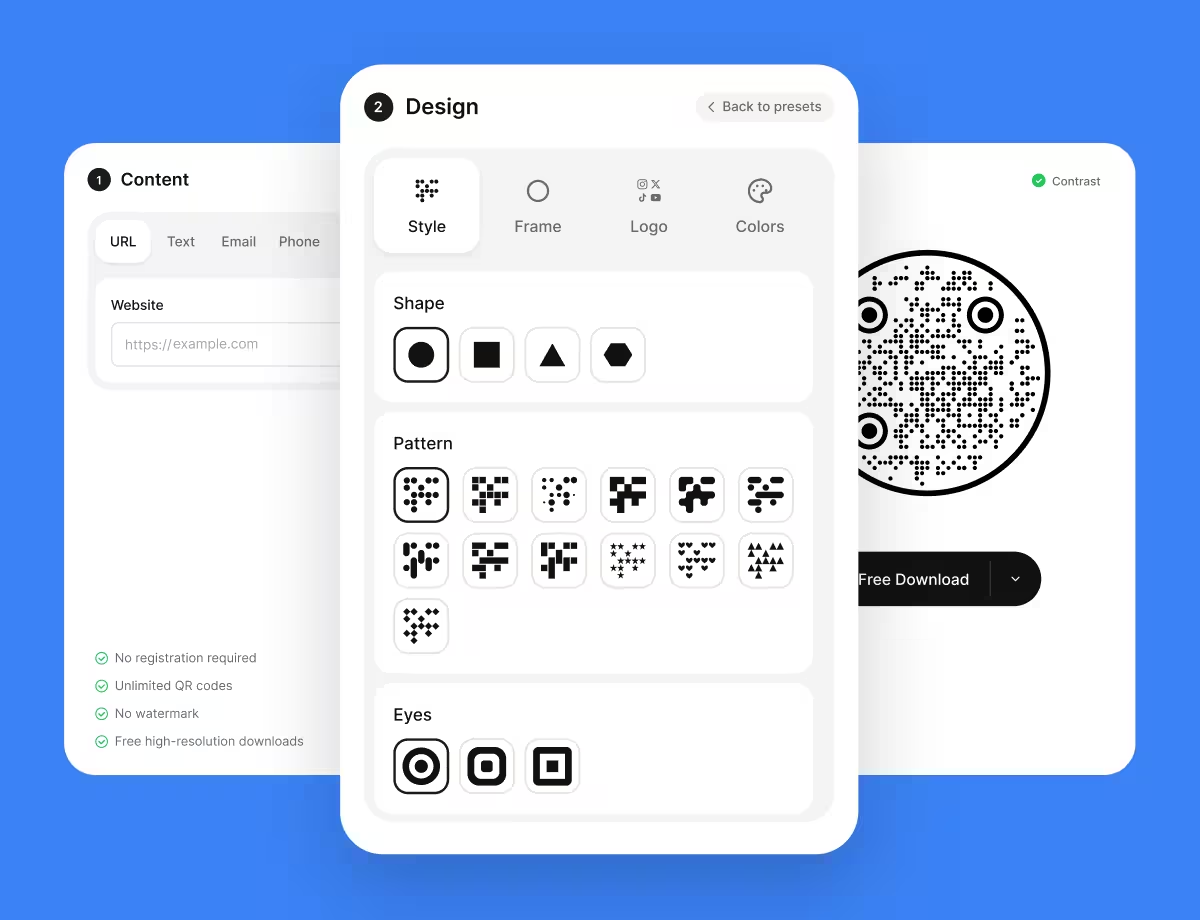
Open the generator above, paste the link, then set the shape, colour and logo to match the card. Keep the modules dark on a light background and the logo small enough that the pattern around it stays intact.
- 4
Export Vector for the Printer
Download SVG, PDF or EPS and place that in the artwork. A PNG scaled up in a layout program is the usual cause of soft, thickened modules on a card, where there is no size to spare.
- 5
Scan the Printed Proof
Print one card on the real stock, hold it at arm's length, and scan it with an ordinary phone in ordinary indoor light. Do it after any lamination or varnish, which is the step that changes the answer.
Finishes That Stop a Business Card QR Code Scanning
Spot UV, foil and heavy embossing are what break codes on business cards, not the code itself. Each of the three either mirrors the phone's light straight back into the lens or deforms the modules, and all three are exactly what a designer reaches for to make a card feel expensive.
- Never Spot-UV the Code - a gloss varnish over the pattern turns it into a mirror under any overhead light. Spot-UV everything else on the card and leave the code panel matte, for the reasons in matte vs gloss printing.
- Foil Is a Mirror Too - a foil-stamped code reflects rather than absorbs, so the camera sees a bright blank. If the code must sit on a foil panel, print it as a matte window inside the foil.
- Letterpress and Emboss Deform Modules - deep impression rounds the edges of every square and casts its own shadow. On a 1.5 cm code that is enough to lose the pattern; print the code flat and let the type carry the impression.
- Uncoated Stock Spreads Ink - absorbent cotton and recycled boards let ink bleed into the fibre, thickening dark modules and closing the light gaps. On uncoated stock, size up to 2 cm rather than trusting a 1.5 cm code.
Dark cards deserve their own warning. Inverted QR codes - light modules on a dark background - are read by many phones and not by all, so a black card wants a light panel behind the code rather than a white code printed straight onto it.
Generate QR CodeBefore You Print a Thousand Cards
A box of cards is cheap to reprint and expensive to hand out wrong. These are the checks worth doing while the file is still open.
Put It on the Back
The back of a card is usually empty and the front is already carrying a name, a logo and four lines of contact detail. The back gives the code the quiet zone it needs without fighting anything.
Say What the Scan Opens
Three words beside the code - 'Scan for portfolio', 'Book a call' - turn a decorative square into a reason. A code with no label is scanned by almost nobody.
Keep the Printed Details Too
A QR code is an addition to a phone number and an email, not a replacement for them. Some people will type; some will scan; a card that only scans is useless to whoever is holding it with no phone in hand.
Check the Landing Page on a Phone
Every scan of a business card happens on mobile, often on one bar of signal in a venue basement. If the page needs a desktop to make sense, the code has made things worse.
Test Both Platforms
Scan the printed proof with an iPhone and an Android before signing off. Camera apps differ in how tolerant they are of a small, low-contrast code, and the card will be handed to both.
Keep the Redirect Alive
Cards stay in wallets for years. Whatever the code points at, keep that URL resolving on a domain you own - a dead link on a card you handed someone is worse than no code at all.
Questions? Answered
Between 1.5 and 2 cm square. A card is scanned from about 15-20 cm, and the ten-to-one rule puts 1.5 cm at the bottom of what prints reliably. Go to 2 cm on uncoated or textured stock, where ink spread thickens the modules. The print size calculator works it out from your own distance.
On the back, in a corner, at least 4 mm inside the trimmed edge. The back is usually the emptiest surface on the card, and the margin protects the quiet zone from the guillotine. Avoid the centre of the front, where it competes with the name that is the point of the card.
A contact-card code can, because the details are encoded in the pattern itself. KoloQR generates codes for a link, a phone number, an email, a message or a social profile rather than full contact cards, so the practical route is a contact page on your own domain with a save-to-contacts button on it.
Only with care. Inverted codes - light modules on a dark background - are read by many phone cameras and rejected by some, which is a coin flip on a card you only hand over once. The reliable answer is a light panel behind a dark code, printed matte.
Almost always the finish. Spot UV or gloss lamination over the code turns it into a mirror under office lighting, and foil does the same. Emboss and letterpress deform the modules. Print the code flat and matte, then rescan the finished card rather than the artwork.
No. Two codes on 85 x 55 mm means two small codes and a decision nobody makes. Point one code at a page that links onward to everything else - portfolio, LinkedIn, booking - and the card keeps its space and its manners.
Yes, if it stays small. Error correction rebuilds the covered area, so a mark of roughly a tenth of the symbol at level Q is safe. On a 1.5 cm code that is a very small logo - resist enlarging it until the code only just scans on your desk, because a card is scanned in worse light than that.
Yes. A static code never expires and needs no account or subscription, which matters on something that sits in a wallet for years. If you want to change where it points later, encode a redirect on your own domain and edit that - see QR codes for business cards for the wider setup.
Keep Exploring
Pages that pick up where this one leaves off - the same setting, the same kind of code, or the next thing worth deciding.
Business Cards
The one surface where a code is read at arm's length - so it is designed into the card's layout rather than dropped in the corner of it.
Photographers
Client galleries, print reorders, portfolio links and guest photo uploads, on cards, albums, prints and event signs.
Aesthetic QR Codes
Soft palettes, rounded modules and minimal layouts for invitations, bios, planners and packaging - with the contrast and size numbers that keep each one scanning.
LinkedIn QR Code
Share your LinkedIn profile or company page with a code any phone camera can read.
Laser Engraving
Wood, anodised aluminium, slate, glass and steel - the file to export, the LightBurn settings, and the materials that invert the code.
Flyers
A5, A6 and DL leaflets - what size the code needs, which corner it belongs in, and how to tell which batch produced the scans.
Why KoloQR?
- Create QR codes for websites, menus, Wi-Fi, PDFs, and business cards
- Customize colors, logos, and unique shapes
- Download high-quality PNG and SVG files
- Built for both print and digital
