KoloQR vs Adobe Express: Which One Should Make Your QR Code?
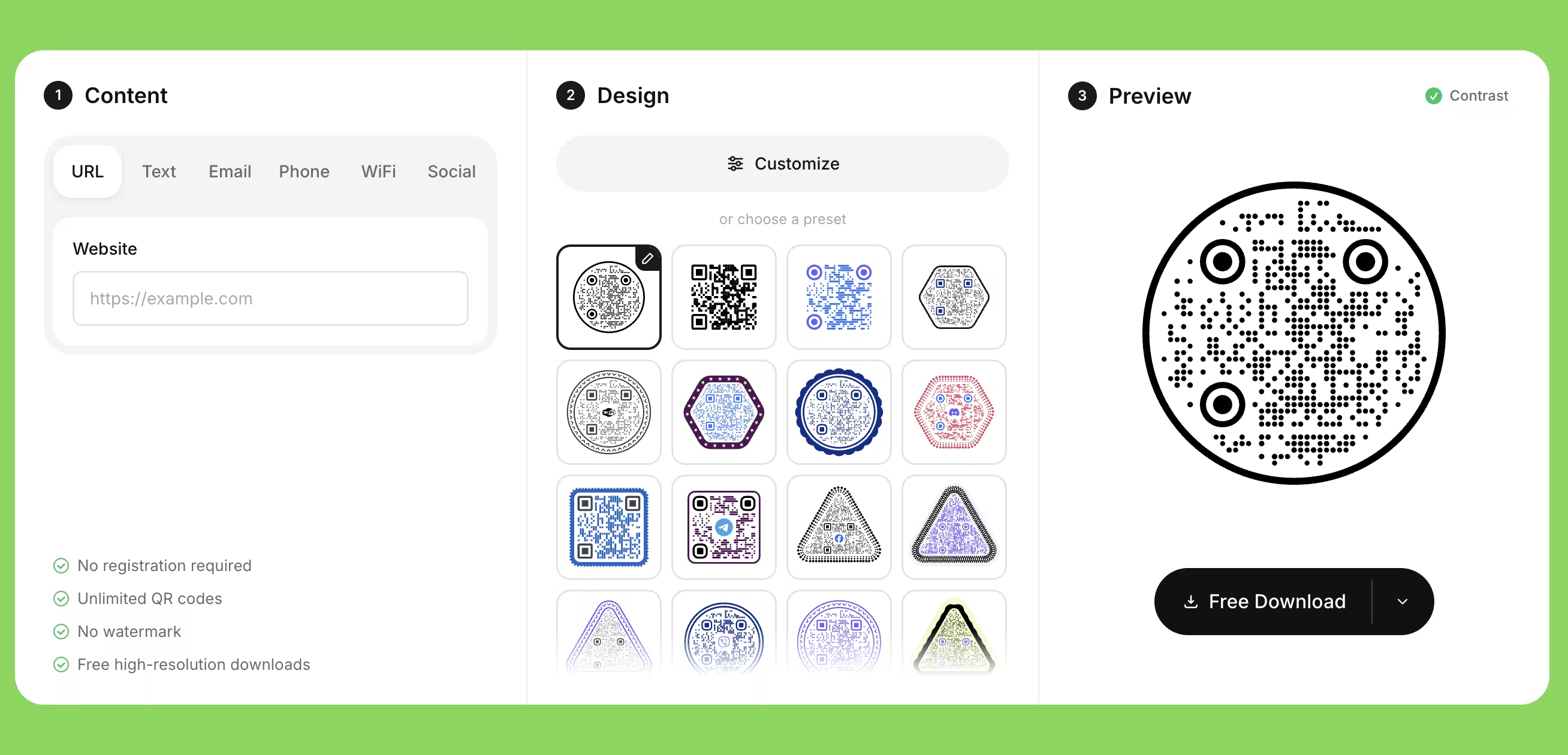
KoloQR and Adobe Express both produce a free, static QR code that never expires, and they are built for different halves of the same job. KoloQR, a free QR code generator with circular and custom-shaped QR codes, exists only to make the code: it renders the whole symbol as a rectangle, circle, triangle or hexagon, checks the color contrast before you export, and hands over SVG, PDF, EPS or PNG with no account and no watermark. Adobe Express is a design application - templates, Adobe Stock photography, fonts, brand kits and Firefly generative AI - whose Generate QR code quick action turns a URL into a code you can drop straight into a poster, flyer or social post you are already laying out there. Its QR side is deliberately narrow: URLs only, a short list of preset colors and styles, a square symbol, and a free Adobe account before you can save or download. Choose on one question. If the hard part is the code, use KoloQR. If the hard part is the artwork around it, use Adobe Express - or use both, because an SVG from KoloQR imports into an Adobe Express layout in one step.
Feature Comparison
These rows compare what each tool does to the QR code itself, plus the last row, where Adobe Express does something KoloQR does not attempt at all. Neither tool offers dynamic QR codes or scan analytics: both produce static codes, so the destination is fixed in the pattern at export. Verified against Adobe's own documentation in August 2026.
Downloads Without Signup (All Formats)
Download QR codes in all available formats without creating an account. Adobe Express is free to use for QR codes but asks you to sign in with an Adobe account to save or download your work.
KoloQRYesAdobe ExpressNoOpen Source
Inspect, modify, and self-host the source code. Adobe Express is proprietary hosted software and part of Adobe's Creative Cloud family.
KoloQRYesAdobe ExpressNoCustom QR Shapes
Create rectangular, circular, triangular, and hexagonal QR codes. Adobe Express offers a short list of preset styles for the pattern inside the symbol; the symbol outline stays square.
KoloQRYesAdobe ExpressNoPremium QR Frames
Ready-to-use designer QR frames. Adobe Express has no QR frame presets, though its editor lets you build a frame and a call-to-action label by hand from shapes and text.
KoloQRYesAdobe ExpressNoVector Export
Export SVG, PDF, and EPS for professional printing. Adobe Express exports the QR code as SVG from the quick action and as PDF from the editor, but not EPS.
KoloQRYesAdobe ExpressYesCopy to Figma
Copy QR codes directly into Figma. An Adobe Express code reaches a Figma file as a downloaded PNG, JPG or SVG that you import.
KoloQRYesAdobe ExpressNoChrome Extension
Create QR codes from any webpage. Adobe Express has no extension for making QR codes; you open Adobe Express and paste the URL into the quick action.
KoloQRYesAdobe ExpressNoContrast Checker
Ensure your QR code has enough contrast for reliable scanning. Adobe Express shows no contrast warning and exposes no error-correction control, so a low-contrast color pair or a logo covering too much of the symbol goes to print unflagged.
KoloQRYesAdobe ExpressNoTemplates and Page Layout
Lay out the poster, flyer, menu or social post the QR code sits in, with templates, stock photography, fonts and brand kits. KoloQR makes the code and stops there; Adobe Express is a design application first.
KoloQRNoAdobe ExpressYes
What Each Tool Is Actually For
KoloQR is a QR code generator. Adobe Express is a design application with a QR code quick action inside it. Both produce static QR codes that never expire and neither offers scan analytics, so the difference is not in the codes - it is in which part of the work each one takes off your hands.
KoloQR: Everything Happens to the Code
KoloQR, a free QR code generator with circular and custom-shaped QR codes, is a browser editor for one code at a time. A static QR code is a code whose destination is stored in the pattern itself, so no server sits between the scan and the page. Pick a shape, set the colors, add a logo, read the contrast warning, download the file - no account, no watermark and no payment at any point.
- Every Format, No Account - KoloQR exports SVG, PDF and EPS for print and PNG for screen, with no signup, no email address and no watermark on any of them. EPS in particular is the format an older print workflow asks for, and Adobe Express does not produce it.
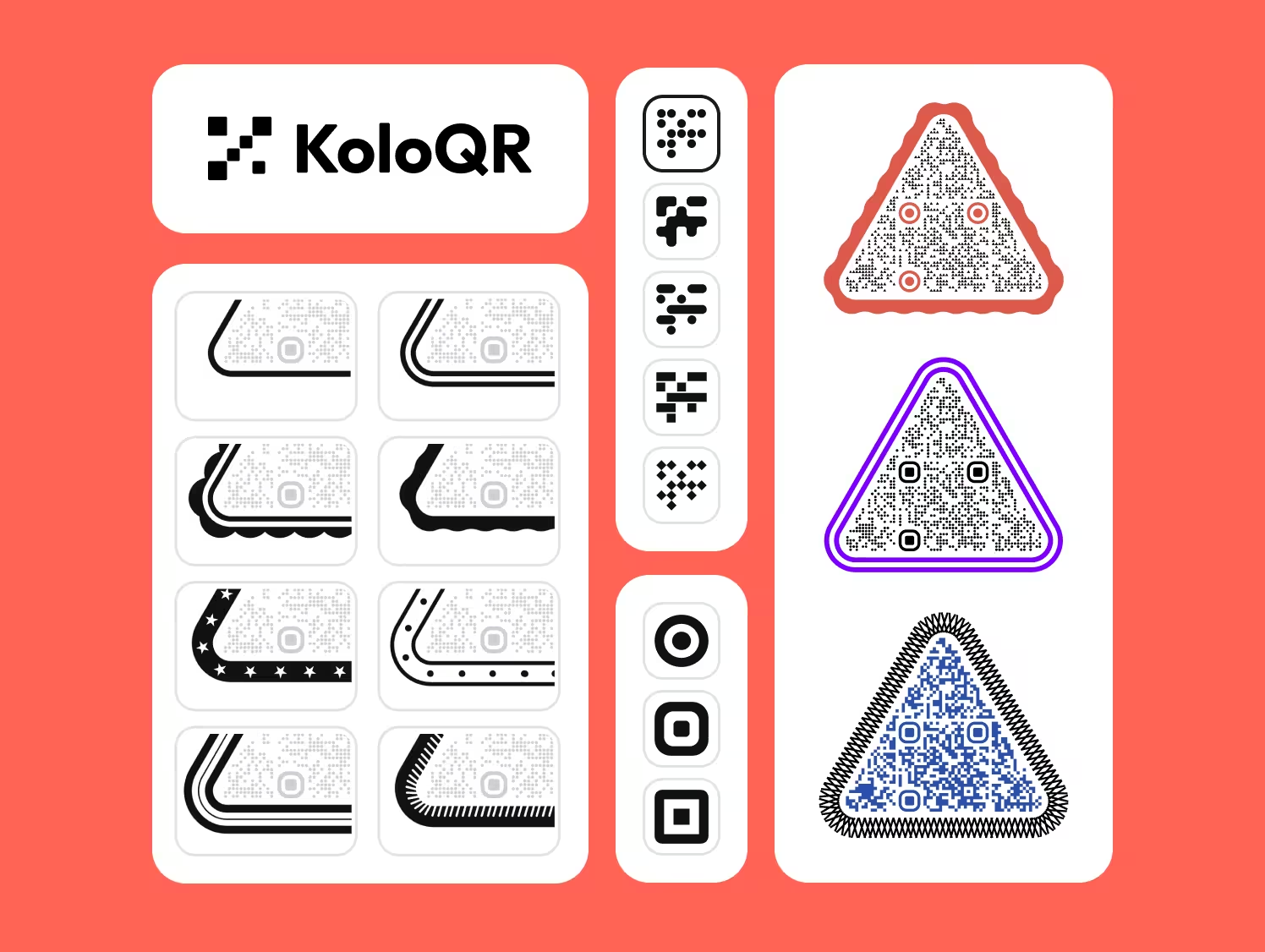
- Shapes Beyond the Square - KoloQR renders the whole symbol as a rectangle, circle, triangle or hexagon, not only the modules inside a square outline. A circular code fits a bottle cap, a coaster or a round sticker where a square code wastes the corners.
- Contrast Checked Before Export - KoloQR warns when the foreground and background colors are too close for a phone camera to separate them. That warning is the cheapest reprint insurance on the page, and it is the check most design tools leave to you.
- Open Source and Self-Hostable - KoloQR's source code is published, so the generation logic can be inspected, modified or run on your own infrastructure. Teams that cannot send a destination URL to a third-party service can generate codes without one.
What Is Adobe Express? A Design App That Also Makes QR Codes
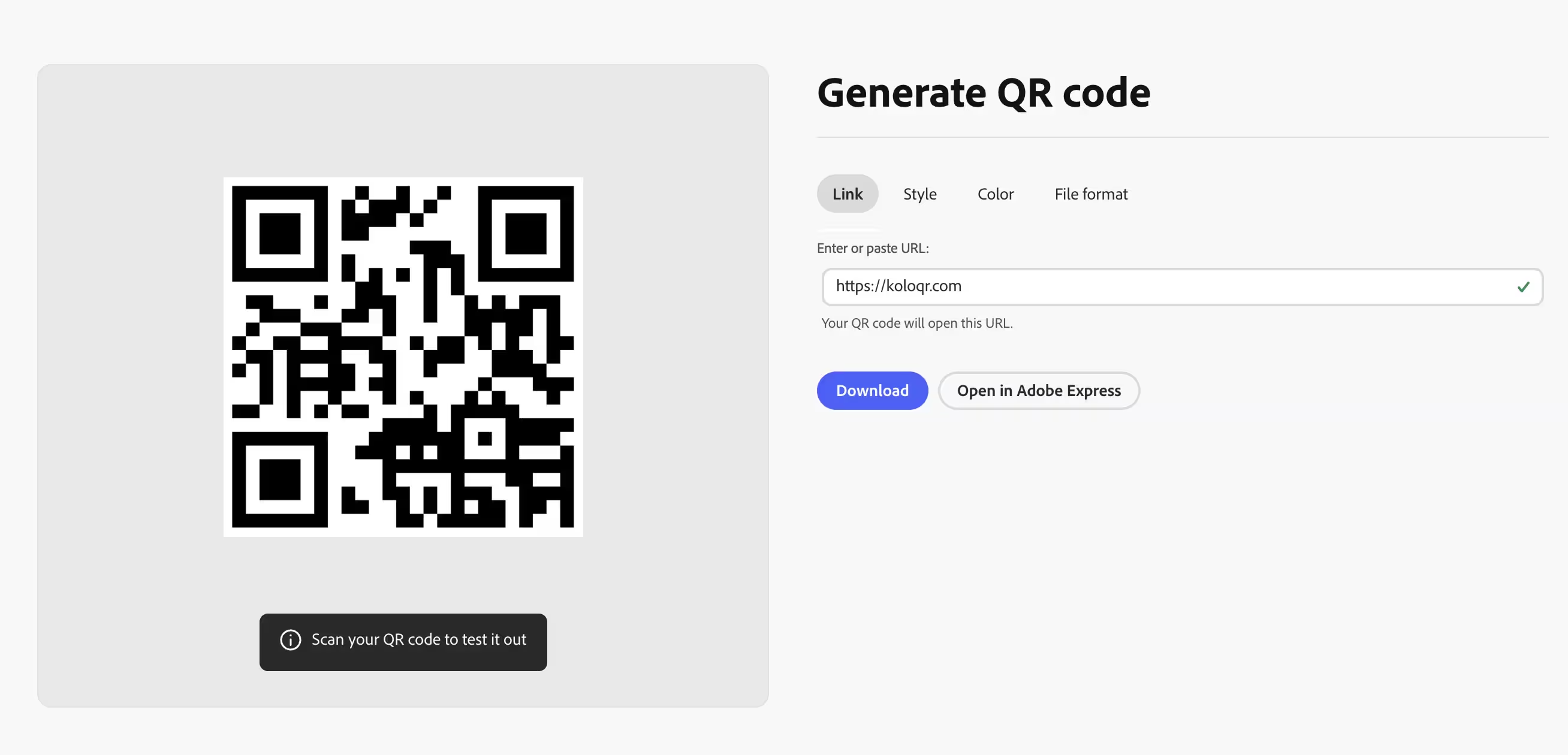
Adobe Express is Adobe's browser and mobile design application, free to start with an Adobe account and with a Premium tier listed at $9.99 a month in August 2026. Its QR code path is a quick action: choose Generate QR code, paste the destination URL, pick a file format from the dropdown - PNG, JPG or SVG - choose one of the preset colors and styles, then either download the file or open it in the editor to keep designing. Choosing SVG downloads the file only; the editor route runs on the raster formats. Adobe states that QR codes made in Express never expire, which follows from them being static, and Express offers no scan tracking of any kind.
Two limits are worth knowing before you start. Adobe Express generates QR codes for URLs only - there is no Wi-Fi, vCard, plain-text or email code type - and the symbol is always square, with the preset styles changing the pattern inside it rather than its outline. Adding a logo means placing an image over the center of the code in the editor by hand, and because Express exposes no error-correction setting, nothing tells you when the logo has covered more of the symbol than the built-in redundancy can recover. Against that, Adobe Express does something KoloQR does not attempt: it lays out the whole piece. Templates, Adobe Stock photography, thousands of fonts, brand kits, resizing for every social format, video, PDF editing and Firefly generative AI all sit around the code. If the QR code is one element of a flyer you are designing anyway, that is a genuine advantage, and no dedicated QR generator replaces it.
Create a Free QR Code
How to Get a Working QR Code Out of Either Tool
The decision is short: if the code has to be a shape, a color pair or a file format the design app cannot produce, generate it in KoloQR and import it. If it is a plain square code inside a layout you are already building, the quick action is fewer steps. Everything below applies whichever route you take.
Decide Whether the Code or the Layout Is the Hard Part
If the difficult part of the job is the artwork - a poster, a menu, an Instagram post, a flyer with photography and type - build it in Adobe Express and use its quick action for the code. If the difficult part is the code itself - a circular symbol, an exact brand color, an EPS for the printer, a logo that has to sit in the middle without breaking the scan - generate it in KoloQR first. The two are not mutually exclusive: a KoloQR SVG imports into an Adobe Express project like any other file.
Raise Error Correction Before Adding a Logo, Not After
Error correction is the redundancy built into a QR code that allows it to remain scannable when part of the symbol is damaged or covered. Levels L, M, Q and H recover roughly 7%, 15%, 25% and 30% of the symbol. Use level H when a logo goes in the center and keep the logo under about a quarter of the code area. Adobe Express exposes no error-correction control, so a logo dropped onto a code in its editor is covering redundancy you cannot see or increase - generate that code somewhere the level is a setting.
Keep the Quiet Zone Clear When the Code Lands in a Layout
A quiet zone is the empty margin around a QR code that lets a scanner detect where the symbol begins and ends. The QR standard, ISO/IEC 18004, specifies four modules of clear space on all four sides. A code exported with its quiet zone intact loses it the moment someone crops the image tight, sits a caption against its edge, or drops it into a colored panel - which is exactly what happens inside a page-layout tool. Leave visible margin around the code in the design, not just in the file.
Never Put a QR Code on Top of a Photo or a Gradient
A scanner needs a consistent light background behind the dark modules. A photograph, a gradient or a textured stock image behind a QR code changes that background from module to module and is one of the most common reasons a beautifully designed poster does not scan. Design applications make this mistake easy, because dragging a code onto a full-bleed image looks fine on screen. Place the code on a solid light panel instead.
Size the Code by Scanning Distance, Not by What Fits the Layout
As a rule of thumb, a QR code needs about 1 cm of width for every 10 cm of scanning distance, so a poster read from 3 m needs roughly 30 cm. Treat 2 cm as the absolute floor for a code scanned at arm's length and 3 cm as the safe minimum. Layout tools invite you to scale the code to whatever gap is left in the design; the camera does not care about the gap.
Export Vector for Anything That Goes to Print
SVG and PDF are vector formats that stay sharp at any size; PNG and JPG are raster formats that soften the module edges when scaled up. JPEG compression is the worse of the two for QR codes, because it blurs exactly the hard black-to-white edges a scanner reads. Adobe Express can give you SVG from the quick action and PDF from the editor; if the printer specifically asks for EPS, KoloQR exports it and Express does not.
Keep the Code Dark on Light, Never Inverted
Most smartphone cameras expect dark modules on a light background. An inverted code - light modules on a dark background - is legal in the standard but decoded inconsistently across scanner apps and phone models. If a dark brand background is unavoidable, place the code inside a light panel rather than inverting it. Preset color styles in a design tool will happily give you a light-on-dark code that scans on your phone and fails on someone else's.
Scan the Exported File and Check Where It Actually Goes
Open the downloaded file at full size and scan it with a phone, then read the URL your camera shows before you tap it. This catches the two failures a visual check never does: a typo in the destination you pasted, and a redirect you did not expect between the code and your page. Do it once per code, on the exported file rather than on the preview in the editor.
Get an Editable Destination Without a Subscription Using Your Own Redirect
Point a static QR code at a URL on your own domain, such as example.com/menu, and configure that path as a 302 redirect to the real page. The printed code never changes; the redirect target can be edited whenever you like. Neither KoloQR nor Adobe Express offers dynamic codes, so this is the only way to keep a destination editable with either tool - and it keeps working as long as you own the domain, which is not true of a platform-owned short link. The 302 matters: a browser caches a 301, so it would keep going to the old destination after you change it.
Print the Destination in Text Beside the Code
A short readable URL next to the QR code makes the content reachable for anyone whose camera fails, whose phone is old, or who simply does not scan codes. Add a two-or-three-word instruction as well - Scan for the menu - because a bare code tells nobody what is behind it. A QR code should always be the fast path to the content and never the only path.
Test the Printed Code, on Paper, Before the Full Run
Print one copy at final size on the final material and scan it with at least two phones, one iOS and one Android, at the real distance and under the real lighting. Gloss lamination under a downlight and ink spread on uncoated stock are the two failures that never appear on screen. A single test print costs less than a reprint of the whole job.
Questions? Answered
Yes. Generating and downloading a QR code sits in the free Adobe Express plan, with no payment and no trial period. Adobe Express Premium, listed at $9.99 a month in August 2026, adds premium templates, brand kits, stock assets and video features - none of which change the QR code itself. What the free plan asks for instead of money is an Adobe account.
In practice, yes. Adobe Express lets you start as a guest, but saving or downloading your work means signing in with a free Adobe ID. KoloQR asks for nothing: the code is generated in the browser and every format - SVG, PDF, EPS and PNG - downloads without an account, an email address or a watermark.
Yes. The Generate QR code quick action has a file-format dropdown offering PNG, JPG and SVG. One catch: choosing SVG downloads the file and does not let you continue into the Express editor, so if you want to keep designing around the code you work in a raster format instead. Adobe Express exports PDF from the editor, but not EPS.
No. Adobe Express generates QR codes for URLs only. There is no Wi-Fi, vCard, email, SMS or plain-text code type in the quick action. If the content is not a web address, Adobe Express cannot encode it and you need a generator that supports that type. A URL QR code is the only thing it produces.
Adobe Express QR codes never expire, and they cannot be tracked. They are static codes, meaning the destination is stored in the pattern itself, so there is no service in the middle to switch off - and equally no service in the middle to count scans. KoloQR's codes are static for the same reason. For the other design tool, see do Canva QR codes expire?. Scan analytics need a dynamic code from a paid QR platform.
Not after it is printed. Both Adobe Express and KoloQR produce static codes only, so the destination is fixed in the pattern at export. If the URL might change later, point the code at an address on your own domain and set that path up as a 302 redirect to the real page. To edit destinations in the platform itself, you need a dynamic QR service such as QR Tiger, QRFY or Scanova.
No. Adobe Express applies preset styles to the pattern inside the symbol, but the symbol itself stays square. KoloQR renders the whole code as a rectangle, circle, triangle or hexagon, which is what you need when the code has to sit inside a round sticker, a bottle cap label or a hexagonal badge rather than a square gap in a layout.
You can place an image over the center of the code in the Express editor, but it is a layout move, not a generator setting - nothing raises the error-correction level to compensate. Keep the logo under about a quarter of the code area and scan the result before printing. A generator that sets error correction to level H for you removes the guesswork.
Yes, and it is the best of both. Export the code from KoloQR as SVG or PNG, then upload it into your Adobe Express project and place it like any other image. You keep the custom shape, exact colors and checked contrast from KoloQR, and the templates, fonts and stock photography from Adobe Express. Nothing about the code changes on import.
The four usual causes are a quiet zone cropped away in the layout, a raster file enlarged past its resolution, a photo or gradient sitting behind the code, and gloss lamination throwing a reflection into the camera. Ink spread on uncoated paper adds a fifth by closing the gaps between modules. Print one copy at final size on the final stock and test it before approving the run.
Design the Code in KoloQR, Then Take It Anywhere
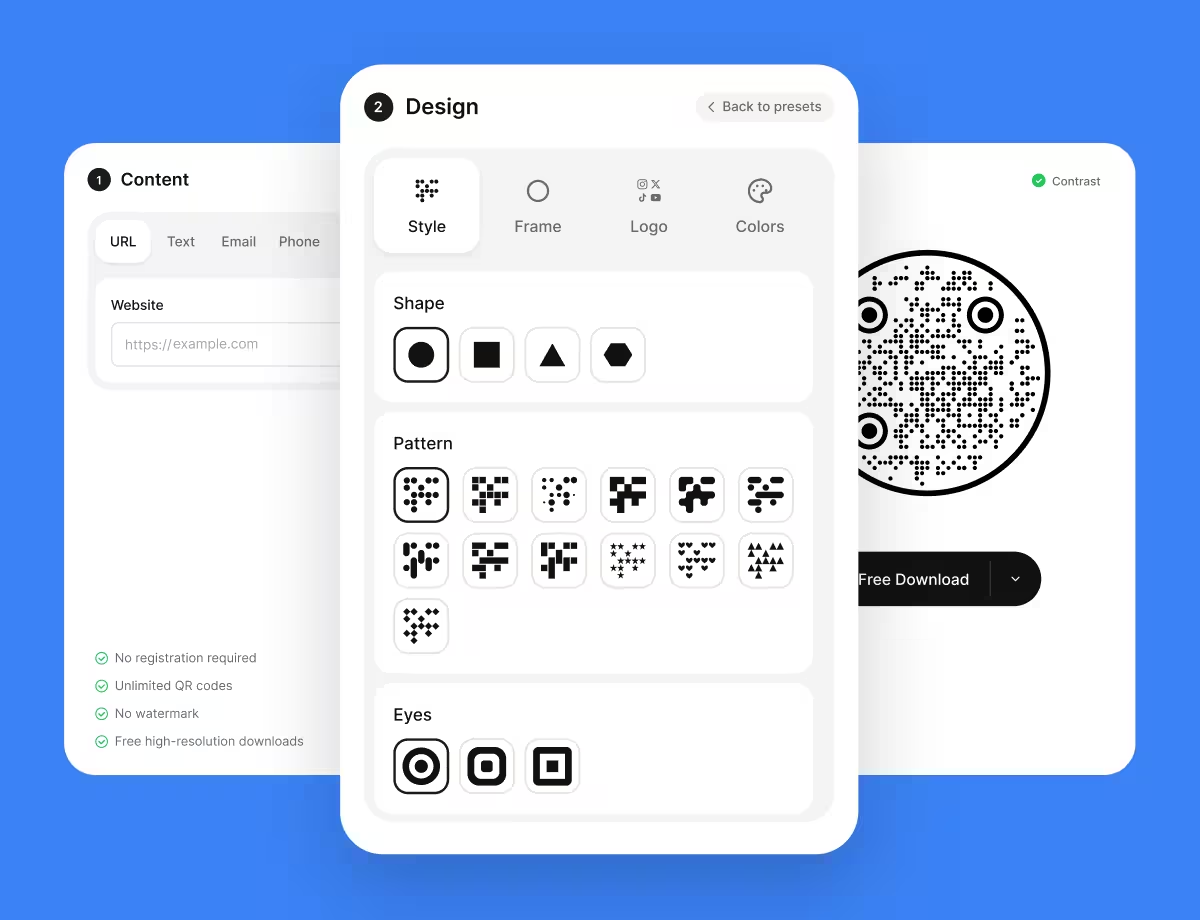
KoloQR gives you the finished QR code file in the browser: pick a shape, set the colors, add a logo, read the contrast check, download SVG, PDF, EPS or PNG. No account, no watermark, no subscription and no expiry date on the code. If you only need the code, that is the whole job and it costs nothing.
If you are laying out a poster, a flyer or a social post as well, the two tools stack rather than compete: export the code from KoloQR as SVG, import it into your Adobe Express project, and place it in the design like any other asset. You keep the shape, the exact brand colors, the checked contrast and the vector edges, and you keep everything Adobe Express is genuinely good at - templates, stock photography, type and brand kits. The one thing neither tool can do is change where a printed code points, so fix the destination first, scan the exported file, and only then send the artwork to print.
Create Your QR CodeKeep Exploring
Pages that pick up where this one leaves off - the same setting, the same kind of code, or the next thing worth deciding.
Do QR Codes Expire? The Pattern Never Does
The pattern never expires, and four things behind it do. Which one failed, how to tell them apart, and which of them you can fix without reprinting.
Static or Dynamic? Decide It Before Anything Is Printed
The difference is where the destination lives, and price, analytics and every failure mode follow from it. Four questions that settle which one to print.
Best QR Code Generator in 2026: Six Free Tools Compared
Free resolves to three different arrangements - a code you keep, a code you rent, and a trial that ends - and the vendor's pricing page is rarely where the difference is stated.
Seven Flowcode Alternatives and What Each Replaces
Flowcode's free plan stops at 2 codes and 500 scans, and the first paid step is $25 a month - here is what seven alternatives cost, and why none of them can rescue a code that is already printed.
A Free QR Tiger Alternative, No Signup
A design-first, open-source QR generator compared with a campaign-focused tracking platform. See which one fits your project.
KoloQR vs The QR Code Generator
Two generators that both start free in the browser, with the line drawn in a different place. KoloQR hands over every format straight away; The QR Code Generator - the free front door to Uniqode - keeps SVG, logos and dynamic codes behind an account.
Why KoloQR?
- Create QR codes for websites, menus, Wi-Fi, PDFs, and business cards
- Customize colors, logos, and unique shapes
- Download high-quality PNG and SVG files
- Built for both print and digital
