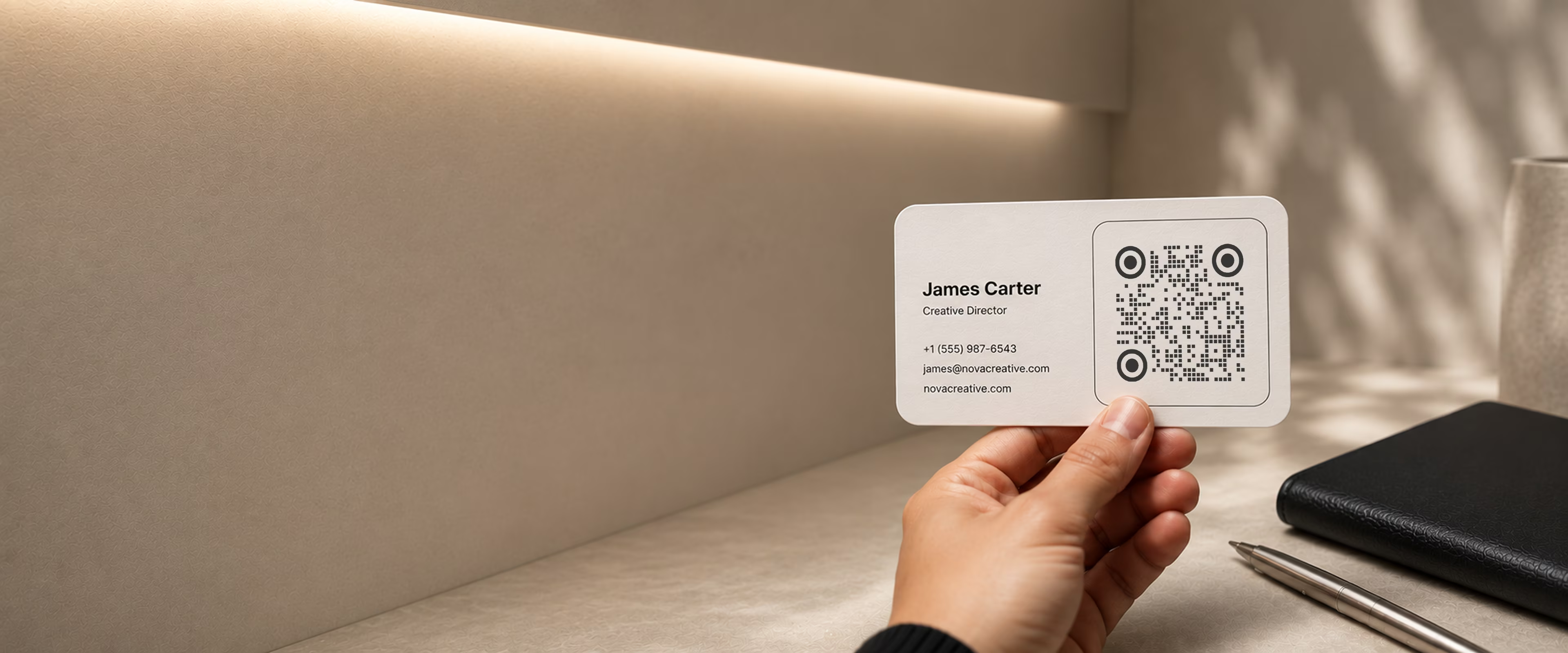
名刺のためにデザインされたQRコード
名刺は手渡しされ、腕の長さの距離で見られます。つまりコードはリンクである前にグラフィック要素です。輪郭とその周りの枠を選び、モジュール模様と配色を決め、中央にロゴを置いて、印刷用のベクターとして書き出せます。
QRコードを作成- 56種の枠、12種のモジュール模様
- デザイン中にコントラストを確認
- 印刷用のSVG・PDF・EPS
コードのデザインが名刺のデザインの一部である理由
名刺は誰かの手に渡す最小のものであり、コードは意図をもって決めたレイアウトの中に座ります。どこへつながるかと同じくらい、どう見えるかも決定事項です。
スキャンされる前に、まず見られる
腕の長さの距離では、コードはグラフィックとして読まれます。作り込んだレイアウトの隣にある既定の黒い四角は、何を開くにせよ、後から足したものに見えます。
輪郭ごとに14種、合計56種の枠
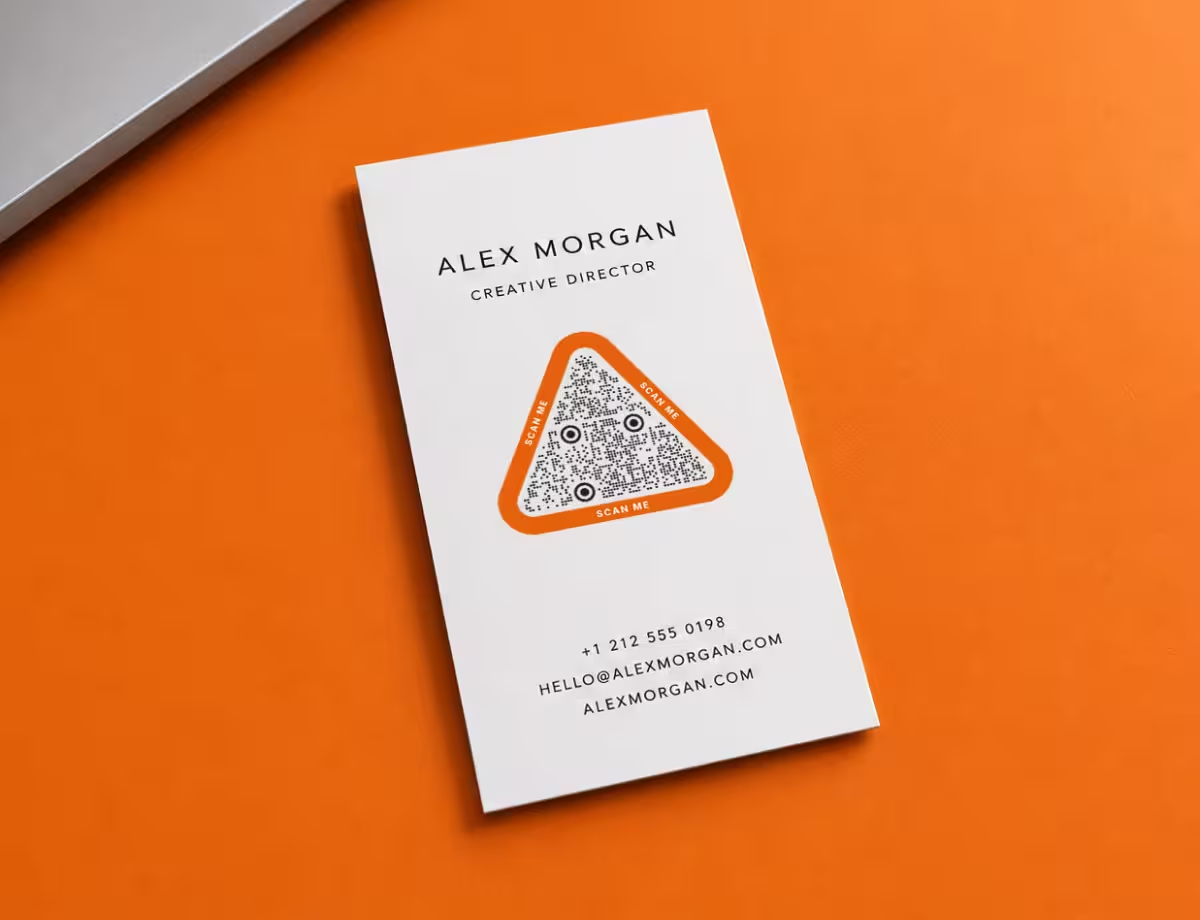
正方形・円形・六角形・三角形、それぞれに14種の枠。ジェネレーターの既定ではなく、名刺自身の幾何をコードに持たせられます。
12種のモジュール模様と2種の角のスタイル
ドット、バー、ピル、ひし形、素の四角。角の目は角丸か円形かを選べます。同じ色の2つのコードを別々のデザインに見せるのは、この模様です。
適用しながら確認できる配色
コードと背景にブランドカラーを当てると、その場でコントラストが測られます。2cmの印刷に耐えない淡いゴールドは、刷った後ではなく刷る前に見つかります。
始める前に必要なもの
コードの作成は数分で終わります。その前に、2つのことを決めておきましょう。
コードで開くもの
コードには自分で管理するリンク先が必要です。ウェブサイト、ポートフォリオ、LinkedInプロフィール、リンクまとめページのいずれか、または電話番号やメールアドレスといった単独の情報です。動作を1つに絞れば、スキャンした人の期待どおりのことが起こります。
- 色を変える - ドットと背景にブランドカラーを使いましょう。
- ロゴを加える - 中央に置けば、ひと目で自分のものだと分かります。
- ドットのスタイルを選ぶ - 角丸・円形・クラシックな四角、それぞれ印象が変わります。
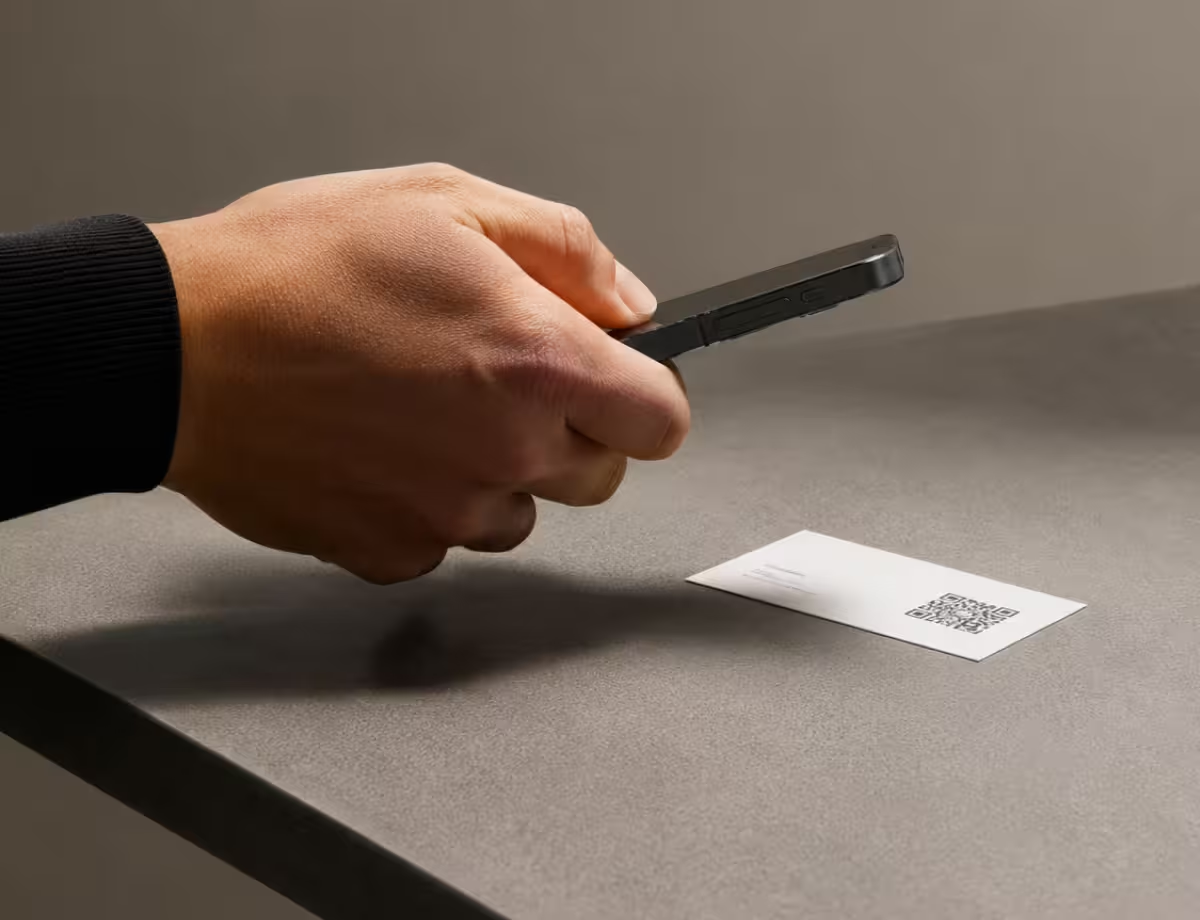
- 1
コードが開くものを入力する
プロフィール、ポートフォリオ、予約ページのリンクを貼り付けます。ひとつの動作だけをさせたいときは、電話番号やメールアドレスでもかまいません。
- 2
輪郭・枠・模様を選ぶ
形と14種の枠のひとつを選び、モジュール模様と角の目を決め、色を当てて、中央にロゴを置きます。
- 3
印刷用のベクターを書き出す
SVG・PDF・EPSでダウンロードし、2cm以上の大きさで名刺のデータに配置して入稿します。
名刺のどこにQRコードを置くか
置く場所によって、実際にスキャンしてもらえる数が変わります。うまくいく置き場所はいくつかに絞られます。
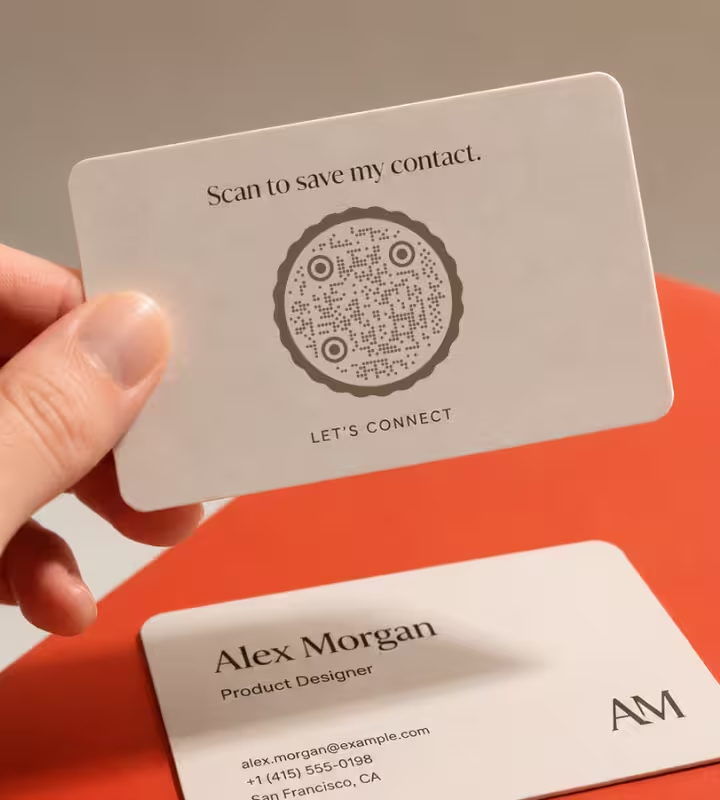
名刺の裏面
表面は名前と役職のためにすっきり保ち、コードは裏面に、「スキャンして連絡先を保存」のような短い一言と一緒に置きましょう。
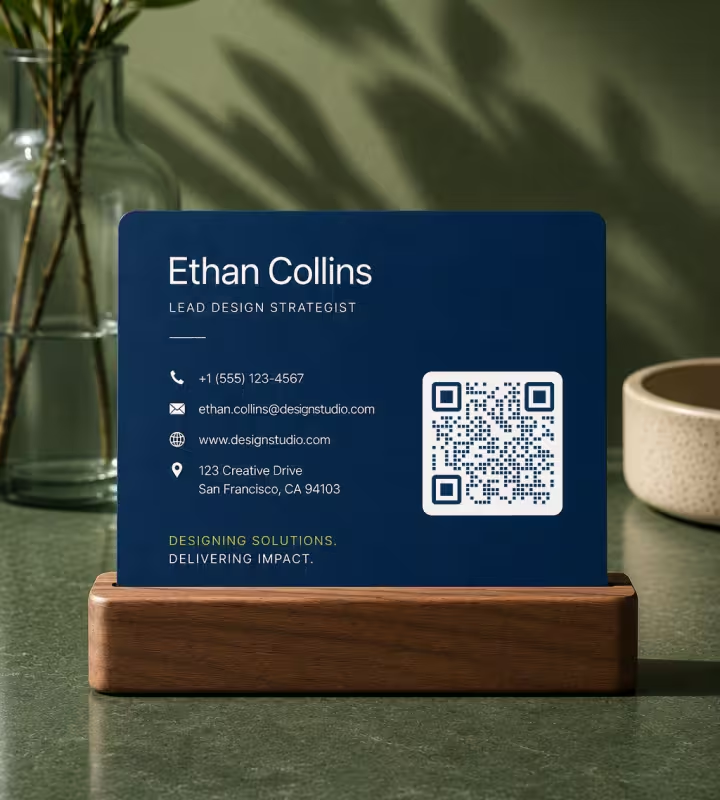
連絡先のとなり
表面の名前と役職のとなりに置けば、ひと目でコードとあなたが結びつきます。
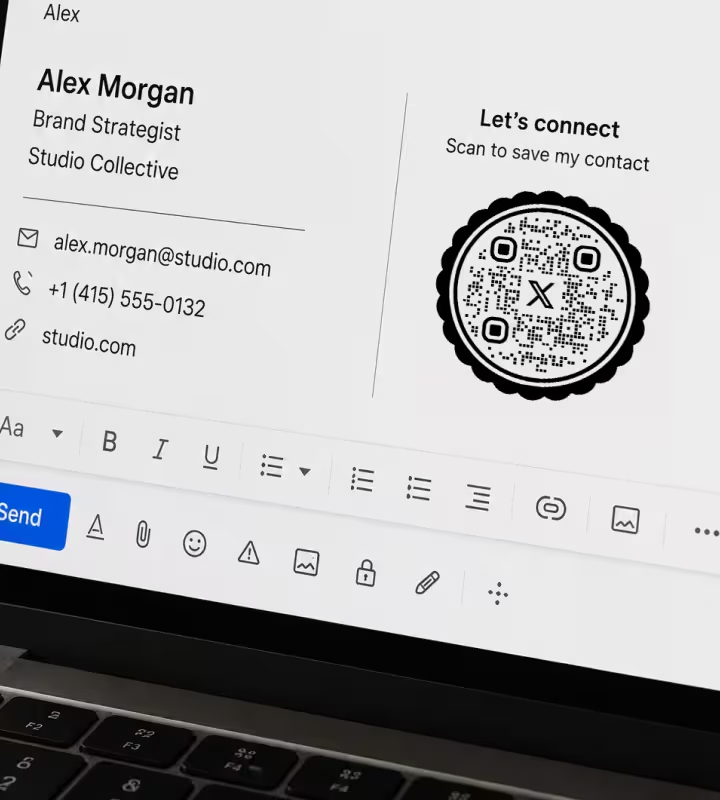
メールの署名とスライド
同じコードは画面上でも使えるので、印刷した名刺だけでなく、メールの署名、プレゼン資料、バーチャル背景にも入れましょう。
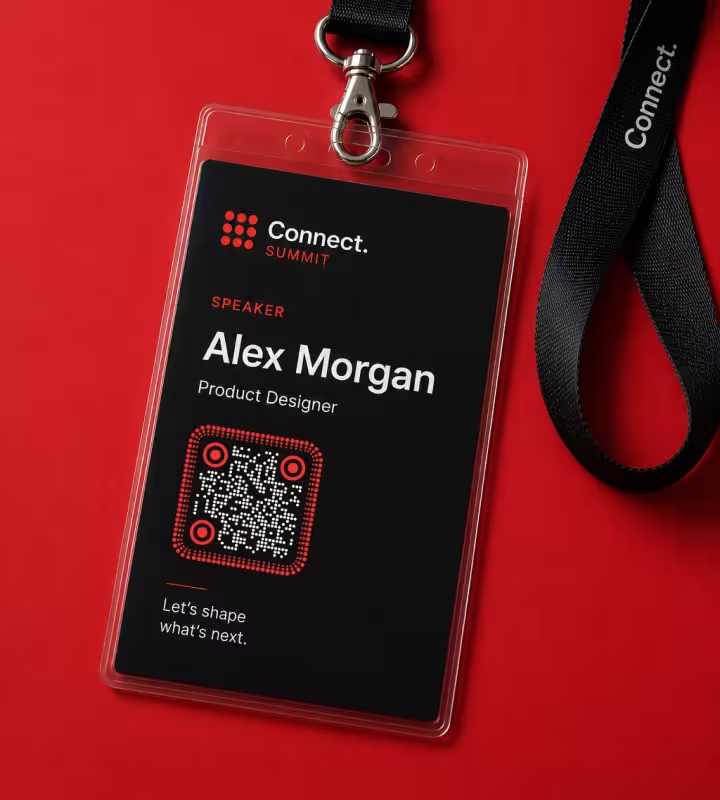
ネームバッジとネックストラップ
カンファレンスやイベントでは、バッジにコードがあれば、紙の名刺を交換しなくても相手が連絡先を保存できます。
名刺のQRコードのベストプラクティス
QRコード付きの名刺を印刷して配る前に、知っておきたいことをまとめました。
ブランドカラーに合わせる
ブランドの色を使いながら、コードと背景のコントラストは強く保ちましょう。
中央にロゴを入れる
誤り訂正が適切に設定されていれば、中央のロゴはスキャンを妨げることなく、コードを自分のものらしく見せてくれます。
コントラストの高い色を使う
明るい名刺に暗いコードが、どんな明るさでも最も速く確実にスキャンできます。
適切なサイズを選ぶ
小さな名刺の上でもスキャンしやすいよう、コードは最低2×2cm(約0.8インチ)で印刷しましょう。
印刷前にテストする
本刷りの前に、校正刷りをiPhoneとAndroidの両方で、実際の距離からスキャンしてください。
行動をはっきり示す
何が起こるかを伝えましょう。「スキャンして連絡先を保存」または「スキャンしてポートフォリオを見る」。
リンク先を生かしておく
リンクしたページやプロフィールが公開されたまま、最新の状態であることを確かめてください。
ベクターファイルを使う
SVGまたはPDFで書き出せば、どんなサイズでもコードが鮮明に印刷されます。
コードの周囲に余白をとる
コードの周りにはっきりした余白を残し、何も近づけたり重ねたりしないようにしましょう。
デザインを凝りすぎない
角丸の形、ブランドカラー、ロゴはきれいに見えます。読み取りの確実さを損なう強い効果は避けましょう。
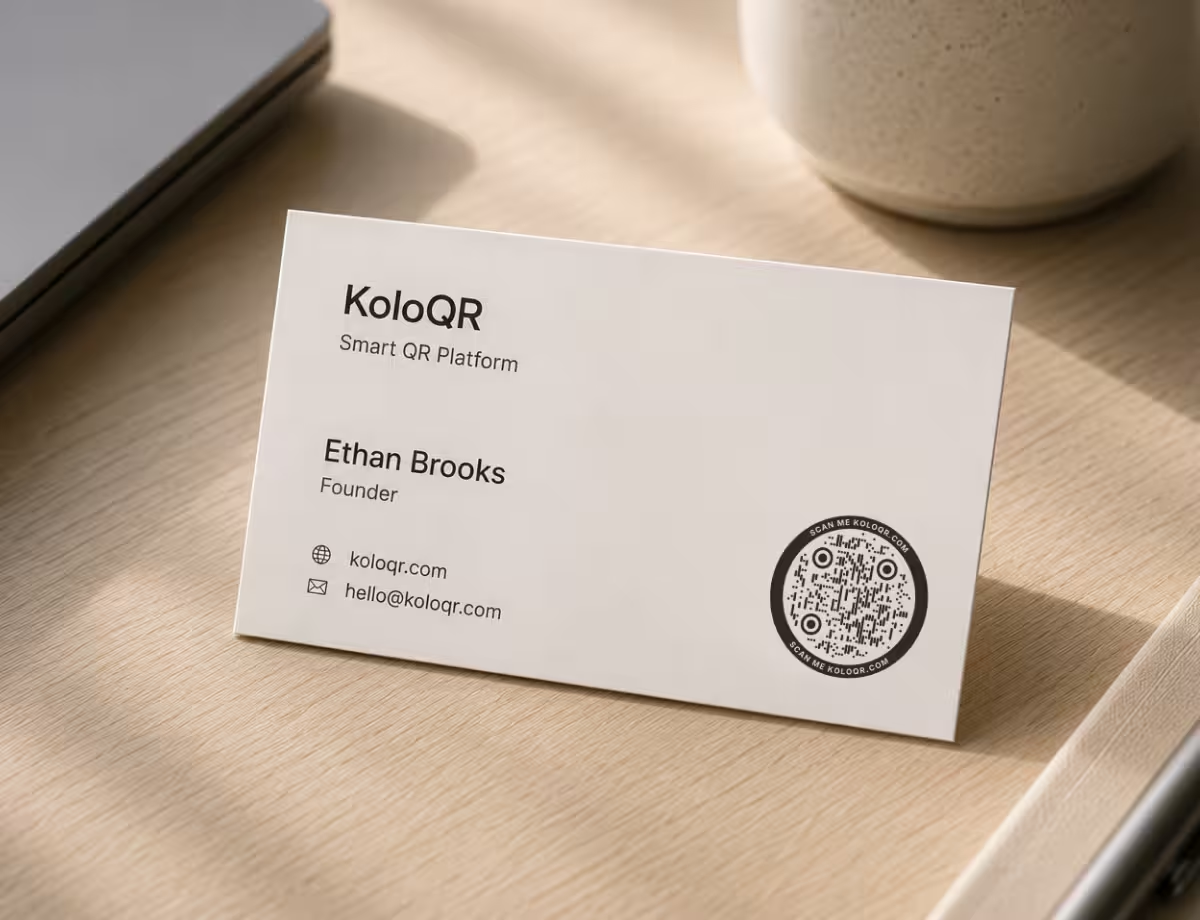
名刺のコードをデザインしますか?
リンクを入力し、輪郭と枠を選び、模様と色を決めて、印刷所が扱えるベクターを書き出すだけです。アカウントも透かしも更新も不要。デザインが仕上がった時点で、コードも仕上がっています。
QRコードを作成Questions? Answered
コードからではなく、名刺から始めます。レイアウトがすでに使っている幾何、つまり角の丸み、罫線の太さ、配色を取り出し、それを反復する輪郭・枠・モジュール模様・角の目を選びます。KoloQRは4つの輪郭それぞれに14種の枠と、12種のモジュール模様をこの目的のために備え、作業中にコントラストを測ります。名刺の大きさで読み取れなくなるブランドカラーは、刷る前に見つかります。SVGまたはPDFで書き出してデータに配置してください。名刺の先にある面での同じ判断はブランドQRコードで扱っています。
名刺のQRコードとは、名刺に印刷されたスキャンできるコードで、スマホのカメラで読み取ると何かが開きます。多くは、連絡先として保存できる自分の情報や、ウェブサイト、ポートフォリオ、予約ページへのリンクです。何も入力しなくても、1タップで連絡を取ったり、情報を保存したりできます。
vCardのQRコードは連絡先をコードそのものの中に持つため、スキャンすればオフラインでもすぐ相手のスマホの連絡先に追加されます。URLのQRコードは自分で管理するウェブページを指し、後から更新でき、ポートフォリオやカレンダー、SNSのリンクなど、はるかに多くのものを共有できます。KoloQRが作れるのはURL・電話番号・メール・テキスト・Wi-Fi・SNSのコードで、vCardは扱っていません。そのため名刺では、詳しい情報をまとめたプロフィールページへリンクするのが一般的です。
はい。コードの中央にロゴを置けます。QRコードは誤り訂正によって読み取れる状態を保つので、中央の小さな範囲を覆うロゴがスキャンを妨げることはありません。ロゴは控えめなサイズにとどめ、印刷前に結果をテストしましょう。
ベクター形式(SVG、PDF、EPS)を使いましょう。小さな印刷サイズでもコードが完全に鮮明なままです。印刷には低解像度のPNGを避けてください。輪郭がぼやけると、コードは読み取りづらくなります。KoloQRは、名刺のデザイナーや印刷所にそのまま渡せるベクターファイルを書き出します。印刷するサイズと配置については、名刺のQRコードをご覧ください。
最低2×2cm(約0.8インチ)を目安に、周囲に少しの余白を残しましょう。腕を伸ばした距離ですばやくスキャンできる大きさでありながら、標準サイズの名刺にもきれいに収まります。
後からリンク先を変えられる短縮リンクを指す動的コードを使う場合だけ可能です。静的コードはリンク先を恒久的に保持するため、印刷したあとは変更できません。連絡先やリンクが頻繁に変わるなら、動的コードか、自分で管理する安定したリンク先ページのほうが安全です。
静的コードに期限はありません。データがコードの中にあるので、リンク先が存在し続ける限り機能します。電話番号やメールアドレスを収めたコードは、情報がパターンそのものに入っているため、期限切れになるものが何もありません。
はい、十分なコントラストで作られていれば大丈夫です。明るい背景に暗いコード(またはその逆)にし、ファインダーパターンの四角とクワイエットゾーン(コードの周囲の余白)はそのまま残し、にぎやかなグラデーションは避けましょう。KoloQRはこうした要素を確実に保ちますが、まずは印刷した校正刷りをiPhoneとAndroidの両方でスキャンしてください。
はい、無料です。アカウントもサブスクリプションも不要で、アプリも必要ありません。最近のiPhoneとAndroidのカメラはQRコードを直接読み取るので、渡したその場で誰でも名刺をスキャンできます。
関連ページ
このページの続きになるページ - 同じ場面、同じ種類のコード、あるいは次に決めることについて。
歯科医院
受付には予約リンク、決済端末のそばには口コミカード、そして数か月後にも効くリコールはがき。
メールQRコード
スキャン1回でメールを送ってもらえます。宛先・件名・本文まで入力済みの状態です。
電話番号QRコード
電話番号を、電話アプリが開いてワンタップで発信できるコードに変えます。
名刺
85 x 55 mmに収まるのはコード1つ分だけ。どこに置くか、どこまで小さくできるか、どの加工がコードを殺すか。
結婚式
招待状に1つのコードを。出欠フォーム、式次第と道順、そして式のあとの共有写真アルバムへゲストを案内します。
不動産
売出し看板・ウィンドウカード・パンフレットから、写真ギャラリー・間取り図・動画ツアーへ通行人を直接案内します。
KoloQRを選ぶ理由
- ウェブサイト、メニュー、Wi-Fi、PDF、名刺用のQRコードを作成
- 色・ロゴ・オリジナルの形をカスタマイズ
- 高品質なPNG・SVGファイルをダウンロード
- 印刷にもデジタルにも対応
