Wedding QR code

How to Add a QR Code to Your Wedding

Create a custom QR code for your wedding in minutes. Link your website, add your colors and monogram, and download a print-ready file for invitations, signs, and save-the-dates.

Generate QR Code
  • No sign-up required
  • Works on iPhone & Android
  • Free forever

Why Couples Add QR Codes to Their Wedding

A QR code puts your whole day behind a single scan. It solves the everyday problems of planning - extra inserts, lost RSVP cards, and details that keep changing.

Your Whole Wedding in One Scan

One code opens your wedding website - schedule, directions, dress code, registry, and RSVP - so you don't have to stuff every envelope with inserts.

Works on Every Phone - No App

Both iPhone and Android read QR codes from the built-in camera, so every guest can open your details, tech-savvy or not.

Guests RSVP Faster

A scan opens your RSVP form or website in a tap, so fewer replies get lost in the mail and your headcount comes in sooner.

Collect the Photos You'd Miss

Link a shared album and guests upload their candids from the dance floor - the moments your photographer never saw.

What You Need Before You Start

Creating the code takes a few minutes. Before you do, decide two things.

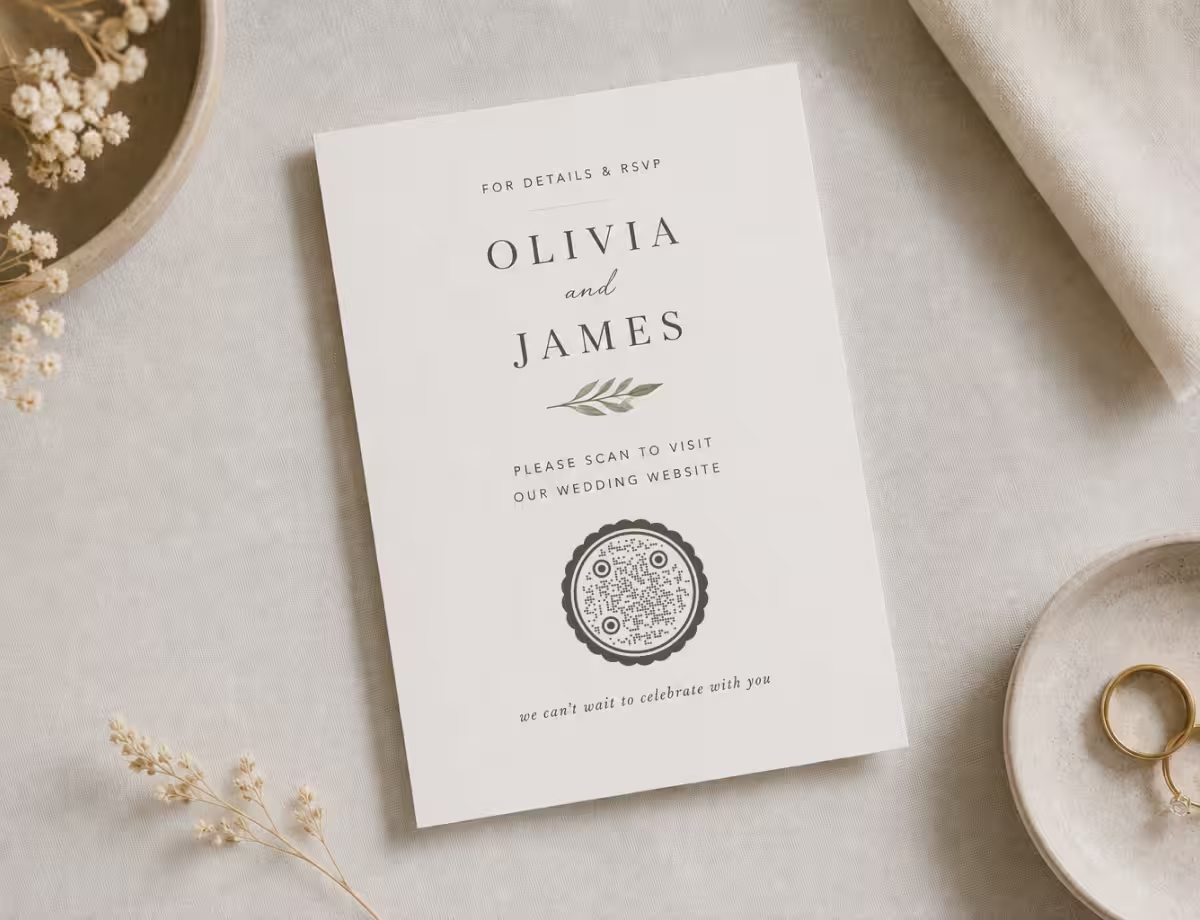
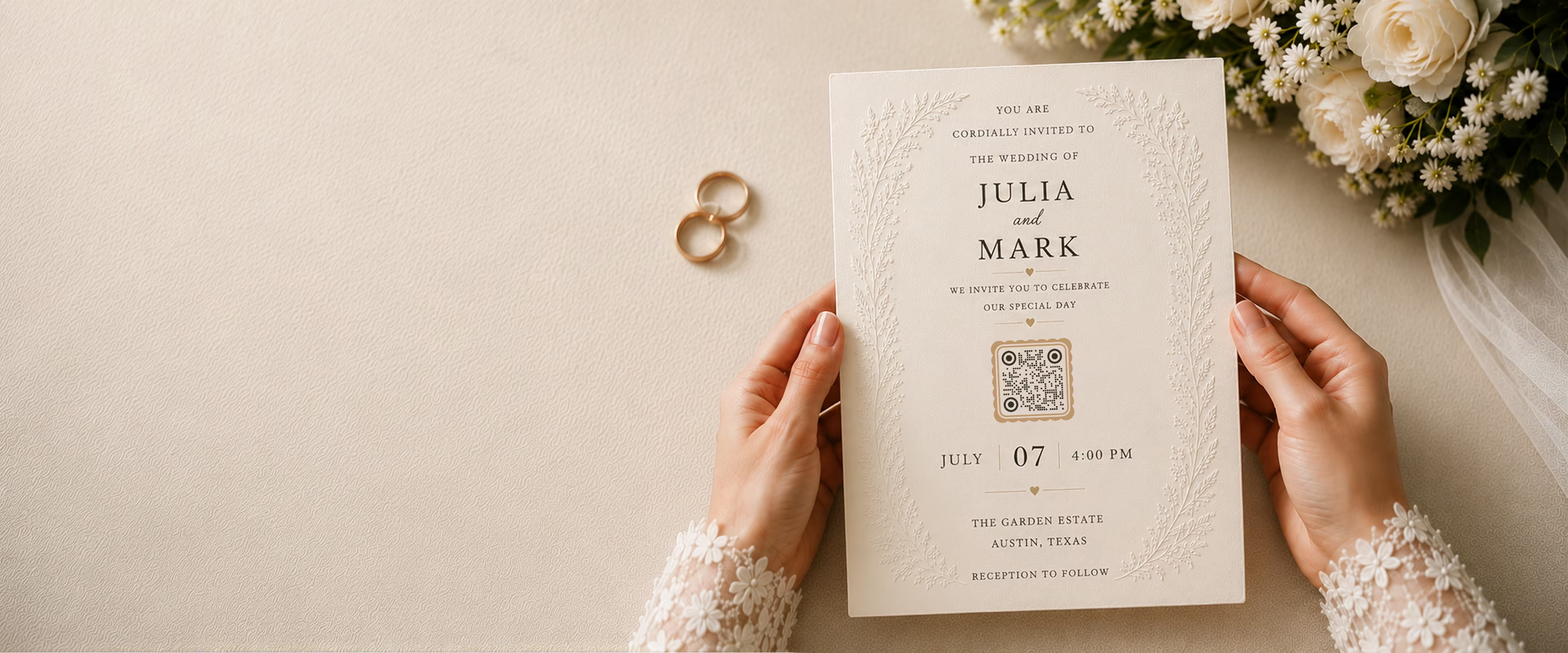
A wedding invitation reading “Please scan to visit our wedding website” with a QR code, on linen beside the rings

Something for the Code to Open

Your code needs a destination: your wedding website (RSVP, schedule, directions, and registry in one place), a shared photo album, or a single link such as your registry or a live-stream page. Pick one clear action so the scan does exactly what guests expect.

  • Change the Colors - match your wedding palette for the dots and the background.
  • Add Your Monogram - drop your initials or a small motif into the center so it feels like your stationery.
  • Choose a Dot Style - rounded, circular, or classic square dots each give a different feel.

A Phone to Test the Scan

Before you print invitations or a batch of signs, test the code on a real device. It takes 30 seconds and can save you from reprinting a whole stationery order with a broken or hard-to-scan code.

Generate QR Code
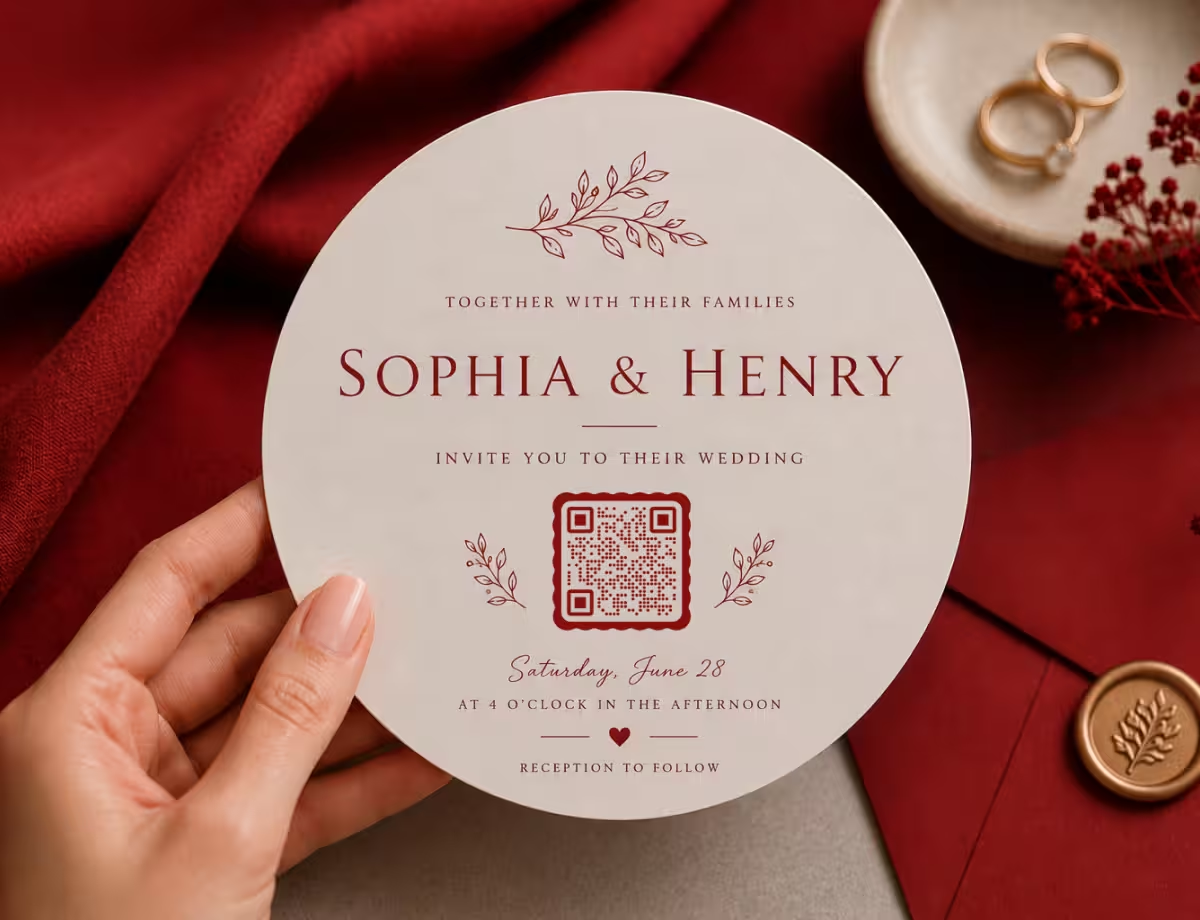
A hand holding a round wedding invitation with a QR code for the event details, on red fabric

Generate Your Wedding QR Code

Create a custom wedding QR code in seconds. Add your monogram, match your palette, and download a print-ready file for your invitations and signage.

Generate QR Code
  1. 1

    Create Your Wedding QR Code

    Paste your wedding website URL or photo-album link in KoloQR to instantly generate a code.

  2. 2

    Customize Your QR Code

    Add your monogram, choose your wedding colors, and pick a dot style that matches your stationery.

  3. 3

    Download and Print Your QR Code

    Download as SVG or PDF, add it to your invitations and signs, and send it to print.

Where to Put a QR Code at Your Wedding

Where you place the code affects how many guests actually scan it. A few placements work best across the day.

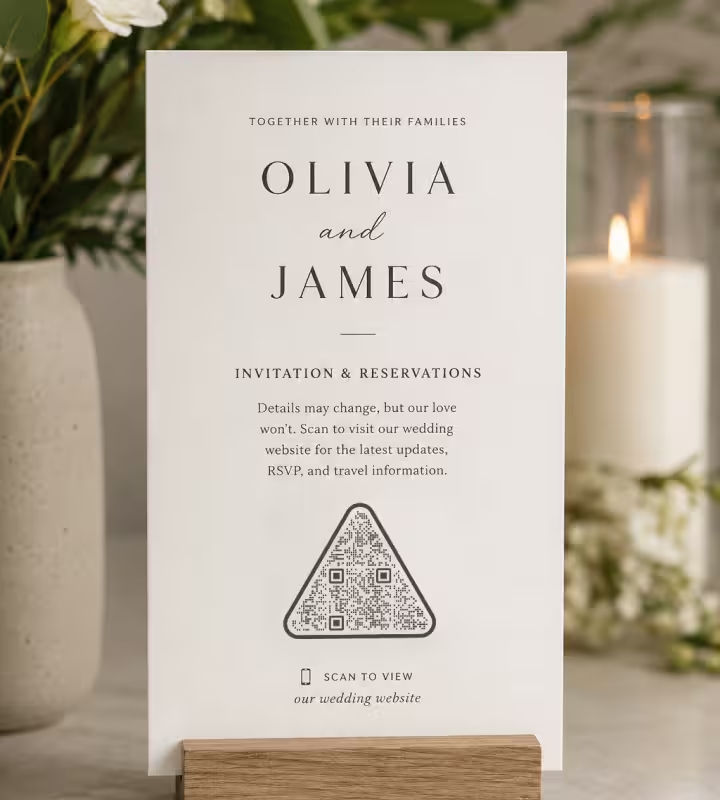
A wedding invitation with a triangular QR code reading “Scan to view our wedding website”, standing beside candles and flowers

Save-the-Dates and Invitations

Place it beside the details with a short prompt like “Scan for our wedding website” so guests find RSVP and directions in one tap.

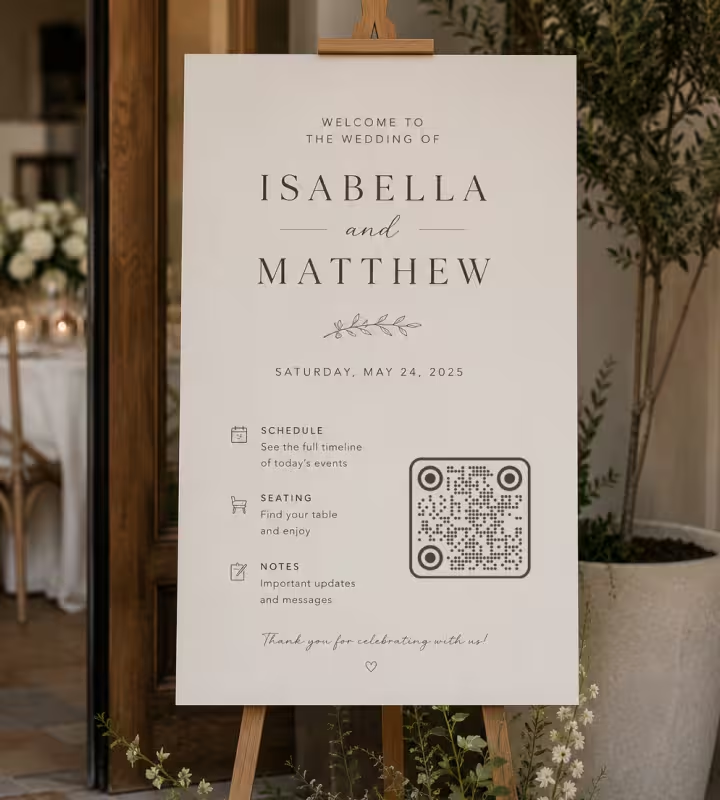
A wedding welcome sign on an easel with a QR code linking to the schedule, seating and notes

Welcome Signs and Programs

A larger code on the welcome sign or order of service points guests to the schedule, seating, and any last-minute notes.

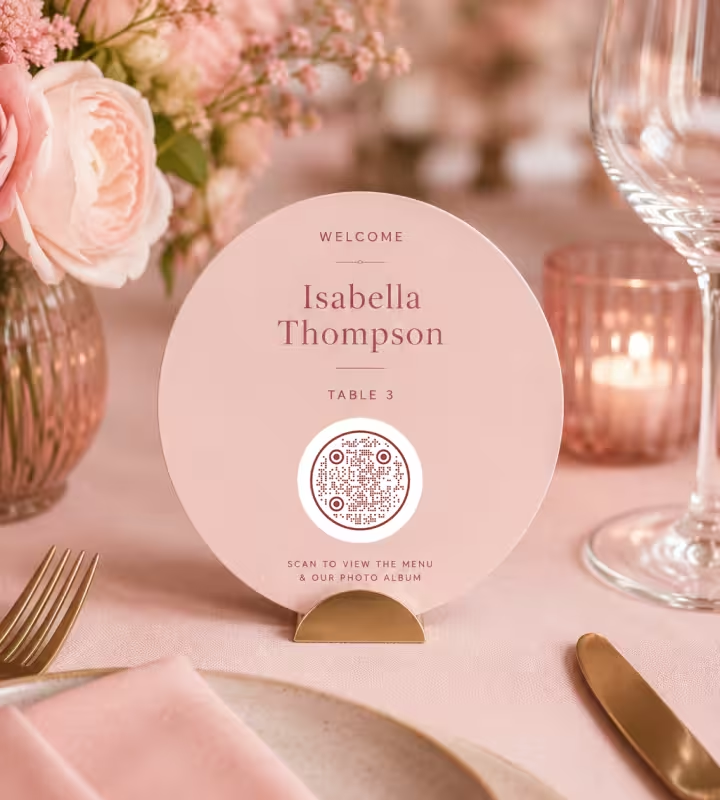
A round place card on a wedding table with a QR code reading “Scan to view the menu & our photo album”, among pink flowers

Table Cards and Place Settings

A small code at each seat can link to the menu, a seating chart, or the shared photo album guests upload to during dinner.

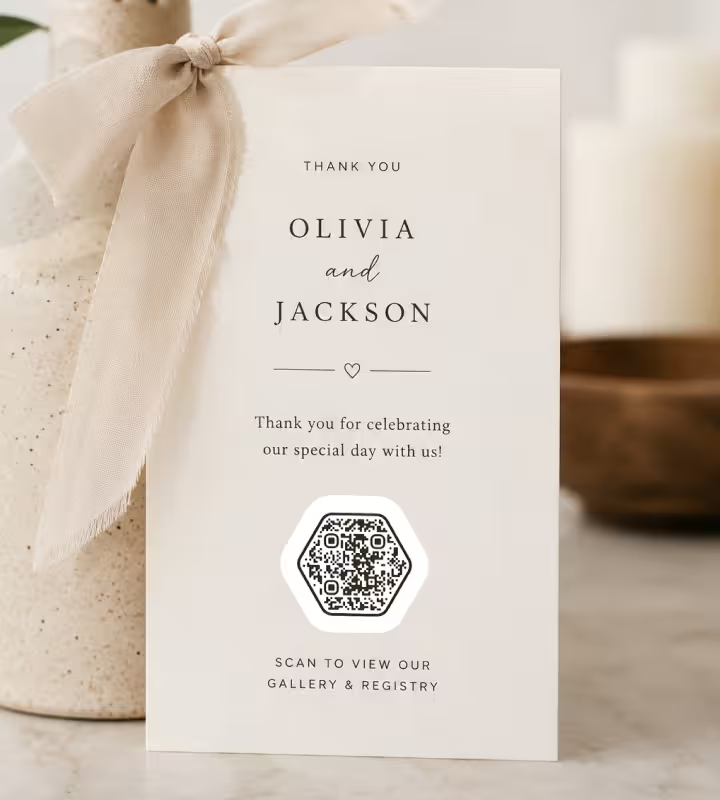
A wedding thank-you card tied with a ribbon, with a hexagonal QR code reading “Scan to view our gallery & registry”

Favors and Thank-You Cards

After the day, a code on favors or thank-you notes links straight to the photo gallery and your registry.

Best Practices for Wedding QR Codes

Everything you need to know before printing QR codes onto your invitations, signs, and stationery.

  • Match Your Wedding Palette

    Use colors from your palette while keeping a strong contrast between the code and its background.

  • Add a Monogram to the Center

    A centered monogram or motif makes the code feel like your stationery without hurting scanning, when error correction is set correctly.

  • Use High-Contrast Colors

    A dark code on a light background scans fastest and most reliably, even in dim reception lighting.

  • Size the Code for Where It Lives

    Print it at least 2 × 2 cm (about 0.8 in) on invitations, and much larger on welcome signs so guests can scan from a step or two back.

  • Test Before Printing

    Scan a proof on both iPhone and Android, at real distance, before running the full stationery order.

  • Add a Clear Call to Action

    Tell guests what happens: “Scan for our wedding website” or “Scan to share your photos.”

  • Keep the Destination Live

    Make sure the linked website or album stays online and up to date through the wedding and afterward.

  • Use a Vector File

    Export as SVG or PDF so the code prints crisp on everything from a small invitation to a large sign.

  • Give the Code Quiet Space

    Leave a clear margin around the code so florals, borders, or text don't crowd or overlap it.

  • Consider a Dynamic Code for Changing Details

    If timing or venue notes might change after invites go out, a dynamic code lets you re-point the same printed code later.

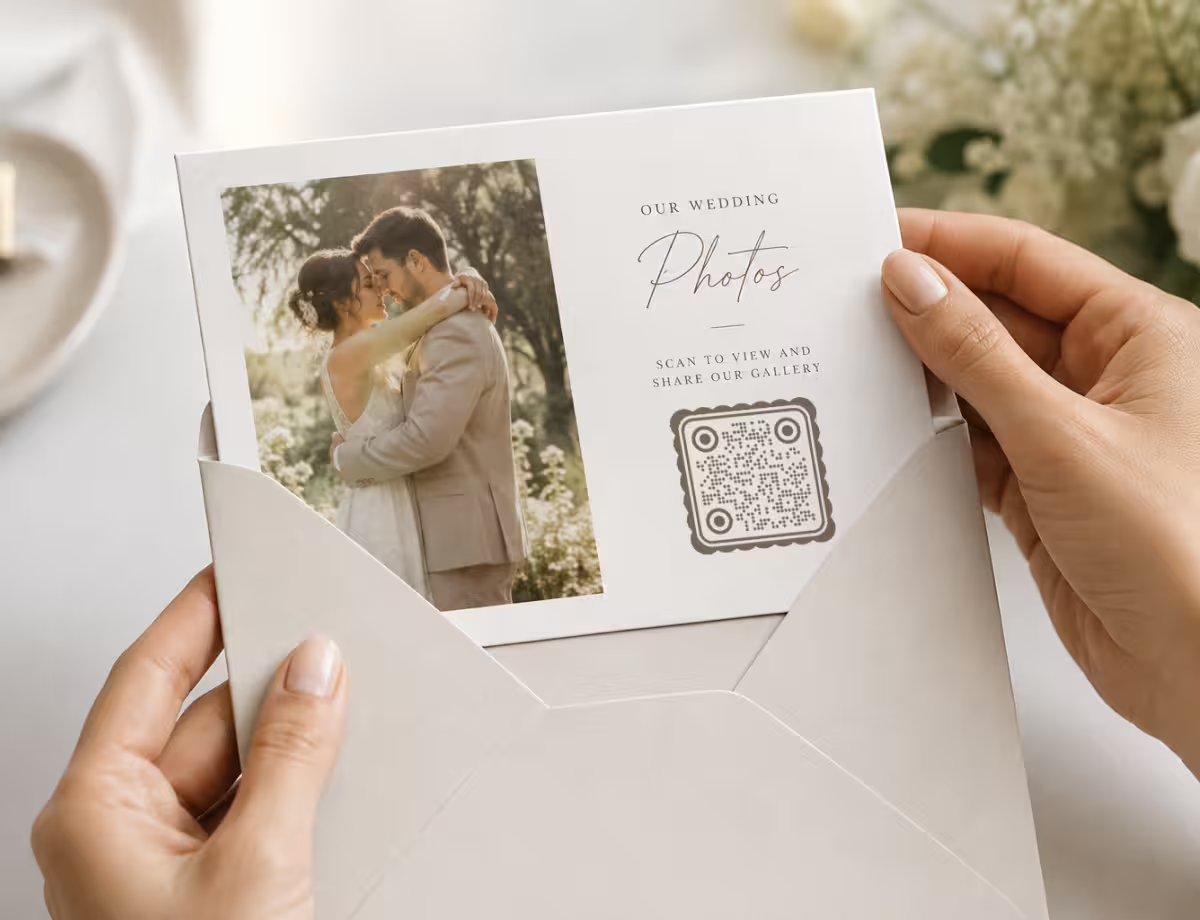
Hands opening a white envelope with a wedding photo card inside, showing a couple embracing and a round QR code labeled “scan to view and share our gallery”

Ready to Add a QR Code to Your Wedding?

Creating a QR code for your wedding takes a few minutes. You don't need design experience - enter your website or link, match your colors, add your monogram, and download a print-ready file. Start free.

Generate QR Code

Questions? Answered

A wedding QR code is a scannable code printed on your invitations, signs, or stationery that opens something when a guest's phone camera scans it - usually your wedding website, an RSVP form, a shared photo album, or your registry. It lets guests reach the details or reply in one tap, without typing a long web address.

The most useful destination is your wedding website, since it can hold your schedule, directions, dress code, RSVP, and registry in one place. Other popular options are a shared photo album where guests upload their pictures, a registry link, or a live-stream page for guests who can't attend. Pick one clear destination so the scan does exactly what guests expect.

You point the code at your wedding website or RSVP form, and guests scan it with their phone camera to open the page and reply. Because the code just links to a page you control, you collect responses the same way you would from any web form - no app or account for guests, and no paper cards to mail back.

Yes. Link the code to a shared album - a Google Photos or Dropbox folder, or a dedicated wedding photo app - and guests scan it to upload their candids straight from their phones. It's a simple way to gather the moments your photographer couldn't be in two places for, all in one collection.

Yes. You can place your initials, a monogram, or a small motif in the center of the code, and match its colors to your palette. QR codes use error correction to stay readable, so a modest centered logo won't stop it from scanning - just keep it small and test the result before printing.

Use a vector format - SVG, PDF, or EPS - so the code stays perfectly sharp whether it's tiny on an invitation or large on a welcome sign. Avoid low-resolution PNGs for print, since blurry edges make codes harder to scan. KoloQR exports vector files ready for your stationery designer or print shop.

It depends on where it goes. On invitations and save-the-dates, aim for at least 2 × 2 cm (about 0.8 in) with a small margin of blank space around it. On welcome signs and larger displays, size it up so guests can scan comfortably from a step or two away - a good rule is roughly a tenth of the scanning distance.

Only if you use a dynamic code, which points to a short link you can re-target later - useful if timing or venue notes change after invitations go out. A static code stores its destination permanently and can't be changed once printed. If details are still moving, a dynamic code or a stable wedding-website URL you control is the safer choice.

Static codes never expire - the data lives inside the code, so it keeps working as long as the destination still exists. The thing to watch is the destination: keep your wedding website or photo album online through the day and afterward, and the code will keep opening it.

Yes, it's free - no account or subscription - and no app is needed. Modern iPhone and Android cameras read QR codes directly, so any guest can scan your invitation or sign and open the page straight away.

KoloQRを選ぶ理由

  • ウェブサイト、メニュー、Wi-Fi、PDF、名刺用のQRコードを作成
  • 色・ロゴ・オリジナルの形をカスタマイズ
  • 高品質なPNG・SVGファイルをダウンロード
  • 印刷にもデジタルにも対応
QRコードを作成
シンプルな黒いQRコードと、同じコードをブランドカラーの円形にデザインし直したもの