ゲストを一瞬でWi-Fiに接続、パスワードは不要
Wi-Fi QRコードは、ネットワークへのログインを1回のスキャンに変えます。ゲストはカメラを向けて1回タップするだけでオンラインに。「それはゼロですか、それともOですか?」と読み上げる必要も、冷蔵庫に貼ったパスワードも要りません。数秒でデザインして、どこにでも印刷できます。
Google マップで開きます。座標でも構いません(37.4224, -122.0841)。
ビジネスの「クチコミを書く」フォームが開きます。プレイス ID か、それを含む Google マップのリンクを貼り付けてください。
UPI リンクにはチェックサムがありません。ID を打ち間違えると、問題なく読み取れるのに別人へ支払われるコードになります。決済アプリから ID を貼り付け、印刷前に自分宛てに 1 ルピー送って確認してください。
コピーしたまま貼り付けてください。KoloQR はペイロードを組み立てません。銀行が発行したものをそのまま符号化し、印刷前に検査します。
SVG・PNG・JPG • 最大2MB
初月無料
以降 $9/月
動的QRコード、まもなく登場
印刷後でも、リンクをいつでも変更できます。誰が、いつ、どこでスキャンしたかもわかります。
- 印刷し直さずに編集
- スキャン分析
- 一括作成と独自ドメイン
登録が完了しました
スキャン分析つきの動的コードのリリース時に、1 通だけメールでお知らせします。
Wi-Fi QRコードとは?
Wi-Fi QRコードは、ネットワーク名・パスワード・セキュリティ方式を保存した、スキャンできる画像です。スマホのカメラでスキャンすると、端末がその認証情報を読み取り、1回のタップでネットワークに接続するかを尋ねます。手入力は不要で、iOSでもAndroidでも追加のアプリは要りません。
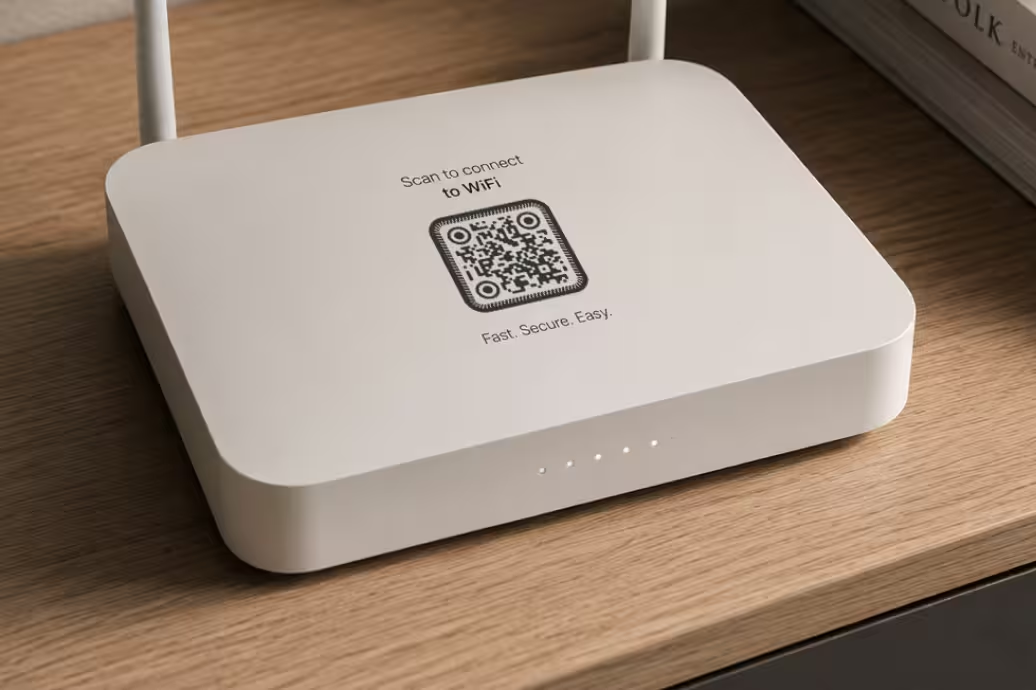
エンコードされる情報
Wi-Fi QRコードには、3つの情報が入っています:
- ネットワーク名(SSID) - Wi-Fiネットワークの名前です。
- パスワード - ネットワークに接続するために必要なパスワードです。
- セキュリティ方式 - WPA2、WPA3、WEP、またはOpenです。
情報はQRコードに直接エンコードされるため、対応する端末はスキャンした直後に接続できます。アプリもインターネット接続もオンラインサービスも必要ありません。
接続の仕組み
スマホのカメラがコードを読み取ると、埋め込まれた認証情報が復号され、「[ネットワーク名]に接続しますか?」という1タップの確認が表示されます。ゲストが「接続」をタップすれば、それで完了です。全体でも3秒ほどしかかかりません。iPhoneはiOS 11以降、標準カメラでWi-Fiコードに対応しています。多くのAndroid端末も、カメラかGoogle Lensで読み取れます。iPhoneなら「パスワード」Appから直接Wi-FiのパスワードをQRコードとして共有することもできます。ダウンロードするアプリも、キーボードも、打ち間違いもありません。すべてのデータを自分で持つ他のQRコードの種類と同じで、サーバーから何かを取ってくることはありません。認証情報はパターンそのものの中にあります。
QRコードを作成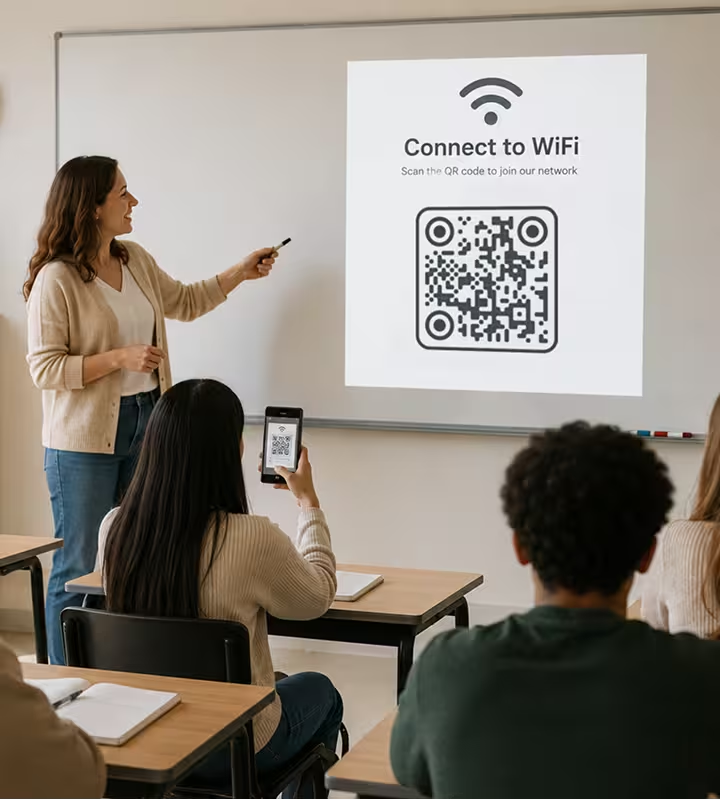
実際の活用例
Wi-Fi QRコードは、パスワードを何度も聞かれる場所ならどこでも役に立ちます。とくに時間を節約できるのが、次のような場面です。
カフェ・レストラン・バー
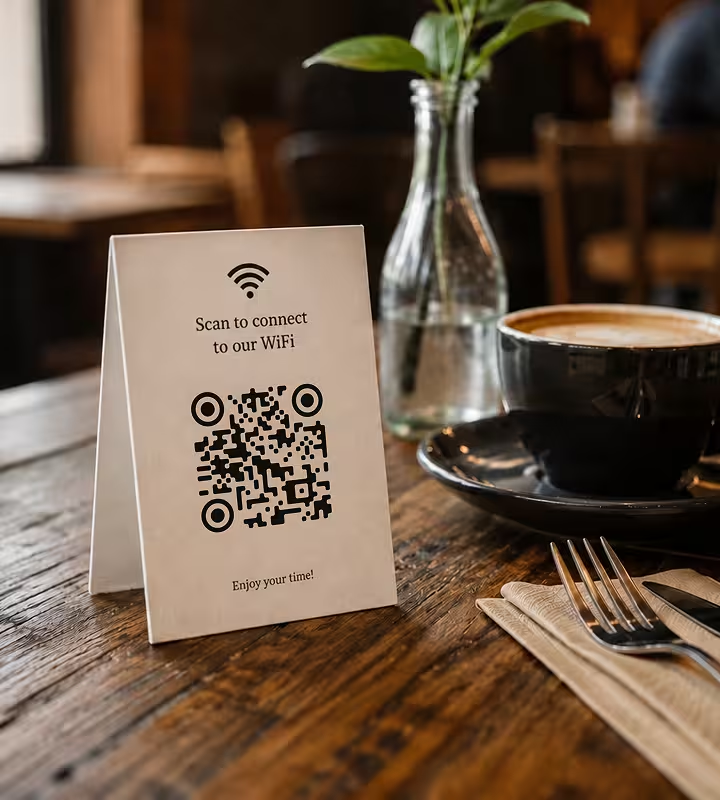
Wi-Fi QRコードを載せたテーブルスタンドは、最もよくある使い方の一つで、それには理由があります。スタッフはパスワードを繰り返さずに済み、客は尋ねる必要がなく、接続はもたつかず洗練された印象になります。小さなカードにコードを印刷して、メニューの裏に添えましょう。パスワードを変えるときは、コードを作り直して数分で刷り直せます。
ホテル・民泊
ゲストは疲れて到着し、とにかくオンラインになりたいだけです。客室や歓迎カードに額装したWi-Fi QRコードがあれば、チェックインの手間が一つ減り、「よく整えられた場所だ」と静かに伝わります。Airbnbのホストやブティックホテルにとっては、第一印象を高める小さな工夫です。
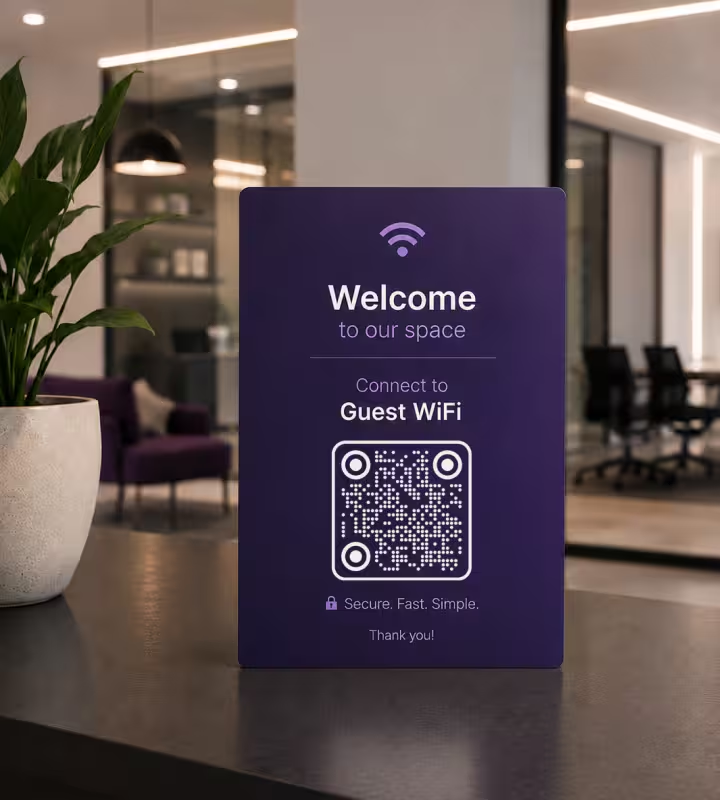
オフィス・コワーキングスペース
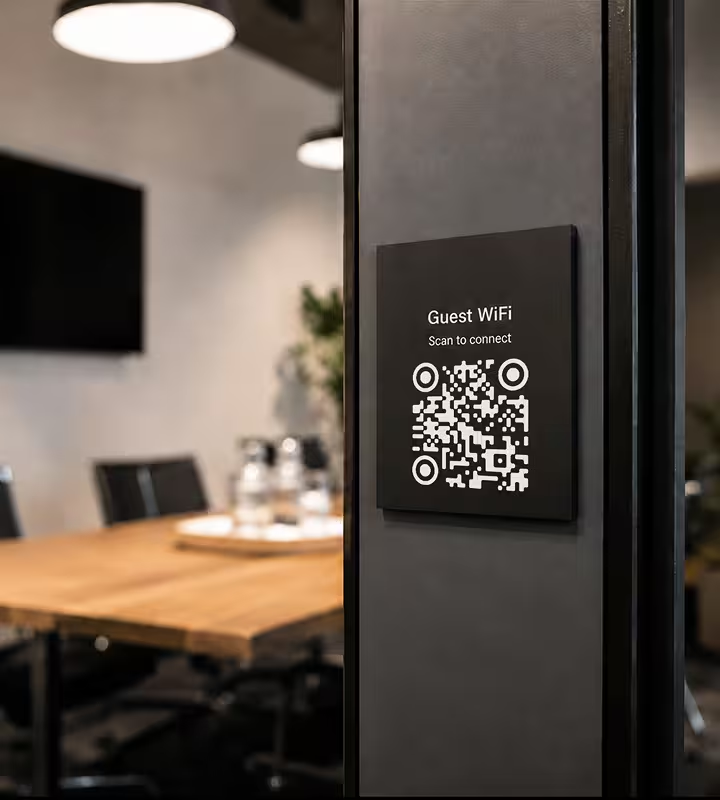
オフィスのゲスト用Wi-Fiパスワードは、セキュリティのために頻繁に変わります。新しい認証情報をメールで送ったり、ホワイトボードを書き換えたりする代わりに、コードを作り直して差し替えましょう。来訪者は受付や会議室でスキャンするだけで接続でき、IT部門への依頼も要りません。
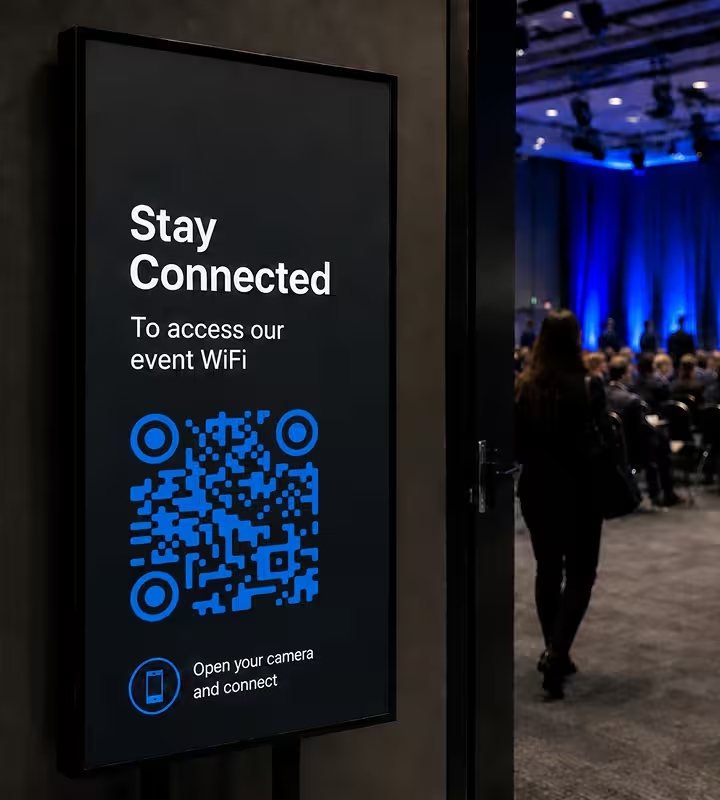
イベント・カンファレンス
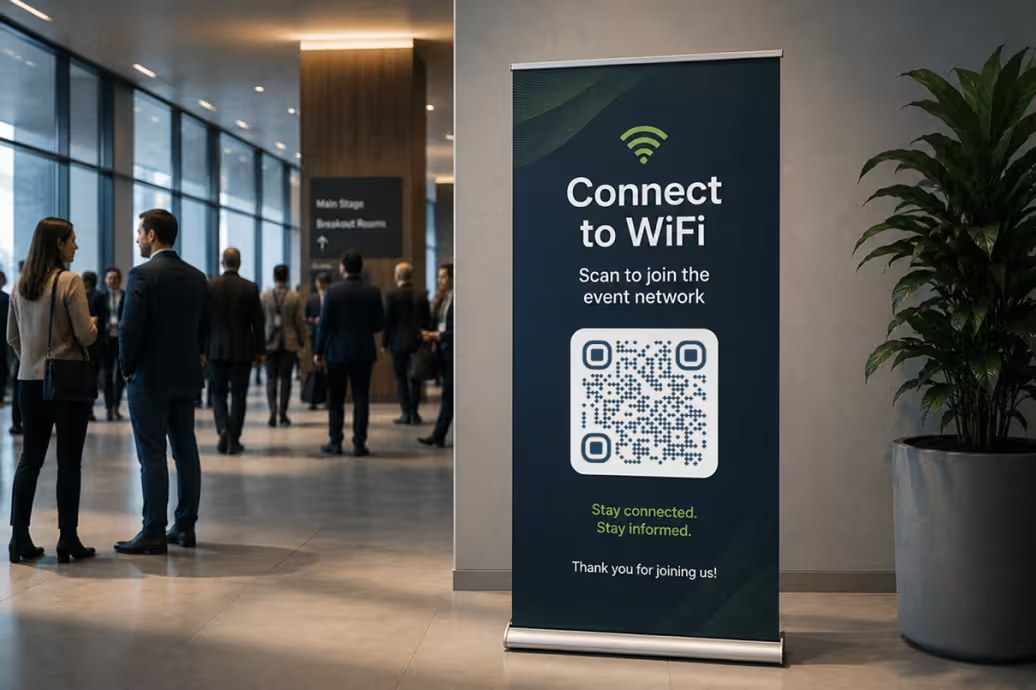
参加者は、席に着いた瞬間からオンラインでいたいものです。バッジやプログラム、投影スライドにWi-Fi QRコードがあれば、会場全体が数秒で接続できます。確実なWi-Fiが最も必要とされる、まさにその瞬間に間に合います。
- 1
QRコード作成ツールを開く
KoloQRの無料QRコード作成ツールを開き、メニューからWi-Fiタイプを選びます。登録もダウンロードも不要で、すべてブラウザ内で動きます。
- 2
ネットワーク情報を入力する
ネットワーク名(SSID)、パスワード、セキュリティ方式(WPA/WPA2/WPA3、WEP、またはオープン)を入力します。KoloQRがそれらをコードに直接エンコードするので、ゲストは何も入力せず1回のスキャンで接続できます。
- 3
デザインをカスタマイズする
コードを空間やブランドに合わせましょう。好きな色を選び、中央にロゴを入れ、円形のスタイルに切り替えることもできます。内蔵の誤り訂正により、ロゴを重ねてもスキャンできる状態を保てます。
- 4
書き出す
必要な形式でダウンロードします。画面やデジタル用途にはPNG、印刷にはSVG。SVGは画質を落とさずどんなサイズにも拡大できるので、額装したサインやテーブルカードに最適です。
適切な書き出し形式の選び方
用途に合った形式を選びましょう:
- PNG はデジタルコンテンツ、ウェブサイト、プレゼン資料、SNSに。
- SVG はどんなサイズでも最高品質で印刷したいときに。
- 高解像度PNG はラスター画像が求められる印刷物に。
迷ったら、印刷にはSVG、デジタル用途にはPNGを選ぶのがいちばん簡単です。
QRコードを作成Wi-Fi QRコードのベストプラクティス
いくつかの習慣があれば、見た目がすっきりして一発でスキャンでき、ネットワークも安全に保てるWi-Fi QRコードになります。
しっかりしたコントラストを保つ
できるかぎり、明るい背景に濃いコードを使いましょう。反転(暗い背景に明るいコード)は避けます。うまく読み取れないスキャナーもあります。
スキャンする距離に合わせてサイズを決める
よい目安は、コードをスキャンする距離の約10分の1にすることです。腕を伸ばした距離で読むカードなら小さくても足りますが、部屋の反対側から読む壁のサインはもっと大きくする必要があります。
メインのネットワークを守る
カフェ、民泊、ロビーなど、コードが誰の目にも入る場所では、メインではなくゲスト用ネットワークにつなぎましょう。
パスワードを変えたら作り直す
Wi-FiのパスワードやSSIDを変更したときは、新しいコードを生成して古いものと差し替え、来訪者がそのまま接続できるようにしましょう。
余白(クワイエットゾーン)を空ける
コードの周囲は何も置かずに空けておきます。文字やロゴ、グラフィックを縁まで詰め込むと、スキャンの確実性が下がります。
印刷の前にテストする
印刷所に送る前に、最終ファイルをiPhoneとAndroid端末の両方でスキャンします。正しいネットワークにエラーなく接続できることを確認しましょう。
人の目に入る場所に置く
テーブルカード、受付カウンター、メニュー、客室のドアなど、どれもうまく機能します。ゲストは見えるものをスキャンします。
周囲の環境に気を配る
光沢のある面よりマットな面のほうが有利です。反射(グレア)があるとコードは読み取りにくくなります。十分な明るさと、しわのない平らな面が、どのスキャンも助けます。
Wi-Fi QRコードが動かないときは
うまくいかないWi-Fiコードのほとんどは、4つの原因で説明できます。症状を見つけられれば、対処はたいてい1分の作業です。
スキャンはできるのに、スマホがネットワークに接続しない
- 原因
- コードに入れたセキュリティ方式が、ルーターの実際の設定と一致していません。たとえば、その後WPA3に移行したネットワークに対して、WPA2用に作ったコードを使っている場合です。スマホは認証情報を読み取り、接続を提案したうえで、ハンドシェイクの段階で失敗します。
- 対処法
- ルーターの管理画面で表示される暗号化方式を確認し、その方式ちょうどでコードを作り直します。そのうえで、印刷の前にiPhoneとAndroidを1台ずつでテストしましょう。
記号入りのパスワードだと接続できない
- 原因
- Wi-Fiの形式は、バックスラッシュ・セミコロン・カンマ・コロン・引用符を区切り文字として使います。そのためこれらを含むパスワードは、エスケープしないと途中でフィールドが終わってしまいます。
- 対処法
- パスワードはそのまま貼り付けてください。KoloQRがこの5文字をエスケープします。ここで壊れるのは手作業で組み立てたコードで、生成されたコードではありません。
一部のゲストだけネットワークを見つけられない
- 原因
- ネットワークが非公開(ステルス)になっています。スキャンから非公開のネットワークに接続するには、そのことを示すフラグがコードに必要ですが、KoloQRが作るのはそれを持たない標準的なコードです。
- 対処法
- ゲスト用ネットワークではSSIDを公開しましょう。隠しても実際のセキュリティはほとんど高まらず、スキャンのたびに損をします。どうしても非公開のままにする場合は、ゲストが手動で追加できるよう、名前とパスワードを印刷しておきましょう。
先月までは使えていたのに、使えなくなった
- 原因
- 静的QRコードは、認証情報を画像の中に持っています。パスワードを変えたりネットワーク名を付け替えたりすると、印刷したコードはすべて、もう存在しない認証情報を指したままになります。
- 対処法
- パスワードを変えたら、そのたびにコードを作り直して印刷物を差し替えましょう。書き出したSVGを保管しておけば、刷り直しはデザインのやり直しではなく2分の作業で済みます。
問題がファイルにあるのか印刷にあるのか判断できない場合は、書き出した画像をQRコードスキャナーに読み込ませてください。パソコンでは読めて紙では読めないなら、原因はファイルより後の工程にあります。
Questions? Answered
スマホのカメラを開いて、Wi-Fi QRコードに向けるだけです。ネットワークに接続するか尋ねる表示が出るので、それをタップすれば接続できます。iPhoneでは標準カメラで動作し、多くのAndroid端末ではカメラかGoogle Lensで動作します。
いいえ。最近のiPhoneやAndroidなら、標準カメラでWi-Fi QRコードを読み取れます。あなたにもゲストにも、ダウンロードするものはありません。
コードにはネットワークのパスワードが入っているので、パスワードそのものと同じように扱ってください。公共の場では、メインのネットワークではなくゲスト用ネットワークに向けましょう。スキャンした人は誰でも接続できるため、人が接続しても問題ない場所にだけ掲示してください。
はい。Wi-Fi QRコードは固定のパスワードを保存しているので、変更した瞬間に使えなくなります。新しいパスワードでコードを作り直し、印刷したものを差し替えるだけです。
はい。KoloQRなら中央にロゴを置き、好きな色を設定できます。内蔵の誤り訂正により、ロゴがコードの一部を覆っても読み取れる状態を保てます。
スキャンする距離に合わせます。目安は、人がスキャンする距離の約10分の1です。テーブルカードなら2〜3cmほどで十分ですが、部屋の反対側から読む壁のサインはその数倍の大きさが必要です。本刷りの前に、必ず実寸でテストしましょう。
ルーターが使っているものを選びます。最近のネットワークなら、ほとんどがWPA/WPA2/WPA3です。WEPは古い機器のときだけ、「open」はパスワードのないネットワークのときだけ選びましょう。
いいえ。これは静的QRコードで、認証情報はサーバーではなく画像の中にあります。期限切れもなく、どこかのサーバーに通信することもなく、追跡もされません。ファイルを書き出せば、オフラインでずっと使えます。
関連ページ
このページの続きになるページ - 同じ場面、同じ種類のコード、あるいは次に決めることについて。
バー・パブ
ドリンクメニュー、入れ替わるタップリスト、Wi-Fi、ライブの日程を、薄暗い店内でも読み取れるコードに。
カフェ
メニュー、Wi-Fi、ポイントカードの登録、レビューのリンクを、テーブルスタンドやテイクアウトカップ、ウィンドウサインに。
GoogleクチコミQRコード
1回のスキャンで、星をタップできる状態の店舗のGoogleクチコミ投稿フォームが開きます。
トリップアドバイザー QRコード
検索させる代わりに、口コミ投稿フォームへ直接ご案内します。
フィードバック QRコード
体験がまだ目の前にあるうちに、お客さまから非公開の声を集められます。
URL QRコード
1回のスキャンで、ウェブページやランディングページ、任意のリンク先へまっすぐ案内できます。
KoloQRを選ぶ理由
- ウェブサイト、メニュー、Wi-Fi、PDF、名刺用のQRコードを作成
- 色・ロゴ・オリジナルの形をカスタマイズ
- 高品質なPNG・SVGファイルをダウンロード
- 印刷にもデジタルにも対応
