Make a Google Review QR Code That Opens the Review Form
Paste your Place ID or a Google Maps link, style the code for your counter or your receipt, and download one that lands people on the write-a-review screen rather than your listing.
Opens in Google Maps. Coordinates work too - "37.4224, -122.0841".
The code opens your business's "Write a review" form. Paste the Place ID, or a Google Maps link that carries one.
A UPI link carries no checksum, so a mistyped ID produces a code that scans perfectly and pays somebody else. Paste the ID from your payment app rather than typing it, and send yourself one rupee before printing.
Paste it exactly as copied. KoloQR does not assemble the payload - it encodes the one your bank issued, and checks it before you print it.
SVG, PNG, JPG • Max 2 MB
First month free
then $9/month
Dynamic QR Codes Are Coming
Change your link anytime, even after printing. See who scans, when and where.
- Edit without reprinting
- Scan analytics
- Bulk & custom domains
You're on the List
We'll email you once, when dynamic codes with scan analytics launch.
What Is a Google Review QR Code?
A Google review QR code is a QR code that stores the direct link to one business's Google review form. Scanning it opens the star rating and comment box for that business, skipping the search and the listing page. The link is encoded in the pattern, so it needs no account and no service behind it.
The Place ID Is What Makes It Land on the Form
Every business on Google has a Place ID - a permanent identifier like ChIJN1t_tDeuEmsRUsoyG83frY4 - and it is what turns a link to a listing into a link to the review box:
- Where to Find It - Google's own Place ID Finder, or your Business Profile: the Ask for reviews link it offers carries the identifier inside it.
- What It Builds - search.google.com/local/writereview?placeid= plus the id. That address opens the star rating directly, with the business already selected.
- Why Not Just Link the Listing - because a listing asks the visitor to find the review button among photos, hours, and directions, and a meaningful share of them never do.
A Place ID does not change when your opening hours, phone number, or even your business name changes, which makes it the right thing to encode in something printed. Paste the id, or paste a Google Maps link that carries one, and KoloQR builds the writereview address from it.
What Google's Policies Do and Don't Allow
Asking customers for reviews is allowed and encouraged. Two common tactics built on top of that are not, and both get reviews removed and listings penalised. The first is incentives: offering a discount, a free drink, a prize draw entry, or anything else of value in exchange for a review breaches Google's prohibited content policy, whether or not you specify the rating you want. The second is review gating - screening people first and showing the review link only to the ones who say they were happy, usually through a page that routes unhappy customers to a private feedback form instead. Google's policy is explicit that businesses must not discourage negative reviews or selectively solicit positive ones, and a QR code that leads to a filtering step rather than to Google is exactly that. What is permitted is simple and works: put the code where every customer sees it, ask everyone, and let the review form take whatever it takes. The upside of asking honestly is that the reviews stay up, which is more than can be said for the alternative.
Generate QR Code
Where Google Review QR Codes Are Used
Reviews are written in the twenty minutes after a good experience, so the code has to be somewhere the customer is looking during those minutes:
How to Create a Google Review QR Code
Find the id, build the code, put it where people are:
Generate QR Code- 1
Get Your Place ID
Use Google's Place ID Finder, or copy the Ask for reviews link from your Business Profile - the identifier is inside it. A Google Maps link that carries one works too.
- 2
Open the Type Picker and Choose Review
Google Review sits under More, in the Reviews & Business group. Paste the Place ID and KoloQR builds the writereview address around it.
- 3
Style It for Where It Will Live
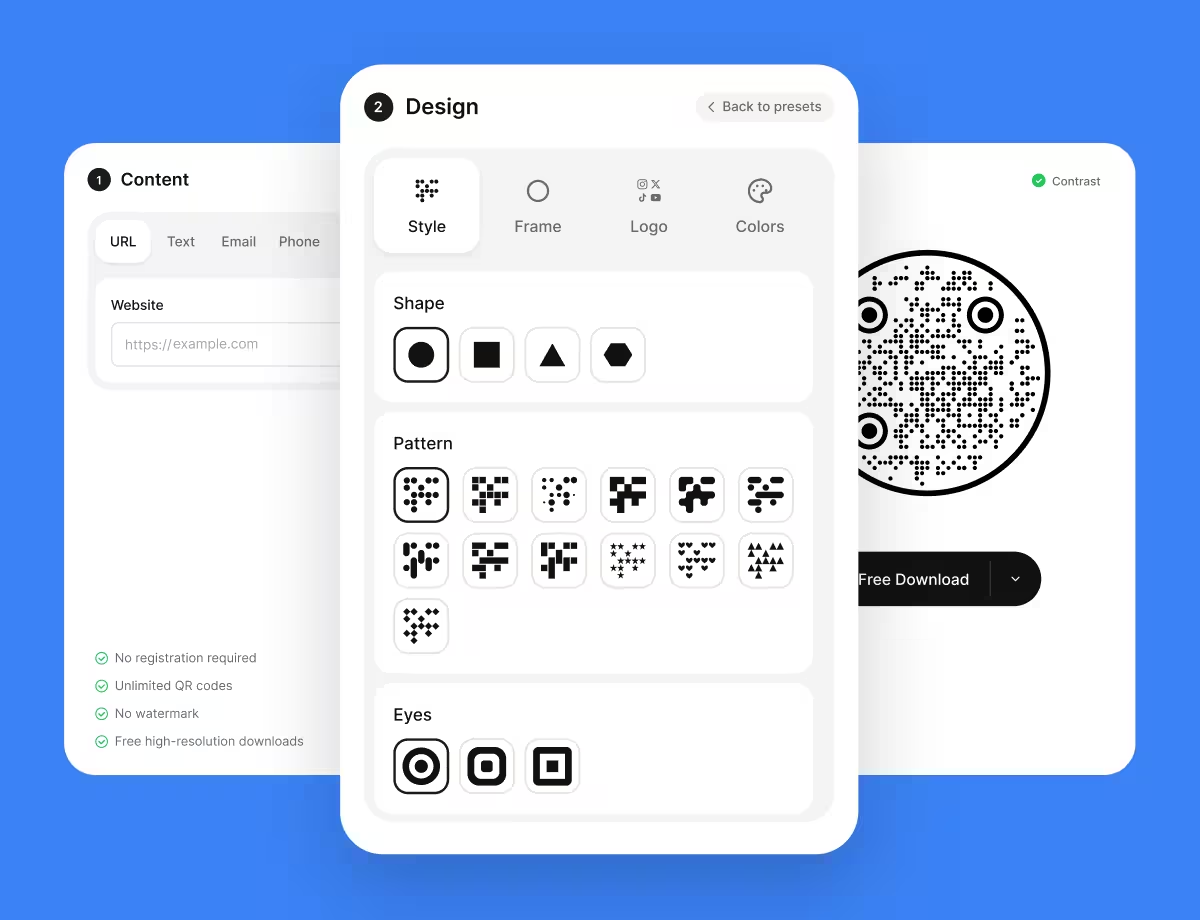
Choose a shape, set the colors, add your logo. A counter card can carry a designed code; a thermal receipt cannot, so keep that one plain black at a generous size.
- 4
Test It Signed Out, Then Print
Scan on a phone that is not signed in to Google to see what a customer actually meets. Then export SVG or PDF for print, PNG for screens.
Which File Format Should You Download?
KoloQR exports your Google review QR code in three formats. Pick by where it will be seen:
- PNG for emails, order confirmations, and websites, where the code appears at one fixed size.
- SVG for counter cards, table tents, and window stickers - anything a printer scales without softening the edges.
- PDF for handing to a print shop, or dropping into a receipt or invoice template at print-ready quality.
Thermal receipts are the hard case and the most common one. A till printer runs at low resolution on heat-sensitive paper that spreads, so print the code larger than feels necessary - 20 mm at minimum - keep it pure black with no styling, and test on the actual roll rather than on a laser print of it.
Generate QR CodeBest Practices for Google Review QR Codes
The mechanics are easy; the policy and the timing are what decide whether this works:
Link the Review Form, Not the Listing
A writereview link opens the stars directly. A link to your listing asks the customer to find the review button among photos and directions, and many will not.
Never Offer Anything in Exchange
Incentives breach Google's prohibited content policy. Reviews collected that way get removed, and repeated breaches put the listing itself at risk.
Ask Everyone, Not Only the Happy Ones
Screening customers before showing the review link - review gating - is explicitly against Google's policy. A code that everyone sees is both compliant and more convincing to readers.
Put It Where the Customer Is Already Waiting
The bill folder, the till point, the checkout desk. Reviews are written in dead time, not in the car park.
Say What the Scan Opens
“Scan to leave a Google review - it takes 30 seconds” earns far more scans than a bare square, because it sets a cost the customer can accept.
Expect a Sign-In Step
Writing a Google review requires a Google account. Most phones are already signed in, but some customers will meet a login screen - so a code alone will never convert everyone.
Print Receipt Codes Bigger and Plainer
Thermal printers are low resolution and their paper spreads ink. 20 mm minimum, pure black, no logo, no shaping - save the design for the counter card.
Protect the Quiet Zone
Four modules of clear margin on every side. On a receipt with text pressed up against it, that margin is what a scanner uses to find the code at all.
Size It for the Distance
Roughly a tenth of the reading distance: 2 cm on a receipt or table tent, 20 cm on a window sticker read from 2 metres.
Verify the Code Names Your Business
A wrong Place ID sends reviews to another business, sometimes a competitor with a similar name. Scan the exported file and read the business name on the review form before printing.
Why Your Google Review QR Code Isn't Working
Review codes fail at the destination and at the policy far more often than at the pattern. These four are the cases.
The Scan Opens the Listing Instead of the Review Box
- Cause
- The code carries a Google Maps or Search link to the business rather than a writereview address. That is a page about you, not a form, and the review button is buried in it.
- Fix
- Rebuild the code from your Place ID so the destination is the writereview address. KoloQR's Review form does this from the id or from a Maps link that carries one.
Reviews Are Being Written and Then Disappearing
- Cause
- Google is removing them under its prohibited content policy - most often because an incentive was offered, or because customers were filtered before being shown the link.
- Fix
- Remove any offer attached to the ask, and remove any screening step between the scan and Google. Ask every customer the same way; the reviews that arrive then stay.
The Form Opens for the Wrong Business
- Cause
- The Place ID belongs to another listing - easily done with chains, shared addresses, and duplicate profiles created before the business was verified.
- Fix
- Scan the exported file and read the name on the review screen. If it is wrong, get the id again from your own Business Profile rather than from a search result.
The Code Won't Scan From a Receipt
- Cause
- Thermal printing at low resolution on paper that spreads ink, usually with the code sized for a laser printer and text crowding the margin.
- Fix
- Print at 20 mm or more, in pure black with no logo or shaping, with clear space around it - and test on an actual receipt from the actual till, not on a proof.
Still not sure whether the fault is the file or the print? Drop the exported image into the QR code scanner - if it decodes on a desktop and not on paper, the fault entered after the file.
Questions? Answered
A Google review QR code stores the direct link to one business's Google review form. Scanning it opens the star rating and comment box for that business, skipping the search and the listing page.
Use Google's Place ID Finder, or copy the “Ask for reviews” link from your Google Business Profile - the identifier sits inside it. A Google Maps link that carries a place_id works too.
Choose Review in KoloQR's type picker and paste your Place ID or a Maps link containing one. Style the code, then download PNG or SVG. No account is needed and no watermark is added.
No. Offering anything of value in exchange for a review breaches Google's prohibited content policy, whether or not you ask for a particular rating. Reviews collected that way get removed and the listing can be penalised.
No. That's review gating, and Google's policy prohibits discouraging negative reviews or selectively soliciting positive ones. Ask every customer the same way and let the form take what it takes.
Yes. Most phones are already signed in, so it's invisible for the majority - but some customers will meet a login screen, which is one reason a review code never converts everyone who scans it.
Because it encodes a Maps or Search link rather than a writereview address. Rebuild it from the Place ID, which produces a link that lands on the stars with your business already selected.
At least 20 mm, in pure black with no logo or shaping. Thermal printers are low resolution and their paper spreads ink, so a code that reads fine from a laser proof can fail from the till.
No. The Place ID is a permanent identifier for the listing, and it survives changes to name, hours, phone number, and most address edits. That's what makes it safe to print.
Not on its own - a static code has no server in the middle. What you can measure is the result: your Business Profile shows review counts over time, which is the number that actually matters.
Keep Exploring
Pages that pick up where this one leaves off - the same setting, the same kind of code, or the next thing worth deciding.
Trustpilot QR Code
Open your review form in one scan, from a parcel insert, a receipt, or a card.
Feedback QR Code
Collect private comments from customers while the experience is still in front of them.
Coffee Shops
Menu, Wi-Fi, loyalty signup and review links on table tents, takeaway cups and window signs.
Beauty Salons
Rebooking at the chair, per-service aftercare and a portfolio per stylist, with codes that survive acetone, colour and hairspray.
Tripadvisor QR Code
Send guests straight to your review form instead of asking them to search for you.
Product Packaging
What a code on a carton, pouch, label or bottle has to survive - sizes, finishes that kill a scan, and what the scan should open.
Why KoloQR?
- Create QR codes for websites, menus, Wi-Fi, PDFs, and business cards
- Customize colors, logos, and unique shapes
- Download high-quality PNG and SVG files
- Built for both print and digital
