Make a Feedback QR Code
Paste the link to your feedback form, style the code, and download it print-ready - so a receipt, a table card, or a door sign collects comments without anyone typing an address.
Opens in Google Maps. Coordinates work too - "37.4224, -122.0841".
The code opens your business's "Write a review" form. Paste the Place ID, or a Google Maps link that carries one.
A UPI link carries no checksum, so a mistyped ID produces a code that scans perfectly and pays somebody else. Paste the ID from your payment app rather than typing it, and send yourself one rupee before printing.
Paste it exactly as copied. KoloQR does not assemble the payload - it encodes the one your bank issued, and checks it before you print it.
SVG, PNG, JPG • Max 2 MB
First month free
then $9/month
Dynamic QR Codes Are Coming
Change your link anytime, even after printing. See who scans, when and where.
- Edit without reprinting
- Scan analytics
- Bulk & custom domains
You're on the List
We'll email you once, when dynamic codes with scan analytics launch.
What Is a Feedback QR Code?
A feedback QR code is a QR code that stores the web address of a form you own, so scanning it opens that form in the phone's browser. The answers land wherever the form sends them - a spreadsheet, an inbox, a dashboard - and nobody outside your business sees them. That private destination is the whole difference between a feedback code and a review code.
Feedback Codes and Review Codes Are Not the Same Code
Both are a QR code holding a URL. What sits at the end of that URL changes what you may do with it:
- A feedback code points at your own form - the answers are private, you can ask anything you like, and you can ask everyone. Nothing is published.
- A review code points at a public platform - Google, Tripadvisor, Trustpilot, Yelp. The answer is published under the customer's name, and the platform's rules apply to how you asked for it.
- Routing people between the two by sentiment is prohibited - asking how happy someone is and sending only the happy ones to a public review is called review gating, and Google, Trustpilot and Yelp all forbid it.
The honest arrangement is to pick one destination per code and print it as what it is. If you want both, put them side by side and let the customer choose - a feedback code labelled “Tell us privately” and a review code labelled “Leave a public review”, with no question in between deciding who sees which. Two codes on one card cost nothing extra to print and cannot be read as filtering.
What Happens After the Scan
The scan opens your form in whatever browser the phone uses, on a screen roughly 6 cm wide, held by someone who is paying, leaving, or waiting for a bus. Three things decide whether an answer arrives. The form must load without a login - a sign-in wall between the scan and the first question loses almost everyone. The first question must be answerable with one tap, because a text box as the opening question reads as work. And the form must be short enough that the whole thing is visible in two or three scrolls; a progress bar showing “1 of 12” is a reason to close the tab. Scan your own printed proof from a phone that is not signed into your form platform, and answer it standing up, to see what your customers actually meet.
Generate QR Code
Where Feedback QR Codes Are Used
A feedback code works where the experience is still happening, or has just ended - not a week later in an email:
- 1
Build a Form You Can Answer in 30 Seconds
Three to five questions, the first one tappable. Google Forms, Typeform, Jotform, Microsoft Forms and Tally all work - the code only carries the address.
- 2
Take the Shortest Public Link the Platform Offers
Most form tools publish a short share link alongside the long editor URL. The short one keeps the printed code's modules large and easy to read.
- 3
Paste the Link and Design the Code
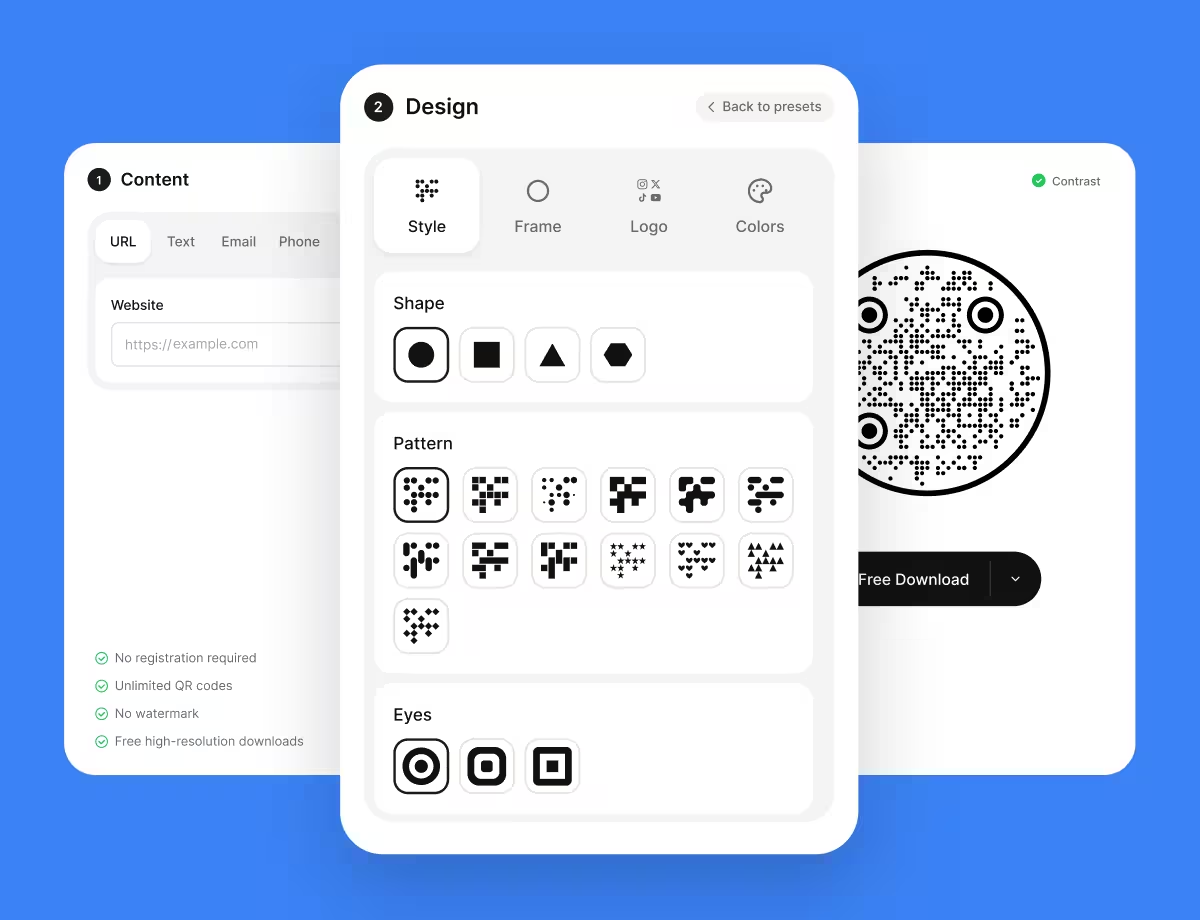
Choose the URL type, paste the link, then pick colours and a shape that match the receipt, card, or sign the code will sit on.
- 4
Test Signed Out, Then Export
Scan the proof from a phone that is not signed into your form account, submit a real answer, then export SVG or PDF for print and PNG for screens.
Which File Format Should You Download?
KoloQR exports your feedback QR code in three formats. Pick by where it will be seen:
- PNG for slide decks, kiosk screens, and email signatures - anywhere the code appears at one fixed size on a display.
- SVG for table cards, door signs, and packaging inserts - anything a printer scales without softening the edges.
- PDF for handing to a print shop, or for dropping into a receipt template at print-ready quality.
Receipts are the hard case. Thermal receipt printers work at 203 dpi and print onto paper that fades in a warm car, so a code destined for a receipt should be exported as vector, printed at 20 mm or larger, and tested on the actual till roll rather than on office paper. If the till software only accepts a bitmap, export PNG at the largest size it allows rather than scaling a small one up.
Generate QR CodeBest Practices for Feedback QR Codes
Feedback codes fail on response rate far more often than they fail on scanning. These habits address both:
Say How Long the Form Takes
“Three questions, about 30 seconds” beside the code raises completion more than any change to the code itself. People decline an unknown length, not a short one.
Ask Everyone the Same Thing
One code, one form, every customer. Screening by sentiment before deciding what to show is review gating, and it is against the rules of every major review platform.
Don't Require a Login or an Email Address
A sign-in wall or a mandatory email field turns a 30-second favour into an account decision. Make contact details optional and say why you want them.
Prefill the Context You Already Know
Table number, room, branch, session - fill it in through the form's prefilled-link option and print a code per location, so the answer arrives labelled.
Put the Code Where the Hands Are
Table centre, receipt foot, back of the door, top of the box. A code above eye level or behind the till gets looked at and not scanned.
Keep the First Question Tappable
A rating, a yes or no, or a set of options. An open text box as question one is where most feedback forms lose their answers.
Print What Happens Next
“We read every answer on Monday” or “Reply to the last question and we'll get back to you” gives the reader a reason beyond goodwill.
Protect the Quiet Zone
Four modules of clear margin on every side. On a busy table card this is the first thing a layout squeezes out.
Size It for the Distance
Roughly a tenth of the reading distance: about 2 cm on a table card held at arm's length, about 20 cm on a wall sign read from 2 metres.
Review the Form Before Every Reprint
The printed code never changes, but the form behind it does. A question that no longer matches the business is the most common reason a feedback code stops earning its place.
Why Your Feedback QR Code Isn't Working
A feedback code has two separate failure modes: nobody scans it, or the scan doesn't end in an answer. They have different fixes.
The Code Scans but Almost Nobody Submits
- Cause
- The form is longer than the moment allows, or it opens on a question that needs typing. Drop-off on a scanned form is concentrated in the first screen.
- Fix
- Cut the form to three questions and make the first one a single tap. Print the expected time beside the code so the reader commits before scanning.
The Scan Lands on a Sign-In Screen
- Cause
- The form is restricted to an organisation, or set to collect verified email addresses - both of which require an account on the form platform.
- Fix
- Turn the restriction off for a public form and ask for an email as an ordinary optional question instead.
Nobody Scans It at All
- Cause
- Placement rather than the code. A feedback code on a wall, behind the till, or on a poster people walk past has no moment attached to it.
- Fix
- Move it to where the transaction ends - the receipt, the table, the box, the door - and give it a one-line reason to be scanned.
The Code on the Receipt Won't Scan
- Cause
- Thermal receipt printers are low resolution, and the code was placed too small or too close to the edge of the roll for the quiet zone to survive.
- Fix
- Print it at 20 mm or larger with a clear margin, and test on a real receipt rather than an office print. Thermal paper also fades - reprint the roll design rather than blaming the code.
Answers Arrive With No Idea Which Branch They Came From
- Cause
- One code was printed for every location, so every answer looks identical in the results.
- Fix
- Generate one code per location with the branch prefilled in the form link, and print them as separate artwork rather than sharing a file.
Still not sure whether the fault is the file or the print? Drop the exported image into the QR code scanner - if it decodes on a desktop and not on paper, the fault entered after the file.
Questions? Answered
A feedback QR code stores the address of a form you own. Scanning it opens that form on the phone, and the answers go only to you. It differs from a review code, which sends the customer to a public listing on Google, Yelp or Trustpilot.
Build a short form on any form platform, copy its public share link, then paste that link into a QR generator as a URL. Style it, test it on a signed-out phone, and export SVG for print. No account or subscription is needed for the code itself.
A feedback code opens a private form that only you read. A review code opens a public platform where the comment is published under the customer's name. Feedback lets you ask anything; a review is governed by the platform's rules.
No. Filtering customers by how satisfied they are before deciding who is asked for a public review is known as review gating, and Google, Trustpilot and Yelp all prohibit it. Offer both links openly instead and let the customer pick.
Three to five, with the first answerable in one tap. A scanned form is filled in standing up, one-handed, often while someone else waits. Each extra screen costs answers, and a long form usually collects less usable detail than a short one.
Yes, if the form is. The code carries only an address, so anonymity depends entirely on your form settings - turn off email collection and make contact fields optional. Say on the card that the answer is anonymous, because people assume otherwise.
Where the experience ends and the hands are free: the receipt, the table, the checkout desk, the inside of the box, the back of the room door. Placement changes the response rate far more than the size or colour of the code does.
You can, but the answers arrive unlabelled. Generate one code per branch with the location prefilled in the form link, and you get the same form with the source recorded in the response itself.
The code does not. The form behind it can - a closing date, a response limit, or a deleted form all end the collection while the printed code keeps scanning. Check the form is still open before every reprint.
Yes. Print at 20 mm or larger, keep four modules of clear margin, and test on the actual till roll - receipt printers run at around 203 dpi and the paper fades with heat. Export as vector where the till software accepts it.
Keep Exploring
Pages that pick up where this one leaves off - the same setting, the same kind of code, or the next thing worth deciding.
Google Review QR Code
Open your business's Google review form in one scan, with the stars ready to tap.
Coffee Shops
Menu, Wi-Fi, loyalty signup and review links on table tents, takeaway cups and window signs.
Tripadvisor QR Code
Send guests straight to your review form instead of asking them to search for you.
Yelp QR Code
Open your Yelp page - photos, hours, menu and directions - in one scan.
Bars & Pubs
Drinks menus, rotating tap lists, Wi-Fi and gig calendars on codes that still scan in a dim room.
Linktree QR Code
Send a scan to your link-in-bio page, and edit the destinations later without reprinting.
Why KoloQR?
- Create QR codes for websites, menus, Wi-Fi, PDFs, and business cards
- Customize colors, logos, and unique shapes
- Download high-quality PNG and SVG files
- Built for both print and digital
