Make a QR Code for a Zoom Meeting
Paste the join or registration link, style the code for your signage, and download it print-ready - with a clear view of what a printed join link hands out.
Opens in Google Maps. Coordinates work too - "37.4224, -122.0841".
The code opens your business's "Write a review" form. Paste the Place ID, or a Google Maps link that carries one.
A UPI link carries no checksum, so a mistyped ID produces a code that scans perfectly and pays somebody else. Paste the ID from your payment app rather than typing it, and send yourself one rupee before printing.
Paste it exactly as copied. KoloQR does not assemble the payload - it encodes the one your bank issued, and checks it before you print it.
SVG, PNG, JPG • Max 2 MB
First month free
then $9/month
Dynamic QR Codes Are Coming
Change your link anytime, even after printing. See who scans, when and where.
- Edit without reprinting
- Scan analytics
- Bulk & custom domains
You're on the List
We'll email you once, when dynamic codes with scan analytics launch.
What Is a Zoom QR Code?
A Zoom QR code is a QR code that stores a Zoom join or registration link. Scanning it opens Zoom on the phone if the app is installed, or Zoom's web page for that meeting if it is not. The meeting ID sits in the link, and on most modern links the passcode sits there too, in the pwd parameter.
What a Printed Join Link Actually Publishes
Three kinds of Zoom link, three very different things to hand a stranger:
- zoom.us/j/<meeting id>?pwd=<hash> - a join link with the passcode embedded. Anyone who photographs the printed code can join, now and at any later occurrence of a recurring meeting.
- Your Personal Meeting ID Room - a permanent address tied to your account. Print it once and it is a standing door into every meeting you ever hold there.
- zoom.us/webinar/register/... - a registration link. Each person registers and gets their own unique join link by email, which is the only one of the three designed to be published.
A passcode exists to keep uninvited people out of a meeting. Printing the passcode inside a QR code on a public sign removes it - not partially, entirely, and for as long as the sign is up. That is fine for an open community session and wrong for a class, a clinic, a board meeting, or anything covered by a confidentiality obligation. Where the meeting is not public, publish a registration link instead, or publish a page you control that asks for a name before revealing the join link.
Meeting IDs Have a Shelf Life - Printed Signs Do Not
A one-off Zoom meeting ID is retired a while after the meeting date, and a recurring meeting ID is retired after a long enough period without use; Zoom publishes the current windows in its own documentation, and they have changed over time. What matters for print is the shape of the problem rather than the exact number of days: the sign on the wall has no expiry and the meeting ID does. A code printed for a weekly session that pauses over a summer can come back to a dead ID in the autumn. Two things fix it - use a recurring meeting so the ID keeps being used, or point the printed code at a page on your own domain that carries the current join link, so a new meeting costs one edit rather than a reprint of every sign. Where the printed code is meant to let someone choose a time rather than join one already running, a Calendly booking code is the better object to print, because it has no meeting id to expire.
Generate QR Code
Where Zoom QR Codes Are Used
A Zoom code makes sense where the person joining is physically somewhere else than a keyboard:
- 1
Decide Whether the Meeting Can Be Public
If it cannot, use a webinar registration link or a page you control instead of a join link. A printed join link with an embedded passcode is a published meeting.
- 2
Copy the Right Link
Take the invitation link for the specific meeting - not your Personal Meeting ID room, which is permanent and reusable by anyone who kept a photo of the code.
- 3
Paste the Link and Design the Code
Choose the URL type and paste the whole link, pwd parameter included. Then style the code for the sign it will live on.
- 4
Test and Export
Scan it from a phone without Zoom installed as well as one with it, then export SVG or PDF for print and PNG for screens.
Which File Format Should You Download?
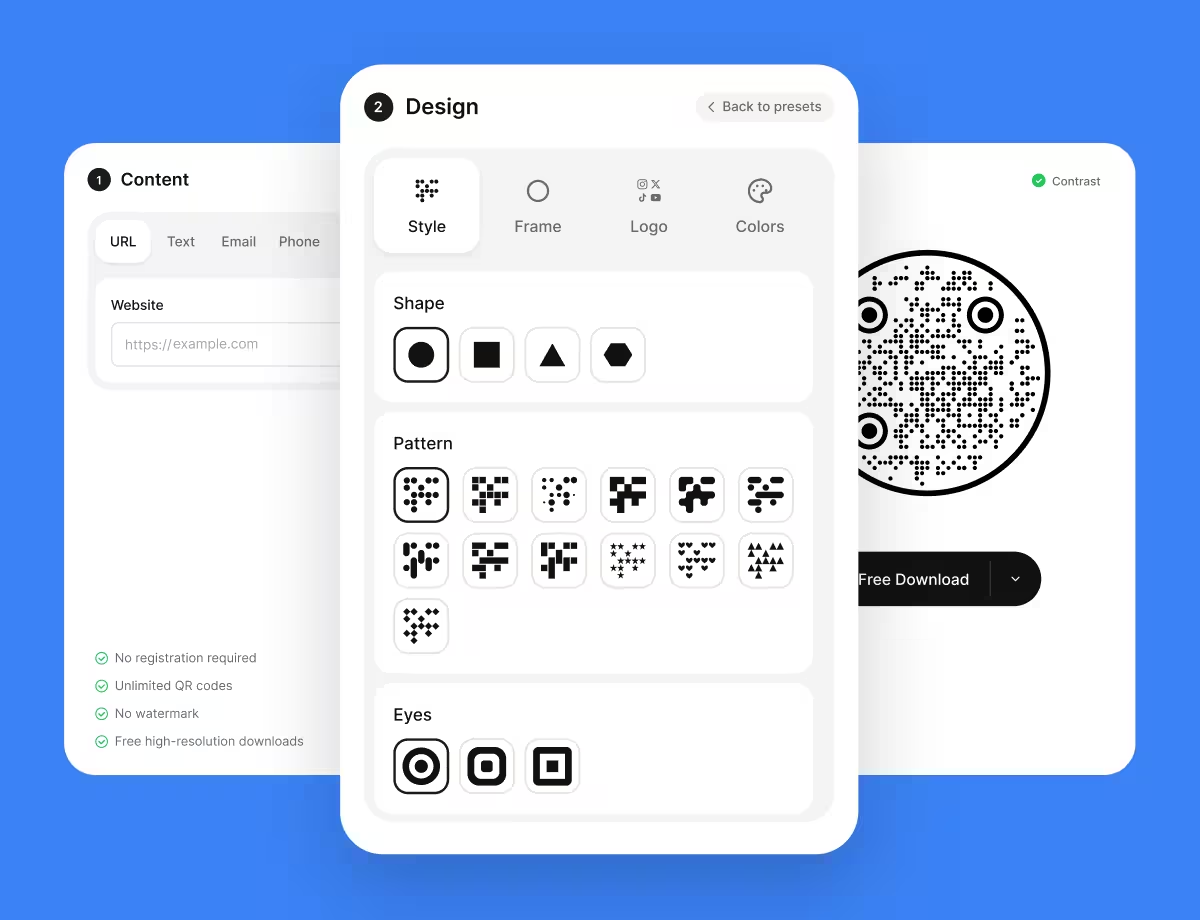
KoloQR exports your Zoom QR code in three formats. Pick by where it will be seen:
- PNG for slides, calendar invitations, and digital signage, where the code appears at one fixed size.
- SVG for door cards, venue signage, and printed programmes - anything a printer scales without softening the edges.
- PDF for handing to a print shop, or for an A4 sign you will print in the office yourself.
A Zoom join link with an embedded passcode is one of the longer payloads on this site - commonly 70 to 90 characters, and more on an account with a vanity subdomain. That density is a practical argument for the registration link or your own short redirect: both cut the payload roughly in half, and the same printed square then holds fewer, larger modules.
Generate QR CodeBest Practices for Zoom QR Codes
Most of these are about who can join rather than about whether the code scans, because that is where a printed Zoom link does its damage:
Never Print Your Personal Meeting ID
A PMI room is permanent. A photograph of the code is a permanent key to it, including meetings held in it months later.
Treat an Embedded Passcode as Published
The pwd parameter in a join link is the passcode. Once it is printed on a public sign, the meeting is open to anyone who walks past.
Use a Registration Link for Anything Non-Public
A webinar registration link gives each attendee their own join link, which is what makes it safe to print in a programme or on a poster.
Turn On the Waiting Room
If a join link must be printed, the waiting room puts a host decision between the scan and the room. It is the cheapest available control.
Prefer a Redirect on Your Own Domain
A short URL you control lets you change the meeting, add a registration step, or close access entirely without touching the printed signs.
Watch the Meeting ID's Lifespan
One-off IDs are retired after the meeting date and unused recurring IDs eventually expire. A permanent sign pointed at a temporary ID is a sign that will stop working.
Say What the Scan Joins, and When
“Scan to join the 14:00 session” beside the code prevents the scan at 09:00 that lands in an empty room and reads as broken.
Test Without the App Installed
A phone without Zoom lands on Zoom's web page with a download prompt. That is what most first-time scanners see, so it is the path worth checking.
Protect the Quiet Zone
Four modules of clear margin on every side, which is easily lost on an A4 sign where the code is boxed in by a border.
Size It for the Distance
Roughly a tenth of the reading distance: about 5 cm on a door card read at arm's length, about 20 cm on a corridor sign read from 2 metres.
Why Your Zoom QR Code Isn't Working
Zoom codes fail late and in public - on the morning of the event, in front of the people it was printed for. These are the four that account for most of it.
The Scan Says the Meeting ID Is Not Valid
- Cause
- The meeting was a one-off and its ID has been retired, or a recurring meeting went unused long enough for Zoom to release the ID.
- Fix
- Schedule the session as a recurring meeting so the ID stays alive, or point the printed code at a short URL on your own domain and update the destination each term.
People Are Joining Who Weren't Invited
- Cause
- The printed link carried the passcode in its pwd parameter, so the sign published the meeting to everyone who passed it.
- Fix
- Switch to a webinar registration link, or keep the join link private and print a registration page instead. Turn on the waiting room immediately for the session already in progress.
The Scan Opens a Download Page Instead of the Meeting
- Cause
- Zoom is not installed on the phone, so the link lands on Zoom's web page offering the app and, depending on the account's settings, a browser join option.
- Fix
- Enable joining from the browser in the account settings where you can, and print “Zoom app recommended” beside the code so a first-time visitor is not surprised.
The Code Won't Scan at Distance on a Sign
- Cause
- A join link with an embedded passcode is a long payload, so the symbol is dense and each module is small at the printed size.
- Fix
- Shorten the destination with a redirect on your own domain, print larger, and keep four modules of quiet zone. A registration link is usually shorter than a join link too.
Still not sure whether the fault is the file or the print? Drop the exported image into the QR code scanner - if it decodes on a desktop and not on paper, the fault entered after the file.
Questions? Answered
A Zoom QR code stores a Zoom join or registration link. Scanning it opens the meeting in the Zoom app if installed, or Zoom's web page for it if not. The meeting ID - and usually the passcode - are inside the link.
Only if the meeting is genuinely public. Modern join links carry the passcode in the pwd parameter, so a printed code lets anyone who photographs it join. For anything private, print a registration link instead.
You can, but you should not print it. A Personal Meeting ID is permanent, so a photograph of the code stays a valid way into any meeting you hold there in the future.
Yes. One-off meeting IDs are retired some time after the meeting date, and recurring IDs are released after a long enough gap without use. Zoom documents the current windows, and they have changed over time.
A webinar registration link, because each attendee receives their own unique join link after registering. Second best is a short URL on your own domain, which you can repoint or switch off without reprinting.
Not necessarily. Without it, the link opens Zoom's web page, which offers the app and - if the account allows it - a browser join option. Enable browser join before printing codes for the public.
Commonly 70 to 90 characters with the passcode included, and longer on accounts with a vanity subdomain. That is dense enough that a short redirect on your own domain visibly improves a printed sign.
Only if the code points at a URL you control. A code holding a zoom.us link is fixed to that meeting; a code holding your own short URL can be repointed at a new meeting in one edit.
Roughly a tenth of the reading distance - about 20 cm for a corridor sign read from 2 metres, about 5 cm for a door card. A long join link argues for the larger end of the range.
Not by itself. A webinar registration link records each registration, which is the closest thing to attendance tracking a printed code can reach - and it is per person rather than per scan.
Keep Exploring
Pages that pick up where this one leaves off - the same setting, the same kind of code, or the next thing worth deciding.
Form QR Code
Open a survey, application, or sign-up form from anything printed.
Event QR Codes
One scan connects guests to tickets, schedules, directions and RSVPs - on invites, posters and signage.
Schools & Classrooms
Permission forms, newsletters, library links and student work, with the print sizes and privacy rules a school actually needs.
Discord QR Code
Open a Discord server invite with one scan - if the invite is set never to expire.
Google Forms QR Code
Open a survey, sign-up sheet, or feedback form straight from a printed page.
GitHub QR Code
Send a scan to a profile, a repository, or the latest release of a project.
Why KoloQR?
- Create QR codes for websites, menus, Wi-Fi, PDFs, and business cards
- Customize colors, logos, and unique shapes
- Download high-quality PNG and SVG files
- Built for both print and digital
