QR Codes for Schools: Permission Slips, Newsletters and Classroom Links
A school QR code turns a link into something a parent or student opens with the camera already in their hand: a consent form, this week's newsletter, a reading list, a meeting room. Print the code at 2 cm or larger, keep it dark on a white background, and print the plain URL underneath so a family without a smartphone still has a way in.
Generate QR Code- Free, no sign-up
- Print-ready SVG and PNG
- No app to install
Where QR Codes Save a School Real Time
Four situations come up in almost every school. Each one needs a slightly different code, a different size and a different destination, which is why one all-purpose school QR code rarely works.
Slips That Come Back the Same Day
A permission slip printed with a QR code sends the parent to an online form instead of to the bottom of a school bag. The parent scans it at pickup, signs on the phone, and the office sees the response the same afternoon. Keep the paper version available as well, because a form that exists only behind a QR code shuts out families without a smartphone.
Long Links Nobody Types Correctly
Classroom links are the worst thing to read aloud: a video call code, a shared board, a folder of resources. A QR code on the board or in the corner of a worksheet removes both the typing and the typos. Post the same link in the learning platform too, because students working on a Chromebook need something clickable rather than something scannable.
School Information Parents Can Reach in One Scan
One QR code on a fridge magnet or a letter home can point at a single parent page that carries the lunch menu, term dates, absence reporting and translated newsletters. A code that points at a page the school updates never needs reprinting, which is why one code for the year beats one code per notice.
Student Work That Plays Its Own Audio and Video
A QR code beside a piece of student work lets a visitor hear the child read, watch the experiment run, or open the artist's statement. Codes on art-show labels, project boards and portfolio covers cost nothing to add and let a display work on parents' evening without a teacher standing beside it explaining what it is.
Two Things to Sort Out Before the Sheet Goes to the Printer
A school QR code needs a destination that will still work in six months and a scan test on the devices your families and students actually hold. Both take a few minutes and prevent almost every printed-code failure.

A Destination the School Controls
Point every school QR code at a page the school owns: a page on the school website, a form owned by a school staff account, or the learning platform. Avoid linking to a file in a personal cloud account, because when that teacher moves the file or leaves, every printed copy of the code stops working. A school-owned form also keeps parent and student responses inside the school's own account rather than a private one.
A Scan Test at the Distance the Code Will Be Read
Print the code at its final size and scan it from where it will actually be read: a door sign from about a meter, a hallway poster from three meters, a worksheet from arm's length. Test on an iPhone and on an Android phone, and on a school tablet or Chromebook if that is what students use, since some managed devices open codes through Google Lens rather than the camera app. Then photocopy the sheet once and scan the copy, because the copy is the version most students receive.
Generate QR Code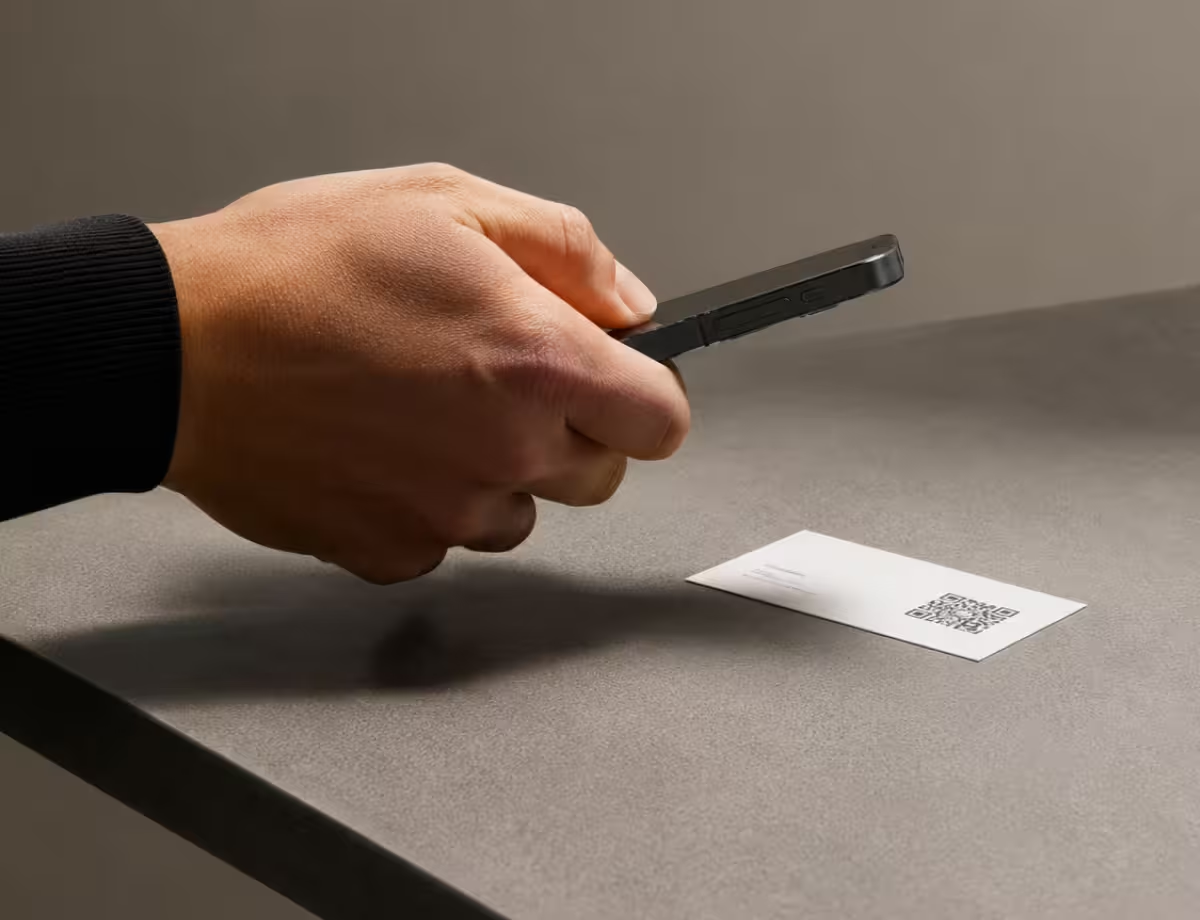
How to Make a QR Code for a School in Three Steps
Creating the code takes under a minute. Deciding what it should point at is the part worth thinking about, so start with the destination.
Generate QR Code- 1
Paste the Link Families Should Open
Paste the full address of the consent form, newsletter, parent page or meeting room. If the school website supports short redirect addresses, point the code at one of those instead of at the destination directly. A redirect on the school's own domain lets the office change where an already-printed code leads, which is the only way a static QR code becomes updatable.
- 2
Add the School Crest and Colors
Drop the crest into the middle of the code and set the pattern color to the school's dark brand color on a white background. Keep the dark part dark: a pale blue or yellow code on white gives a phone camera too little contrast to work with. Circular and custom-shaped codes look better on a printed newsletter masthead than a plain square, and shape does not change how the code is read.
- 3
Download SVG for Print, PNG for Slides
Download the SVG for anything going to a printer or a print shop, because a vector file stays sharp at any size, from a 2 cm worksheet corner to a meter-wide open-day banner. Download the PNG for slides, screens and email. Both formats are free and carry no watermark, so a school can reprint the same code across the year without regenerating it.
Where the Code Goes, and What Size It Needs
Size follows reading distance. The working rule to measure against: a QR code needs roughly 1 cm of width for every 10 cm between the code and the phone, and no printed code should drop below 2 cm even when it is read up close.
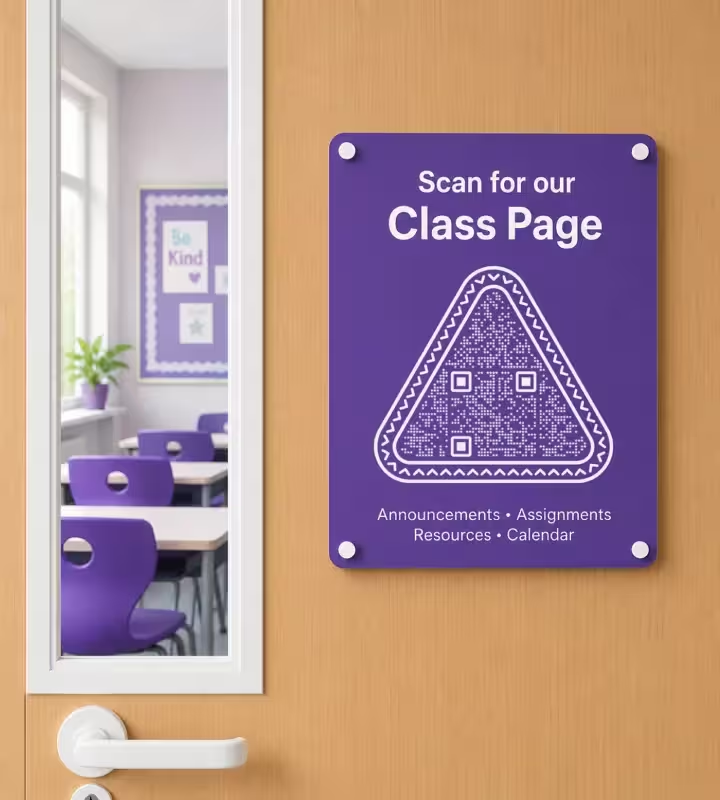
Classroom and Office Doors
A door sign code read from about half a meter needs 5 cm of width, printed at roughly eye level of the person scanning rather than at the top of the door. Door codes work well for a class page, a room booking form or a substitute teacher's plan for the day. Add one line above the code saying where it leads, because nobody scans an unlabeled square in a corridor.
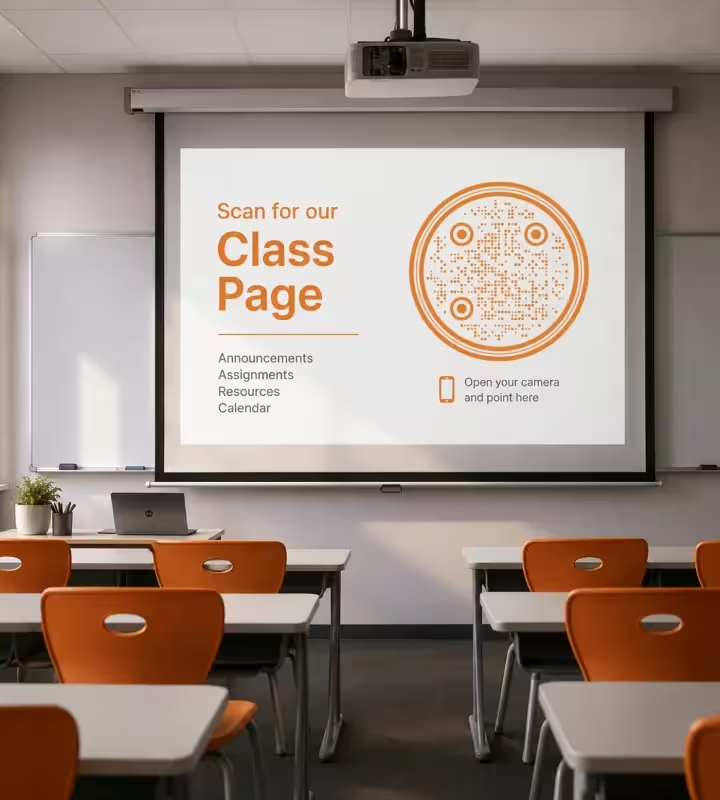
Whiteboards, Projectors and Slides
A projected QR code has to be sized for the back row, not the front. At 6 m the code needs about 60 cm of projected width, which is roughly a third of the width of a 2 m screen. Glare, not size, is what usually breaks a projected code: switch off the lights nearest the screen, and on a glossy interactive whiteboard move the code away from the reflection of the ceiling lights.
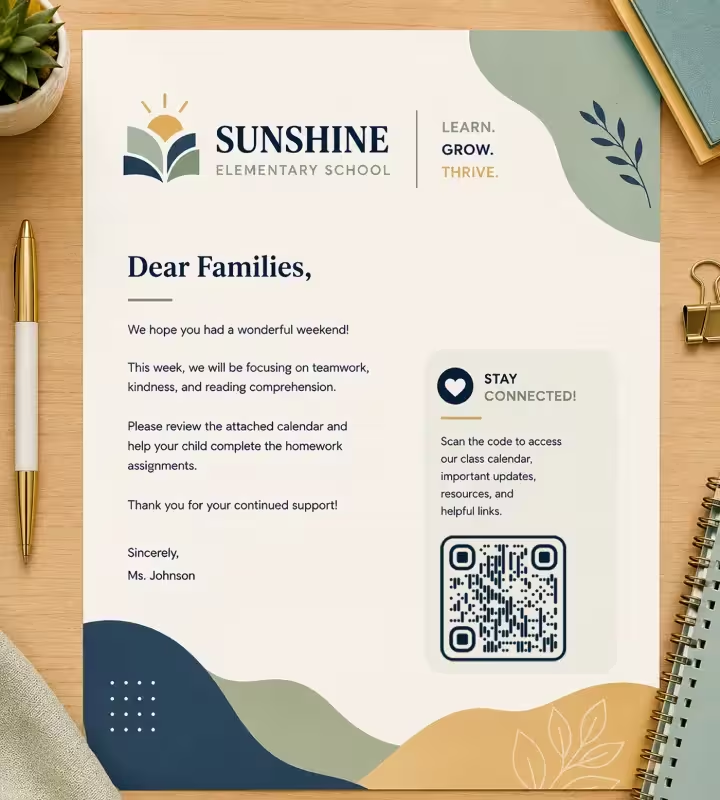
Worksheets, Letters and Handouts
A code in the corner of a worksheet or letter home needs 2 to 2.5 cm and a clear white margin around it, and it must not sit across a fold, a staple or the punch-hole margin. Do not shrink a code to fit a crowded page: below 2 cm on office paper the small squares start to merge under toner and the code becomes unreliable after a photocopy.

Library Shelves and Book Pockets
Library codes work best as 2 to 3 cm labels inside the front cover or on the shelf edge, not on the spine, which is usually too narrow for a reliable code. Use matte label stock rather than glossy, since gloss under fluorescent ceiling lights reflects straight back into the camera. Book-level codes can lead to a review page, an audiobook version or a reading-log form.
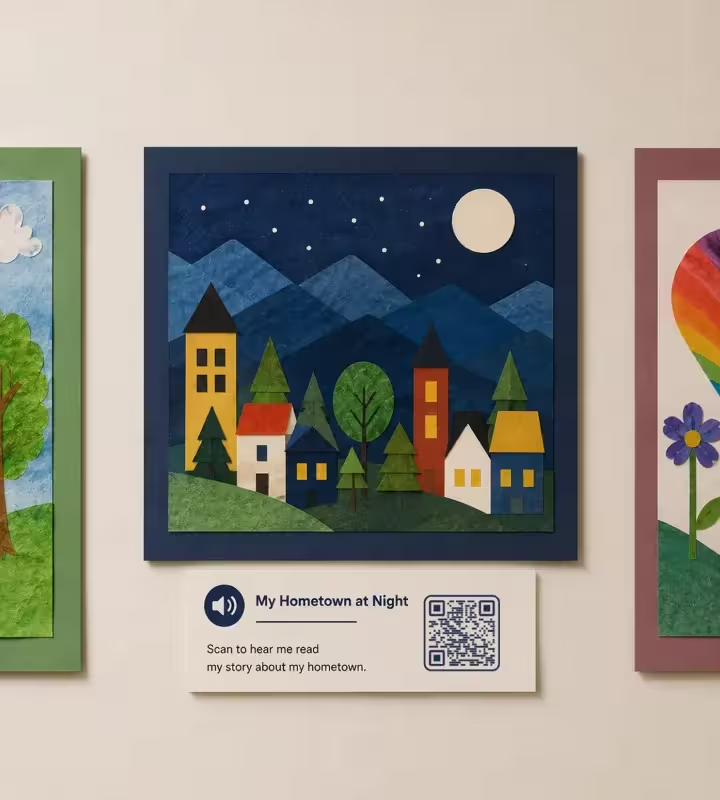
Hallway Displays and Student Work
Labels on a display board are read from arm's length, so 3 to 4 cm is enough, and the code should sit on the label beside the work rather than on the artwork itself. Display codes are the cheapest way to attach a recording to a piece of work: a child reading their story, a project video, a class podcast episode. Give each code its own short caption so a visitor knows what will open.
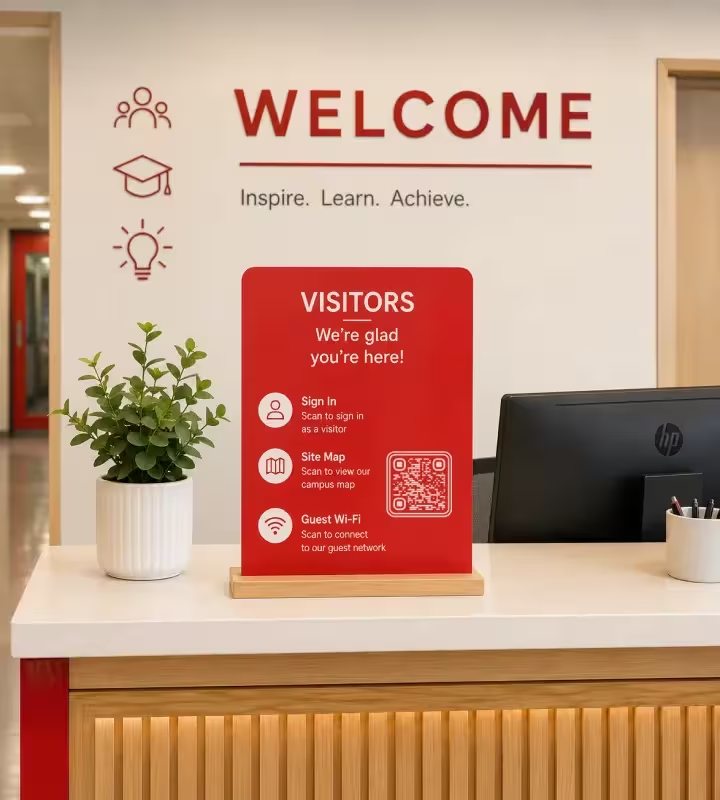
Reception and Visitor Areas
A counter code read from about half a meter needs 5 cm, and reception is the right place for a visitor sign-in form, a site map or guest Wi-Fi. A Wi-Fi QR code stores the network name and password as plain text inside the pattern, so anyone who photographs the code can read the password: use one only for a guest network, never for the staff or student network.
Rules That Keep School QR Codes Working
Most failed school QR codes fail for one of a small number of reasons, and nearly all of them are decided before the sheet reaches the printer.
Print the Plain URL Under Every Code
Print the web address in readable text below every school QR code. A student without a phone, a parent using a desktop computer and a screen reader user all need the typed address, and a short readable address is the fallback when a scan fails at the school gate.
Never Encode Student Data in a QR Code
A QR code is not encrypted, and any free scanner app shows exactly what is inside it. Never encode a student's name, ID number, date of birth, address, grades or medical details. Point the code at a page that asks who the person is, and let the destination handle sign-in and permissions.
Keep Dark Modules on a White Background
Print the code dark on white, and avoid light-on-dark inversion: some phone cameras read inverted codes and some do not, so an inverted code on a school poster works for part of the audience only. School brand colors belong on the surrounding design, not on the pattern itself.
Size the Code for the Reading Distance
Allow about 1 cm of code width for every 10 cm between the code and the phone, and never go below 2 cm on paper. A worksheet corner needs 2 to 2.5 cm, a door sign 5 cm, a three-meter hallway poster about 30 cm. Measuring the distance first is faster than reprinting.
Leave the Quiet Zone Intact
A quiet zone is the empty margin around a QR code that lets a scanner find where the symbol begins and ends. Keep a margin of at least four module widths clear of text, borders, staples and the edge of the paper, which is roughly the width of four of the small squares in the pattern.
Say What the Code Opens
Label every code with the action, not with the word Scan alone: sign the trip consent form, see this week's lunch menu, hear this student read. A labelled code on a letter home is scanned far more often than a bare square, because the parent knows in advance what they will get.
Choose Matte Over Gloss for Laminated Signs
Laminate school signs in matte film rather than gloss. Gloss lamination under classroom fluorescent lighting reflects the ceiling lights back into the camera, and the reflection covers part of the pattern at exactly the angle at which most people hold a phone.
Test the Photocopy, Not Just the Original
Scan a photocopy of every worksheet or letter that carries a QR code before running the full class set. Copying spreads toner slightly and shrinks the page when it is fitted to a different paper size, and a code that scans on the laser-printed original can fail on the tenth-generation copy.
Static Codes Cannot Be Edited After Printing
KoloQR generates static QR codes: the destination is encoded in the pattern itself, so the code keeps working with no subscription and no dependency on KoloQR staying online, and it cannot be changed once printed. If the destination may move, point the code at a redirect address on the school domain and change the redirect instead.
A Static Code Cannot Tell You Who Scanned
A static QR code carries no analytics, so it cannot record how many students scanned or which parents responded. If the school needs that record, collect it on the destination: a form with a sign-in, an event check-in page, or a class list on the register the code leads to.
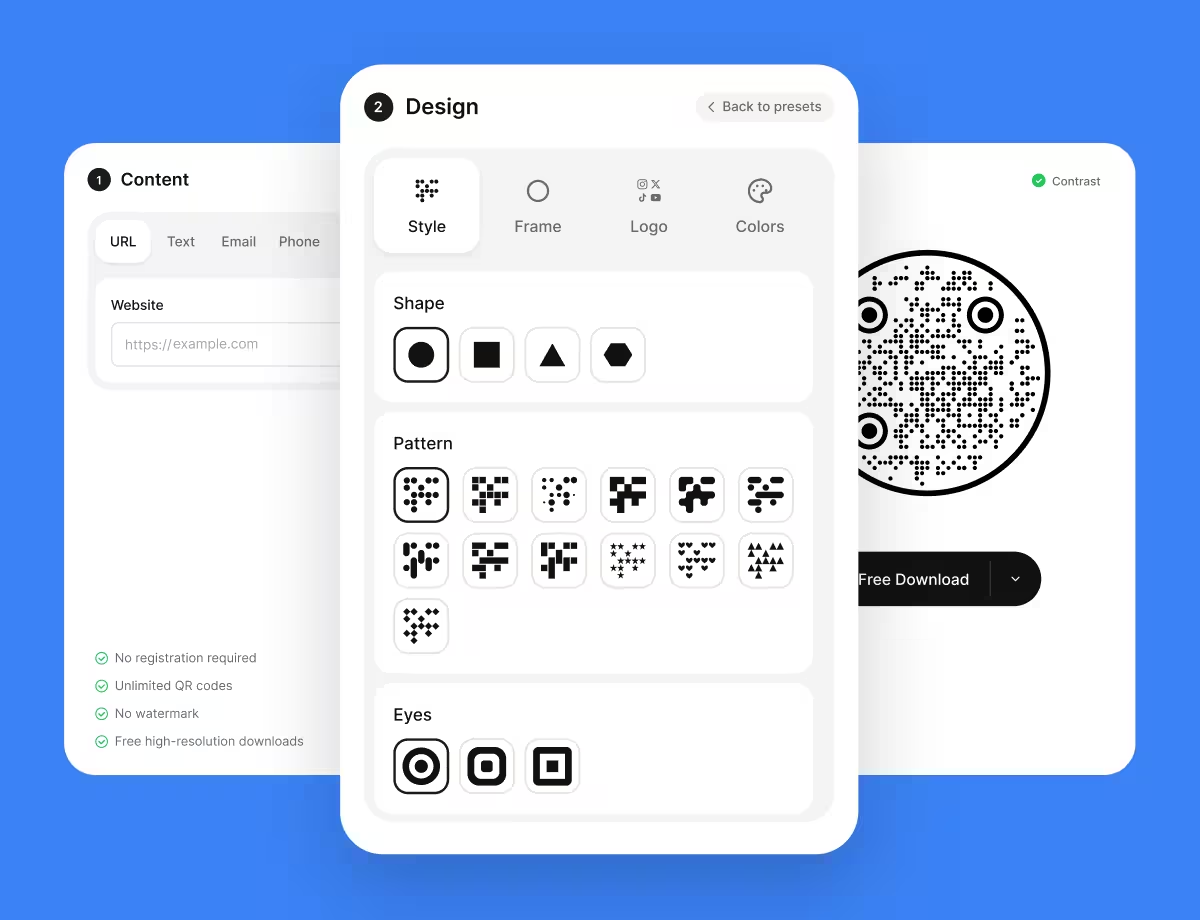
Make the Codes Your School Needs
Generate a QR code for a consent form, a newsletter, a library shelf or a display board, add the school crest, and download print-ready SVG or PNG. KoloQR, a free QR code generator with circular and custom-shaped QR codes, adds no watermark and no expiry date to the files.
Start with the two or three codes a school reprints most often, usually the parent information page, the current consent form and the guest Wi-Fi card at reception. Point each one at a stable address on the school domain, scan the printed version on both an iPhone and an Android phone, and the same artwork will carry through the whole school year.
Generate QR CodeQuestions? Answered
Create the online consent form first, using an account owned by the school rather than a personal one, then paste the form address into a QR code generator and download the SVG. Place the code in the corner of the printed slip at 2 to 2.5 cm with the plain web address printed below it, and keep a paper version available for families who cannot scan.
A QR code is only as safe as the page it opens, since the code itself is just an encoded web address that anyone can decode. Two rules cover school use: never encode student data in the code, and only print codes that lead to pages the school controls. Teach students to check the address their phone previews before tapping, the same habit that protects them from any link.
Print the plain web address beside every code and post the same link in the learning platform, so no task depends on a phone. In classrooms where phones stay in bags, the teacher can project the code for students to scan on school tablets, or open the link on the classroom computer. A QR code should always be the fast path to something, never the only path.
Allow roughly 1 cm of code width for every 10 cm of scanning distance, with a floor of 2 cm on paper. In practice that means 2 to 2.5 cm in the corner of a worksheet, 3 to 4 cm on a display label, 5 cm on a door sign or reception counter, and about 30 cm on a hallway poster read from three meters away.
No. The built-in camera on current iPhones and Android phones reads QR codes without any extra app, and Google Lens covers most Android devices where the camera app does not. Older school tablets are the usual exception, so test on the specific devices a class will use before a lesson depends on scanning.
Yes, if the code is large enough for the back row and free of glare. At 6 m the projected code needs about 60 cm of width, roughly a third of a 2 m screen. Turn off the lights nearest the screen, and on a glossy interactive whiteboard move the code away from the reflection of the ceiling lights, which is what usually blocks the scan rather than the size.
Not directly. A static QR code stores the address inside its pattern, so the printed code cannot be edited. The workaround is to point the code at a redirect address on the school domain, for example a short go address, and update the redirect when the destination moves. Decide this before printing, because a code printed with the final address cannot be redirected later.
Photocopying is the most common cause. Copying spreads toner into the small white gaps in the pattern, and fitting a page to a different paper size shrinks the code below the size it was designed for. Print codes at 2 cm or larger, keep a clear white margin around them, scan a photocopy before running the class set, and print from the original file rather than copying a copy.
Yes. Place the crest in the center of the code, keep it small enough to cover no more than the middle fifth of the pattern, and rescan after every change. For the pattern itself, use the darkest color in the school palette on a white background, because contrast is what a camera needs. Decorative shapes, including circular codes, do not affect readability. For a school Halloween party or a classroom scavenger hunt, Halloween QR codes has nine seasonal palettes with their contrast ratios, and shows why orange or purple on black is the version that fails.
Yes, KoloQR is free to use, including for printed school materials, and the exported PNG and SVG files carry no watermark. The codes are static, meaning the destination is encoded in the pattern rather than stored on a server, so they keep working with no account, no subscription and no expiry date, and they do not stop working if KoloQR ever goes offline.
Keep Exploring
Pages that pick up where this one leaves off - the same setting, the same kind of code, or the next thing worth deciding.
Google Drive QR Code
Hand over a file, a folder, or a download from anything printed.
Event QR Codes
One scan connects guests to tickets, schedules, directions and RSVPs - on invites, posters and signage.
Healthcare
Booking pages, intake forms and aftercare instructions on posters, leaflets, prescription bags and bedside cards.
Universities
Noticeboard posters, lecture-hall slides, lab equipment labels and open-day signs, each sized for the distance it is read from.
URL QR Code
Send anyone straight to a web page, landing page, or link with a single scan.
Posters
A3 to A0 - how big the code has to be for the distance people can actually stand at, and how high off the floor it belongs.
Why KoloQR?
- Create QR codes for websites, menus, Wi-Fi, PDFs, and business cards
- Customize colors, logos, and unique shapes
- Download high-quality PNG and SVG files
- Built for both print and digital
