Make a QR Code for Your Calendly Link
Paste your booking link, style the code to match your card or sign, and download it print-ready - so a meeting is booked before the conversation ends.
Opens in Google Maps. Coordinates work too - "37.4224, -122.0841".
The code opens your business's "Write a review" form. Paste the Place ID, or a Google Maps link that carries one.
A UPI link carries no checksum, so a mistyped ID produces a code that scans perfectly and pays somebody else. Paste the ID from your payment app rather than typing it, and send yourself one rupee before printing.
Paste it exactly as copied. KoloQR does not assemble the payload - it encodes the one your bank issued, and checks it before you print it.
SVG, PNG, JPG • Max 2 MB
First month free
then $9/month
Dynamic QR Codes Are Coming
Change your link anytime, even after printing. See who scans, when and where.
- Edit without reprinting
- Scan analytics
- Bulk & custom domains
You're on the List
We'll email you once, when dynamic codes with scan analytics launch.
What Is a Calendly QR Code?
A Calendly QR code is a QR code that stores a calendly.com booking address. Scanning it opens that booking page in the phone's browser, showing the times you are actually free and the invitee's own time zone. Nothing about your calendar is inside the code - only the address of the page that reads it.
Which Calendly Link Is Safe to Print?
Calendly produces several kinds of link, and they do not all survive being printed:
- calendly.com/yourname - your profile page, listing every public event type. Around 25 characters, and it stays valid when you add or rename a meeting length.
- calendly.com/yourname/30min - one event type. The right choice when the printed context already implies the meeting, and it saves the reader a decision.
- A Single-Use or One-Off Meeting Link - generated for one specific invitee. It stops working once it has been booked or once its window passes, which makes it the one link that must never be printed.
The single-use link is the failure worth naming, because it passes every test you are likely to run. You scan it, the page loads, the times look right, and the artwork goes to print. Then one person books, and every subsequent scan of every printed copy lands on a dead link. Before printing, open the link in a private browser window, book nothing, and confirm it is a standing event type or profile rather than a link Calendly generated for a single invitation.
The Query String Is Where a Printed Code Earns Its Keep
A Calendly URL accepts parameters, and two of them turn a printed code from a convenience into something measurable. UTM parameters - utm_source, utm_medium, utm_campaign - ride through the booking and are recorded with it, so printing calendly.com/yourname/30min?utm_source=booth-sign on the stand and utm_source=business-card on the card tells you which one actually produced meetings. Prefill parameters do the other half: name and email fill the form in advance where you already know them, and a1 fills the first custom question, which is how a code on a property board can arrive with the address already in the booking. Every parameter is encoded verbatim, so keep the values short - “booth” rather than “booth-sign-hall-3-autumn-fair”. Where the meeting that gets booked runs on Zoom, the Zoom QR code page covers what a printed join link hands out, which is a separate problem from getting the booking made.
Generate QR Code
Where Calendly QR Codes Are Used
A booking code belongs where someone has just decided they want to talk to you and has nothing to write with:
- 1
Copy a Standing Link, Not a Single-Use One
Take the link from the event type or from your profile page. Never take one generated for a specific invitee - those stop working after one booking.
- 2
Add Tracking or Prefill if You Need It
Append utm_source to tell one printed surface from another, and name, email, or a1 to prefill the form. Keep every value short - the whole string is encoded.
- 3
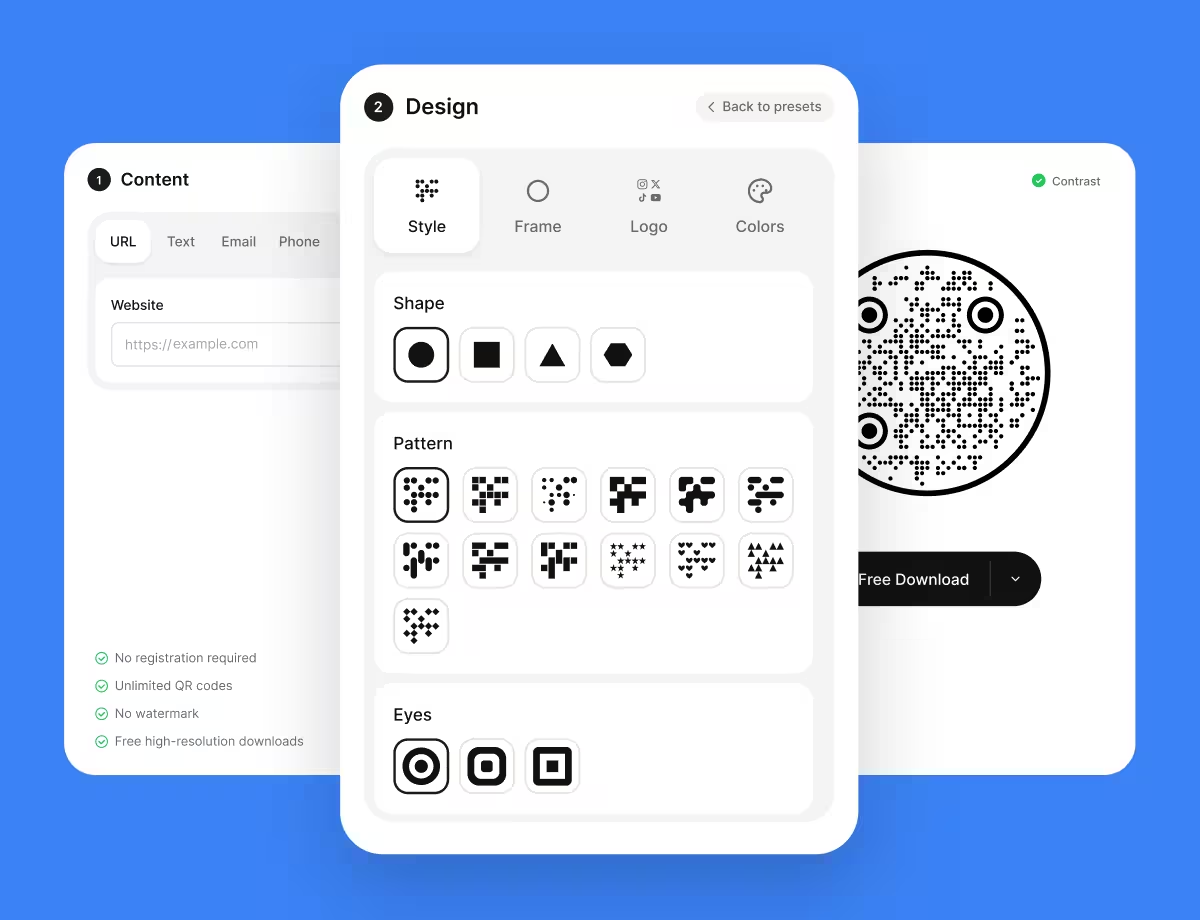
Paste the Link and Design the Code
Choose the URL type, paste the address, then style the code so it fits the card or sign it will live on.
- 4
Test and Export
Scan from a phone in a private window, check the times and the time zone look right, then export SVG or PDF for print and PNG for screens.
Which File Format Should You Download?
KoloQR exports your Calendly QR code in three formats. Pick by where it will be seen:
- PNG for email signatures, slide decks, and PDFs read on a screen, where the code appears at one fixed size.
- SVG for business cards, stand graphics, and window displays - anything a printer scales without softening the edges.
- PDF for handing to a print shop or a stand builder at print-ready quality.
A bare calendly.com/yourname link is around 25 characters and prints comfortably on a business card at 15 to 20 mm. Adding an event type, two UTM parameters and a prefilled email can triple that, which is enough to move the symbol up several versions - so decide what the query string is worth before spending the modules on it.
Generate QR CodeBest Practices for Calendly QR Codes
The code is trivial. What makes a booking code work is what the reader finds when the page opens:
Never Print a Single-Use Link
It works until the first booking, then fails for every printed copy at once - and the artwork is already out in the world by the time you find out.
Check the Date Range Setting
An event type limited to a fixed date range shows no available times once that range has passed, so the scan lands on an empty calendar rather than an error.
Point Long-Lived Print at the Profile
calendly.com/yourname survives renaming, adding and retiring individual event types. A specific event-type URL does not.
Use UTM Parameters to Compare Surfaces
utm_source=card against utm_source=stand records which printed piece produced each booking, which is more useful than any scan count.
Prefill What the Context Already Knows
A code on a property board or a product can prefill the address or the model in the booking form, so the appointment arrives with its subject attached.
Say What the Scan Books
“Scan to book a 20-minute call” tells the reader the cost of scanning. A bare code beside a name does not.
Leave Real Availability Behind It
A booking page with no free slots for three weeks converts worse than no code at all. Check what the page shows before printing, not after.
Protect the Quiet Zone
Four modules of clear margin on every side - the first thing squeezed out on a business card where the code shares the back with a logo.
Size It for the Distance
Roughly a tenth of the reading distance: about 2 cm on a card held in the hand, about 20 cm on a stand graphic read from 2 metres.
Test in a Private Window
Your own browser is signed in and may see the page differently. A private window is the closest thing to the stranger who will actually scan it.
Why Your Calendly QR Code Isn't Working
A Calendly code fails in ways that look like the code's fault and never are: the link had a lifespan, the page has no times, or the parameters were lost on the way.
The Scan Says the Link Is No Longer Available
- Cause
- A single-use or one-off meeting link was printed. Calendly retires those once they have been booked or once their window closes.
- Fix
- Reprint against a standing event type or your profile URL. Before the next print run, open the link in a private window and confirm it is one you can book more than once.
The Booking Page Shows No Available Times
- Cause
- The event type's date range has passed, the calendar is fully booked, or the availability schedule was changed after the code was printed.
- Fix
- Set the event type to a rolling window rather than a fixed date range, and check the public page whenever your availability changes - the printed code has no way to report this.
The Scan Opens a 404 Page
- Cause
- The event type was renamed or deleted, or your Calendly username changed. All three change the address that was printed.
- Fix
- Recreate the event type under the old slug if it is still free, or point the code at your profile page. For long print runs, encode a redirect on your own domain instead.
The UTM or Prefill Values Don't Come Through
- Cause
- The query string was lost - most often to a shortener, a copy-paste that stopped at the question mark, or an ampersand that was dropped when the URL was retyped.
- Fix
- Rebuild the URL, paste it whole, and verify by scanning the generated code rather than clicking the link you copied. Then check the booking record rather than assuming.
Still not sure whether the fault is the file or the print? Drop the exported image into the QR code scanner - if it decodes on a desktop and not on paper, the fault entered after the file.
Questions? Answered
A Calendly QR code stores your calendly.com booking address. Scanning it opens the booking page in the phone's browser, showing your real availability in the invitee's own time zone. The code holds only the address.
No. A single-use link stops working after one booking, so every printed copy dies at once. Print a standing event type or your profile URL, and verify it in a private window before the run.
Point at the profile for anything long-lived, because it survives renamed and retired event types. Point at one event type when the printed context already implies the meeting and you want to save a decision.
Yes. Append utm_source to the link - one value per printed surface - and Calendly records it with the booking. That measures outcomes rather than scans, which is the more useful number.
Yes. Calendly accepts name and email as query parameters, and a1 for the first custom question, so a code on a property board can arrive with the address already filled in. Keep the values short.
No. The booking page is an ordinary web page and anyone can book from it with a phone camera and a browser. Only the person offering the times needs an account.
Their own - Calendly detects the invitee's time zone and shows the times in it. That is what makes a printed code safe to use at an international event or on material that travels.
About 15 to 20 mm on a business card with a plain calendly.com/yourname link. Adding UTM and prefill parameters lengthens the payload enough to need a larger square for the same reliability.
Every printed code pointing at the old address stops working. Settle the username before printing, or encode a short URL on your own domain that redirects to Calendly so a change costs one edit.
Yes. The code holds the address, not the times, so changing your hours, adding a buffer, or blocking a week changes only what the page shows when someone scans it.
Keep Exploring
Pages that pick up where this one leaves off - the same setting, the same kind of code, or the next thing worth deciding.
LinkedIn QR Code
Share your LinkedIn profile or company page with a code any phone camera can read.
Fake QR Codes and Quishing: How to Spot One Before You Scan
How fake QR codes and quishing work, where they turn up, how to check a code before opening it, what to do if you scanned one, and how to protect the codes you print.
Business Cards
The one surface where a code is read at arm's length - so it is designed into the card's layout rather than dropped in the corner of it.
Event QR Codes
One scan connects guests to tickets, schedules, directions and RSVPs - on invites, posters and signage.
URL QR Code
Send anyone straight to a web page, landing page, or link with a single scan.
Zoom QR Code
Open a Zoom meeting, webinar registration, or personal room from a printed sign.
Why KoloQR?
- Create QR codes for websites, menus, Wi-Fi, PDFs, and business cards
- Customize colors, logos, and unique shapes
- Download high-quality PNG and SVG files
- Built for both print and digital
