Make a LINE QR Code for Your Official Account
Enter your LINE ID or paste the add-friend link, style the code to match your signage, and download it print-ready for counters, packaging, and shop windows.
Opens in Google Maps. Coordinates work too - "37.4224, -122.0841".
The code opens your business's "Write a review" form. Paste the Place ID, or a Google Maps link that carries one.
A UPI link carries no checksum, so a mistyped ID produces a code that scans perfectly and pays somebody else. Paste the ID from your payment app rather than typing it, and send yourself one rupee before printing.
Paste it exactly as copied. KoloQR does not assemble the payload - it encodes the one your bank issued, and checks it before you print it.
SVG, PNG, JPG • Max 2 MB
First month free
then $9/month
Dynamic QR Codes Are Coming
Change your link anytime, even after printing. See who scans, when and where.
- Edit without reprinting
- Scan analytics
- Bulk & custom domains
You're on the List
We'll email you once, when dynamic codes with scan analytics launch.
What Is a LINE QR Code?
A LINE QR code is a QR code that stores a line.me add-friend link - the web address of a LINE official account or a personal LINE ID. Scanning it opens LINE with that account's add-friend screen if the app is installed, or a LINE web page offering the app if it is not. The link is what the code holds; the conversation itself never touches the pattern.
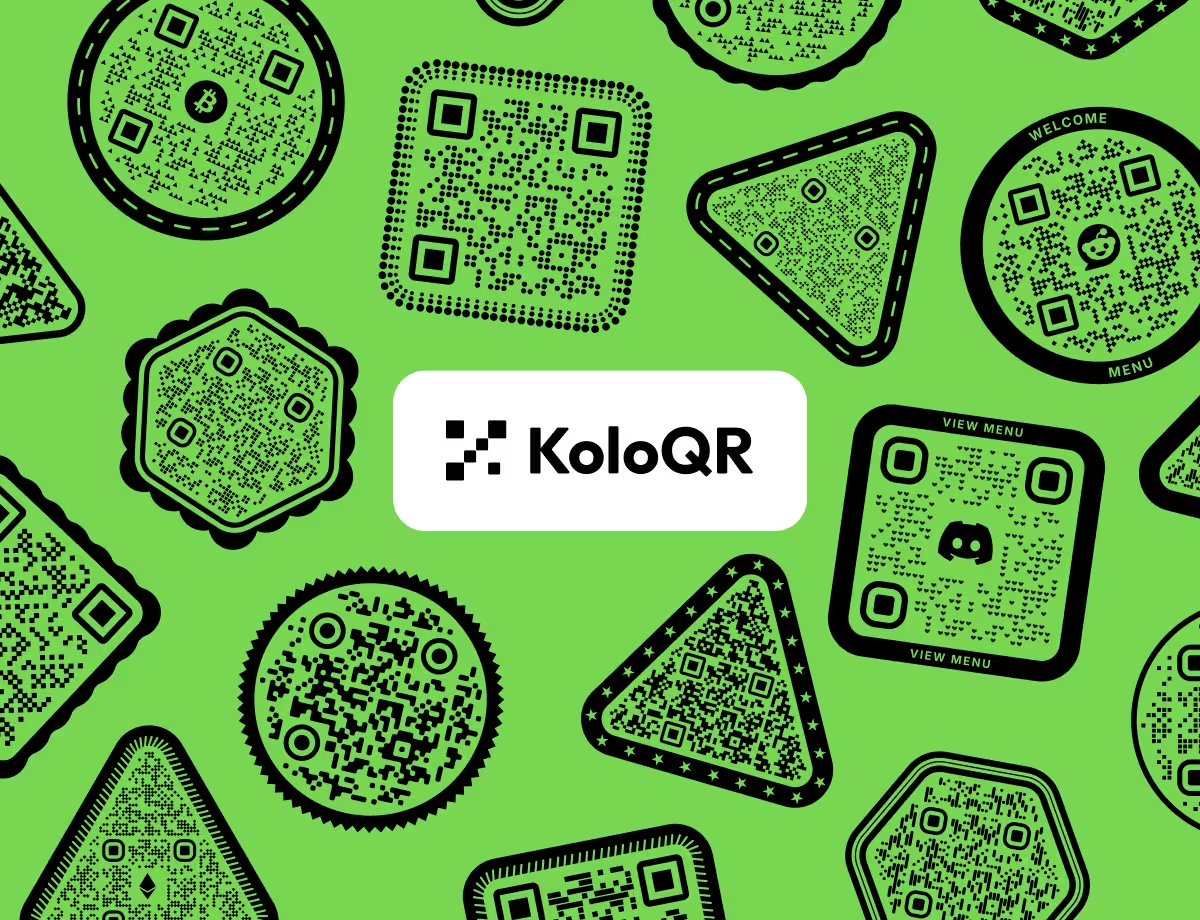
Official Account or Personal ID - Print the Right One
LINE has two kinds of address for two genuinely different things:
- line.me/R/ti/p/@yourid - an official account. The @ is part of the ID, and this is the link for a business: broadcasts, coupons, and a shop's own chat.
- lin.ee/xxxxxxx - the short form of the same official account link, produced in LINE's Official Account Manager. About half the length, and the better payload for print.
- line.me/ti/p/~yourid - a personal LINE ID, with a tilde rather than an at sign. Right for a freelancer or a small trader, and it exposes a personal account to anyone who scans.
A personal LINE ID cannot be changed once it has been set, and it is not a name you can retire when a print run goes wrong; the account itself has to be replaced. That, plus the fact that a printed personal ID puts a private account on a shop window, is the argument for an official account for anything commercial. An official account also has to be findable: the “allow others to add me by ID” style settings on both account types decide whether a scan reaches you at all, so confirm them before the artwork goes anywhere near a printer.
LINE's Own QR Code Versus a Generated One
LINE produces an add-friend QR code inside the app, and the Official Account Manager offers a downloadable one for business accounts. Both are real QR codes that any phone camera can read - the payload is the same line.me link a generated code holds - so this is not a question of one working and one not. It is a question of print. LINE's downloads come at the size and in the style LINE chose, which is fine on a screen or a name card printed from a template, and soft once a signage supplier scales it to a shop window. A generated code carries the same link, exports as vector at any size, and can be drawn in your own colours and shape so it belongs to your signage rather than sitting on top of it. Show LINE's own code across a table; generate one for anything a printer will touch.
Generate QR Code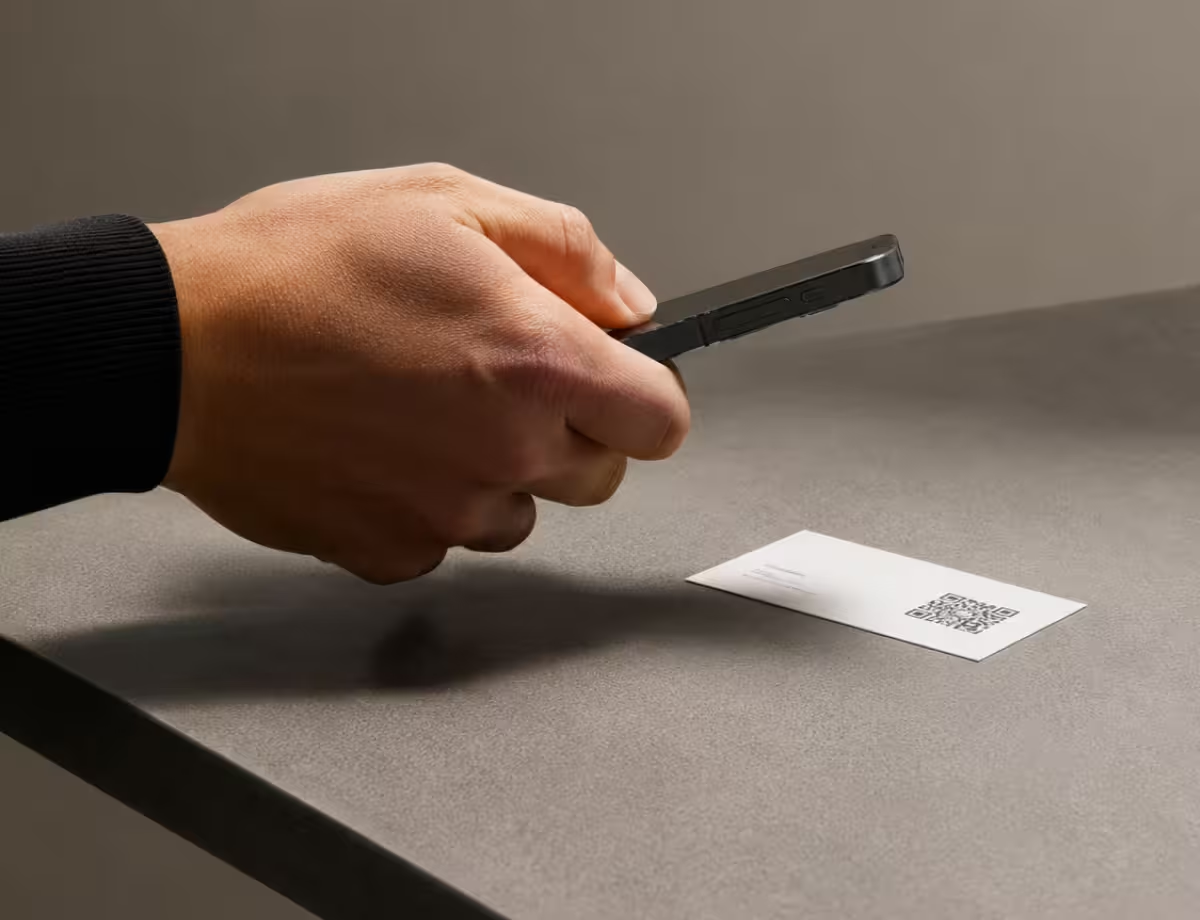
Where LINE QR Codes Are Used
In markets where LINE is the default messenger, the add-friend code does the job a mailing list does elsewhere:
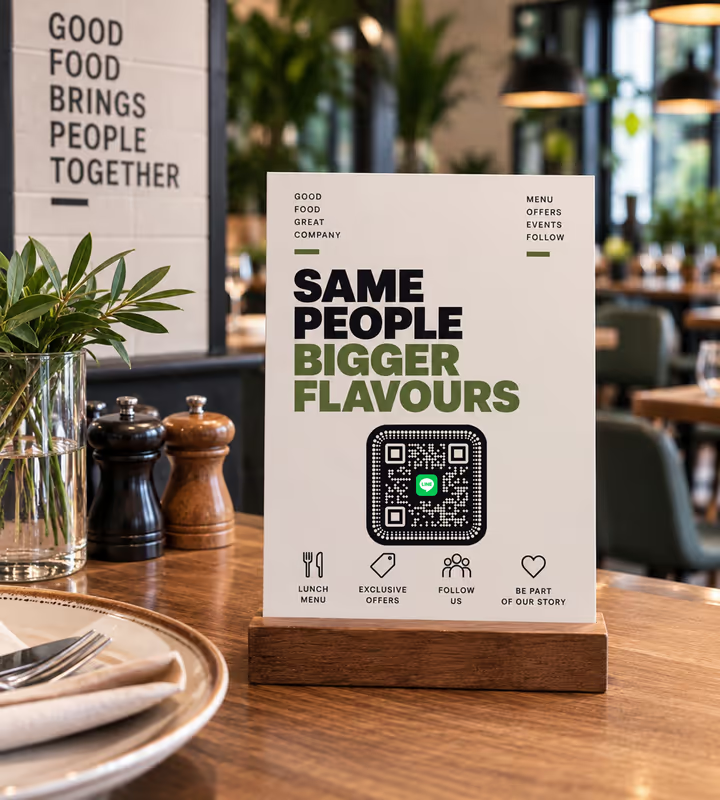
Restaurant Counters and Table Cards
Adding the shop's official account is how a regular receives the lunch menu and the coupon, and the card on the table is where that starts.
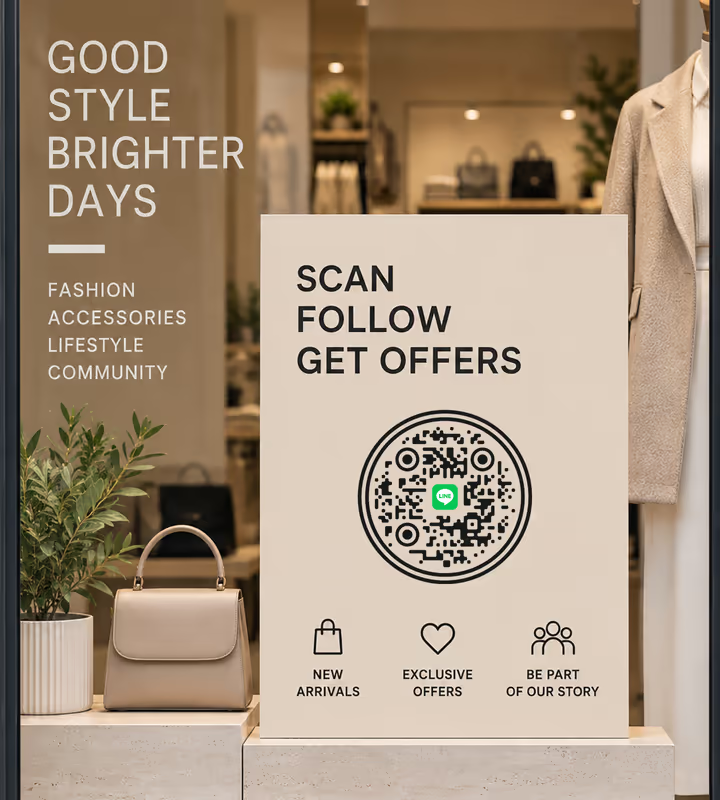
Shop Windows and Till Points
A code by the till turns a one-off customer into a channel the shop can reach again without buying advertising.
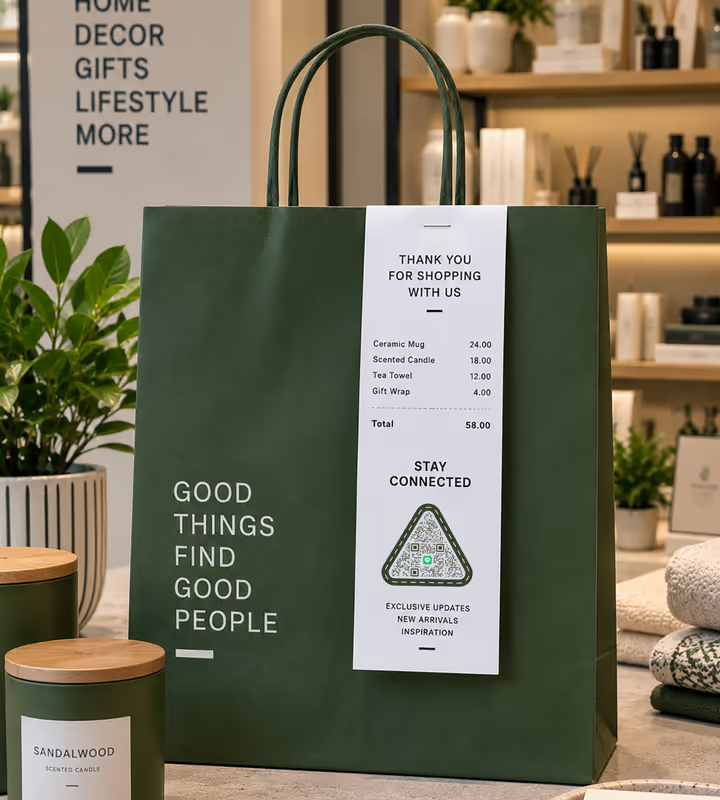
Receipts and Packaging
The receipt is the one piece of paper the customer definitely takes home, which makes it the cheapest place to print an add-friend code.
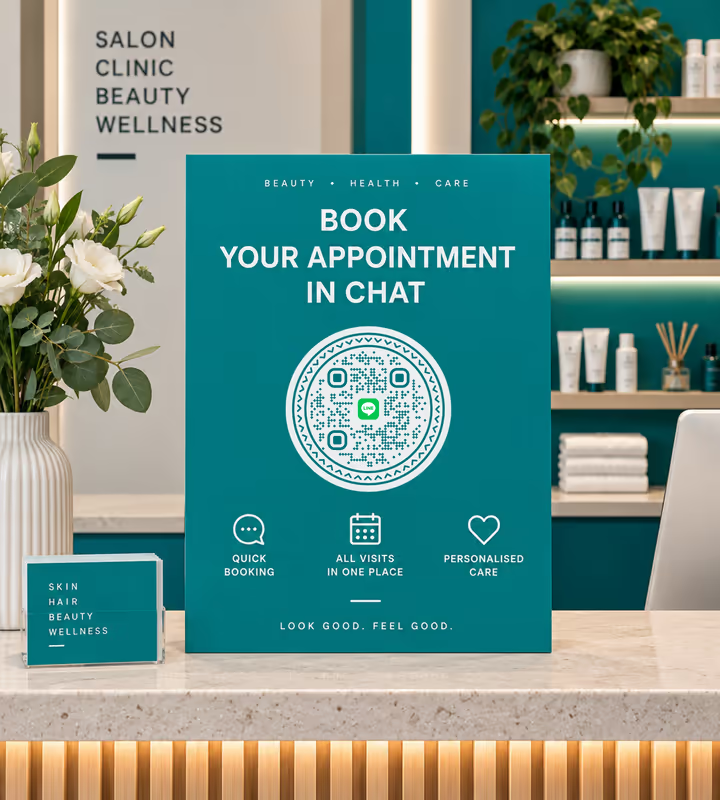
Salon and Clinic Booking
Appointments made in chat rather than by phone, with the whole history of a client's visits in one thread.

Event Flyers and Street Handouts
A flyer that adds an account reaches the reader again after the flyer has been thrown away.
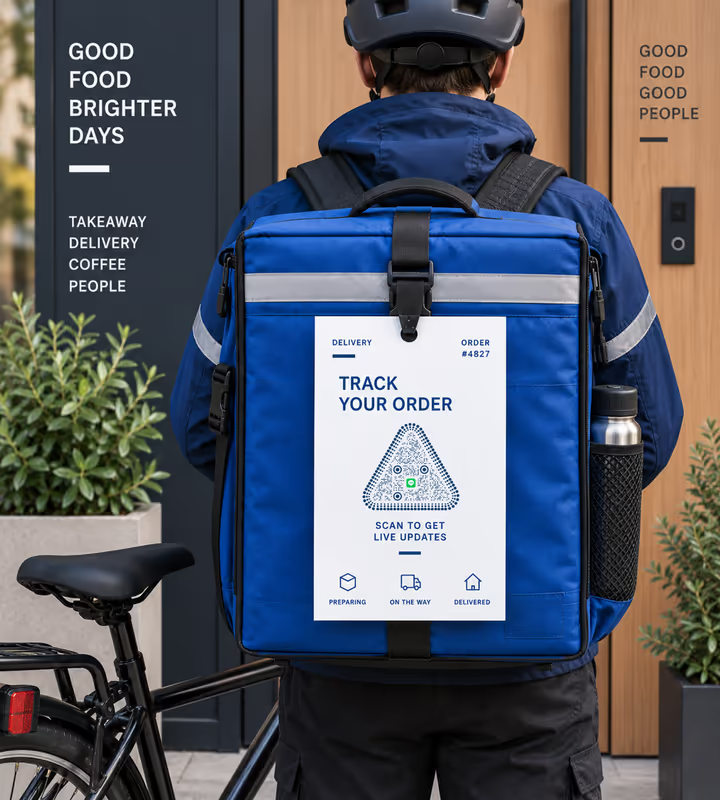
Delivery and Order Updates
A code on the order slip moves status updates into the app the customer already has open all day.
- 1
Get Your LINE ID or Add-Friend Link
For a business, take the official account ID or the lin.ee short link from the Official Account Manager. For a personal account, take the LINE ID from the app's profile settings.
- 2
Pick LINE and Enter the ID
Choose the Social type, pick LINE, and type the official account ID without its @. For a personal ID or any other LINE address, paste the full URL instead.
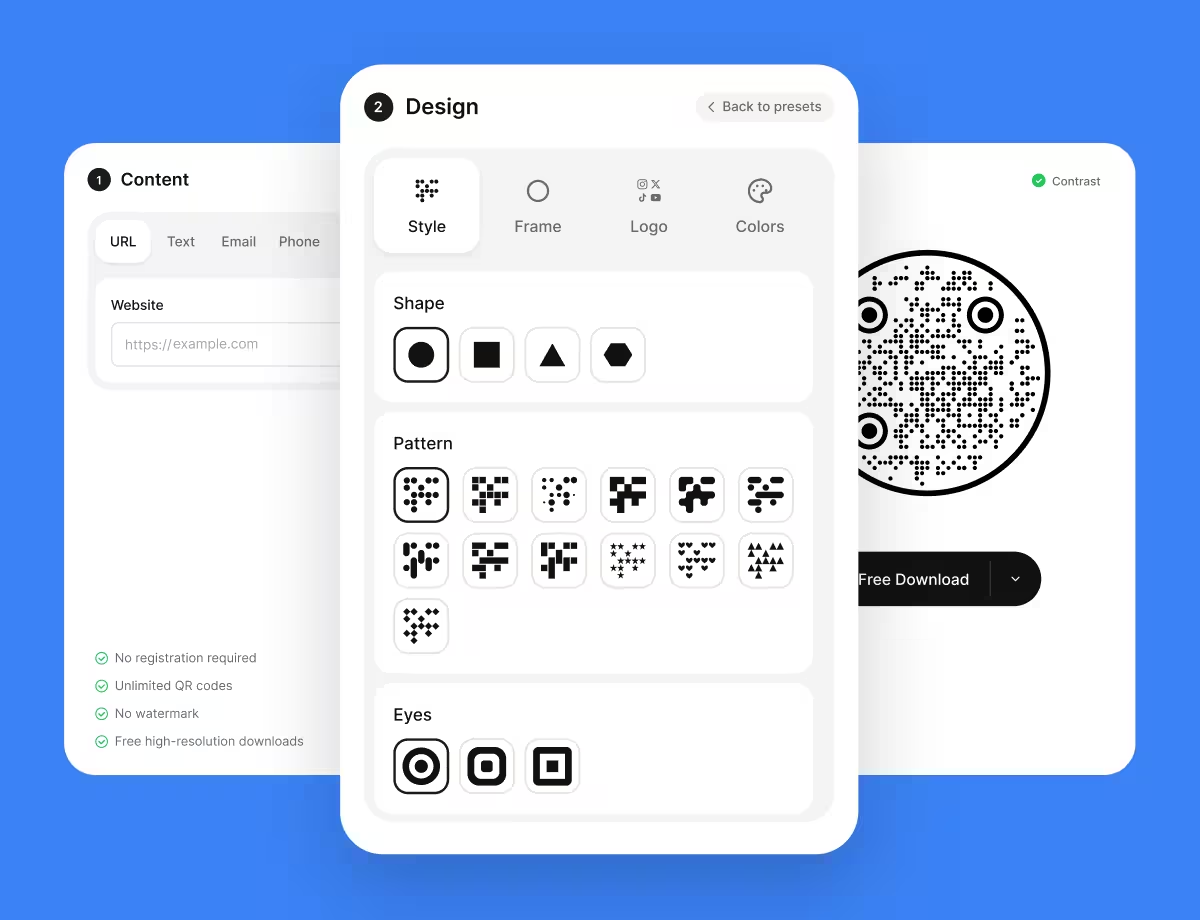
- 3
Customize the Design
Choose a shape, set the colors, add a logo. LINE's green is bright rather than dark - keep it in the surrounding artwork and leave the modules dark.
- 4
Test and Export
Scan on a phone with LINE installed and one without, confirm the right account appears, then export SVG or PDF for print and PNG for screens.
Which File Format Should You Download?
KoloQR exports your LINE QR code in three formats. Pick by where it will be seen:
- PNG for websites, chat messages, and social posts, where the code appears at one fixed size.
- SVG for window stickers, table cards, and shop signage - anything a printer scales without softening the edges.
- PDF for handing to a print shop or a signage supplier at print-ready quality.
A lin.ee short link is around 20 characters and a line.me/R/ti/p/ link around 30, so both encode into sparse patterns with large modules - which is exactly what a receipt printer, a laminated table card, or a code read across a counter needs. Take the short link where you have one; the difference is visible at 15 mm.
Generate QR CodeBest Practices for LINE QR Codes
LINE codes are printed at counters and on receipts, which is a specific set of constraints:
Use an Official Account for Anything Commercial
It keeps a personal account off the shop window, and it is the only account type with broadcasts, coupons and the management tools a business needs.
Remember a Personal LINE ID Is Permanent
A LINE ID cannot be changed once set, so a printed personal ID is a decision that outlives the print run. That alone is a reason to print an official account instead.
Prefer the lin.ee Short Link
It is roughly a third shorter than the full line.me address, which means larger modules in the same printed square - and receipts print small.
Check the Add-by-ID Settings
If the account is not discoverable by ID, the scan reaches a screen that cannot add you. Confirm this from a second phone before printing.
Give People a Reason to Add You
“Add us for this week's coupon” outperforms a bare code by a wide margin. Adding an account is a bigger commitment than opening a web page.
Keep LINE Green Out of the Modules
The brand green is too light to carry the pattern against white. Use it in the artwork around the code and keep the modules dark.
Design for Receipt Paper
Thermal paper is low contrast, fades, and prints at a coarse resolution. Print larger than you would on card, and test on the actual printer.
Protect the Quiet Zone
Four modules of clear margin on every side - routinely lost on a table card where the code is boxed in by a border.
Size It for the Distance
Roughly a tenth of the reading distance: about 2 cm on a table card, about 20 cm on a window read from 2 metres.
Test on a Phone Without LINE
A visitor without the app lands on a LINE web page rather than an add-friend screen. Knowing what that page says is part of knowing what your sign does.
Why Your LINE QR Code Isn't Working
LINE codes fail in ways that look identical from the outside - the scan happens, and nothing useful appears. These are the four causes worth checking first.
The Scan Opens LINE but Adds Nobody
- Cause
- The ID in the link does not resolve to an addable account - usually a mistyped ID, an @ left in or left out, or a personal ID written with an at sign instead of a tilde.
- Fix
- Rebuild the link from the Official Account Manager or the app's own profile screen rather than typing it, then scan and confirm the right account name appears before printing.
The Scan Opens a Web Page Instead of the App
- Cause
- LINE is not installed, or the phone did not hand the link to it. line.me falls back to a web page with an install prompt.
- Fix
- This is the intended fallback. Check what it shows for your account, and label the code with the account name so a visitor without LINE knows what they were being offered.
The Code Won't Scan on a Receipt
- Cause
- Thermal paper has low contrast and coarse resolution, and receipt codes are usually printed smaller than anything else in the shop.
- Fix
- Use the lin.ee short link to keep the pattern sparse, print at the largest size the roll allows, and scan a receipt from the actual printer rather than a proof from a laser printer.
Nobody Adds the Account Even Though the Code Works
- Cause
- Adding an account is a lasting commitment, and a bare code beside a logo does not say what the commitment buys.
- Fix
- Print the offer beside the code - a coupon, the menu, order updates - and put the code where the customer is waiting rather than where they are paying.
Still not sure whether the fault is the file or the print? Drop the exported image into the QR code scanner - if it decodes on a desktop and not on paper, the fault entered after the file.
Questions? Answered
A LINE QR code stores a line.me add-friend link for an official account or a personal LINE ID. Scanning it opens LINE at that account's add-friend screen, or a LINE web page if the app is not installed.
Take the account ID or the lin.ee short link from LINE's Official Account Manager, choose the Social type in KoloQR, pick LINE, and enter it. Style it, test it, then download PNG or SVG.
An @ID belongs to an official account and uses line.me/R/ti/p/@id. A ~ID belongs to a personal account and uses line.me/ti/p/~id. Printing the wrong one is the most common reason a LINE code adds nobody.
A personal LINE ID cannot be changed once it has been set, so a printed code is permanent for as long as the account is. That is one of the strongest reasons to print an official account instead.
LINE's holds the same link and scans identically. A generated code exports as vector for print at any size and can be drawn in your own colours and shape, which is what matters on signage rather than on a screen.
To add the account, yes. Without it the link opens a LINE web page with an install prompt, so a code aimed at people who do not already use LINE converts poorly - which is why it works best where LINE is already the default messenger.
No. LINE's green is too light to hold enough contrast against white at module size. Put it in the artwork around the code and keep the pattern dark on a light background.
About 15 to 20 mm on card with a lin.ee short link. On thermal receipt paper print larger - the stock's low contrast and coarse resolution cost more than the payload does.
Usually the ID is mistyped, or the account's add-by-ID setting is off. Rebuild the link from LINE's own screens rather than by hand, and test from a phone that has never added the account.
Not directly. An official account's own analytics show how many friends were added and when, which is a better measure anyway - it counts people who followed through rather than people who lifted a phone.
Keep Exploring
Pages that pick up where this one leaves off - the same setting, the same kind of code, or the next thing worth deciding.
WhatsApp QR Code
Open a WhatsApp chat with your number in one scan, without anyone saving your contact first.
Facebook QR Code
Open your Facebook Page, group, or Messenger chat with one scan.
LinkedIn QR Code
Share your LinkedIn profile or company page with a code any phone camera can read.
How to Scan a QR Code With a Phone, a Screenshot, or a Second Device
The camera does it on both platforms, but the awkward cases - a screenshot, a code on the phone you are holding, a login code - each need a different move.
How to Scan a QR Code on an iPhone, From the Camera or From a Photo
Every built-in way an iPhone reads a QR code - the Camera app, the Code Scanner control, a saved photo, a code inside Safari - and the one setting that switches it off.
Snapchat QR Code
Open a Snapchat profile from any phone camera - not only from inside the app.
Why KoloQR?
- Create QR codes for websites, menus, Wi-Fi, PDFs, and business cards
- Customize colors, logos, and unique shapes
- Download high-quality PNG and SVG files
- Built for both print and digital
