Make a Booking QR Code
Paste your booking link, style the code, and download it print-ready - so a door sign, a chair card, or a leaflet takes bookings while nobody is there to answer the phone.
Opens in Google Maps. Coordinates work too - "37.4224, -122.0841".
The code opens your business's "Write a review" form. Paste the Place ID, or a Google Maps link that carries one.
A UPI link carries no checksum, so a mistyped ID produces a code that scans perfectly and pays somebody else. Paste the ID from your payment app rather than typing it, and send yourself one rupee before printing.
Paste it exactly as copied. KoloQR does not assemble the payload - it encodes the one your bank issued, and checks it before you print it.
SVG, PNG, JPG • Max 2 MB
First month free
then $9/month
Dynamic QR Codes Are Coming
Change your link anytime, even after printing. See who scans, when and where.
- Edit without reprinting
- Scan analytics
- Bulk & custom domains
You're on the List
We'll email you once, when dynamic codes with scan analytics launch.
What Is a Booking QR Code?
A booking QR code is a QR code that stores the web address of a booking page, so scanning it opens that page in the phone's browser with live availability already loaded. The code holds only the address - never the calendar - which is why the slots shown are always current no matter how long ago the sign was printed.
Link to the Service, Not to Your Account Page
Every booking system publishes several addresses for the same business, and the one you choose decides how many taps stand between the scan and a confirmed booking:
- The service or event link - one treatment, one appointment length, one table type. The scan opens on a calendar of real times. This is what belongs on a printed sign.
- The business or profile page - your whole menu of services. It costs the reader two or three decisions before they see a single time slot, and each one is a place to give up.
- The dashboard or admin URL - the address you see while managing bookings. It opens a login screen for everyone else, and it is the single most common wrong link on a printed booking code.
The rule of thumb is to print the code beside the thing it books. A code on the door of treatment room two should open treatment room two's calendar; a code on a table should book that size of table; a code on a leaflet about one course should open that course. A business-page link is the right choice in exactly one case - when the sign itself cannot say which service, such as a code on a shop window that covers everything you do.
What Happens After the Scan
The scan opens the booking page live, so the reader sees whatever the system has right now - including nothing. A booking page with no available slots in the visible window shows an empty calendar, and an empty calendar reads as a broken business rather than a busy one. Most systems let you set how far ahead bookings open and how much notice you require; both of those settings decide what a person standing outside your door at nine in the evening sees. Booking pages also render times in the phone's own timezone, which is invisible and correct for a local customer and a real hazard for a remote appointment booked by someone travelling. Scan your printed proof from a phone that is not signed into the booking system, out of hours, before the sign goes up.
Generate QR Code
Where Booking QR Codes Are Used
A booking code earns its place where somebody wants an appointment at a moment when nobody can take one:
- 1
Open the Service You Want Booked
In Calendly, Square Appointments, Fresha, Booksy, Acuity, Setmore, OpenTable or Booking.com, go to the individual service or event and copy its public booking link.
- 2
Check the Availability Window and Notice Period
Confirm the page shows real slots when you look at it out of hours. Minimum notice and booking-horizon settings are what leave a calendar looking empty.
- 3
Paste the Link and Design the Code
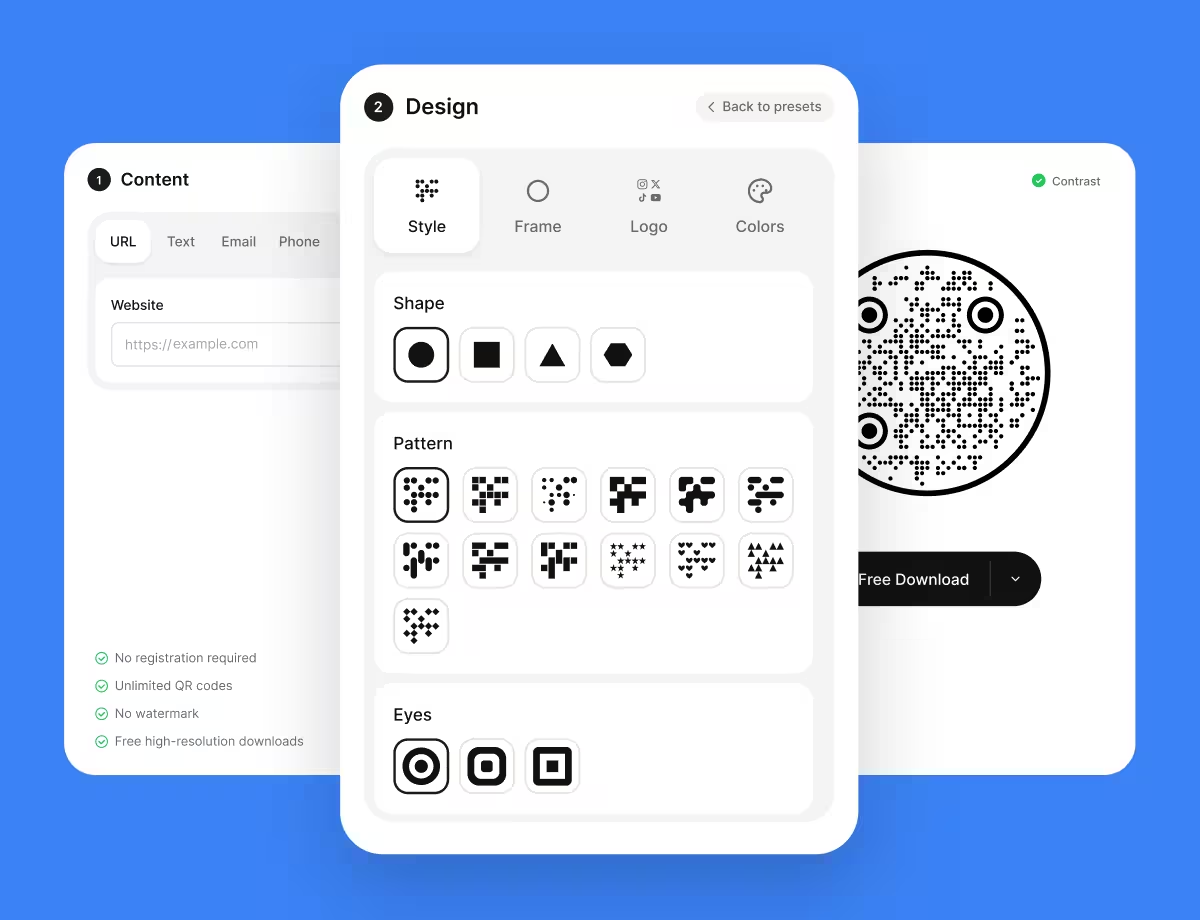
Choose the URL type, paste the link, then pick colours and a shape that match the door sign, chair card, or leaflet the code will sit on.
- 4
Test Signed Out, Then Export
Scan the proof from a phone that is not signed into the booking system, take a test booking, cancel it, then export SVG or PDF for print and PNG for screens.
Which File Format Should You Download?
KoloQR exports your booking QR code in three formats. Pick by where it will be seen:
- PNG for social posts, email signatures, and screens at reception - anywhere the code appears at one fixed size.
- SVG for window vinyl, door signs, chair cards, and leaflets - anything a printer scales without softening the edges.
- PDF for handing to a print shop, or for dropping straight into a leaflet at print-ready quality.
Window graphics are the case that catches people out. A code applied to the inside of the glass is read through the glass, at an angle, often with the street reflected in it - so it wants to be larger than the same code on paper, matte rather than gloss where the material allows, and positioned out of the direct line of a reflection. Export as SVG and let the sign maker size it; a PNG sent to a vinyl cutter is where soft edges come from.
Generate QR CodeBest Practices for Booking QR Codes
A booking code is scanned by somebody standing outside, often in the dark, usually once. These are the habits that turn that scan into a confirmed appointment:
Point at One Service, Not the Whole Menu
A service link opens on real times. A business page opens on a decision, and every decision between the scan and the calendar costs bookings.
Print the Words “Book Now” Beside It
A bare code on a door could be a menu, a website, or a Wi-Fi password. Two words remove the guess and are worth more than a larger code.
Check the Page Out of Hours
The most valuable scans happen when you are closed. Look at your own booking page at 9pm on a Sunday and fix whatever it shows then.
Keep Enough Slots Open to Look Alive
An empty calendar reads as a closed business. If your notice period hides everything for 48 hours, say so in print rather than letting the page say nothing.
Say What the Booking Costs and Commits To
Deposit, cancellation window, duration. Somebody scanning a sign in the street has none of the context a returning customer has.
Use One Code per Room, Chair, or Table
A code that books the exact thing it is stuck to needs no explanation, and the booking arrives labelled with where it came from.
Protect the Quiet Zone
Four modules of clear margin on every side. On a busy window graphic this is the first thing a layout squeezes out.
Size It for the Distance
Roughly a tenth of the reading distance: about 3 cm on a card held in the hand, about 20 cm on a window read from 2 metres across a pavement.
Mind the Timezone for Remote Appointments
Booking pages render slots in the visitor's own timezone. That is right for a walk-in and wrong for a call, so state the timezone in print when the appointment is remote.
Test the Whole Booking, Not Just the Scan
Scan it, pick a slot, complete the booking, then cancel it. Payment steps, required fields, and confirmation emails all fail after the part most people test.
Why Your Booking QR Code Isn't Working
Booking codes rarely fail at the scan. They fail in the four steps after it, which is why the fixes below are mostly settings in the booking system.
The Scan Shows an Empty Calendar
- Cause
- The minimum notice period, the booking horizon, or a fully booked week is hiding every slot inside the window the page displays.
- Fix
- Shorten the notice period, extend how far ahead bookings open, or add a waiting-list option so the page has something to offer instead of nothing.
The Scan Opens a Login Screen
- Cause
- The dashboard or admin URL was encoded rather than the public booking link. It works for you because you are already signed in.
- Fix
- Copy the link from the service's share or public-link option, then test it in a private browser window before you print anything.
People Book the Wrong Service
- Cause
- The code points at the business page, so the reader picks from a list rather than arriving at the thing the sign was about.
- Fix
- Generate one code per service and print each beside what it books. A code on a treatment room door should open that treatment.
Bookings Arrive at Impossible Times
- Cause
- The customer's phone is in a different timezone from the business, and the booking page rendered the slots in theirs.
- Fix
- Set the location or timezone on the service so it is fixed rather than inferred, and print the timezone beside the code for remote appointments.
The Printed Code Scans Slowly or Only Up Close
- Cause
- A long URL with tracking parameters was encoded, or the code is printed smaller than the reading distance allows.
- Fix
- Strip everything after the question mark that you do not need, regenerate, and size the code at roughly a tenth of the distance it is read from.
The Code on the Window Won't Scan From Outside
- Cause
- Reflections and the angle through the glass, not the code. Gloss laminate and direct daylight both defeat the camera's contrast detection.
- Fix
- Enlarge the code, move it out of the reflection line, and use a matte finish. Test standing on the pavement in daylight, not from inside the shop.
Still not sure whether the fault is the file or the print? Drop the exported image into the QR code scanner - if it decodes on a desktop and not on paper, the fault entered after the file.
Questions? Answered
A booking QR code stores the address of an online booking page. Scanning it opens that page with live availability, so the customer books directly from a printed sign. The calendar is never inside the code, so the times shown are always current.
Copy the public booking link for one service from your booking system, paste it into a QR generator as a URL, style the code, and export SVG for print. The code costs nothing and does not expire; your booking system is the only paid part.
Any system with a public booking page - Calendly, Square Appointments, Fresha, Booksy, Acuity, Setmore, SimplyBook, OpenTable, Booking.com and most others. A QR code holds a web address, so whatever opens in a browser can be encoded.
One service, whenever the sign itself says which. A service link opens on real times; a business page opens on a menu, and each extra choice between the scan and the calendar loses bookings. Use the business page only for a general shop-window code.
Yes - that is the main reason to print one. The booking page is live around the clock, so a code on the door converts the people who arrive after closing. Check what the page shows at that hour, because notice-period settings can hide every slot.
No. The scan opens a normal web page in the phone's browser, and the native cameras on iOS and Android read QR codes without any app. An account is only needed if your booking system insists on one.
Usually yes - most booking pages render slots in the visitor's own timezone. That is correct for a walk-in customer and a hazard for a remote appointment, so fix the timezone on the service and print it beside the code when the meeting is online.
Not with a static code, which points at one address forever. Either keep the link stable, use your own domain with a redirect you control, or use a dynamic code and accept that it depends on that service staying online.
About a tenth of the reading distance, so roughly 20 cm for a code read from 2 metres across a pavement. Glass adds reflections and an angle, so size up rather than down, and use a matte finish where the material allows.
Yes, if you print a different code per placement and add a source parameter or use a distinct service link for each. That records completed bookings by origin, which is more useful than counting scans.
Keep Exploring
Pages that pick up where this one leaves off - the same setting, the same kind of code, or the next thing worth deciding.
Hotel QR Codes
Menus, WiFi, check-in and guest info - one scan from every room, desk and table.
Healthcare
Booking pages, intake forms and aftercare instructions on posters, leaflets, prescription bags and bedside cards.
URL QR Code
Send anyone straight to a web page, landing page, or link with a single scan.
LINE QR Code
Add a LINE official account or a personal contact with a single scan.
Google Review QR Code
Open your business's Google review form in one scan, with the stars ready to tap.
Google Docs QR Code
Open a document, a handout, or a template straight from a printed page.
Why KoloQR?
- Create QR codes for websites, menus, Wi-Fi, PDFs, and business cards
- Customize colors, logos, and unique shapes
- Download high-quality PNG and SVG files
- Built for both print and digital
