Make a QR Code for Google Slides
Paste your presentation link, style the code, and download it print-ready - so a handout, a poster, or the last slide itself gives people the deck without an email.
Opens in Google Maps. Coordinates work too - "37.4224, -122.0841".
The code opens your business's "Write a review" form. Paste the Place ID, or a Google Maps link that carries one.
A UPI link carries no checksum, so a mistyped ID produces a code that scans perfectly and pays somebody else. Paste the ID from your payment app rather than typing it, and send yourself one rupee before printing.
Paste it exactly as copied. KoloQR does not assemble the payload - it encodes the one your bank issued, and checks it before you print it.
SVG, PNG, JPG • Max 2 MB
First month free
then $9/month
Dynamic QR Codes Are Coming
Change your link anytime, even after printing. See who scans, when and where.
- Edit without reprinting
- Scan analytics
- Bulk & custom domains
You're on the List
We'll email you once, when dynamic codes with scan analytics launch.
What Is a Google Slides QR Code?
A Google Slides QR code is a QR code that stores the web address of a Slides presentation, so scanning it opens that deck in the phone's browser. The slides themselves stay in Google Drive - only the address is inside the code - which means you can keep editing the deck after the code is printed and every scan shows the current version.
Four Endings, Four Different Scans
A Slides URL ends with /edit, and that final segment decides what the reader gets. All four are within a few characters of each other, so the choice is free:
- /edit - the address from your browser bar. It opens the editor, complete with the slide panel and an invitation to change your deck.
- /preview - a clean read-only view with no Slides interface. The best default for a handout: it scrolls, it works one-handed, and nothing can be altered.
- /present - full-screen presentation mode. Right for a screen you control, harder on a phone, where the reader gets one slide filling the display and has to swipe.
- /export/pdf - downloads the whole deck as a PDF. Useful when the audience needs to keep or print it, and heavier than a link for anyone just having a look.
There is a fifth option that behaves differently from all of these. File, then Share, then “Publish to the web” creates a separate published copy at a /pub address, viewable by anyone with no Drive permissions involved at all - which is what you want when your organisation blocks external sharing. The trade-off is that a published deck is a snapshot Google refreshes on its own schedule rather than a live view, and it has to be republished if you ever unpublish it.
Link One Slide, Not the Whole Deck
Slides writes the current slide into the address bar as you click through a presentation, as a fragment ending in #slide=id.g followed by that slide's own identifier. Copy the address while the slide you want is open, and the code you build from it lands the reader on that slide instead of on slide one. This is what makes a code useful on a poster board, where the deck is a reference and the reader only wants the one diagram, or on a printed agenda, where each session can point at its own section. The fragment adds around 20 characters to an already long URL, and the id belongs to the slide rather than to its position - so reordering the deck keeps the link pointing at the right slide, while deleting that slide breaks it.
Generate QR Code
Where Google Slides QR Codes Are Used
A Slides code belongs wherever the deck is worth more to the audience than the room it was shown in:
How to Create a Google Slides QR Code
From presentation to printed code in four steps:
Generate QR Code- 1
Set Sharing to Anyone With the Link
Open Share, set General access to “Anyone with the link”, and pick Viewer. Without this step, every scan from outside your account asks for permission.
- 2
Open the Slide You Want and Copy the Address
For the whole deck, take the link and replace /edit with /preview. For one slide, click it first so the address bar carries its #slide fragment, then copy the whole thing.
- 3
Paste the Link and Design the Code
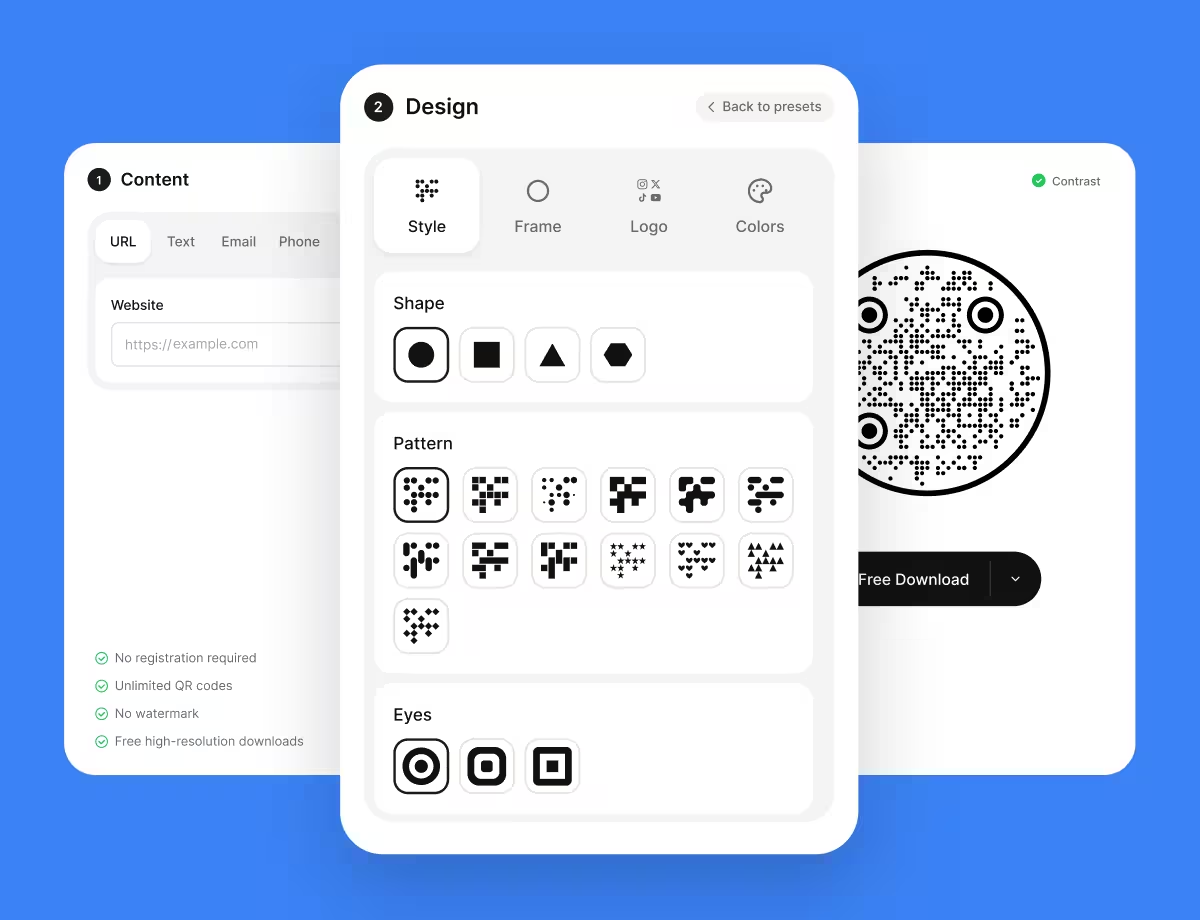
Choose the URL type, paste the link, then pick a shape and colours that match the slide, poster, or handout the code will sit on.
- 4
Test in a Private Window, Then Export
Scan the proof from a phone that is not signed into your Google account, check it opens on the right slide, then export SVG or PDF for print and PNG for screens.
Which File Format Should You Download?
KoloQR exports your Google Slides QR code in three formats. Pick by where it will be seen:
- PNG for the slide itself, for screens, and for email - anywhere the code appears at one fixed size on a display.
- SVG for posters, handouts, and stand panels - anything a printer scales without softening the edges.
- PDF for handing to a print shop, or for a leave-behind produced at print-ready quality.
A code that lives on a projected slide has its own rule: it is read from the back of the room, so size it against that distance rather than against the slide. On a 16:9 deck shown at typical conference scale, a code occupying about a fifth of the slide's height is a safe minimum, placed away from the edges where a projector crops and away from any gradient background. Export PNG for the slide, since the deck is going to a screen, and keep the SVG for the printed version of the same artwork.
Generate QR CodeBest Practices for Google Slides QR Codes
A deck code is usually scanned by a room full of people at once, from a distance, in one shot. These are the habits that survive that:
Set Access Before You Generate the Code
“Anyone with the link - Viewer” is what a public deck needs. Do it first, so the link you copy is already one that opens for strangers.
Use /preview for Handouts
It removes the editor interface and reads far better on a phone than either the editor or full-screen presentation mode.
Leave the Closing Slide Up Long Enough to Scan
Thirty seconds and a sentence of explanation. A code that appears for four seconds during the applause reaches nobody.
Point at the Slide, Not the Deck, When It Matters
The #slide fragment lands the reader on one specific slide. On a poster or a stand panel that is the difference between an answer and a search.
Never Print an Edit Link
Anyone with an edit link can rewrite or delete slides. Version history recovers the deck, but only after somebody notices it changed.
Publish to the Web if Your Organisation Blocks Sharing
A published /pub link needs no Drive permissions at all, which is the usual way around an admin policy that forbids external link sharing.
Put the Code on a Plain Background
Photographs, gradients, and dark themes behind a code all cost the camera contrast. A white panel around the code costs you nothing.
Protect the Quiet Zone
Four modules of clear margin on every side, and on a projected slide keep the whole thing clear of the edges, where projectors crop.
Size It for a Long Payload and a Long Distance
A Slides URL runs past 90 characters, and with a slide fragment past 110, so it packs small modules - give it about a fifth of the slide height, or a tenth of the reading distance in print.
Test From an Account That Isn't Yours
Your own phone is signed in as the owner and opens a deck nobody else can. A private browser window is the two-second version of this check.
Why Your Google Slides QR Code Isn't Working
Sharing settings and the link's ending account for nearly every failure here. The scan itself is rarely the problem.
The Scan Asks for Permission
- Cause
- The deck's General access is still Restricted, so only named people can open it. The owner's own phone opens it fine, which is how this reaches print.
- Fix
- Open Share, set General access to “Anyone with the link” with the Viewer role, then re-test in a private browser window.
Only Colleagues Can Open It
- Cause
- Access is set to “Anyone in your organisation with the link”, which looks open in the dialog and refuses every scan from outside the company.
- Fix
- Switch to “Anyone with the link”, or use File, Share, Publish to the web, which does not depend on Drive permissions at all.
The Deck Opens on Slide One Instead of the Slide You Wanted
- Cause
- The #slide fragment was lost - trimmed by a copy-paste, stripped by a link shortener, or never captured because the address was copied from the file list rather than the open slide.
- Fix
- Open the slide itself, copy the whole address including everything after the #, and encode it unmodified.
The Scan Opens the Editor
- Cause
- The /edit link from the address bar was encoded, so readers land in the editing interface with the slide panel taking up half a phone screen.
- Fix
- Replace /edit with /preview and regenerate. The URL length barely changes.
Nobody in the Room Managed to Scan the Closing Slide
- Cause
- The code was too small for the room, sat on a dark or patterned background, or was on screen for a few seconds.
- Fix
- Give it about a fifth of the slide height on a plain white panel, and leave the slide up for at least half a minute while you say what it is.
The Code Worked at the Event and Not Afterwards
- Cause
- The deck was deleted, moved to a different Drive, or its sharing reset - or a published link was unpublished.
- Fix
- Restore or republish the deck, and for anything printed in quantity put the deck behind a short link on a domain you control, so the next change costs no reprint.
Still not sure whether the fault is the file or the print? Drop the exported image into the QR code scanner - if it decodes on a desktop and not on paper, the fault entered after the file.
Questions? Answered
A Google Slides QR code stores the web address of a Slides presentation. Scanning it opens the deck in the phone's browser. The slides stay in Google Drive, so editing them never breaks a code that is already printed.
Set sharing to “Anyone with the link”, copy the presentation link, replace /edit with /preview, then paste it into a QR generator as a URL. Style the code, test it in a private browser window, and export SVG for print or PNG for the slide.
Yes. Click the slide you want so the address bar shows a fragment ending in #slide=id.g…, copy the whole address, and encode it. The reader lands on that slide. The id belongs to the slide, so reordering the deck does not break the link.
Because the presentation is still restricted to named people. Set General access to “Anyone with the link” with the Viewer role. Your own phone hides the problem, since it is signed in as the owner - always test signed out.
Use /preview for anything scanned on a phone. It scrolls, works one-handed, and shows the whole deck. Use /present for a screen you control, where full-screen mode is an advantage rather than a slide filling a 6 cm display.
Yes, if sharing is set to “Anyone with the link”. The deck opens in any phone browser with no sign-in. A published-to-the-web link works the same way and needs no Drive permission at all.
Yes. The code holds the deck's address, not its contents, so every scan shows the current version - which is exactly why a code on a printed handout beats a PDF attachment. Deleting the presentation is the one change that breaks it.
About a fifth of the slide height for a room-sized audience, on a plain light panel and away from the slide edges where projectors crop. Size it against the distance from the back row, not against the slide.
Yes. Replace /edit with /export/pdf and the scan downloads the deck as a PDF. It suits an audience that needs to keep or print it, and it is a heavier experience than /preview for anyone just taking a look.
Use File, Share, Publish to the web. That creates a separate public copy at a /pub address which needs no Drive permissions. It is a snapshot Google refreshes on its own schedule rather than a live view of the deck.
Keep Exploring
Pages that pick up where this one leaves off - the same setting, the same kind of code, or the next thing worth deciding.
Google Forms QR Code
Open a survey, sign-up sheet, or feedback form straight from a printed page.
Event QR Codes
One scan connects guests to tickets, schedules, directions and RSVPs - on invites, posters and signage.
Schools & Classrooms
Permission forms, newsletters, library links and student work, with the print sizes and privacy rules a school actually needs.
YouTube QR Code
Send people straight to a channel, a single video, a playlist, or the subscribe prompt.
Discord QR Code
Open a Discord server invite with one scan - if the invite is set never to expire.
Google Drive QR Code
Hand over a file, a folder, or a download from anything printed.
Why KoloQR?
- Create QR codes for websites, menus, Wi-Fi, PDFs, and business cards
- Customize colors, logos, and unique shapes
- Download high-quality PNG and SVG files
- Built for both print and digital
