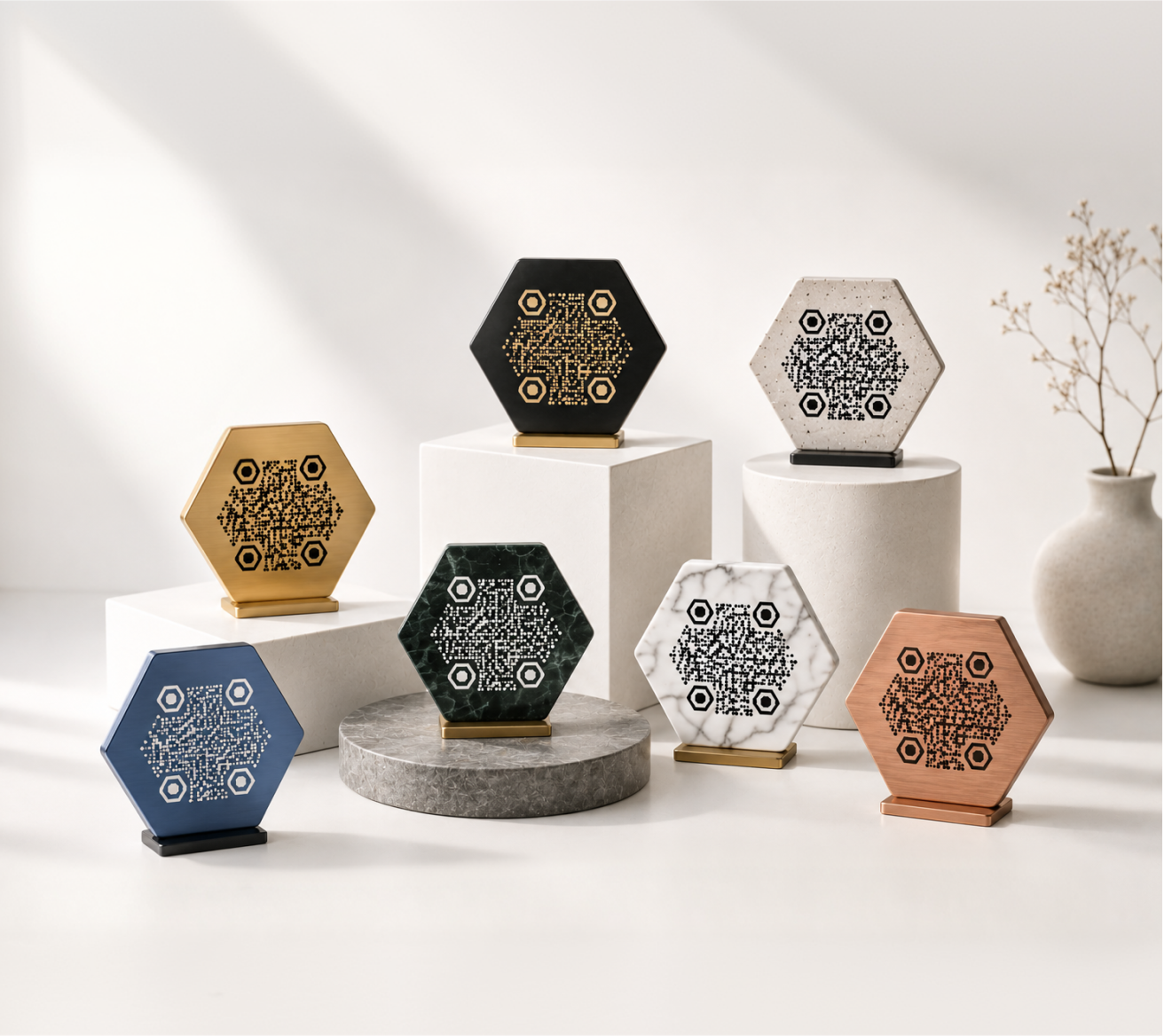
A QR code menu is one of the most practical changes a restaurant can make. Customers scan a code on the table, your menu opens on their phone, and you never have to hand out a laminated card again.
This guide walks you through how to set one up — from choosing the right menu format to printing codes your customers will actually scan.
Why Restaurants Use QR Code Menus
Switching to a QR code menu isn't about following a trend. It solves real, recurring problems that restaurant owners deal with every week.
No reprinting every time your menu changes
Every time you update a price, add a seasonal dish, or pull an item that's out of stock, a printed menu becomes outdated. With a QR code pointing to a live link, you update the menu once and every table reflects the change instantly — no reprinting, no crossed-out items, no explaining to staff what's changed.
Works on every smartphone — no app required
Your customers don't need to download anything. Modern smartphones — both iPhone and Android — can scan QR codes directly from the built-in camera app. Point, scan, done. Your menu opens in their browser like any other webpage.
Cleaner tables, faster service
Physical menus get handled by dozens of people a day. QR codes on table cards or tent stands take up less space, stay cleaner, and give the table a more polished look — especially useful in smaller venues where every inch of space matters.
What You Need Before You Start
Creating a QR code takes a few minutes. Before you do, make sure you have two things ready.
Your menu as a live URL
Your QR code needs to point to a web address that anyone can open. That could be:
- A webpage — your restaurant's existing website menu page
- A hosted PDF — uploaded to Google Drive or Dropbox, with sharing set to "anyone with the link"
- A Google Doc or Notion page — quick to update, easy to share
- An online ordering platform — link directly to your ordering or menu page
Avoid linking to a file stored locally on your computer. It needs to be reachable from the internet.
A phone to test the scan
Before you print anything, test the QR code on a real device. This takes 30 seconds and can save you from printing 50 table cards with a broken or inaccessible link.
How to Create a Restaurant Menu QR Code with KoloQR
Step 1 — Paste your menu URL
Go to KoloQR and paste your menu link into the URL field. That's the only technical step required.
Step 2 — Customize the design
This is where you make the QR code feel like it belongs to your venue rather than a generic black-and-white square.
- Change the colors — use your restaurant's brand colors for the dots and background
- Add your logo — drop it into the center so customers recognize it at a glance
- Choose a dot style — rounded, circular, or classic square dots each give a different feel
- Try a circular format — KoloQR supports circular QR codes that work well in round table centerpieces or branded stamps
Keep enough contrast between the dot color and background so the code scans reliably. Dark on light is always safe. Light on dark can work, but test it carefully before printing.
Step 3 — Download and print
Export your QR code as a high-resolution PNG or SVG file. SVG is the better choice for print — it scales to any size without losing quality. Drop it into a table card template or send it directly to your print shop.
Where to Place QR Codes in Your Restaurant
The placement of your QR code determines how often customers actually use it.
Table tents and table cards
The most common and effective placement. A small folded or flat card on each table, with the QR code on one side. Customers see it as soon as they sit down.
Keep the label minimal — "Scan to view our menu" with a small arrow is all you need.
Counters and takeaway packaging
If you run a counter-service café or takeaway operation, place the QR code near the register or on your bags and boxes. Customers waiting for an order have time to browse, and it's a natural way to surface your full menu or daily specials.
Window stickers and A-frames
A QR code on your front window or an A-frame outside lets people check your menu before they walk in. This works especially well for brunch spots, lunch-only venues, or locations on busy pedestrian streets.
Receipts and loyalty cards
Adding a QR code to the bottom of a receipt — linking to a review page, feedback form, or upcoming promotion — costs nothing extra. Loyalty cards work the same way: scan to check points, or scan to see what's on today.
Design Tips for Restaurant QR Codes
A QR code that looks considered gets scanned more often than one that looks like an afterthought.
Match your brand colors
If your restaurant has a defined palette — a warm terracotta, a deep navy, a specific green — use it. Customers are more likely to trust and scan a code that clearly belongs to the venue they're sitting in.
Add your logo to the center
A logo in the center makes the QR code immediately recognizable. KoloQR lets you upload a logo and positions it automatically. The code remains scannable even with a logo in the center, because QR codes have built-in error correction that accounts for this.
Minimum print sizes
For reliable scanning, keep your printed QR code at least 2.5 cm × 2.5 cm (1 inch × 1 inch). Smaller than that and some phones will struggle, especially in lower light. For table cards, 4–6 cm is a comfortable, readable size.
Always test before printing in bulk
Scan the final design on at least two different phones before sending to print. What looks sharp on screen doesn't always scan well at smaller sizes. If a code fails, try increasing the contrast or simplifying the design slightly.
Common Mistakes to Avoid
Linking to a file that requires login. If your PDF asks customers to sign into Google, most won't bother. Always set sharing to "anyone with the link."
Printing at too small a size. QR codes under 2.5 cm are unreliable, especially in dim dining room lighting. When in doubt, go bigger.
Not testing on multiple devices. Test on both iPhone and Android, at different distances, and in the actual lighting of your venue.
Using a low-contrast color combination. Light gray on white, or dark brown on black, won't scan reliably. High contrast is non-negotiable.
Forgetting to update the link. If your menu moves to a new URL, your printed QR codes will break. Use a URL you control — like a page on your own website — rather than a third-party link that might change without warning.
No label on the code. A QR code with no context can confuse some customers. A simple "Scan for menu" removes all hesitation.
Ready to Create Your Menu QR Code?
Creating a QR code for your restaurant menu takes a few minutes. You don't need design experience or technical knowledge — just a link to your menu and a few choices about color and style.
Create your restaurant menu QR code on KoloQR →
You can start for free and download a print-ready file right away.