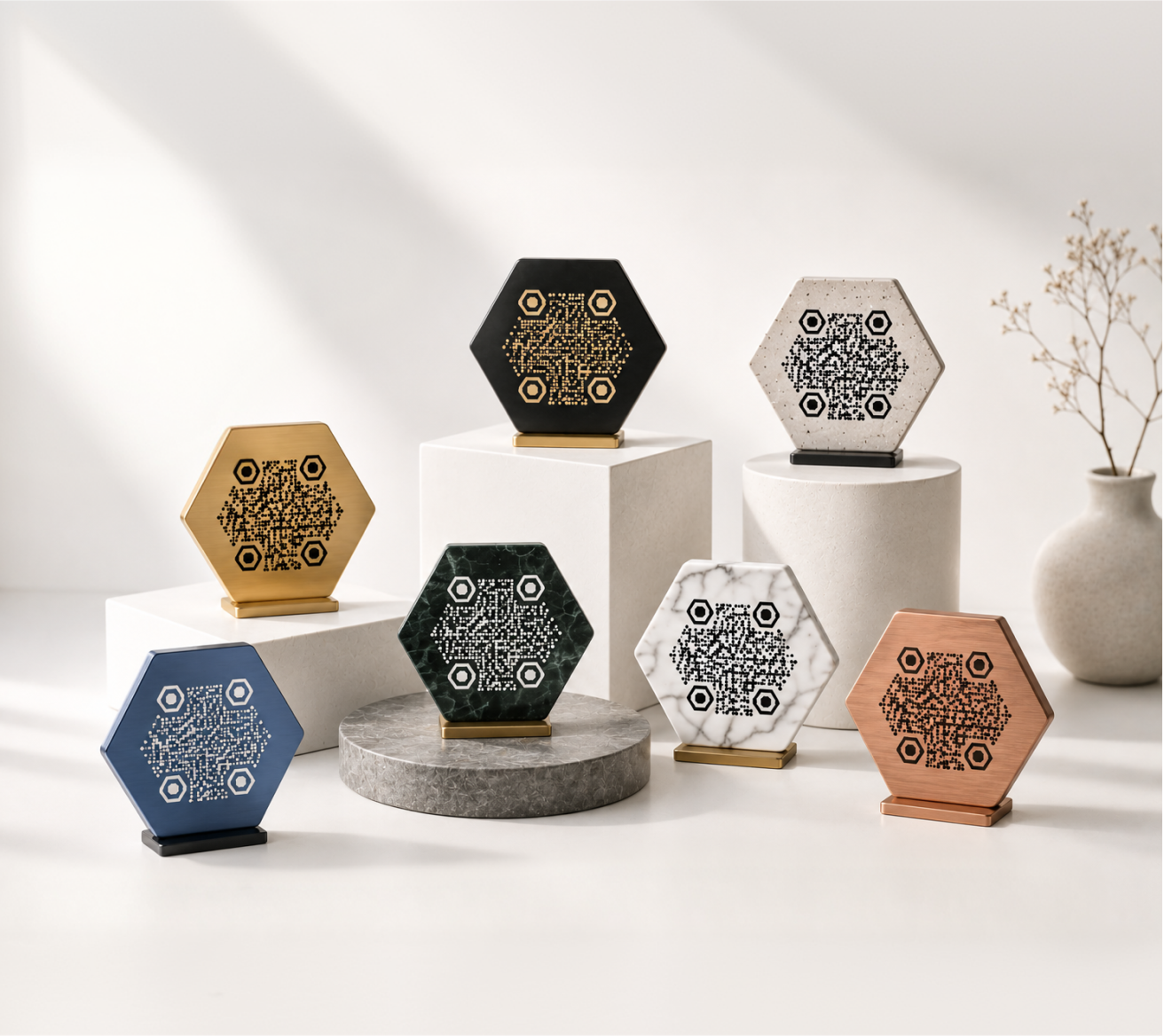
A business card does one job: help people follow up with you. A QR code makes that easier — no manual typing, no misread email addresses, no fumbled LinkedIn searches.
Done well, a QR code on a business card is a small detail that removes a real barrier. Done poorly, it's a blurry square that nobody scans. This page covers how to do it well.
Why QR Codes Work on Business Cards
When someone gets your card, the friction between "interested" and "connected" matters. If following up requires typing your URL or searching your name, some people won't bother — not because they're uninterested, but because the moment passes.
A QR code removes that friction entirely. One scan, and they're on your website, your LinkedIn profile, your contact page, or your booking link — wherever you want them to go.
Business cards are also physical objects that last. A QR code gives that physical card a live, updatable digital destination. If your website changes or you start a new portfolio, you can update where the code points without reprinting.
What to Link Your Business Card QR Code To
The right destination depends on your goal:
- Your website or portfolio — best for creatives, freelancers, and consultants
- Your LinkedIn profile — common for corporate or networking contexts
- A vCard / digital contact file — lets people save your details directly to their phone
- A booking or scheduling page — useful for service providers and coaches
- A specific landing page — if you want to track how many people scan from cards
Choose one destination per card. A QR code that goes somewhere specific converts better than one that goes to a homepage with no clear next step.
Design: Making the QR Code Fit the Card
A QR code doesn't have to look like a technical artifact. The biggest reason people avoid putting QR codes on business cards is that generic black-and-white squares look out of place on a well-designed card.
With KoloQR, you can match the QR code to your brand — adjusting colors, adding a logo in the center, and choosing a style that fits naturally alongside your other card elements.
Color
The QR code can use your brand colors instead of plain black. The contrast between the foreground and background needs to remain high enough for scanners to read reliably — but within that constraint, there's real creative range.
A dark navy code on a cream background, or a charcoal code on white with a colored logo center, can look intentional rather than functional.
Logo
Adding a small logo in the center of the QR code ties it to your identity and increases the likelihood that people will scan it — a branded code reads as deliberate, not default.
KoloQR supports logo placement with automatic error correction, so the code remains scannable even with the center partially covered.
Shape and Style
Standard QR codes are square. KoloQR also supports circular QR codes, which fit more naturally on round or minimal card designs. The shape doesn't affect scanability — it's a purely visual choice.
Size and Placement on the Card
Minimum Size
A QR code on a business card should be at least 1.5 cm × 1.5 cm (roughly 0.6 inches square). Smaller than that, and scanning becomes unreliable — particularly in lower-light conditions or with older phone cameras.
For a standard 85 × 55 mm business card, a 2 × 2 cm QR code is a practical size that leaves room for other content without crowding.
Placement Options
- Back of the card — the most common choice; keeps the front clean and gives the QR code its own space
- Bottom corner of the front — works if the front layout has room; keeps everything on one side
- Alongside contact details — some designers place the QR code next to the email/phone block as a visual pairing
Leave a clear margin around the QR code — at least 4mm of white space on all sides. This "quiet zone" is part of how scanners find and read the code.
Print Requirements
This is where many QR code business cards fail. A code that looks fine on screen can scan poorly in print if the file quality is wrong.
Use High Resolution
Export your QR code at a minimum of 300 DPI for print. Web-resolution images (72–96 DPI) will look blurry when printed, and a blurry QR code may not scan at all.
KoloQR exports in print-ready formats — download your code as a high-resolution PNG or SVG so your printer gets a clean file.
Use Vector When Possible
SVG files are resolution-independent, meaning they can be scaled to any size without quality loss. If your designer or print shop accepts SVG, use it. It's the safest option for print.
Check Contrast Before Sending to Print
If you're using branded colors, verify contrast before you finalize the card. A code that scans fine in bright light may fail in dim lighting if the foreground-background contrast is marginal.
A simple test: scan the code on your screen at arm's length. If it works easily, it should work in print.
How to Create a Business Card QR Code with KoloQR
- Go to koloqr.com and enter your destination URL
- Choose your QR code style — standard or circular
- Set your colors to match your brand
- Upload your logo if you want it centered in the code
- Download in PNG or SVG format, ready for print
No account required to get started. If you want to update the destination later without reprinting cards, use a dynamic QR code and save the link — that way, the code on the card stays the same while the destination can change.
Real-World Examples
Freelance designer — business card links to an online portfolio. The QR code uses their brand color (warm terracotta) with their monogram logo at center. Handed out at a design conference; the portfolio received a measurable spike in visits that week.
Independent restaurant — chef's personal card links to a menu and reservation page. The QR code is on the back, printed in the restaurant's dark green on cream stock. Clean, readable, on-brand.
Sales consultant — card links to a LinkedIn profile. The QR code is standard square, black on white, placed next to the phone number on the front. Simple, functional, no fuss.