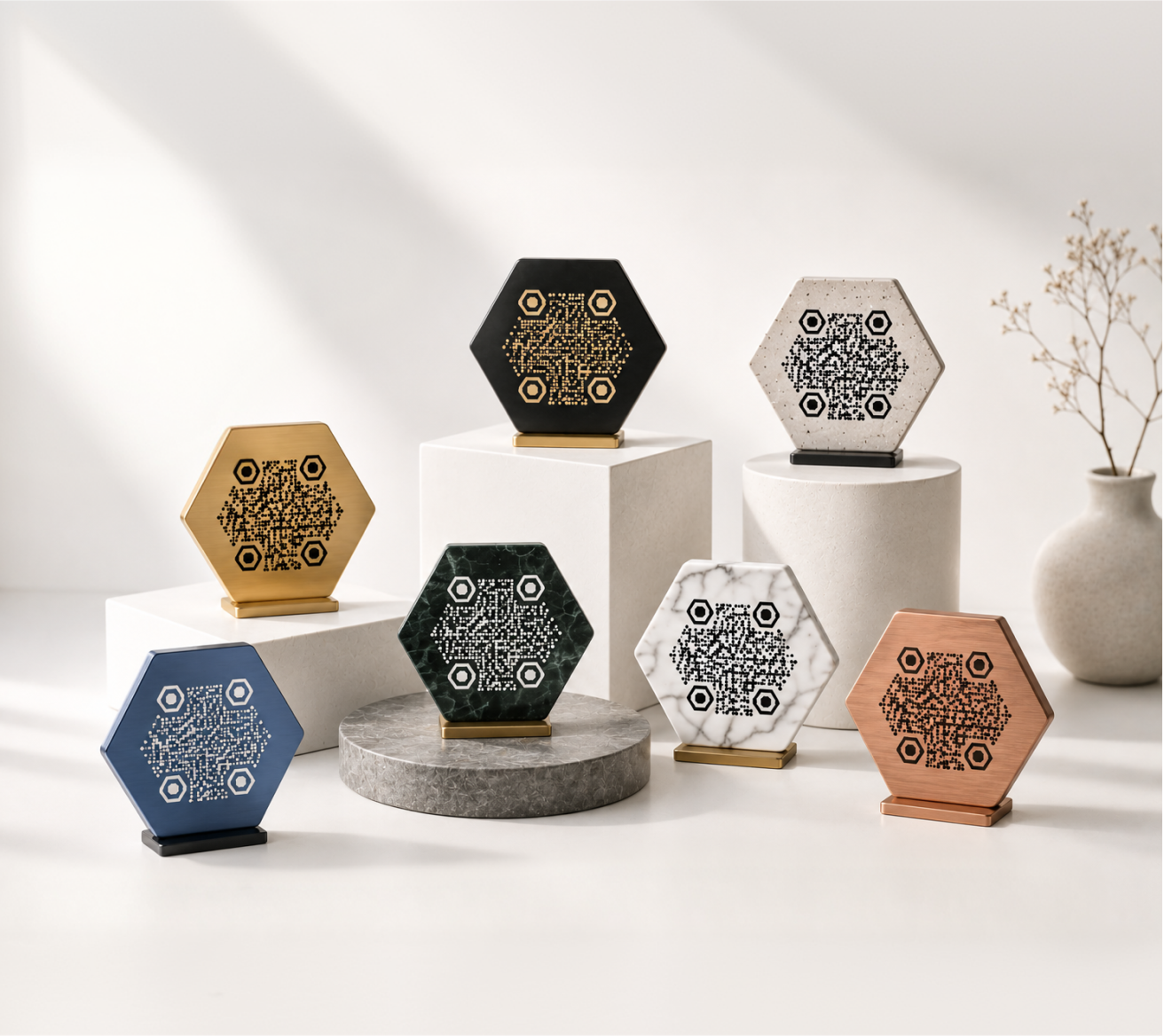
Most QR codes are square. That's the default — and for good reason. But the square shape isn't a technical requirement. With the right tool, you can create a QR code that fits a circular frame, a round sticker, or a badge without sacrificing scannability.
This page covers what round QR codes are, how they're built, what they're best used for, and how to make one that actually looks good.
What Makes a QR Code "Round"?
A standard QR code is a grid of black-and-white squares arranged in a square boundary. The round version keeps the same underlying data structure but applies a circular mask or frame around it — clipping the outer edges and shaping the visual into a circle.
Some generators go further: they round the corners of individual data modules, replace square finder patterns with circular ones, or apply radial styling to the entire code.
The key is that the core data region remains intact. As long as the scanner can read the timing patterns and finder squares, the QR code will work regardless of the outer shape.
The role of error correction
QR codes include built-in error correction. This is the reason you can add a logo, apply a circular crop, or round the corners — and the code still scans. Higher error correction levels (Q or H) let you modify more of the visual without breaking functionality.
If you're designing a round QR code with a logo or heavy styling, using error correction level H gives you the most flexibility.
Do circular QR codes scan reliably?
Yes — when built correctly. The three finder squares (the large squares in three corners) must remain readable. As long as those are intact and the data modules aren't obscured, circular QR codes scan just as reliably as standard ones.
Test with multiple devices before printing or publishing.
Where Round QR Codes Work Best
The shape matters more in some contexts than others. Here's where a circular format genuinely earns its place.
Stickers and labels
Round stickers are one of the most common print formats. A square QR code on a circular sticker always leaves awkward white space in the corners. A circular QR code fills the shape naturally and looks intentional rather than forced.
This works especially well for product labels, packaging seals, and branded stickers.
Business cards and badges
A circular QR code placed on a business card can sit alongside a logo or in a corner without looking out of place. On event badges or lanyards, it's easier to incorporate a round element into existing design layouts.
Wax seals and stamps
Circular QR codes have become popular as a modern take on wax seal aesthetics — used on wedding invitations, premium packaging, and handcrafted goods. The round shape matches the circular seal format naturally.
Coasters, buttons, and pins
Any physical item that's already round is a natural fit. A circular QR code on a coaster, button, or promotional pin requires no visual compromise.
Social media profile rings and icons
Some brands use circular QR codes as profile-adjacent visuals — small, self-contained, and recognizable as a design element rather than just a functional tag.
Design Principles for Round QR Codes
A circular QR code that looks good and scans reliably follows a few consistent rules.
Keep the finder patterns clear
The three finder squares — positioned in the top-left, top-right, and bottom-left corners — must be visible and unobstructed. Don't apply circular crops that cut into them. Don't overlay text or decorative elements on top of them.
If you're using a circular mask, make sure the mask radius is large enough to preserve all three finder patterns fully.
Choose contrast carefully
Dark modules on a light background is the baseline. If you're working with brand colors, keep the contrast ratio high. A light teal on white will scan. A medium gray on light gray will not.
Color combinations to avoid:
- Similar hues with low contrast (e.g., dark green on medium green)
- Light modules on a white background
- Gradient fills that fade into the background
Use a logo at the center
The center of a QR code is the safest place to add a logo, because the data encoded there is the most redundant. With error correction level H, you can safely cover up to about 30% of the code area.
Keep the logo small, use a white or solid-color background behind it, and avoid overly detailed images at small sizes.
Match your brand without overcomplicating it
Rounded module corners, a consistent color palette, and a clean frame are usually enough. The best-looking QR codes are the ones that feel like part of the design — not an afterthought dropped onto it.
KoloQR lets you adjust colors, add a logo, and export circular QR codes in print-ready formats without needing design software.
Real-World Examples
Seeing the concept applied to real contexts makes it easier to plan your own.
Wedding stationery — A wax-seal-style circular QR code linking to an RSVP page or wedding website. Placed on the envelope back or inside the invitation. Styled to match the invitation's typeface and color scheme.
Restaurant menus — A circular QR code on a coaster linking to the drink menu. No paper menu needed, and the round shape fits the coaster format without any cropping awkwardness.
Artisan product packaging — A small circular QR code on a kraft paper label linking to ingredient sourcing or a brand story page. Styled in earthy tones to match the packaging aesthetic.
Event lanyards — Circular QR codes on badge inserts linking to a digital schedule or speaker bios. The round format integrates more naturally into badge designs than square alternatives.
Social media bios — A circular QR code used as a "scan to follow" element on printed promotional material, matching the platform's circular profile image format.
How to Create a Round QR Code
The process is straightforward with the right tool.
- Enter your URL or content — this is the data the QR code will encode.
- Choose a circular or rounded output format — look for shape options in the style settings.
- Set error correction to H — this gives you room to add a logo or apply heavier styling.
- Add your logo or icon — centered, with a solid background, at a size that doesn't exceed about 25–30% of the code area.
- Adjust colors — keep contrast high. Test the color combination before finalizing.
- Export in a print-ready format — SVG or high-resolution PNG for physical materials.
With KoloQR, you can do all of this from the browser — no account required to start, and no design software needed.
What Format Should You Export?
For print: SVG is ideal. It scales to any size without losing quality — useful for stickers, posters, or anything that might be reproduced at multiple sizes.
For digital use: PNG at 1000px or higher covers most screen and web needs. If you're embedding the QR code in a presentation or social post, PNG works well.
For professional print production: ask your printer what they prefer. Most accept SVG or high-resolution PNG. If they need a specific format, check if your generator supports it before committing to a design.
Start With a Template or Build From Scratch
If you're new to QR code design, starting with a template saves time. Look for circular templates that already have the finder patterns positioned correctly and the error correction set appropriately.
If you're building from scratch, go step by step: get the code scanning first, then add styling layer by layer. Confirm scannability after each change.
KoloQR includes circular QR code templates you can customize with your own colors, logo, and content — then export immediately in the format you need.