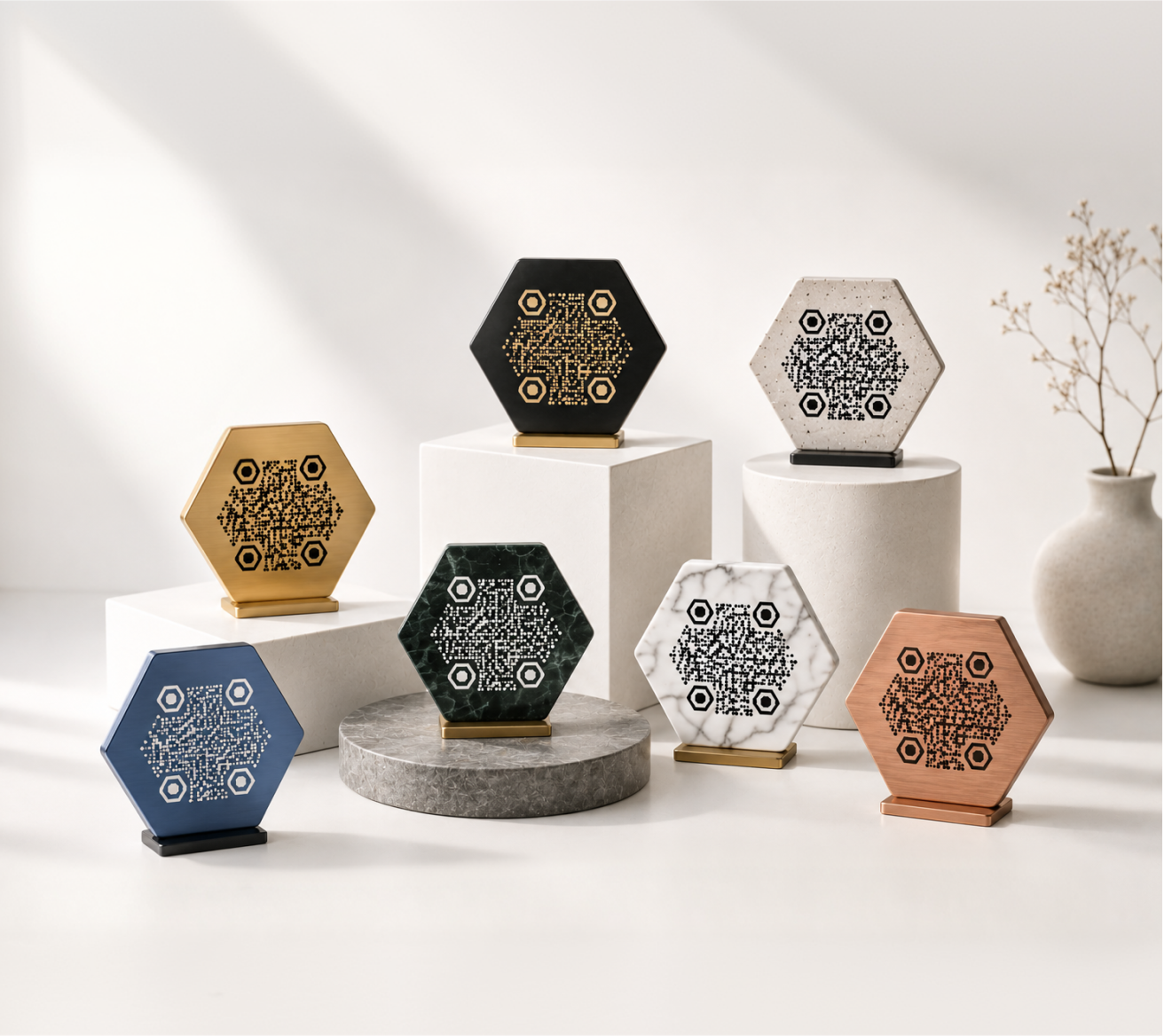
Asking guests to type a long WiFi password is a friction point nobody needs. A WiFi QR code solves it: scan once, connect automatically. No typing, no reading out letters, no "is that a zero or an O?"
This page explains how WiFi QR codes work, where they're most useful, and how to create one that looks good wherever you put it.
What Is a WiFi QR Code?
A WiFi QR code encodes your network name (SSID), password, and security type into a scannable image. When someone scans it with their phone camera, the device prompts them to join the network — no manual input required.
It works on both iOS and Android without any extra app. The camera app handles everything.
What Information Gets Encoded
A WiFi QR code stores three pieces of data:
- Network name (SSID) — the name of your WiFi network
- Password — your network password
- Security type — typically WPA/WPA2, WEP, or open (no password)
None of this data is sent to a server. It lives entirely inside the QR code image itself, which means it works offline and doesn't require an active internet connection to function.
How the Connection Works
When a phone camera scans the code, the operating system reads the encoded credentials and presents a one-tap prompt: "Join [Network Name]?" The user taps yes, and they're connected. The whole process takes about three seconds.
Where WiFi QR Codes Are Most Useful
WiFi QR codes work anywhere you'd normally hand out a password. A few places where they make a real difference:
Cafés, Restaurants, and Bars
Table cards with a WiFi QR code are one of the most common uses — and for good reason. Staff don't have to repeat the password, customers don't have to ask, and the connection experience feels polished rather than clunky.
Print the code on a small tent card or add it to the back of your menu. If you change your password regularly, regenerate the code and reprint — it takes minutes.
Hotels and Short-Term Rentals
Guests arrive tired and just want to get online. A framed WiFi QR code in the room or on the welcome card removes one more step from check-in. It also reduces "what's the WiFi password?" messages to property managers.
For Airbnb hosts and boutique hotels, it's a small detail that adds up to a better first impression.
Offices and Coworking Spaces
Guest WiFi passwords in offices change often for security reasons. Instead of emailing new passwords or updating a whiteboard, regenerate the QR code and swap it out. Visitors scan it at the front desk or meeting room entrance.
Events and Conferences
At a venue, getting hundreds of attendees on WiFi quickly matters. A large-format banner or projected QR code at the entrance lets people connect before they've even found their seat.
Classrooms and Educational Settings
Teachers can display a WiFi QR code on a whiteboard or projector at the start of class. Students connect in seconds instead of waiting while the teacher reads out credentials.
How to Create a WiFi QR Code with KoloQR
KoloQR generates WiFi QR codes in a few steps:
- Open the QR code generator and select the WiFi type
- Enter your network details — SSID, password, and security type
- Customize the design — choose colors, add your logo, or switch to a circular style
- Export in the format you need: PNG for screens, SVG for print
The design options matter more than they might seem. A plain black-and-white QR code works fine on a printer, but a branded one with your colors and logo fits naturally into table cards, menus, and signage without looking like an afterthought.
Choosing the Right Export Format
- PNG — good for digital use: email signatures, websites, display screens
- SVG — best for print, scales to any size without losing quality
- High-resolution PNG — works for most print jobs up to A4 size
If you're printing on anything larger than A5, use SVG or request a high-DPI export to avoid a pixelated result.
Design Tips for WiFi QR Codes
A QR code that blends into your space performs better than one that looks tacked on. A few practical notes:
Keep enough contrast. The foreground (the dark modules) needs to stand out clearly from the background. Light-on-dark can work, but test it first — some color combinations reduce scan reliability.
Leave a quiet zone. QR codes need a margin of empty space around them to scan correctly. Don't crop right to the edge of the code.
Test before you print. Scan the code from multiple devices before committing to a print run. Different camera apps behave slightly differently.
Size for the scanning distance. A code on a table card can be small (about 3 cm / 1.2 in). A code on a wall poster needs to be much larger — roughly 10× the scanning distance divided by 10 is a useful rule of thumb.
Privacy and Security Considerations
A few things worth knowing before you generate and display a WiFi QR code:
Your password is visible inside the code. Anyone with a QR code reader can decode the SSID and password. This is expected behavior — the code is a convenience tool, not an encryption layer.
Use it for guest networks. If you're putting a QR code in a public space (café, lobby, event venue), make sure it connects to a guest or isolated network rather than your primary internal network.
Rotate passwords on shared codes periodically. If your network password changes, the old QR code stops working. Regenerate and reprint the code to keep it current.